Answer chats · Step-by-step guide
Send a chat's record to your CRM
Who can open itViewer: noOperator: yesSupervisor: yesAdmin: yes
The card and its buttons use your company’s own word for a record, such as “lead” or “enquiry”, and your CRM’s name. This page says “record”.
Before you start
Section titled “Before you start”- You are an Operator, Supervisor or Admin. A Viewer can read the card but not change or send it (Roles).
- An Admin has connected your CRM, or your own system, on Integrations (Connect your CRM, Send records to your own system).
- The chat is closed. A record cannot be sent from an open chat; the brief says “Send the record once the chat closes.”
-
Open Follow-up. On Chats, choose Follow-up (or press
2). It lists closed chats where the visitor left contact details and nothing has been sent or ruled out yet. Use Owner to see only Mine or Unassigned. Open one. -
Read the record card. On a wide screen it opens beside the chat, on the tab named in your company’s word; on a narrower one it takes the place of the details in the chat’s brief. A line at the top says how ready it is, such as “Ready: contact verified; need and budget captured.”
-
Check each row. A check marks a value the visitor submitted or your team set. A name or company tagged “AI guess” is the AI’s reading: press Confirm if it is right. A note under the email or phone warns of a likely typo, a throwaway address or a premium-rate number. Point at a value to see the visitor’s words it came from.
-
Fix what is wrong. Press the pencil on a detail, or Edit all, change it and press Save. The AI never writes over what you type. Press Edit description to change the text your CRM receives. A record needs at least a name, a company, an email or a phone, and some CRMs need more: HubSpot a name or email, Freshsales an email or phone, Zoho CRM and Salesforce a name or company.
-
Press Send record to {CRM}. A review opens: “This is what will be sent to {CRM}.”, with every field, the field of your CRM each one goes into, and a line naming what is not sent (the transcript, notes and tags never are).
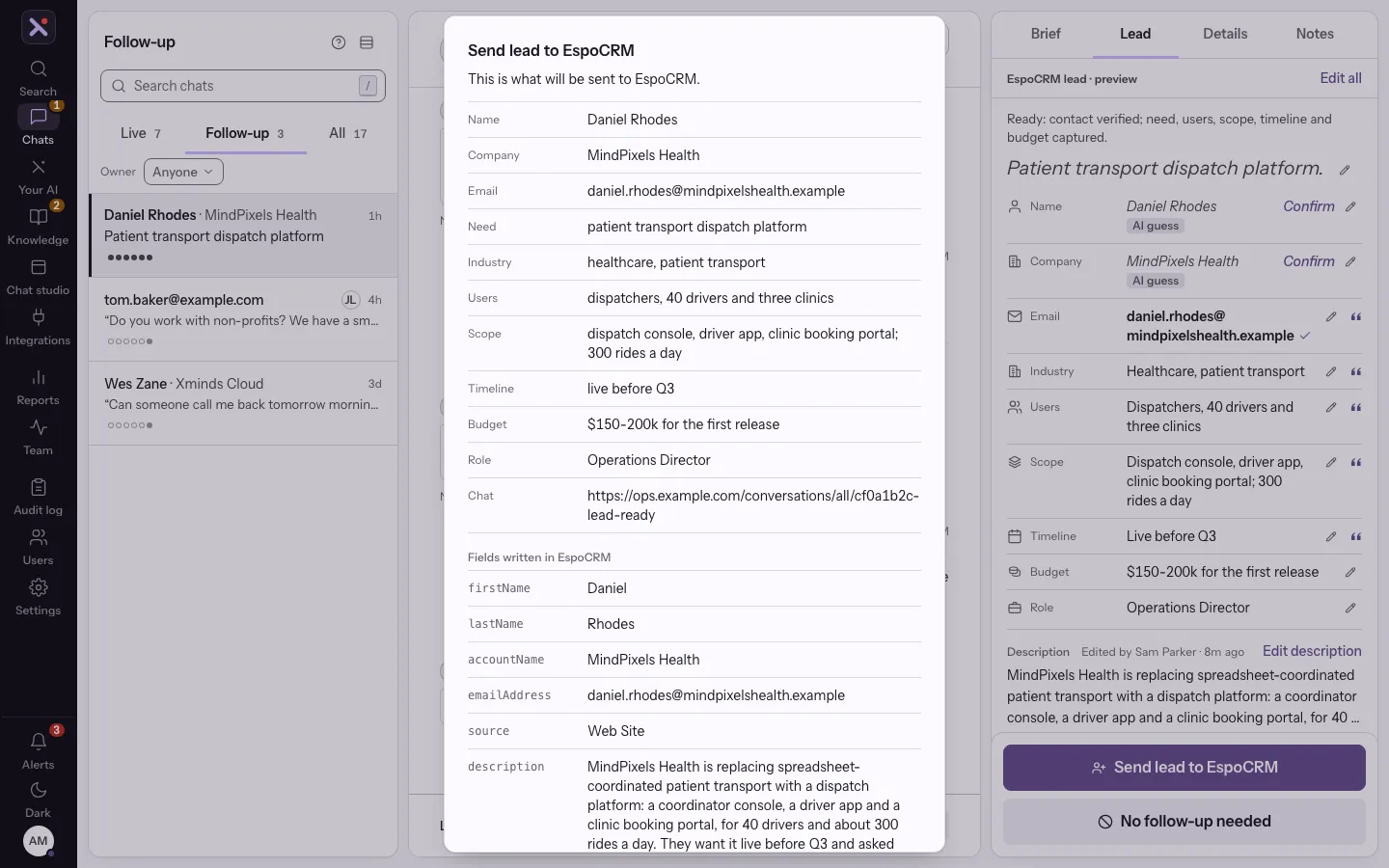
-
Press Send record. A message says the record was sent, the card shows when and by whom, and View record opens it in your CRM when the CRM gives a link. The chat leaves Follow-up, and the brief’s Chat progress reaches In CRM (What this panel means at the top of the brief explains each step).
-
Or press No follow-up needed if nothing should be sent. A message says “Marked as needing no follow-up” with Undo, and the chat leaves Follow-up. Restore on the chat brings it back. To do this for several chats, select their rows and use the bar that appears (Act on chats from the list).
-
Update a record you already sent. If a detail changes afterwards, the card says “Changed since it was sent.” Press Update record in {CRM}, then Update record. It changes the record already in your CRM and never makes a second one.
If something goes wrong
Section titled “If something goes wrong”| What you see | What to do |
|---|---|
| “Add a name, company, email or phone before sending the record.” | Fill in one of the four on the card. |
| “Add … before sending to …”, naming your CRM | Your CRM needs a detail the record does not have yet. Add the one the message names on the card, then send again. |
| “Save or cancel the Budget change first” (with the row you were editing) | You have a row or the description open. Press Save or Cancel on it, then send. |
| “The CRM is not connected. An admin can set it up on the Integrations page.”, or that it is not fully set up | Ask an Admin to finish the connection on Integrations. Until then, follow the visitor up directly. |
| A message that your CRM already has this person, with Send anyway | What it does depends on the CRM. Ask your Admin, or see Connect your CRM. |
| “Someone else is sending this record right now.” | A colleague pressed send at the same moment. The card then shows what they sent. |
| “The CRM connection needs to be set up again.” | Your CRM no longer accepts the saved key. Tell an Admin: nothing can be sent until they fix it. |
| The send failed, with Try again | The message says why. If it names a field of your CRM, tell your Admin, who fixes where that field goes on Integrations. |
| The card has no description, or reads “No brief was written” | Press Write brief to have the AI read the chat again; it needs at least two visitor messages. You can also press Write description and type one. |
Related
Section titled “Related”- Close a chat and send its record: every part of the record card
- The AI’s brief: checking and correcting what the AI learned
- Connect your CRM
- What the AI learns: what the card asks for
- Handle a waiting chat
Reviewed
Source files for this page
apps/dashboard/src/views/workspace/Disposition.tsxapps/dashboard/src/views/workspace/ActionBar.tsxapps/dashboard/src/views/workspace/Workspace.tsxapps/dashboard/src/views/workspace/brief/RecordReview.tsxapps/dashboard/src/views/workspace/brief/DescriptionBlock.tsxapps/dashboard/src/views/workspace/brief/recordState.tsapps/dashboard/src/views/inbox/Queue.tsxapps/dashboard/src/views/inbox/BulkBar.tsxapps/dashboard/src/views/workspace/contactNotes.tsapps/dashboard/src/views/workspace/Understanding.tsxservices/api/app/crm/__init__.pyservices/api/app/crm/hubspot.pyservices/api/app/crm/freshsales.pyservices/api/app/crm/zoho.pyservices/api/app/crm/salesforce.py

