Teach your AI
Knowledge, A YouTube channel
Who can open itViewer: noOperator: noSupervisor: noAdmin: yes
When it is included
Section titled “When it is included”YouTube channels are part of your plan unless the platform has taken them away for your company: ask your EveryKnock contact. Without them, Add knowledge offers no A YouTube channel, a channel you added shows Not in your plan on Sources and cannot be changed, no update reads it, and the AI stops using its videos until they are back. Nothing is deleted, so the answers return with them.
Where to find it
Section titled “Where to find it”Work, Knowledge, then Add knowledge and A YouTube channel, or the channel’s row on Sources (it carries “YouTube” after its name). It opens in a drawer. Only an Admin can open it. A saved channel has two tabs: Videos, what the AI read from it, and Set-up.
Add a channel
Section titled “Add a channel”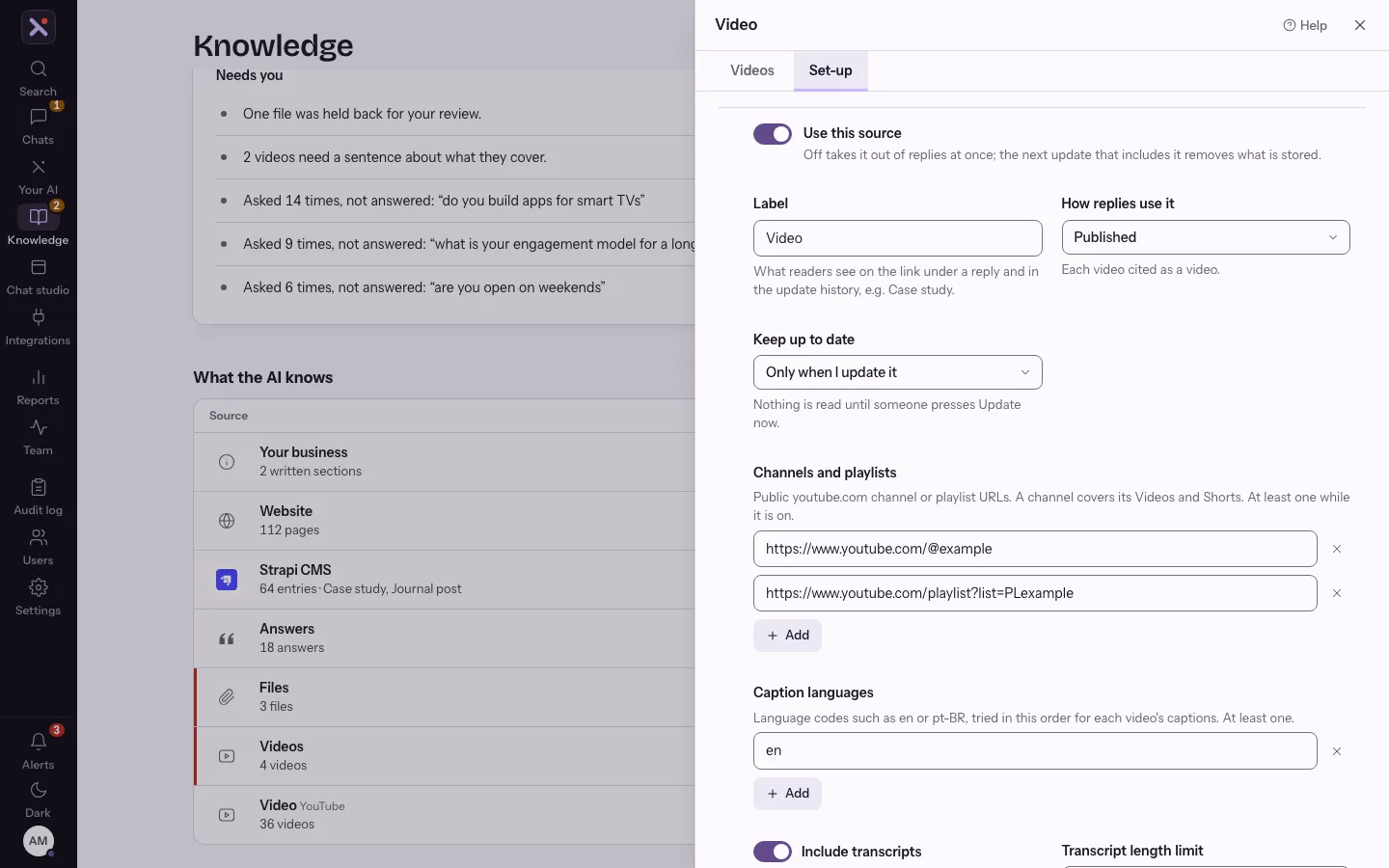
-
Leave Use this source on.
-
Fill in the set-up:
Field What to enter Starts as Label What visitors see on the link under a reply, and what the update history calls it. Up to 40 characters “Video” How replies use it Published shows each video as a link under a reply that uses it. Background uses the videos without ever showing them Published Keep up to date Only when I update it, Every day or Every week Only when I update it Channels and playlists The public address of each channel or playlist, one per row, starting with https://www.youtube.com/, such ashttps://www.youtube.com/@yourcompany. A channel covers its Videos and Shorts. At least oneEmpty Caption languages Language codes such as enorpt-BR, one per row. They are tried in this order for each video’s captions. At least oneenInclude transcripts On adds each video’s captions to what the AI reads, so it can answer from what is said. Off keeps only the title and description On Transcript length limit The most characters kept of one video’s captions, from 0 to 200,000. A longer transcript is cut at a paragraph. 0 means no limit 8,000 -
Press Save. The drawer closes, and the AI reads the channel about a minute later. A channel with many videos can take a while.
-
Open the channel’s row again: the Videos tab lists each video the AI read. Ask about one on Test and fix.
Tidy up the text, under the fields, works as it does for a website (A website).
Keep it current
Section titled “Keep it current”A new channel is set to Only when I update it, so a video you publish later is not read until you update. Choose one:
- Set Keep up to date to Every day or Every week, and save. The set-up then shows “Next update:” with the date.
- Or press Update now in the channel’s Set-up whenever you publish. It is greyed while you have an unsaved change or another update is going.
Under the fields, a line says when the channel was last read and whether replies use what is saved.
Turn it off or remove it
Section titled “Turn it off or remove it”To stop using the channel:
- Switch off Use this source and press Save. When videos are already stored, a window asks “Turn off” and the channel’s name: press Turn off and save. The videos leave answers at once.
- The next update that includes the channel removes what is stored: press Update now in its Set-up.
Remove source is available only once no videos are stored (a line beside it says how many still are): turn the channel off, save, update it, then press Remove source and confirm.
To leave out one video and keep the rest, use Keep out on the Videos tab (Knowledge).
Good to know
Section titled “Good to know”- Not read in the last update, on the Videos tab, lists videos it could not read, such as a private video, with the reason. Keep out stops updates trying one that only ever fails.
- Discard puts the set-up back to what is saved.
- When a scheduled update fails, your team is told once, if A scheduled knowledge update fails is on (When to alert).
If something goes wrong
Section titled “If something goes wrong”| What you see | What to do |
|---|---|
| “YouTube refused our server…” | YouTube turns away some servers, and trying again gets the same answer. Add the videos you need one at a time under Videos, which reads nothing from YouTube |
| “…is not a youtube.com channel or playlist URL.” | Use the full address from your browser, starting with https://www.youtube.com/ |
| “Add at least one channel or playlist while the source is on.” | Add an address, or turn the source off |
| “Pick at least one caption language, e.g. en.” | Add a language code under Caption languages |
| “Transcript length limit must be a whole number from 0 to …” | Save takes you to Transcript length limit: type a whole number in the range it names |
| “Another source is already labelled…” | Change the Label |
| “The AI is already updating. Try again when it has finished.” | Wait for the update going now |
| Remove source is greyed | Videos are still stored. Turn it off, save and update it first |
Related
Section titled “Related”Reviewed
Source files for this page
services/api/app/rag/source_kinds.pyservices/api/app/settings/features.pyapps/dashboard/src/views/knowledge/SourceDrawer.tsxapps/dashboard/src/views/knowledge/SourceDocuments.tsxapps/dashboard/src/views/knowledge/YouTubeEditor.tsxapps/dashboard/src/views/knowledge/SourceEditor.tsxapps/dashboard/src/views/knowledge/SourcesTab.tsxservices/api/app/knowledge/knowledge_messages.pyservices/api/app/knowledge/rag_sources.pyservices/api/app/routers/sources.pydocs/RAG.md

