Teach your AI
Your AI
Who can open itViewer: noOperator: noSupervisor: noAdmin: yes
The brief is what your AI is told about your business. What it answers from is on Knowledge; how the chat looks is in the Chat studio.
Where to find it
Section titled “Where to find it”Your AI in the menu, under Work. Only an Admin can open it. On a phone each section folds to one line: tap its name to open it.
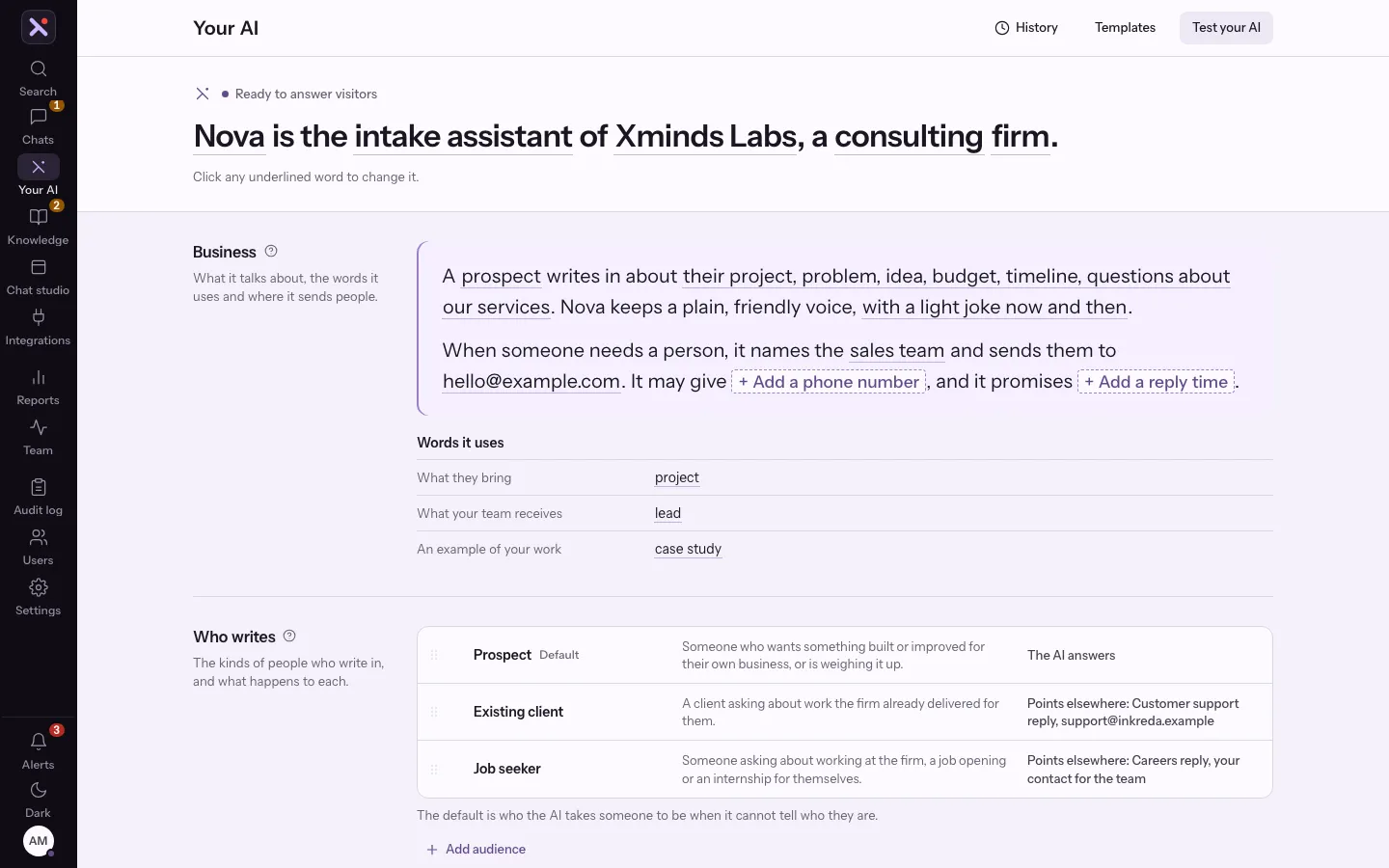
What each part tells the AI
Section titled “What each part tells the AI”The top of the page says who your AI is in one sentence (“Sam is the assistant of Inkreda, a consulting business.”) and whether it is answering: Ready to answer visitors, or Not answering yet. Until a company name is saved, every visitor is offered a person instead of an answer.
| Section | What it tells the AI |
|---|---|
| Business | Who writes in and what they may ask about, whether a light joke suits you, the words your business uses, where to send people and how soon they hear back |
| Who writes | The kinds of people who write in, and whether the AI answers each or points them elsewhere |
| Restricted topics | Subjects the chat should not simply answer, and what it does instead |
| What the AI learns | What to find out in a chat, in the order the AI asks |
| What counts as a success | Which chats Reports counts as successful |
| How it answers | What the AI may and may not do about prices, past work, code, doing the work, naming people and how data is handled. Each starts at its strictest |
A section your plan does not include is not shown.
The words you can change
Section titled “The words you can change”Every underlined word is one setting. Its length, starting value and more examples are on Business.
| Where it reads | Setting | Example |
|---|---|---|
| “Sam is the …” | Your AI’s name. Empty: “the Inkreda assistant” | Sam |
| “… is the assistant of …” | What you call your AI’s role | intake assistant |
| “… of Inkreda …” | Company name, as visitors should see it | Inkreda |
| “… a consulting business.” | Type of business, then What you call your business | consulting, firm |
| “A visitor writes in about …” | What you call the people who write in, singular | customer |
| “… writes in about …” | Topics the AI helps with. Anything else is turned away kindly | their needs, and questions about our services |
| “… with no jokes.” | Light humour in replies: Off or Light | Off |
| “… it names the team …” | What you call your team | sales team |
| “… and sends them to …” | Contact for the team: one email address, web address or phone number | sales@inkreda.example |
| “It may give …” | Phone numbers the AI may give, one per row. The AI gives no other number | +1 415 555 0100 |
| “… a reply within …” | Promised reply time: a number and minutes, hours, business days or days | 1 business day |
| Words it uses | What you call what they bring, What you call what the team receives and What you call examples of your work, each singular | request, record, case study |
A blank that matters shows as a prompt in the sentence, starting with a plus sign: Add company name, Add type of business, Add what visitors may ask about, Add a contact, Add a phone number and Add a reply time. Fill the company name, type of business and topics first, so the answers are about you. With no Contact for the team, the AI can only say the team will be in touch.
Start from a template
Section titled “Start from a template”Press Templates, or Start from a template for your industry under the sentence at the top while no type of business is set. There is one for Banking, Education, Healthcare, Insurance, Online retail, Professional services, Real estate, Software, Telecom, and Travel and hospitality.
- In Start from a template, press See what it holds to read a template’s words, who writes in, its restricted topics and what it learns.
- Press Use this template. It goes into your draft: “The Insurance template is in your draft. Review and save to make it live.” If you have unsaved changes, you are asked first: “Replace your unsaved changes?”
- Change anything that does not fit, test it, then save it as below.
A template replaces your business words, Who writes, Restricted topics, What the AI learns and What counts as a success. Your company name, contacts, reply time, How it answers and what the AI knows stay as they are, so your team still gives every price until Prices and terms is changed. A template is a starting point, not legal or compliance advice: have its wording checked by whoever answers for it in your company.
Change a word or a row
Section titled “Change a word or a row”- Click an underlined word. A small editor opens beside the sentence with the setting’s help and, where it has one, its knock-on effect. The sentence changes as you type.
- Press Enter to keep what you typed, or Esc to put it back. Reset to default returns the starting value.
- In a list (Who writes, Restricted topics, What the AI learns), click a row to open its form, or use Add audience, Add topic or Add something to learn. How a list works, and every field of its form: Who writes, restricted topics and what the AI learns.
- Under How it answers, each answer setting is a question with its answers side by side; choose one. An answer with a lock is not open to your company yet.
- A section with unsaved changes shows a dot beside its name, and the bar at the top counts them (“3 unsaved changes”). On a phone the bar is at the bottom of the page.
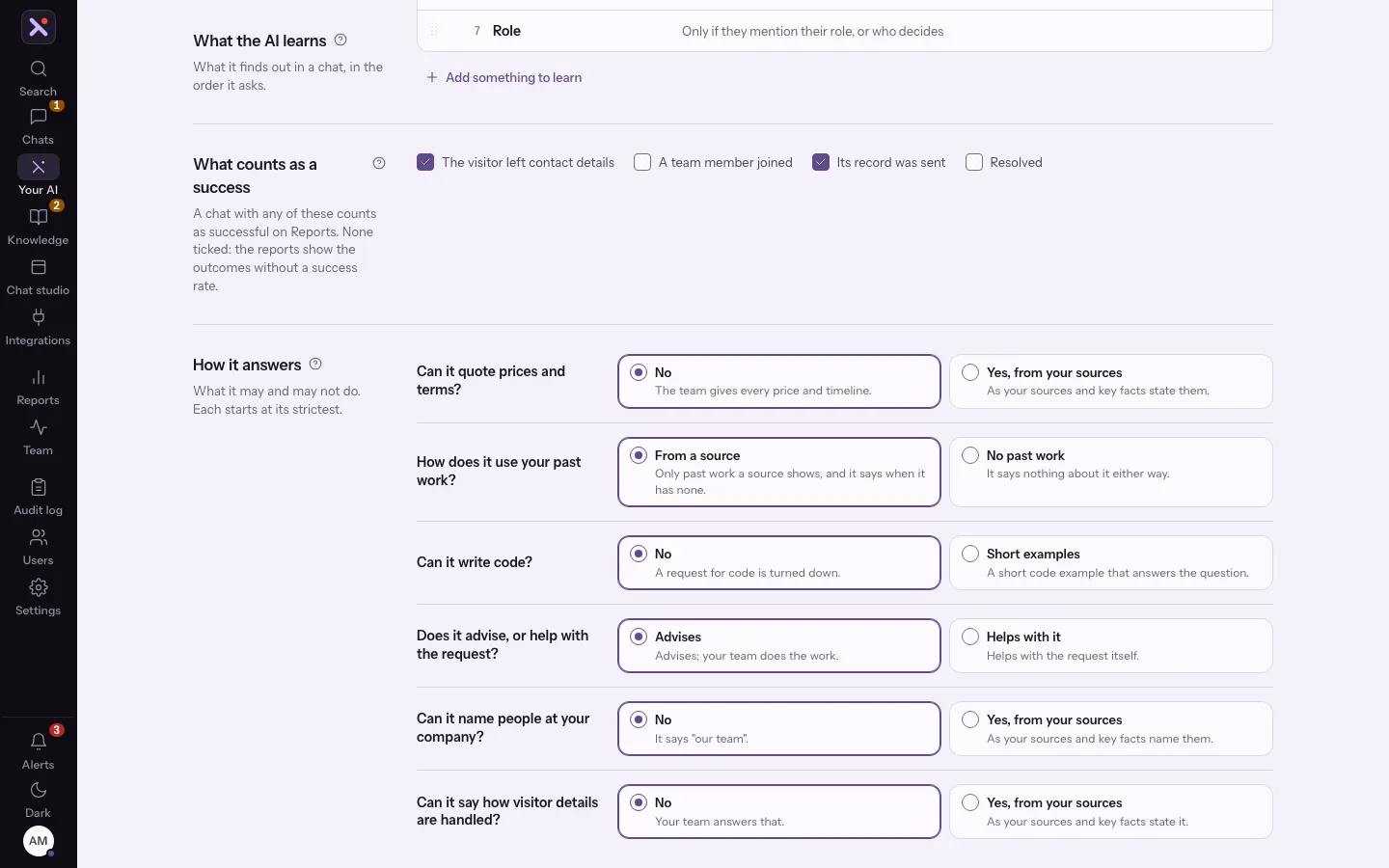
Discard asks “Discard your changes?” and then puts everything back to what your AI uses now.
Test before you save
Section titled “Test before you save”Press Test your AI. A chat opens beside the brief, running on the brief as it stands, saved or not. It says “Testing with your 2 unsaved changes.” or “Testing what is saved.”
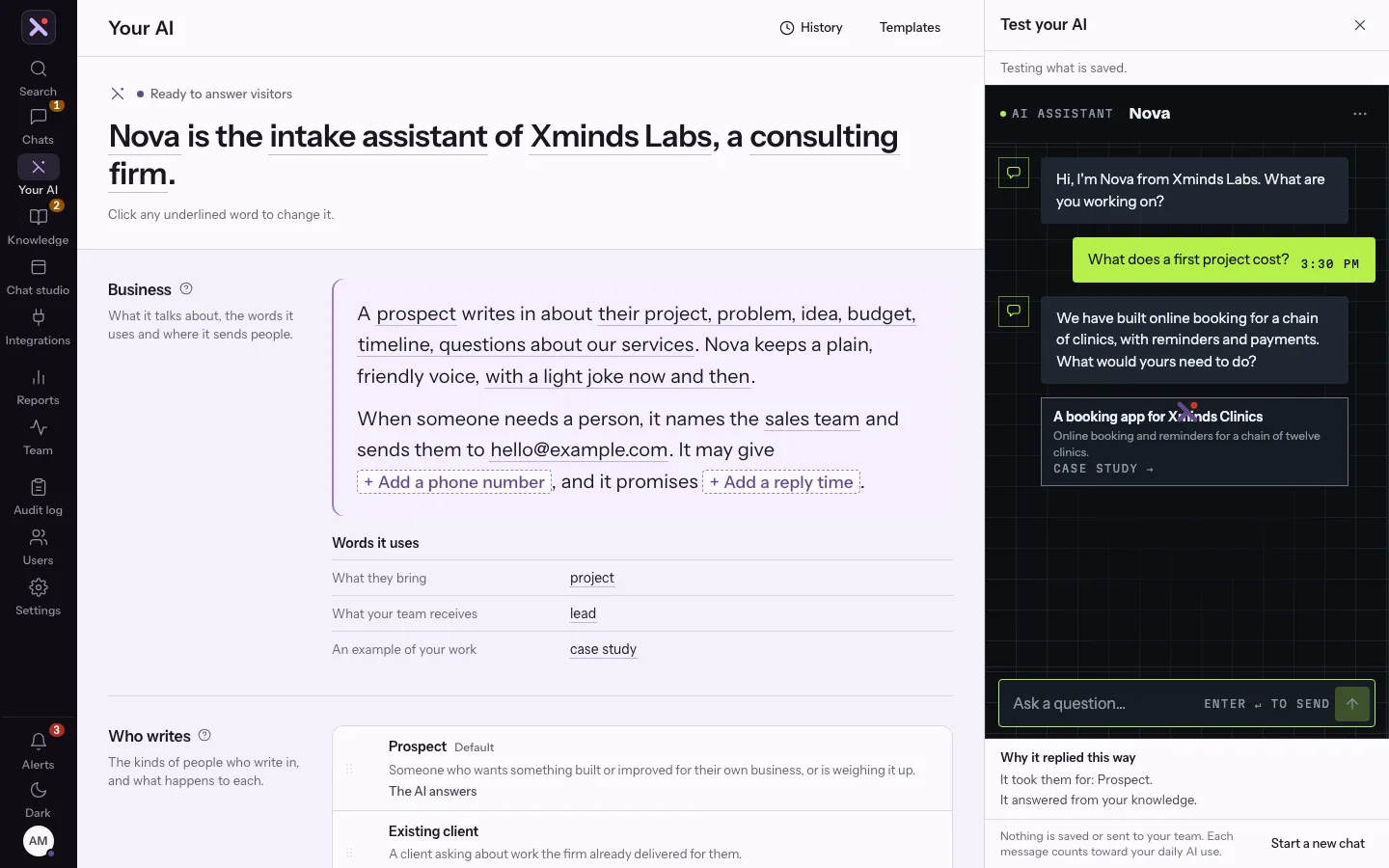
- Ask what a visitor would ask.
- Read Why it replied this way under the chat: who it took the visitor for, any restricted topic it noticed, and what it did, for example “It answered from your knowledge.” or “It declined: this is a restricted topic.” It also says what a real chat would do next, such as “Here a visitor would be offered your team.” or “A safety check changed this reply, as it would for a visitor.”
- Change the brief and ask again. Start a new chat begins a fresh test chat.
Nothing in the test chat is saved or sent to your team, but each message counts toward your daily AI use, as a visitor’s does. A value marked as needing a fix, or a row still being filled in, is left out of the test.
Review and save
Section titled “Review and save”- Press Save changes (or the count of unsaved changes). Review your changes opens, with every change under its section, what it was and what it will be.
- Press Undo on any change you do not want. A change with a knock-on effect says so.
- Press Save changes. Visitors get the new brief from their next message.
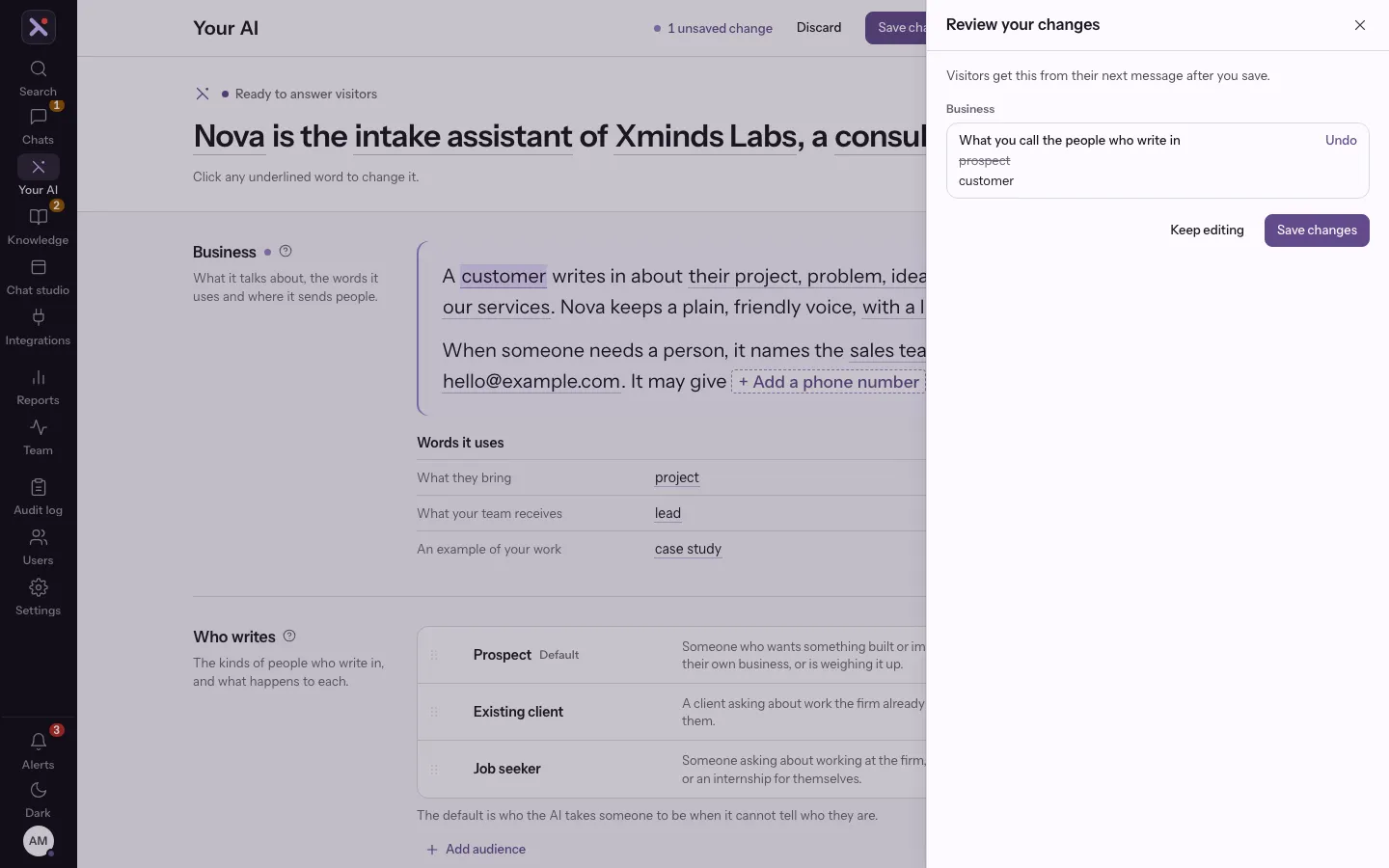
If a value needs fixing, the bar says how many (“1 value needs fixing before Save”) and the field is marked; fix it first. If part of a save is refused, the page opens the word or list concerned and the reason is shown under it.
Bring back an earlier version
Section titled “Bring back an earlier version”Press History. Version history lists every save, newest first, with when, who and how many changes. The newest is marked Live.
- Press Bring back on an earlier save. It goes into your draft: “Brought back into your draft. Review and save to make it live.”
- Test it if you like, then save it as above.
See every change in the audit log opens the Audit log at the settings changes.
Good to know
Section titled “Good to know”- An answer setting under How it answers can be relaxed only once your platform administrator has given your company that choice; until then it is shown locked, with the reason. One moved off its strictest choice is marked Relaxed. What happens when a choice is taken away: How it answers.
- Describe people and topics as they are (“someone looking for a job”), not as instructions to the AI. A description that reads as an instruction is refused.
- The AI’s name is also on the Chat studio’s Welcome screen. It is one setting.
If something goes wrong
Section titled “If something goes wrong”| What you see | What to do |
|---|---|
| Not answering yet at the top | Save a company name under Business |
| The AI says your own questions are outside what it can help with | Widen Topics the AI helps with in Business, test, then save |
| The test chat says “Your daily AI limit is reached: visitors would be told the assistant is busy.” | Your plan’s daily limit is reached, for visitors too. It lifts as earlier use passes 24 hours (Limits and abuse controls) |
| A choice under How it answers is locked | Ask your platform administrator to give it to your company |
| “Couldn’t save Restricted topics. The reason is under the list.” | Read the reason under that list, fix the row it names, then save again |
| Test your AI is missing | Your plan does not include the test chat. Ask your platform administrator |
Related
Section titled “Related”Reviewed
Source files for this page
apps/dashboard/src/views/yourai/YourAiPage.tsxapps/dashboard/src/views/yourai/TestChat.tsxapps/dashboard/src/views/yourai/ReviewChanges.tsxapps/dashboard/src/views/yourai/BriefHistory.tsxapps/dashboard/src/views/yourai/BriefTemplates.tsxservices/api/app/company/brief_templates.tomlapps/dashboard/src/views/yourai/TokenEditor.tsxapps/dashboard/src/views/yourai/changes.tsshared/web/src/views/settings/registry.tsxapps/dashboard/src/views/settings/AiRules.tsxapps/dashboard/src/views/settings/listRows.tsxapps/dashboard/src/views/settings/Audiences.tsxapps/dashboard/src/views/settings/RestrictedTopics.tsxapps/dashboard/src/views/settings/WhatTheAiLearns.tsxapps/dashboard/src/views/chatstudio/TryDrawer.tsxapps/dashboard/src/pages.tsxservices/api/app/settings/features.pydocs/SETTINGS.mddocs/CONVERSATION.md

