Your chat on your website · Step-by-step guide
Put the chat on your website
Who can open itViewer: noOperator: noSupervisor: noAdmin: yes
Before you start
Section titled “Before you start”- You are an Admin: only an Admin can open Chat studio (Roles).
- A company name is saved on Your AI. Without one the AI answers nobody and offers every visitor a person (Your AI).
- The AI has something to answer from on Knowledge. With nothing, it can only say it does not know (Knowledge).
- Someone can edit your website’s pages or its tag manager. They need only the code from step 5: no account and no password.
- If your website sets a security policy for what it may load, it must allow the chat’s addresses (Security policy and browsers).
-
Open Chat studio under Work in the menu. Until your chat is on a website, a banner says “Your chat isn’t on your website yet”.
-
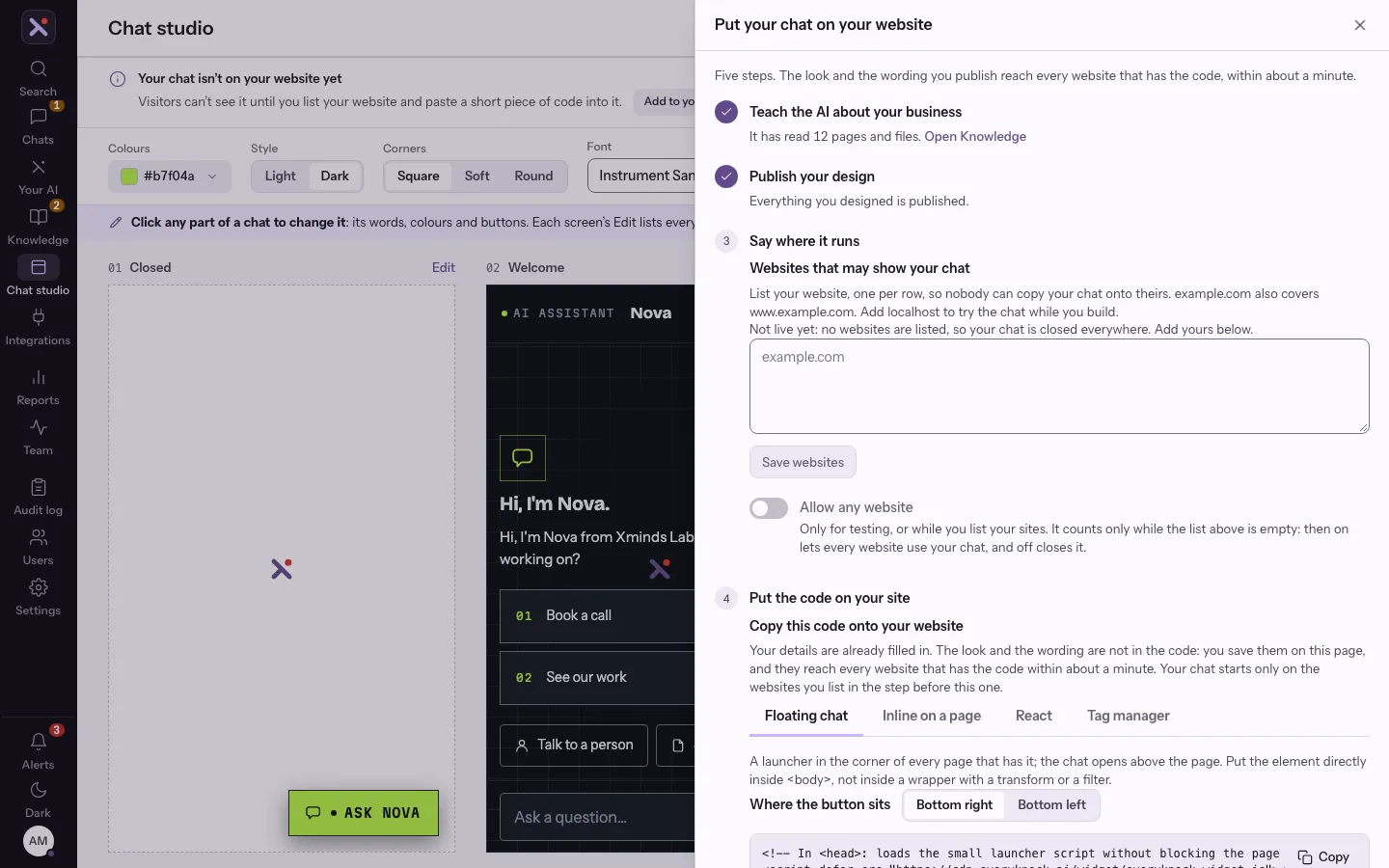
Press Add to website. Put your chat on your website opens with five steps and ticks each one that is done. If Publish your design is not ticked, press Review and publish there first, so visitors get the look and wording you chose (Choose how the chat looks).
-
List your website. At Say where it runs, type your domain in the box, one per row, such as
example.com, withouthttps://or a path. A domain also covers its subdomains:example.comcoverswww.example.com, but not the other way round. Addlocalhostto try the chat while you build the site. If your platform administrator gave your company a demo website, the page names it above the box: your chat already runs there, and it needs no row of its own (Your demo website). -
Press Save websites. A message says “Allowed websites saved”, and the status at the top of the page reads “Can start on example.com. No chat there yet”.
-
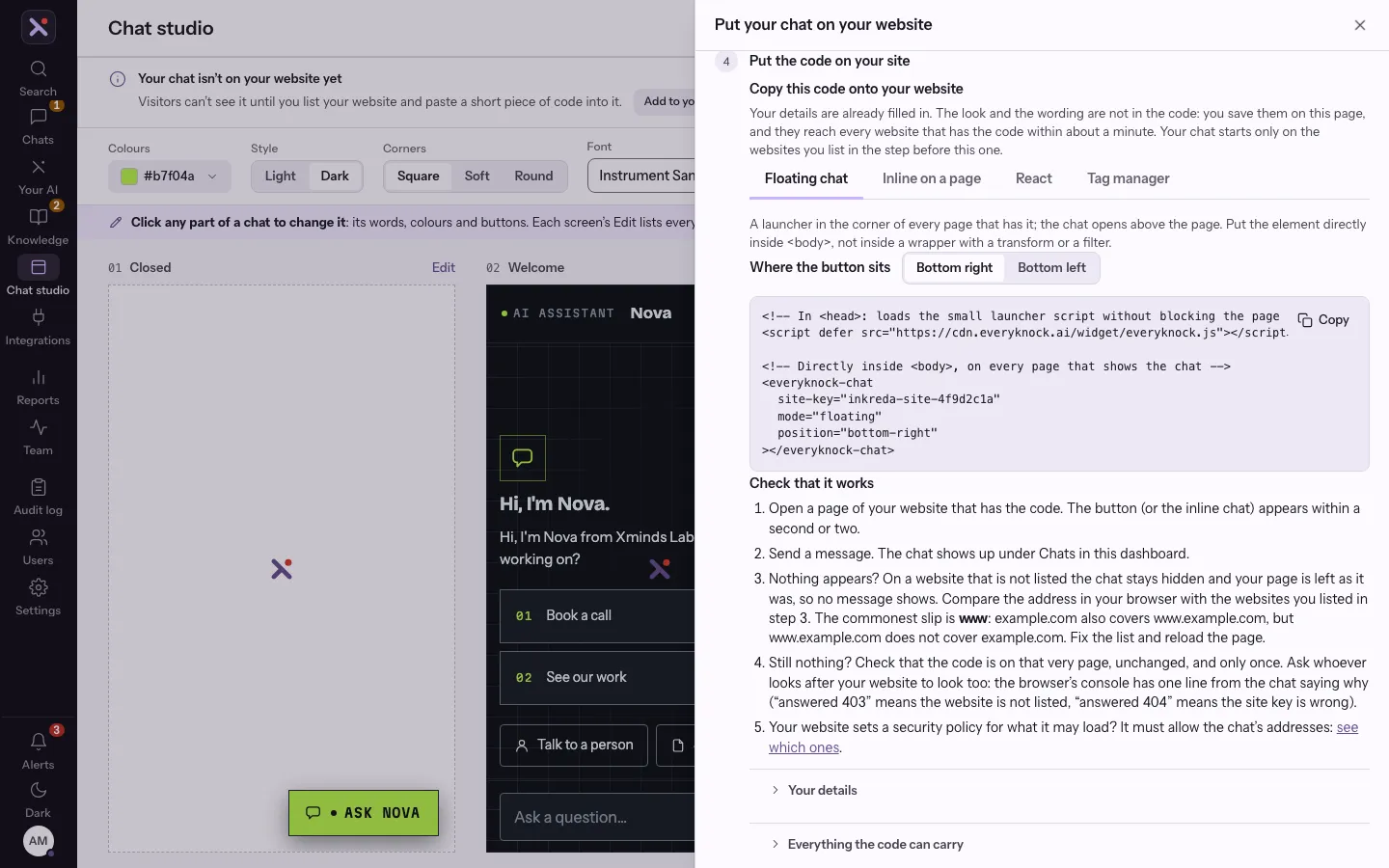
Copy the code. At Put the code on your site, choose Floating chat (a button in the corner of every page), Inline on a page (the chat fills a place in one page), React or Tag manager, then press Copy. For a floating chat you can choose Bottom right or Bottom left under Where the button sits. Your site key is already in the code.
-
Paste it into your website. For a floating chat, the script goes in the page’s head and the chat’s tag directly inside the body, on every page that should show the chat. With a tag manager, add it as a custom HTML tag that fires on all pages. Put the chat on a page once only (Embed and attributes).
-
Open your website. The chat’s button, or the inline chat, appears within a second or two.
-
Send a message. The AI answers, and the chat shows under Chats on Live. Within a minute, Chat studio’s status reads “Live: seen on example.com”, and the last step, See it arrive, is ticked: only a chat that started on your website counts, never a page that just opened.
-
Tidy up. Remove
localhostfrom the list if you added it, and keep Allow any website off.
A change you publish later in Chat studio, such as a new colour or greeting, reaches every page with the code within about a minute. The code itself does not change.
If something goes wrong
Section titled “If something goes wrong”| What you see | What to do |
|---|---|
| Nothing appears on the page | The website is not on the list. Compare the address in the browser with the list (the usual slip is listing www.example.com with the page on example.com), save, and reload the page. |
| Still nothing, and the website is listed | Check that the code is on that very page, unchanged, and only once. Then ask whoever looks after your website to open the browser’s console: the chat writes one line there saying why (When the chat cannot be drawn). |
| The button reads “Chat unavailable — try again” | The chat could not load. Press it to retry, and check the security policy. |
| The chat opens but the AI never answers | The AI service is not set up yet: the install steps say “AI replies are not available yet”. Only your platform administrator can put that right. |
| “Chat is not available right now. Please try again later.” | The bot check is on but its keys are wrong or missing (Connect the bot check). |
| A warning that any website is allowed | Allow any website is on. Any website with your code can start chats, which count against your limits. List your websites, then switch it off. |
| “Allowed websites can hold at most …” | Your company may list only so many websites. Remove one you no longer need, or ask your platform administrator to raise the number. |
| “Close your chat everywhere?” | You are about to leave no website listed with Allow any website off. The chat then stops on every website, yours included. Cancel unless you mean it. |
Related
Section titled “Related”Reviewed
Source files for this page
apps/dashboard/src/views/chatstudio/ChatStudio.tsxapps/dashboard/src/views/chatstudio/Launch.tsxapps/dashboard/src/views/chatstudio/EmbedGuide.tsxapps/dashboard/src/views/chatstudio/status.tsapps/dashboard/src/views/chatstudio/SeenLine.tsxapps/dashboard/src/views/install/AllowedWebsites.tsxservices/api/app/settings/limits.pyshared/web/src/views/install/samples.tsapps/widget/src/chatbot/strings.tsapps/widget/src/launcher-shared.ts

