Your chat on your website
The visitor chat
Who can open itViewer: yesOperator: yesSupervisor: yesAdmin: yes
This section shows the chat from the visitor’s side, so your team knows what a visitor went through and an Admin knows what each setting changes. Everyone on your team can read it. For your web developer: Embed and attributes, Security policy and browsers and Wording and strings.
The button and the window
Section titled “The button and the window”The chat is either a button in a corner that opens a window, or a chat inside a page. Your web developer chooses which.
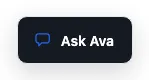
- The button reads “Ask” and the assistant’s name, unless you wrote your own words for it on the Closed screen of the Chat studio.
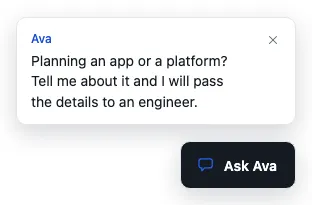
- You can add a short nudge beside the button, shown a few seconds after the page loads. A visitor who closes it does not see it again during that visit.
- The window stays open as the visitor moves between pages. An open chat carries on after a reload, on other pages of the same site and on a later visit in the same browser, until 30 days pass without activity.
- On a phone the window fills the screen; on a tablet it moves up above the on-screen keyboard while the visitor types.
- A reply while the window is closed shows a count on the button, and in a background tab the title flashes “(1) New message”. A team member’s message, never the AI’s, also chimes.
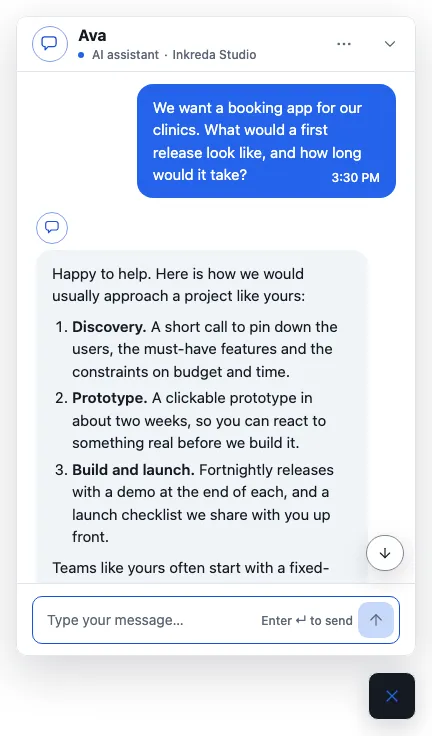
The header says who has the chat: “AI assistant” and your company’s name while the AI answers, “Waiting for the team” while a person is being found, the team member’s name and job title once one joins, and a grey dot once the chat has ended. A company set up for a demo also shows Demo in the header (A demo company).
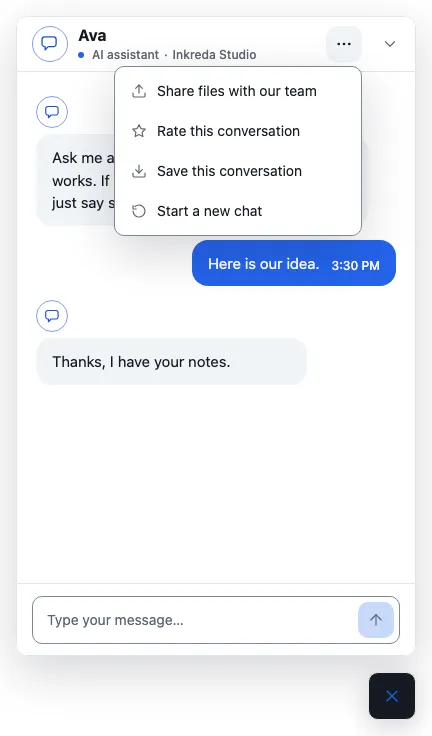
The More button in the header opens a menu with what the chat allows at that moment:
| Entry | Shows when |
|---|---|
| Share files with our team | Visitors may share files and the chat has not ended. A number on More counts the files shared so far |
| Rate this conversation | Ask visitors to rate the chat is Any time, the visitor has sent a message and the chat has not ended (the ended screen then has the rating) |
| Save this conversation | Someone has written in the chat, also after it has ended |
| Your privacy link | Your privacy line holds a link |
| Start a new chat | The AI has the chat (not while your team is being asked or has it). It asks “Start over? The team keeps this chat.” first, with Start over and Keep chatting |
The welcome screen
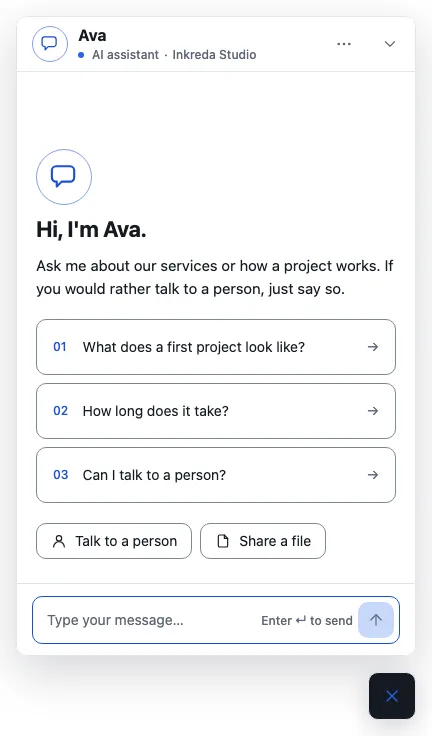
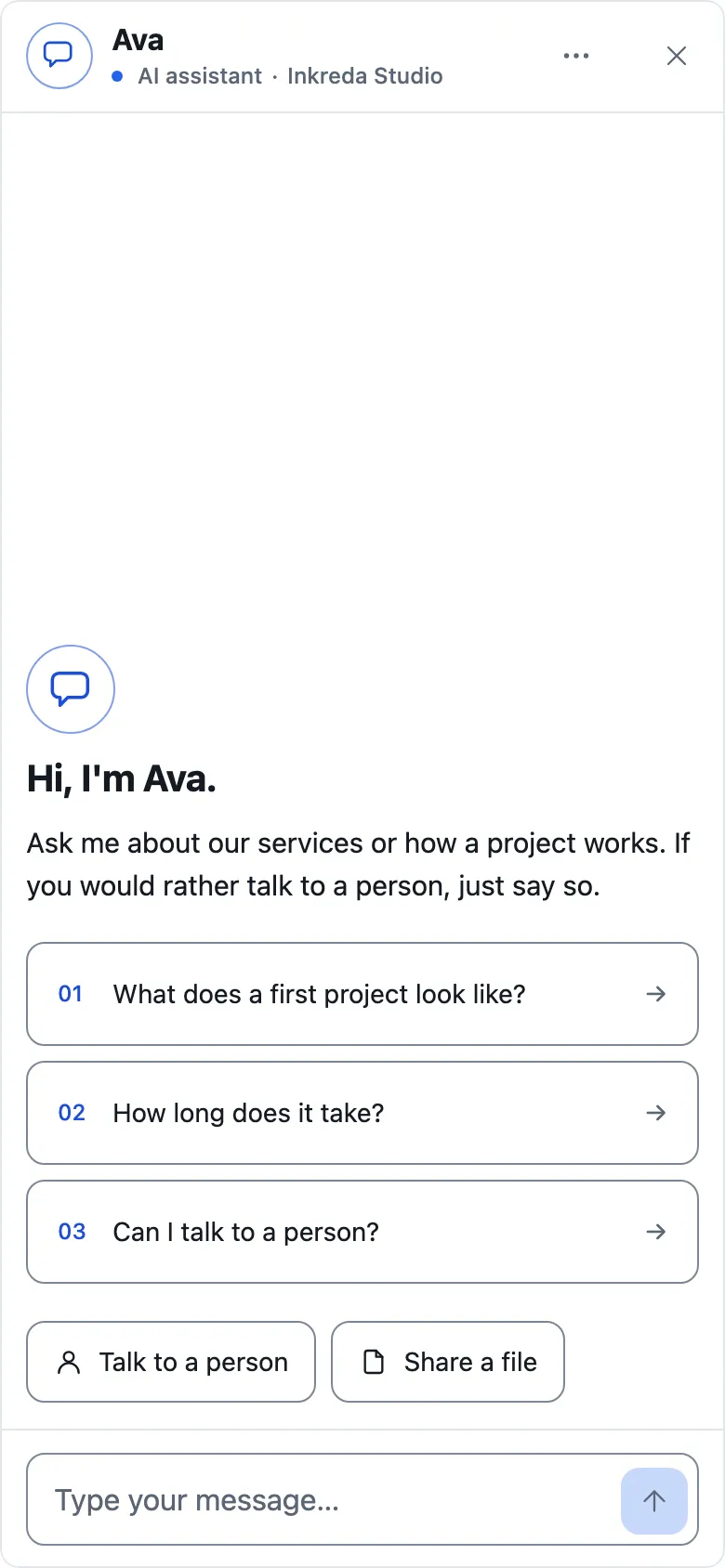
Section titled “The welcome screen”A new chat opens with your welcome picture (or the assistant’s avatar), the heading “Hi, I’m” and the assistant’s name, your welcome message, up to six suggested first questions, up to three buttons and your privacy line. Tapping a question sends it as the visitor’s first message.
| Button | Shows when |
|---|---|
| Talk to a person | You switch it on (it starts off, so the chat begins with the AI) and your company has Talk to a person |
| Share a file | It is on (the default) and visitors may share files |
| Schedule a call | It is on and the booking card is on with a booking link (Contact card and booking) |
A returning visitor sees their earlier chat instead of the welcome screen.
During a chat
Section titled “During a chat”- The reply appears as it is written. If it is slow to start, lines such as “Looking into it…” show beside the typing cursor.
- Under an answer the AI can offer suggested replies to tap. When its question can have several answers, the visitor picks as many as they like and presses Send my picks. Suggested replies are part of your plan unless your EveryKnock contact has taken them out; without them none are offered, and the Chat studio has no setting for them.
- An answer drawn from your knowledge shows a card for each source, which opens in a new tab.
- An answer on one of your restricted topics set to Answer with a notice shows your notice under it (Restricted topics).
- A team member’s link to a site you list under Sites that get link previews gets a small preview card (Talk to a person settings).
- Answers can use bold, lists and links; images are never shown. Links open in a new tab.
- Each message’s time shows when the visitor points at it or taps it.
The waiting lines, suggested replies and source cards are set on the A chat screen of the Chat studio.
The message box
Section titled “The message box”Enter sends and Shift+Enter starts a new line. A message can be up to 1,000 characters; a counter appears from 800, and past the limit the send button is off and the chat says “That’s a lot to fit in one message. Send it in parts and we’ll get through it.” What the visitor is typing is kept on their device for 24 hours, so a reload or a move to another page does not lose it.
Voice typing
Section titled “Voice typing”When Voice typing is Team and visitors on the A chat screen, and your plan includes it, a microphone sits in the box.
- The visitor presses the microphone and allows it in their browser the first time.
- They speak, then press the button again to stop. A recording that reaches the time limit stops by itself.
- The words are added to the box for them to edit and send.
Nothing is sent by itself, and the recording is not kept. Each recording is turned into text and counts toward your plan’s daily limit for visitors’ chats (Chat studio settings). A website that blocks the microphone gets none (Security policy and browsers).
Sharing files
Section titled “Sharing files”Files go to your team, never to the AI. A visitor opens Share files with our team from the More menu or the welcome screen’s Share a file, or drops or pastes a file on the chat.
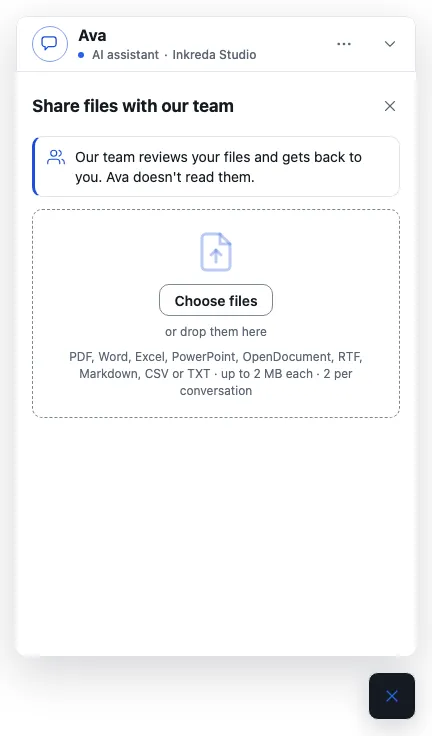
The panel lists the limits: PDF, Word, Excel, PowerPoint, OpenDocument, RTF, Markdown, CSV or TXT, never images or videos, with a size and a number of files per chat set by your plan (Settings you do not edit). The visitor chooses files, then presses Send to our team. They can share a file before their first message.
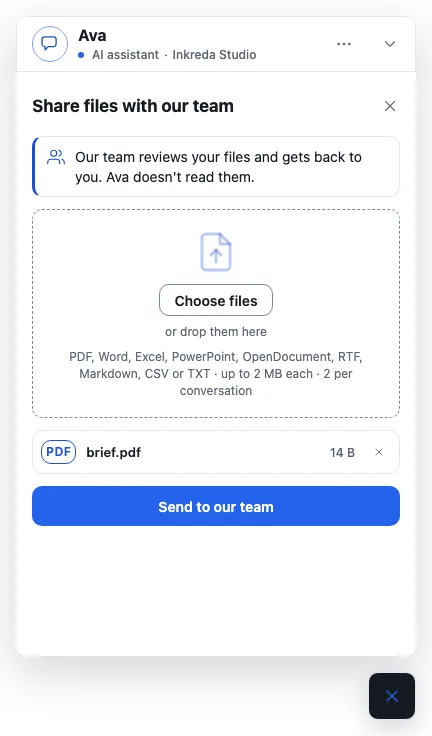
The panel then says “Sent. The team has them.” and closes by itself, leaving each file as a line in the chat. A file cannot be taken back once sent. One that could not be uploaded stays in the list with the reason and Retry.
Your team finds the files in the chat (An open chat). If you have no email or phone for the visitor yet, the contact card follows. Let visitors attach files on the A chat screen switches sharing off.
How a chat ends
Section titled “How a chat ends”A visitor cannot end a chat. It ends when it has been quiet for the time in Close quiet chats after, when the AI has given its last answer for the chat and nobody from your team joins, after repeated misuse, or when your team closes it (Visitor limits).
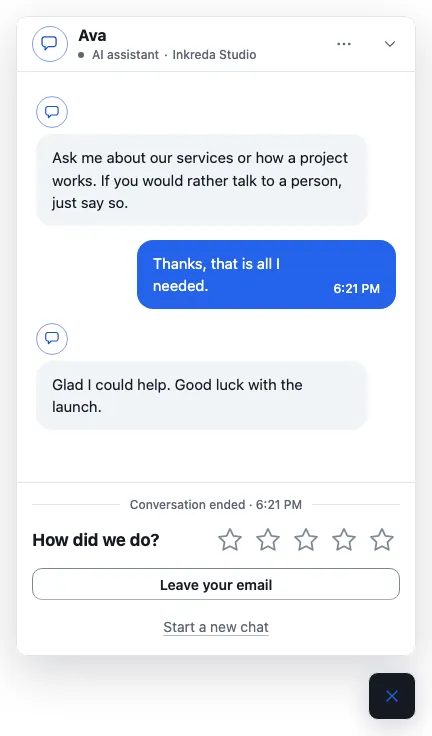
The message box is then replaced by the ended panel: “Conversation ended” with the time, the rating, an offer to leave an email when you have none, Book a call when your booking card is on, and Start a new chat. A message the visitor had not sent goes into the new chat.
Rating and flagging
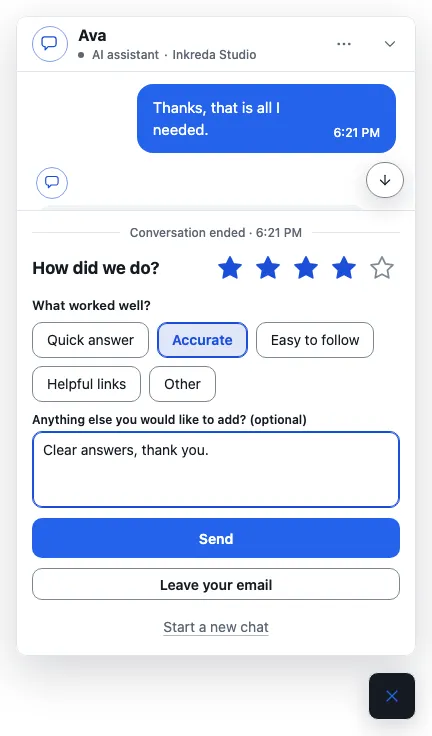
Section titled “Rating and flagging”Ask visitors to rate the chat on the Ended screen sets where visitors rate: Never, When the chat ends, or Any time (also from the More menu). The visitor picks one to five stars, which saves the rating at once. They may then add reasons and a comment of up to 1,000 characters and press Send, and Change it afterwards. You write the reasons: one list for one to three stars (“What went wrong?”) and one for four or five (“What worked well?”).
With Let visitors flag an answer on (it starts off), a flag sits beside each AI answer, shown when the visitor points at it; on a touch screen a small “⋯” opens it. The visitor can pick one of your reasons and add details, and remove the flag later. A team member’s message cannot be flagged.
Ratings and flags go to the Feedback reports: Ratings and Flagged replies. The AI never reads them, and they change nothing in the chat.
Saving a copy
Section titled “Saving a copy”Save this conversation saves the chat to the visitor’s device as a text file, with who said what, the files shared and the sources. Nothing is sent anywhere.
The bot check
Section titled “The bot check”When your company uses the bot check, the visitor’s browser is checked before their first message. Most visitors see nothing. When Cloudflare needs the visitor, a small panel named “Security check” opens above the message box. If the check cannot run, the visitor is offered the contact card instead (Connect the bot check, Errors and notices).
Where each part is changed
Section titled “Where each part is changed”| Part of the chat | Where an Admin changes it |
|---|---|
| The button’s words, the nudge, the welcome screen, the message box, the waiting and ended screens | Click it on the Chat studio page |
| Colours, style, corners, font and pictures | The toolbar of the same page (Choose how the chat looks) |
| When a person can be reached, and how long a visitor waits | Talk to a person settings |
| How many messages a visitor may send, and when a quiet chat closes | Visitor limits |
| What the AI answers and what it may not | Your AI and Knowledge |
| Where the chat sits on a page, and the words no setting covers | The code on your website (Embed and attributes, Wording and strings) |
Related
Section titled “Related”Reviewed
Source files for this page
services/api/app/settings/features.pyapps/widget/README.mdapps/widget/src/element.tsxapps/widget/src/chatbot/ChatShell.tsxapps/widget/src/chatbot/Header.tsxapps/widget/src/chatbot/HeaderMenu.tsxapps/widget/src/chatbot/notify.tsapps/widget/src/chatbot/WelcomeStage.tsxapps/widget/src/chatbot/Transcript.tsxapps/widget/src/chatbot/Bubbles.tsxapps/widget/src/chatbot/SourceLinks.tsxapps/widget/src/chatbot/TopicNotice.tsxapps/widget/src/chatbot/ChipPicker.tsxapps/widget/src/chatbot/markdown.tsapps/widget/src/chatbot/Composer.tsxapps/widget/src/chatbot/draft.tsapps/widget/src/chatbot/VoiceControl.tsxapps/widget/src/chatbot/FilesPanel.tsxapps/widget/src/chatbot/StagedFiles.tsxapps/widget/src/chatbot/useAttachments.tsapps/widget/src/chatbot/useVoiceInput.tsapps/widget/src/chatbot/challenge.tsapps/widget/src/chatbot/shellCopy.tsapps/widget/src/chatbot/attachments.tsapps/widget/src/chatbot/Panels.tsxapps/widget/src/chatbot/Feedback.tsxapps/widget/src/chatbot/conversationFile.tsapps/widget/src/chatbot/strings.tsservices/api/app/settings/settings_store.pydocs/CONVERSATION.mddocs/SETTINGS.md

