Your chat on your website
Talking to a person
Who can open itViewer: yesOperator: yesSupervisor: yesAdmin: yes
The chat is answered by the AI first. This page shows what a visitor sees when they want someone from your team, so you know what they went through before the chat reached you. How your team takes the chat over is on Take over and reply; when a person is brought in is on Asking for a person.
Asking for a person
Section titled “Asking for a person”A visitor asks by typing it (“can I talk to someone?”, “can you call me back?”, “how do we get started?”), or with Talk to a person on the welcome screen when you have switched that button on.
The first ask is usually answered by the AI once, with a short reply that asks what would help and says they can ask again. Under that reply a button reads “I’d still like to talk to a person”. You can reword it, or switch it off: on the Chat studio’s A chat screen, press Edit and find the switch for the button after the AI’s first answer, with Wording of that button under it (Chat studio settings). Pressing it, or asking again, brings your team in. A visitor who is stuck, has asked for a quote or a call, or has already left their details is handed on the first time.
A visitor who asks for a call at a time while your booking card is on gets the Book a call card instead (Contact card and booking).
The waiting panel
Section titled “The waiting panel”When someone from your team can answer, the chat says “Got it. A team member will be with you shortly.” and the header changes to “Waiting for the team”. A panel above the message box shows:
- “Finding a team member…” (you can reword it on the Chat studio’s Waiting for a person screen), with “If nobody’s free in 2:41, we’ll tell you here.” counting down. Once the time has passed it reads “Still looking. If nobody’s available, we’ll let you know.”
- Leave your email instead (Leave your phone number instead when you ask for the phone only), which opens the contact card in place.
- Book a call, when your booking card is on, which opens your booking page in a new tab (Contact card and booking).
- Back to and the assistant’s name, which stops the wait and returns to the AI: “No problem, you’re back with Ava.”
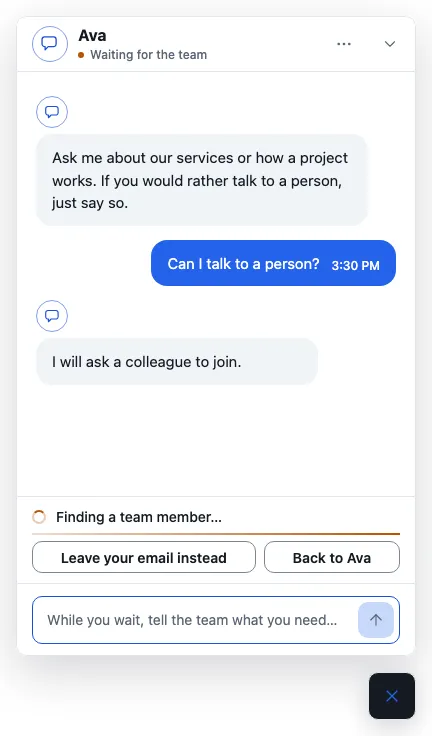
The visitor can keep typing while they wait: the message box reads “While you wait, tell the team what you need…”. Their messages are kept for whoever joins, and the AI does not answer them. They can also share files. How long the wait lasts is Wait for someone to join (Talk to a person settings).
A long chat that reaches the last answer the AI may give brings your team in by itself, with “Long chat, so we’ve pinged the team to join.” (Visitor limits).
A team member joins
Section titled “A team member joins”The chat says “John has joined the chat.” (with your team member’s name), and the header shows their photo, name and job title, as each person set them in Your preferences. While they write, the visitor sees “John is typing”. Their messages carry their name, chime, and raise a count on the chat’s button when the window is closed. The AI stays silent while they hold the chat.
- When a colleague takes the chat from them, the chat says “Adam has taken over to help you from here.”
- When they hand the chat back, the chat says the assistant “is back to help you. If you need a person again, just ask.”
If the team member does not reply in time (Wait for a team member’s reply, in the same settings), a panel offers: “Nobody from the team has replied yet. You can keep waiting, or go back to” the assistant. The visitor picks Keep waiting, Back to the assistant, or Leave your email instead. They are never moved without choosing.
Nobody joins
Section titled “Nobody joins”| What happens | What the visitor sees |
|---|---|
| The wait runs out | A message that nobody is free just now, with a way to follow up (the details they gave, the contact card, or your team’s contact), ending “I’m still here in the meantime.”, and the Book a call card when your booking card is on. The AI carries on |
| Nobody can answer at the start (outside your team hours, for example) | No wait: a reply with your team’s contact, or a promise that the team follows up, and the contact card |
| The chat had reached its last AI answer | The chat ends with “The team couldn’t get to you in time, and this chat has ended.” |
Your team’s contact is Contact for the team, under Business on the Your AI page (Business settings). The wording of these replies is set by EveryKnock for every company (Fixed replies).
What you can change
Section titled “What you can change”| What | Where |
|---|---|
| Whether visitors can reach a person at all, your team hours, and both waits | Settings, Talk to a person (Talk to a person settings) |
| The Talk to a person button on the welcome screen, the button under the AI’s first answer, and the waiting title | The Welcome, A chat and Waiting for a person screens of the Chat studio |
| The contact visitors are given when nobody is free | Contact for the team on Your AI |
| Who on your team is alerted, and how | Set up team hours, waits and alerts |
The other lines on this page are the same for every company.
A company with no team in the chat
Section titled “A company with no team in the chat”When Talk to a person is off in Settings, or not in your plan, the AI answers every chat. Visitors see no Talk to a person button, a request for a person gets your team’s contact straight away with no waiting panel, and a visitor already waiting goes back to the AI within a minute.
Related
Section titled “Related”Reviewed
Source files for this page
apps/widget/src/chatbot/Panels.tsxapps/widget/src/chatbot/HumanButton.tsxapps/widget/src/chatbot/usePollerHandlers.tsapps/widget/src/chatbot/useTeamReplyWait.tsapps/widget/src/chatbot/ChatShell.tsxapps/widget/src/chatbot/strings.tsapps/dashboard/src/views/chatstudio/screens.tsshared/web/src/views/settings/registry.tsxservices/api/app/turn_pipeline/canned.pyservices/api/app/conversations/lifecycle.pyservices/api/app/scheduled/handoff_timeout.pyservices/api/app/company/booking_link.pyservices/api/app/settings/features.pydocs/CONVERSATION.mddocs/SETTINGS.md

