Settings reference
Business
Who can open itViewer: noOperator: noSupervisor: noAdmin: yes
While no company name is saved, the head of the Your AI page reads “Not answering yet” and says every visitor is offered a person instead; the sentence beside it asks for the name with + Add company name. It goes by the saved name, not by one still being typed.
Which business the AI speaks for, what visitors may ask it about, whether a light joke suits it, the words the business uses, and the contacts visitors are given. These words are filled into everything the AI is told. What it is told about the business itself is the Knowledge page’s Your business, and the business’s time zone and the logo on its emails are under Company. The AI’s own name is set in the Chat studio (Welcome).
Where to find it
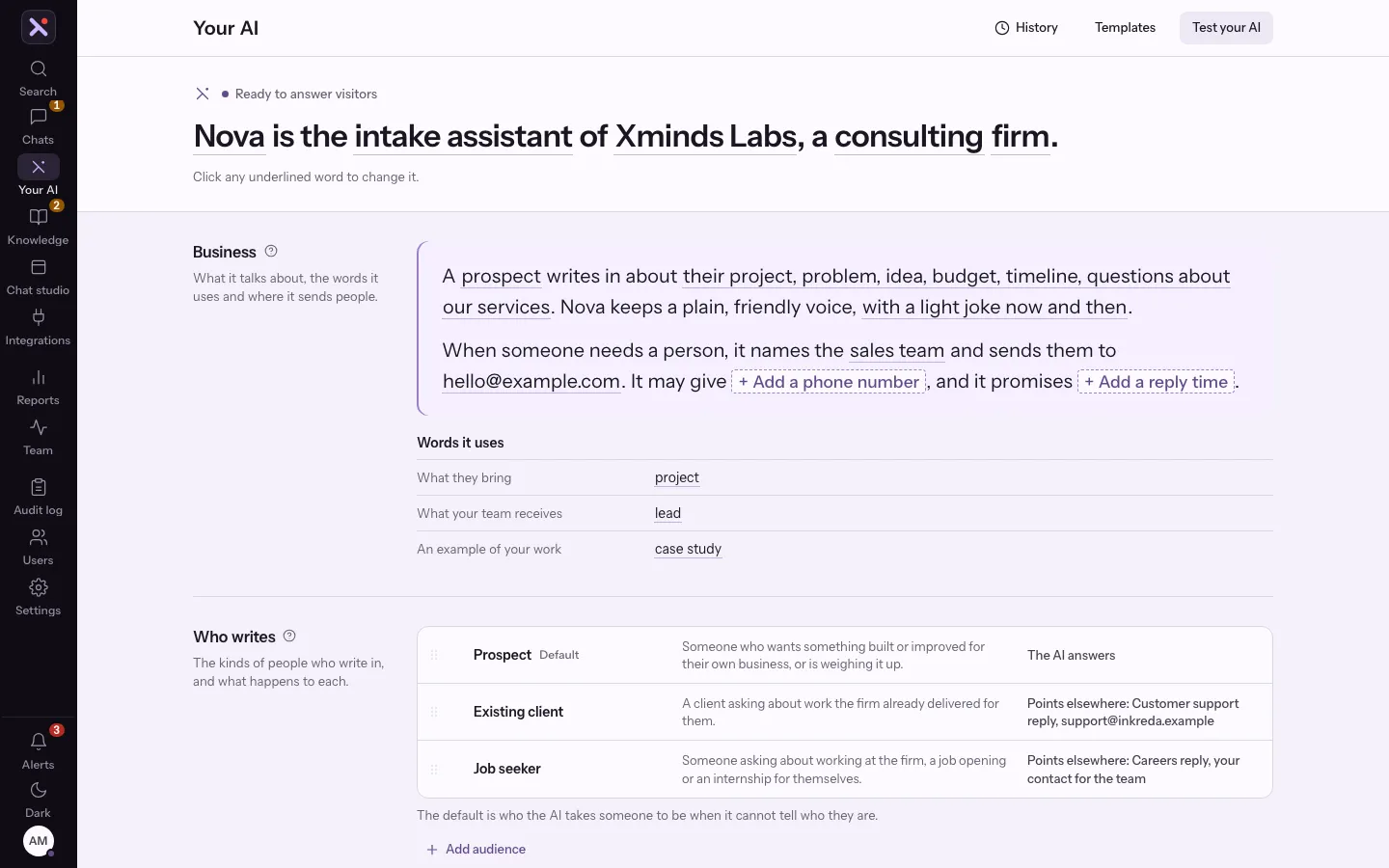
Section titled “Where to find it”Your AI in the rail (Work), then the Business section of the page. These settings are the underlined words of the sentence at the top of the page and of the Business section, with its Words it uses list: press one to change it. The groups below only sort them here. Templates at the top of the page fills them with what a kind of business usually writes.
Only admins can open Your AI.
Company
Section titled “Company”The friendly, plain-spoken voice is always on; Light humour adds only the joke. It is the one setting that changes the AI’s wording and stays editable. A new company starts with it off.
| Setting | Starts as | Allowed values or range | Example | What it does |
|---|---|---|---|---|
| Company name | blank | One line, up to 80 characters | Inkreda |
Your business’s name, as visitors should see it. Knock-on effect: Emptying it stops the AI answering anyone: every visitor is offered a person instead. |
| Type of business | blank | One line, up to 40 characters | consulting |
Lets the AI describe you correctly: a word that comes before the word for your business, “a ___ firm”, such as consulting, retail or insurance. Empty: the word for your business alone. |
| Topics the AI helps with | their needs, their situation, and questions about the business's products or services |
— | their project, problem, idea, budget, timeline, questions about the firm's services or past work |
What visitors may ask about. Anything else gets a friendly “that’s outside what I can help with”. Where you write {company}, your company name is filled in. |
| Light humour in replies | Off | Off; Light | Light | Off: the AI keeps to a plain, friendly voice. Light: on some turns it may add one dry, short joke about the situation. Never on a message about price, time, a person or a frustrated visitor, and only in English. A new company starts with the choice made when EveryKnock was installed. |
Business language
Section titled “Business language”The words the AI uses for the things every business has: what you are, who writes in, what they come to you with, who answers, what the AI is to them and what your team receives. A clinic says patient and appointment where a software firm says prospect and project. Each is a word or a short phrase, never an instruction: what the AI may or may not do is set elsewhere. A new company starts with plain words that suit any business (business, visitor, request, team, assistant, record); a company that was already running kept the words its AI was using.
| Setting | Starts as | Allowed values or range | Example | What it does |
|---|---|---|---|---|
| What you call your business | business |
One line, up to 40 characters | firm |
What the AI calls your business, as in “a consulting ___”: firm, clinic, brokerage or shop. One word or a short phrase, without a or the. |
| What you call the people who write in | visitor |
One line, up to 40 characters | prospect |
What the AI is told the people who write in are: prospects, patients, customers or policyholders. Write it singular: prospect, patient. |
| What you call what they bring | request |
One line, up to 40 characters | project |
What a person writing in comes to you with: a project, a claim, a booking or an order. Singular. |
| What you call your team | team |
One line, up to 40 characters | sales team |
Who answers when a person takes over: the sales team, the front desk, the claims team. |
| What you call your AI’s role | assistant |
One line, up to 40 characters | intake assistant |
What your AI is to the people who write in: an intake assistant, a booking assistant, an assistant. |
| What you call what the team receives | record |
One line, up to 40 characters | lead |
What the team gets about a chat: a lead, a case, an enquiry or a record. Singular. |
| What you call examples of your work | case study |
One line, up to 40 characters | client story |
What you call the examples of your work the AI can show: a case study, a client story or a testimonial. It names their cards in the chat. Singular. The AI reads it beside each such example it is given. A company made on the Platform starts with example of our work; one that was running keeps case study, the word its cards already showed. |
Where to send people
Section titled “Where to send people”Where visitors are sent, and what they are told about hearing back. The fixed replies that name them are the platform’s. Where job seekers, customers with a problem and anyone else this chat is not for are sent is each audience’s own contact, on Who writes.
| Setting | Starts as | Allowed values or range | Example | What it does |
|---|---|---|---|---|
| Contact for the team | blank | One line, up to 120 characters | sales@example.com |
Where visitors are sent when a chat ends, when nobody from the team is free, and when someone Who writes points elsewhere has no contact of its own. Empty: the AI just says the team will be in touch. |
| Phone numbers the AI may give | blank | — | +1 415 555 0100 (one per row) |
One per row. A number that is not here, in your sources or in the chat is replaced by “our team”. Empty: the AI gives none. |
| Promised reply time | blank | — | 1 business day | How soon visitors are told to expect a reply, said whenever they are told the team will get back to them: when they ask for a person, and when they ask about price or timing. Don’t promise a time: nothing is said about timing. Picked as a number (1 to 99) and minutes, hours, business days or days; visitors read “We usually reply within 1 business day.” A free-text sentence stored earlier shows as “Was: …” and is still said until a number is saved. |
Source files for this page
docs/SETTINGS.mdservices/api/app/settings/settings_store.pyapps/dashboard/src/views/yourai/YourAiPage.tsxapps/dashboard/src/views/yourai/TokenEditor.tsxapps/dashboard/src/views/yourai/ReviewChanges.tsxapps/dashboard/src/views/yourai/BriefHistory.tsxapps/dashboard/src/views/yourai/BriefTemplates.tsxservices/api/app/company/brief_templates.tomlapps/dashboard/src/views/yourai/TestChat.tsx

