Your team and account
Signing in
Who can open itViewer: yesOperator: yesSupervisor: yesAdmin: yes
Open the dashboard’s address in your browser. If you are not signed in, the sign-in page opens; once you are, the dashboard opens on Chats.
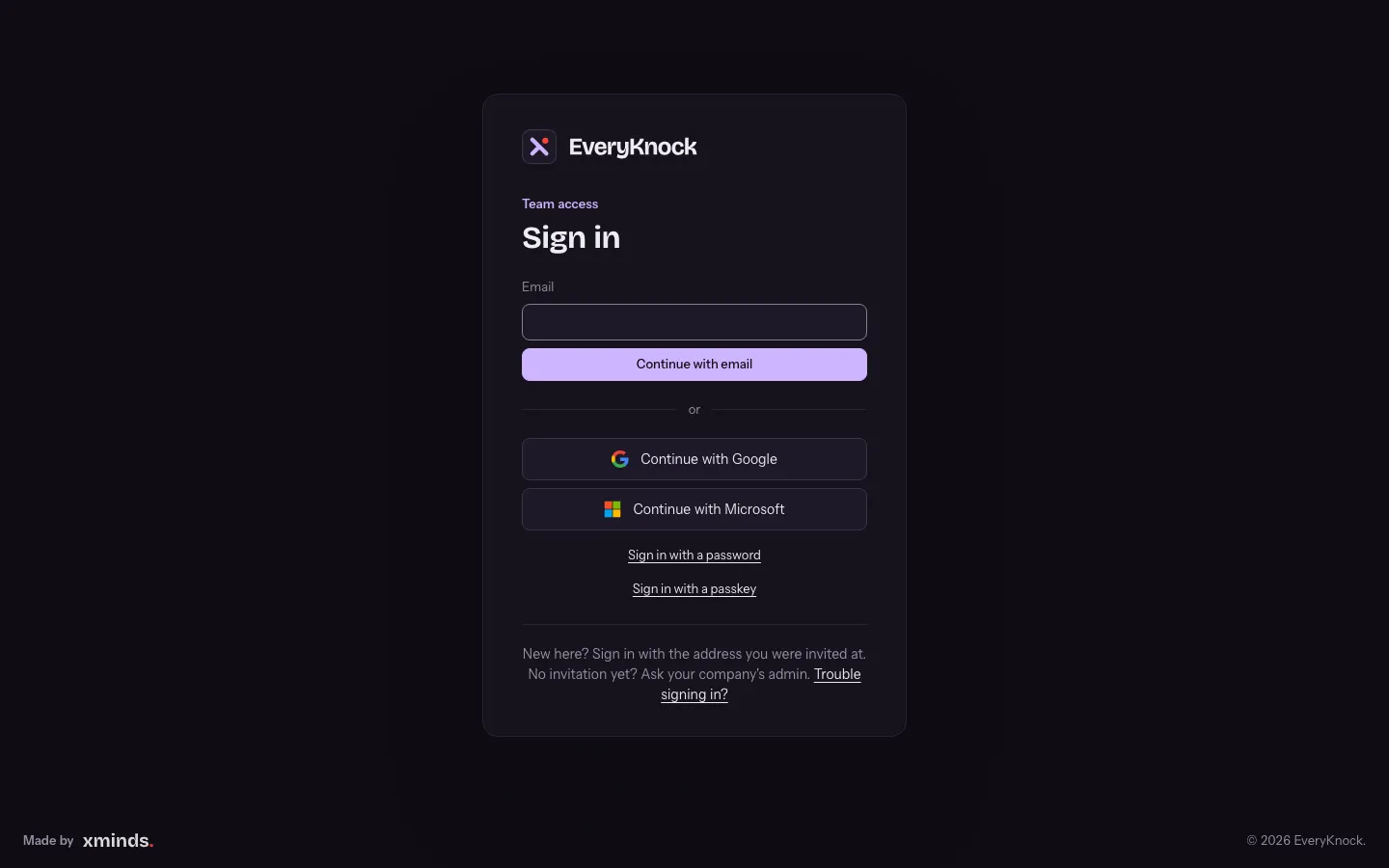
The page offers only the ways in your platform has set up, so you may not see all of them. Trouble signing in? at its foot opens If something goes wrong on this page, in a new tab.
Which way to use
Section titled “Which way to use”You need the dashboard’s address and the email address your Admin added for you. Every way in opens the same account.
| Way in | Good for | You need |
|---|---|---|
| An emailed code | Your first sign-in, and any device | Your invited mailbox open |
| Google or Microsoft | One press, if your invited address is a Google or Microsoft account | That account |
| A passkey | The fastest way on a device you use every day | A passkey you added while signed in |
| A password | An account a team shares, or a person who cannot receive the code | Password sign-in in your plan, and a password |
Sign in with an emailed code
Section titled “Sign in with an emailed code”- Type the address you were invited at under Email and press Continue with email.
- Open the email and type the 8-digit code under Code.
- Press Sign in.
A code works once and ends after 10 minutes. The page says the same thing for every address, so it never reveals who has access: if your address is not on a list, no email comes. Send a new code sends another one; an earlier code that has not ended still works. At most three codes are sent to one address in an hour. Use another address goes back to the email field.
Sign in with Google or Microsoft
Section titled “Sign in with Google or Microsoft”Press Continue with Google or Continue with Microsoft, sign in on that company’s page with the account at your invited address, and you come back signed in. Finish within 5 minutes, in the same browser.
The first Google or Microsoft account that signs in with your address is the one it keeps. A different account with the same address is refused until your platform administrator clears it.
Sign in with a passkey
Section titled “Sign in with a passkey”A passkey signs you in with your device’s fingerprint, face or screen lock instead of a code. Press Sign in with a passkey, choose your passkey in your device’s prompt and confirm. No address is asked.
You need to add a passkey first, while signed in:
- Open your account menu, then Your preferences, then the Sign-in tab.
- Type a Name for a new passkey, such as “Work laptop”, so you can tell your passkeys apart.
- Press Add a passkey and confirm on your device. The message “Passkey added” appears and the passkey is listed.
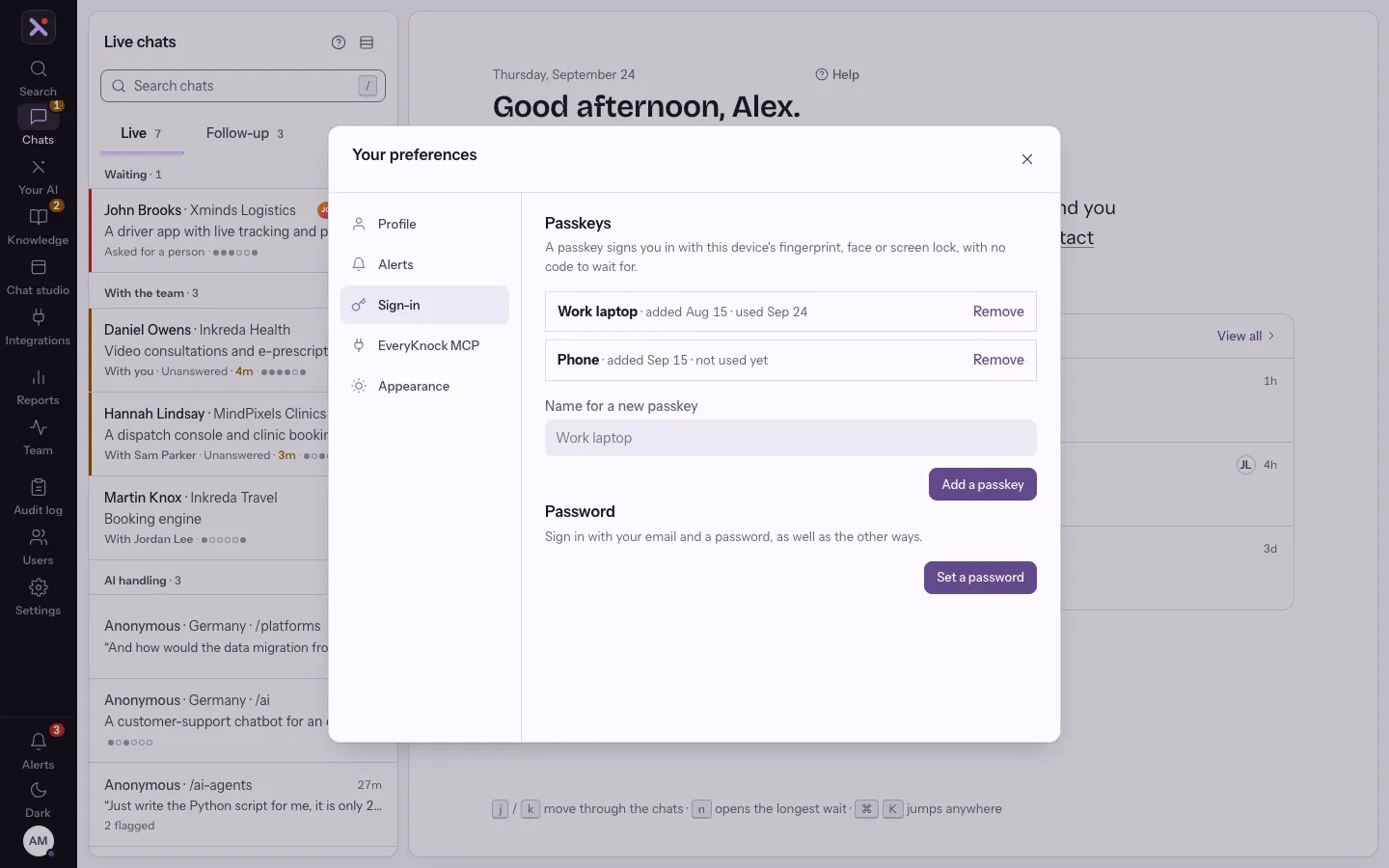
- Each passkey’s row says when it was added and last used, and where it lives: synced to your other devices for one your phone’s or computer’s password manager copies to your other devices, or on one device only for one held by a single device or a security key. A passkey that has not said yet shows this after its next sign-in.
- Remove on a passkey’s row asks you to confirm, then stops it signing you in at once.
- You can have up to 10. They belong to you, not to one company, and work on the dashboard’s address where you added them.
- In a browser that cannot make passkeys, the Sign-in tab holds only your password, where your company has password sign-in; otherwise the tab is not shown.
- If you signed in with a password, the tab says you cannot add or remove passkeys: sign in with a code, Google or Microsoft first. A passkey opens every company your address belongs to; a password opens only its own.
Sign in with a password
Section titled “Sign in with a password”Included when your platform switches on password sign-in for your company: ask your EveryKnock contact. Without it, the sign-in page has no Sign in with a password.
An Admin can make a password for you on the Users page, or you set your own (below). Then:
- Press Sign in with a password.
- Type your address under Email and your password under Password.
- Press Sign in.
A password opens only the company it was made in. You never see Choose a workspace, and Switch company offers no other company: to open another one, sign out and sign in to it another way.
After 10 wrong passwords in a row, signing in with a password waits 15 minutes. A code, a passkey, Google and Microsoft still work meanwhile.
Set your own password
Section titled “Set your own password”- Open your account menu, then Your preferences, then the Sign-in tab.
- Under Password, press Set a password, or Change password if you have one.
- Type it under New password and again under Repeat it: at least 12 characters, and not your email address. A password that is too short, or two that differ, is said under the field to fix.
- Press Save. The message “Password saved” appears.
Changing your password signs out every other browser your old one signed in; the one you are using stays. Remove password asks you to confirm, then stops it signing you in and signs out those browsers too.
Choose a workspace
Section titled “Choose a workspace”If your address has access in more than one company, you see Choose a workspace after signing in. Press the company to open; choose within 5 minutes, or sign in again. Once in, Switch company in your account menu lists your companies, with a tick on the one you are in: press another to move there without signing in again. With one company only, its name is shown beside your role in the account menu instead. A link in an alert (an email, Teams, Slack, a browser alert) opens its page in the alert’s own company, switching you to it first when it is another of yours; for a company you are not in, the dashboard says so.
How long a sign-in lasts
Section titled “How long a sign-in lasts”Your browser stays signed in, even if you close it, until you have been away for 12 hours or 7 days have passed, whichever comes first. A banner lets you renew it without losing your place, and Sign out is at the foot of your account menu. See Staying signed in.
Good to know
Section titled “Good to know”- Cleared browser data or a new browser. You sign in again. Your role, profile, passkeys and alert choices are kept on your account.
- One account, several ways in. Whichever way you sign in, you get the same role, chats and preferences.
If something goes wrong
Section titled “If something goes wrong”| What you see | What to do |
|---|---|
| No code arrives | Check your spam folder and the spelling of the address. If you asked more than three times in an hour, wait before asking again. If it still does not come, your address may not be on your company’s list: ask your Admin |
| “That code didn’t work. Check it, or ask for a new one.” | The code box is ready for another go: check the digits. After 5 wrong tries the code stops working: press Send a new code |
| “Too many requests. Please try again shortly.” | Wait a few minutes. Codes and sign-in attempts are limited to keep your account safe |
| “This email isn’t set up on any workspace. Ask your administrator to invite you.” | Your address has no access, or your access ended. Ask your Admin |
| “This account isn’t set up on any workspace, or its access has ended. …” after Google or Microsoft | Sign in with the account at your invited address, or ask your Admin |
| “The sign-in didn’t go through. Try again.” | Start again in the same browser, and finish within 5 minutes |
| “That passkey didn’t work. …” | Try again, or sign in with a code. The passkey may have been removed or belong to someone else |
| “The email or password is wrong. After several wrong tries, sign-in by password waits 15 minutes; you can still sign in another way.” | Check the address and the password. If you share an account with your team, ask your Admin whether a new password was made. Or sign in another way |
| “Too many wrong passwords from this network. Wait a few minutes and try again.” | Wait 10 minutes, then try again with the right password |
| “This workspace is suspended.” | Your company’s access to EveryKnock is paused. Ask your Admin |
| “Couldn’t switch workspace. Try again.” | Press the company again. If it keeps failing, sign out and sign in to that company |
| “This is in another workspace” after opening a link from an alert | The alert was for a company you do not belong to. Ask one of its Admins if you need access |
| “This browser didn’t keep the sign-in. …” | The dashboard is set up on an address your browser will not keep a sign-in for. Tell your platform administrator |
| “Sign-in isn’t set up yet. …” | No way to sign in is ready on your platform. Tell your platform administrator |
Related
Section titled “Related”Reviewed
Source files for this page
apps/dashboard/src/views/LoginView.tsxapps/dashboard/src/views/SignInForm.tsxapps/dashboard/src/views/PasskeysPanel.tsxapps/dashboard/src/views/PasswordPanel.tsxapps/dashboard/src/views/PreferencesDialog.tsxapps/dashboard/src/views/shell/SessionRenewal.tsxapps/dashboard/src/views/shell/WorkspaceSwitcher.tsxapps/dashboard/src/views/shell/AccountMenu.tsxapps/dashboard/src/App.tsxservices/api/app/access/sign_in_codes.pyservices/api/app/access/passkeys.pyservices/api/app/routers/passkeys.pyservices/api/app/access/passwords.pyservices/api/app/routers/passwords.pyservices/api/app/settings/features.pyservices/api/app/access/sessions_store.pyservices/api/app/routers/auth_session.pydocs/SECURITY.md

