Connect your tools
The Integrations page
Who can open itViewer: noOperator: noSupervisor: noAdmin: yes
Where to find it
Section titled “Where to find it”Work > Integrations. Only an Admin can open the page. A red number on Integrations in the menu counts the connections whose last test or use failed, whatever page you are on.
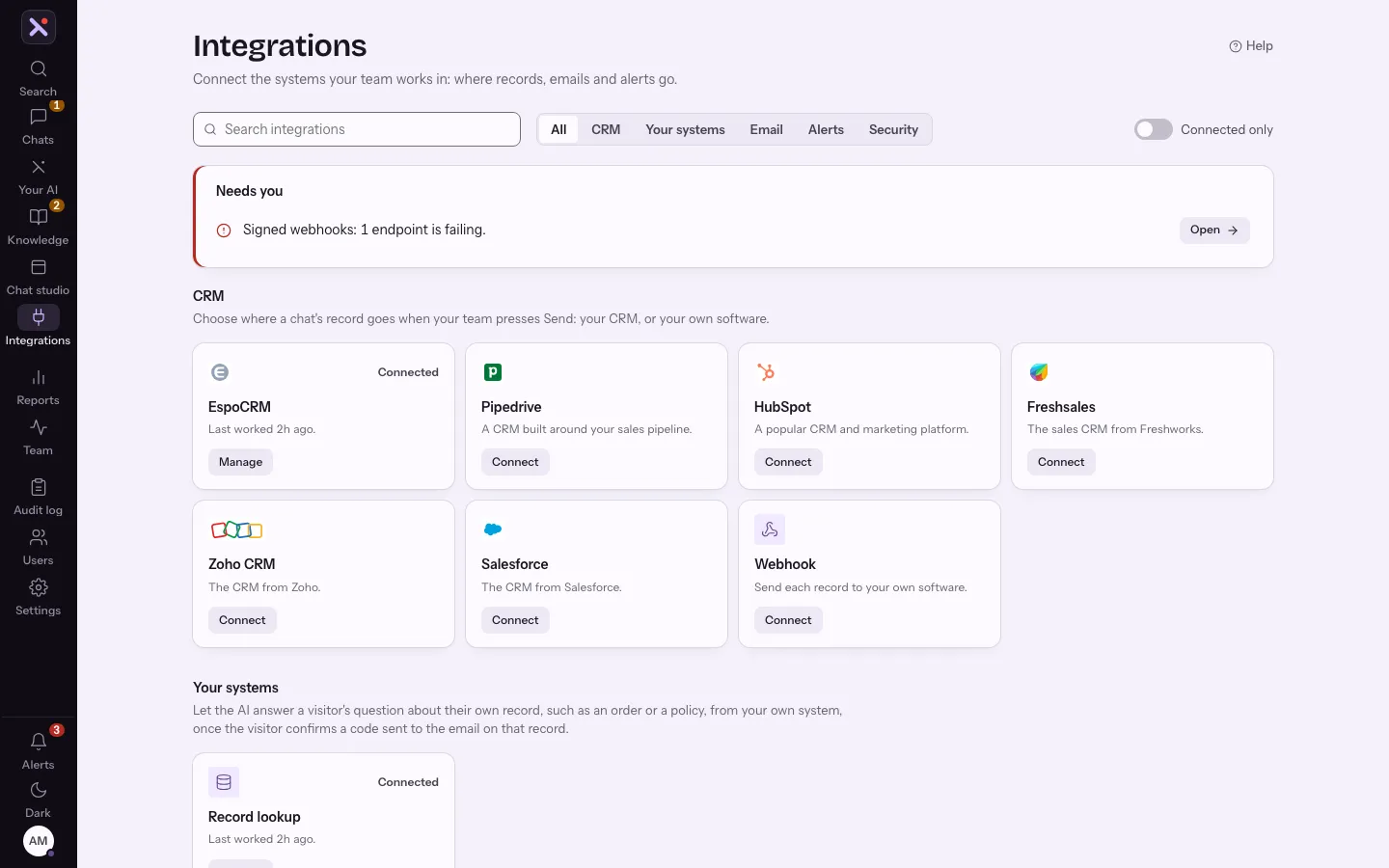
What you can connect
Section titled “What you can connect”| Group | Cards | What it does | How |
|---|---|---|---|
| CRM | EspoCRM, Pipedrive, HubSpot, Freshsales, Zoho CRM, Salesforce | A chat’s record goes to your CRM when your team presses Send, or by itself | Connect your CRM |
| CRM | Webhook | The same record, posted to software of your own | Send records to your own system |
| Your systems | Record lookup | The AI answers a visitor about their own record from your system | Record lookup |
| Email sending | Your mail provider | Alerts and welcome emails come from your own address | Send emails from your own address |
| Visitor emails | Postmark, SendGrid or Mailgun | A thank-you email to a visitor who leaves an address, and word when it bounces | Send visitor emails from your own account |
| Alerts | Microsoft Teams, Slack | Your team’s alerts in a channel | Connect Teams and Slack |
| Alerts | Signed webhooks | The same alerts to your own system | Webhook alerts |
| Security | Cloudflare Turnstile, Google reCAPTCHA | An invisible check that a visitor is a person, by the one you choose | Connect the bot check |
One CRM (or the Webhook), one mail provider and one visitor-email service can be in use at a time; the one in use is listed first in its group. A card that is greyed, with no button, is not part of what your company has: it reads Not in your plan, Switched off or Needs another feature and says why. Ask your EveryKnock contact.
Find a card
Section titled “Find a card”- Search integrations finds a card by its name, what it is for, or another name it goes by, such as “smtp” or “captcha”.
- The kinds beside it (All, CRM, Your systems, Email, Alerts, Security) show one group.
- Connected only hides everything that is not working yet.
- If nothing matches, press Show everything.
Needs you at the top lists every connection that is saved but not working, or whose last day went badly, each with Open.
Read a card’s state
Section titled “Read a card’s state”| The card reads | What it means | What to do |
|---|---|---|
| No state, Connect | Nothing is saved | Connect it if you need it |
| Not fully set up | Something is missing; the card says what | Open it and add what it names |
| Not tested | Everything is saved, but nothing has tried it since the last change | Open it and press Send a test (a CRM and Record lookup: Test connection) |
| Connected | Its last test worked. The card says “Last worked 2h ago.”, or how many alerts it sent in the last day | Nothing |
| Test failed | Your last test did not work; the card says why | Fix what it names, then test again |
| Not working | It failed in real use, for a visitor (visitor emails, the bot check and Record lookup); the card says why | Fix it, then test. It clears when a test works, or when it next works for a visitor |
| Off | It is whole, but a switch turns it off | Turn the switch on, in its panel or where its button takes you |
| Needs setting up again | A CRM no longer accepts the saved key | Set it up again |
Changing anything saved makes a card Not tested again until a test works: a test vouches only for the set-up it tried.
Connect, test and disconnect
Section titled “Connect, test and disconnect”Press Connect on a card (Manage once something is saved). Its panel opens over the page.
- The guide. How to set this up (email sending, Visitor emails, Microsoft Teams, Slack and the bot check) has the steps and a button to the service’s own page. Email these steps to my IT person opens a ready email asking whoever manages that service for what you need; Copy the steps copies the same message.
- Keys. A key, password or channel address is saved on its own: press Set, paste it, press Save in its box. It is marked Saves immediately and is never shown again, at most its last four characters, with when it was replaced and by whom. Replace key swaps it later; the old value cannot be recovered.
- Other fields. They save together, with Save changes (a CRM and Record lookup: Save). Closing a panel with unsaved changes asks first.
- Test. Once everything is saved, Send a test at the top of the panel tries the connection for real: a test email to you, a test post in the channel, a test message to your endpoint. After one that worked, the button reads Test again. One connection can be tested once every ten seconds.
- History. The top of the panel shows the state and “Last changed … by …”; History opens the audit log at that connection.
- Activity. Recent activity lists the last sends, failures and tests, each with when, why a failure failed and, where there is one, Open the chat. It opens by itself when the newest item failed.
- Disconnect. Disconnect asks first and says what stops. A CRM has Remove connection instead, and Signed webhooks has Delete on each endpoint.
- Help at the top opens the page for that service on this site.
Alerts to your team, last 24 h
Section titled “Alerts to your team, last 24 h”Under the cards, a table shows where the last day’s alerts went and which failed, with the reason: Alerts to your team, last 24 h.
If something goes wrong
Section titled “If something goes wrong”| What you see | What to do |
|---|---|
| A number on Integrations in the menu | A connection’s last test or use failed. Open the page: Needs you names it |
| A card you expect is missing or greyed | Your company does not have that connection. Ask your EveryKnock contact |
| “The test failed.” and a reason | Fix what the reason names, on the card’s own help page, then test again |
| “Tested a moment ago. Wait a few seconds and try again.” | Wait ten seconds |
| A group shows an error with Try again | That part of the page could not be read. Press Try again |
| “Could not copy” | Select the address or the steps and copy them yourself |
Related
Section titled “Related”- Set up your company: where connecting your tools comes in the order of setting up
- Integrations page settings: every field with its starting value
- Audit log: every change and test of a connection
Reviewed
Source files for this page
apps/dashboard/src/views/IntegrationsView.tsxshared/web/src/views/NeedsYou.tsxapps/dashboard/src/views/integrations/IntegrationList.tsxapps/dashboard/src/views/integrations/IntegrationToolbar.tsxapps/dashboard/src/views/integrations/ConnectedStrip.tsxapps/dashboard/src/views/integrations/ConnectionDrawer.tsxapps/dashboard/src/views/integrations/ActivityList.tsxapps/dashboard/src/views/integrations/CopyField.tsxapps/dashboard/src/views/integrations/catalog.tsapps/dashboard/src/views/integrations/readiness.tsapps/dashboard/src/views/integrations/disconnect.tsshared/web/src/views/SecretField.tsxapps/dashboard/src/views/shell/navEntries.tsxapps/dashboard/src/views/shell/useFailingConnections.tsservices/api/app/connections/connection_tests.pyservices/api/app/connections/connection_trouble.pyservices/api/app/routers/connections.pyservices/api/app/settings/features.py

