See how it's going
Reports: Chats
Who can open itViewer: yesOperator: yesSupervisor: yesAdmin: yes
Every chat counts in the period it started in, so the figures, hand-offs and tables on this tab add up against each other.
Where to find it
Section titled “Where to find it”Insight, Reports, tab Chats. Every role can open it. Operators, Supervisors and Admins can also save Sources, Campaigns, Landing pages and Countries as spreadsheet files (Export).
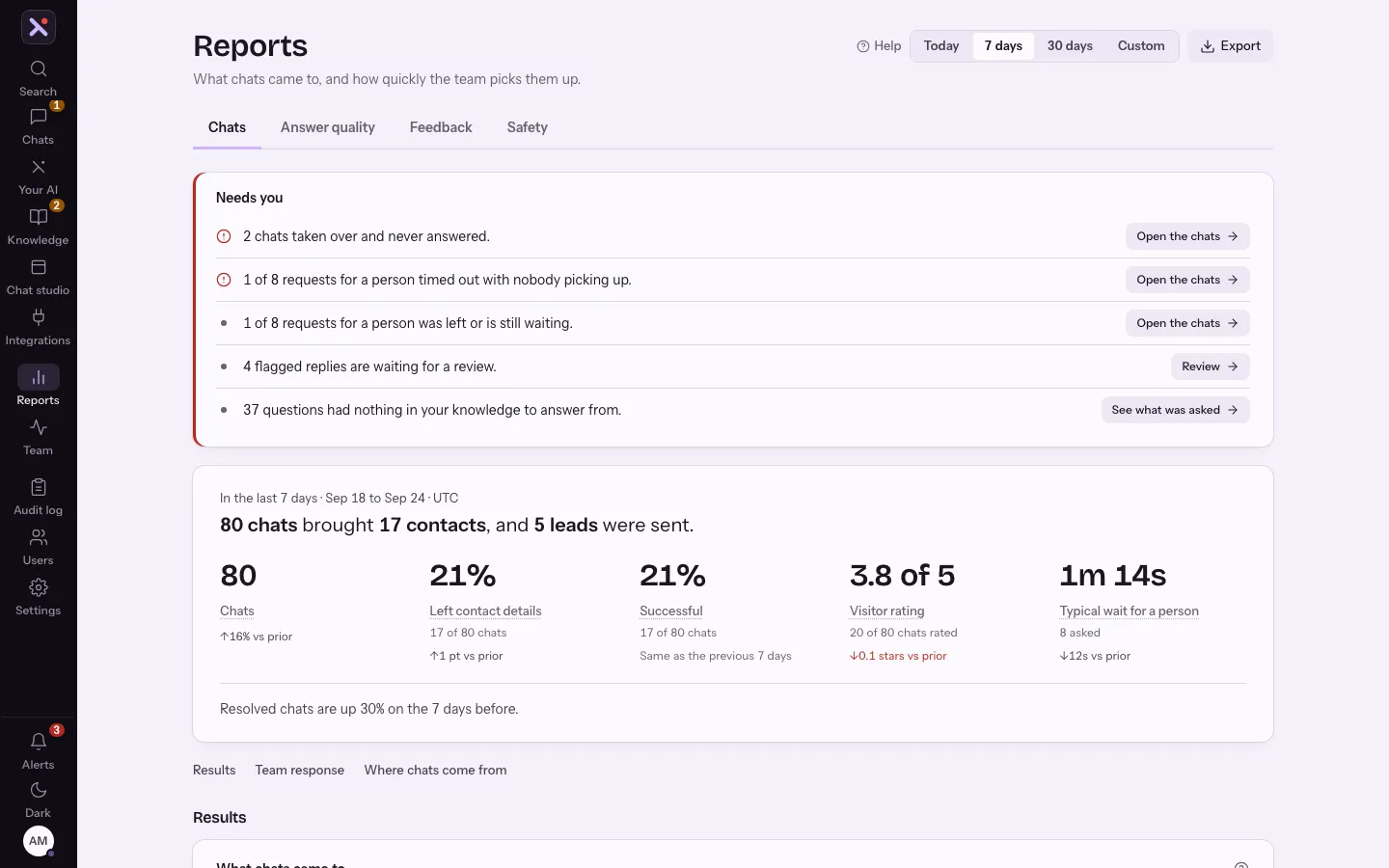
From top to bottom the tab holds Needs you, the headline card, then three sections: Results, Team response and Where chats come from. The links under the headline jump to a section. On a phone each section is folded to its heading; press the heading to open it.
Needs you
Section titled “Needs you”Up to five lines, worst first, each with the button that deals with it. Red marks a visitor let down or a real fall. Nothing waiting, no list.
| Line | What to do |
|---|---|
| “2 chats taken over and never answered.” | Open the chats and follow up with those visitors |
| “1 of 8 requests for a person timed out with nobody picking up.” | Open the chats; if it recurs, check your team hours and who is alerted (When to alert) |
| “1 of 8 requests for a person was left or is still waiting.” | Open the chats: someone may be waiting now |
| “4 flagged replies are waiting for a review.” | Review opens Flagged replies |
| “Visitor rating fell from 4.2 to 3.8.” | Read the low ratings opens Ratings |
| “Contacts left are down 30% on the 7 days before.” | Open the chats behind the figure. The same line can name chats, resolved chats, successful chats or records sent |
| “12 questions had nothing in your knowledge to answer from.” | See what was asked opens Answer quality |
A fall is listed only when it is big enough to mean something: a small move, or a rating that rests on a handful of visitors, is left out.
The headline card
Section titled “The headline card”One sentence says what the period produced, for example “80 chats brought 17 contacts, and 5 leads were sent.”, in your company’s word for a record. Without a CRM or a system of your own to send records to, it names the chats that were resolved instead. A note under the figures names the one that moved most (“Chats are up 12% on the 7 days before.”), or says “Much the same as the 7 days before.”, and says when every request for a person was picked up.
| Figure | Means | Good to know |
|---|---|---|
| Chats | Chats started in the period | Opens exactly those chats |
| Left contact details | The share of chats where the visitor left an email address or a phone number, with the count under it (“17 of 80 chats”) | Opens those chats |
| Successful | The share of chats with an outcome your company counts as a success | Shown once an Admin has chosen the outcomes that count, under What counts as a success on Your AI (Success) |
| Visitor rating | The average stars visitors gave, out of 5, with how many chats were rated | Opens Feedback. “—” until someone rates a chat |
| Typical wait for a person | How long a visitor who asked for a person typically waited for someone to take the chat: half waited less, half more | A fall is good news. Shown only when your company uses Talk to a person |
The line under each figure compares it with the period before (Read the arrows). Point at a figure’s name, or press it, to read what it measures.
Open the chats behind a figure
Section titled “Open the chats behind a figure”Press a figure, a count or a row’s small arrow. The chat list opens on All, showing exactly the chats the figure counted, so its total matches the number you pressed. The link at the top of the list (“← Reports, last 7 days”) brings you back to the report on the same days. A figure of 0 has nothing to open.
What chats came to
Section titled “What chats came to”The first card of Results. Each outcome is a count, its share of all chats, its move against the period before and a small line of its course through the period. A chat can have several outcomes, or none. Press a count to open those chats.
| Outcome | Counts |
|---|---|
| A team member joined | Chats a team member took over, whether the visitor asked or not. Left out when your company does not use Talk to a person |
| Records sent, in your company’s word (“Leads sent”) | Chats whose record reached your CRM or your own system, sent by a team member or, where an Admin switched on Send automatically, by itself (Connect your CRM). Left out when you have nowhere to send one |
| Resolved | Chats closed by a team member or after going quiet, with an answer from the AI and nothing that went wrong: no request for a person left unanswered, no visitor stuck enough to be offered a person, no reply flagged. Worked out, not asked of the visitor |
More figures, under the outcomes, opens:
| Figure | Counts |
|---|---|
| AI replies per chat | The average number of replies the AI wrote in a chat. Fixed messages and your team’s messages are not counted, and neither a rise nor a fall is good or bad by itself |
| Opened the booking page | The share of chats where the visitor pressed Book a call and opened your booking page at least once (The Book a call card). Click it to see those chats. Whether they booked a time there is in your booking tool, not here. Shown while the chat offers your booking page, or when the period has chats that opened it |
Chats per day
Section titled “Chats per day”One bar per day, with the period before as a pale bar behind it. The busiest day is picked out with its count. Today’s bar is marked “Today is still going on”, so a low bar early in the day is not a bad day. A range longer than a month is drawn as a line. The sentence under the title names the busiest day and whether the second half of the period ran above or below the first.
How chats ended
Section titled “How chats ended”Closed chats only, split three ways. Each reason under a heading opens its chats.
| Heading | Reasons under it |
|---|---|
| Asked to be contacted | Contact requested: the visitor asked your team to get in touch and left their details |
| Ended normally | Closed by a team member; Went idle: the visitor went quiet and the chat closed by itself (Closing a chat) |
| Ended badly | Cut off as low quality: the visitor kept sending messages the chat refuses, such as abuse or spam; Reached the message limit: the chat used all its AI replies (Limits and abuse controls) |
A growing Ended badly is worth opening: read a few of the chats to see whether real visitors are being cut off. The line under the card gives the share closed as low quality, as a link to those chats.
Team response
Section titled “Team response”The section under Results, shown when your company uses Talk to a person: the Hand-offs card (how long visitors who ask for a person wait, and how many are picked up, time out or leave) and a heat map of when they ask, with Biggest gaps, the hours worth covering next. How to read it and what to do about it: Reports: Team response.
Where chats come from
Section titled “Where chats come from”The last section of the tab: Sources, Campaigns (once a link has named one), Landing pages, Who wrote, Countries, Email quality and Phone lines. Press a name in one of the first five to show the whole tab for that source, campaign, page, audience or country alone. How to read the tables, find the campaigns and pages that bring contacts, and what each email check means: Reports: Where chats come from.
If something goes wrong
Section titled “If something goes wrong”| What you see | What to do |
|---|---|
| “No chats in this period. Only chats still within the retention window are counted.” | Choose a longer range, or check how long chats are kept (Data retention) |
| No arrows on the figures | There is nothing earlier to compare with. See Read the arrows |
| No Successful figure, and “Nothing is counted as a success” under the outcomes | An Admin chooses the outcomes that count on Your AI (Success) |
| No Team response section and no hand-off figures | Your company does not use Talk to a person (Talk to a person) |
| A message in red with Try again | The figures did not load. Press Try again |
Related
Section titled “Related”Reviewed
Source files for this page
shared/web/src/views/NeedsYou.tsxapps/dashboard/src/views/PerformanceView.tsxapps/dashboard/src/views/AnalyticsView.tsxshared/web/src/views/reports.tsxapps/dashboard/src/analyticsHeadline.tsapps/dashboard/src/reportAttention.tsshared/web/src/reportFindings.tsapps/dashboard/src/reportFigures.tsapps/dashboard/src/useReportRange.tsapps/dashboard/src/inbox/reportOrigin.tsapps/dashboard/src/views/inbox/Queue.tsxservices/api/app/reports/analytics_store.pyservices/api/app/company/outcomes.pyservices/api/app/company/booking_link.py

