Your chat on your website
Contact card and booking
Who can open itViewer: yesOperator: yesSupervisor: yesAdmin: yes
An Admin switches both cards on, and words them, on the Ended screen of the Chat studio. When the AI offers them is on Contact and lead capture.
Set up the cards
Section titled “Set up the cards”Only an Admin can. Open Chat studio, press Edit on the Ended screen (or click a card in that chat), change the fields below, then Publish. Defaults and ranges: Chat studio settings.
| Field | What to choose |
|---|---|
| Ask visitors for their contact details | On for the contact card (it starts on). Off: the chat never asks |
| Ask for an email address, Ask for a phone number | Which fields the card has. With both off, no card is shown |
| Times to ask in one chat | How many times one chat may show the card, skipped ones included. 0 switches it off |
| Contact card prompt, Contact card reassurance | Your own words above and under the email box, for example “Leave your email and we will follow up.” Blank: the chat’s own lines |
| Offer a “Book a call” button | On for the booking card (it starts off). It needs a Booking link, and your plan must include the booking card |
| Booking link | The page the button opens, an https:// address such as https://calendly.com/inkreda/intro |
| Booking prompt, Booking button text | Your own words above and on the button. Blank: the chat’s own |
The contact card
Section titled “The contact card”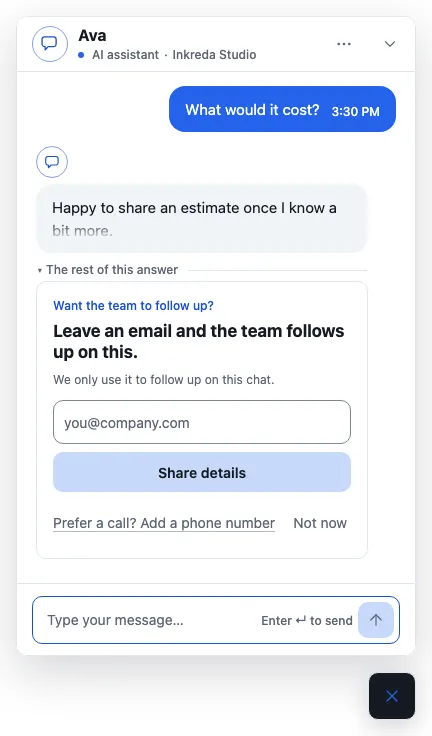
The card appears under a useful answer once the chat is past Earliest answer to ask after, at most Times to ask in one chat times (a skipped card counts), and never once you have the visitor’s details. A visitor who asks how to leave their details, or to be called, gets it straight away. It also appears in the waiting panel, after files are sent, and when the chat ends.
Under an answer, the answer is folded to its first lines while the card is open: “▾ The rest of this answer” shows that more is there. The card asks “Want the team to follow up?”, with your prompt and reassurance (or the chat’s own), an email field and “Prefer a call? Add a phone number”. When you ask for the phone only, the card shows only the phone.
| The visitor | What happens |
|---|---|
| Presses Share details | The details are checked and saved, the answer opens in full, and the chat shows “My contact details” followed by “Got it, thanks. The team will be in touch.” Leaving details does not use up one of the AI’s answers |
| Presses Not now | The card goes and the answer opens. Nothing is shown in the chat |
| Saved the wrong details | Wrong details? Correct them reopens the card, once per chat |
The card never asks for a name.
What visitors can type
Section titled “What visitors can type”The details are checked before they are saved.
| They type | They see |
|---|---|
| An email that is not valid | “Please enter a valid email address.” |
| A phone number in the email field | “That looks like a phone number.” with Use it as my phone number |
An email one slip from a big provider’s (gmial.com) |
“Did you mean” the corrected address, with a button to use it or keep what they typed |
| An address whose domain cannot receive email | “Please check your email address:” with the domain, “cannot receive email.” |
| A phone number that is not valid | “Please enter a valid phone number.” The country picker starts at the visitor’s own country, or at Choose a country when the browser does not say which (the card then asks for one before it sends a number typed without its country code; one starting with + and an email alone still go), and digits typed on an Arabic, Persian, Hindi or Japanese keyboard count as digits |
| A number without its country code while the picker reads Choose a country | “Choose the country for this number.” Picking the country, or typing the number with + and its code, sends it |
Where visitors’ addresses go next (your CRM, a thank-you email) is set on the Integrations page: Connect visitor emails.
The Book a call card
Section titled “The Book a call card”A card with “Easier to talk it out? Grab a time with the team.” and a Book a call button that opens your booking page (an https:// address, such as a Calendly link) in a new tab. It never folds the answer, and it can show beside the contact card.
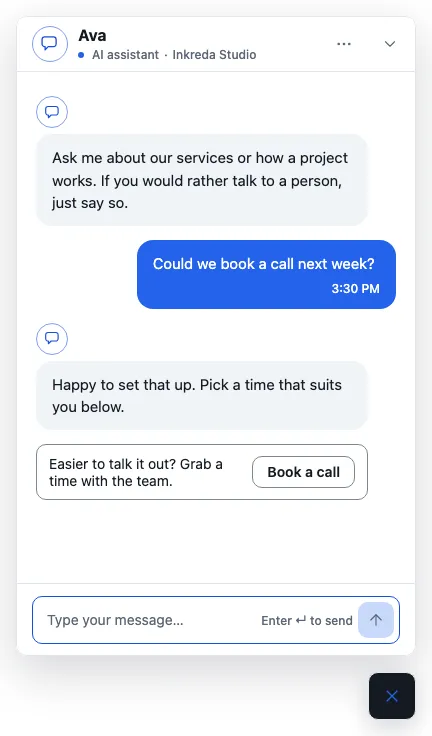
It needs Offer a “Book a call” button on and a Booking link on the Ended screen, and your plan must include the booking card. It is offered when a visitor asks for a quote or timeline, for a call or a time, how to leave their details, or for a person when nobody can take the chat. With it off, a visitor who asks for an appointment or a slot at a time gets the AI’s answer on how to book from your knowledge, and the contact form only when your knowledge says nothing about it. While it is on, the welcome screen’s Schedule a call button shows too (unless you switch that button off on the Welcome screen), and gets the same card.
It also shows, on the same conditions of being switched on with a link:
| Where | When |
|---|---|
| Under the message that says nobody on the team was free in time | Whenever the visitor waited for a person and nobody took the chat, even when you already have their details |
| In the waiting panel, as a Book a call button beside Leave your email instead | While the chat looks for a team member to join |
| In the panel shown once the chat has ended, as a Book a call button | Except after a chat ended for repeated misuse |
A visitor your company sends elsewhere on Who writes (a job seeker sent to your careers page, for example) never gets the card: they are pointed at the contact you gave for them.
The link carries the chat’s id, so a booking in your booking tool can be matched to its chat.
Seeing who opened your booking page
Section titled “Seeing who opened your booking page”Each time a visitor presses Book a call, wherever it showed, the chat records it, without slowing the visitor down and without telling anyone outside EveryKnock:
- On the conversation, the transcript shows a line such as “Visitor opened the booking page” (with their name once you have it) at that moment. Presses within a minute of each other count once.
- On Reports, Opened the booking page under More figures is the share of chats where the visitor opened it at least once. Click it to see those chats.
Opening the page is not the same as booking a time: whether they booked is in your booking tool.
Confirming a record
Section titled “Confirming a record”When your company uses Record lookup and a visitor asks about their own record (an order or a booking, for example), the reply says it must be confirmed first, and a short form opens under it:
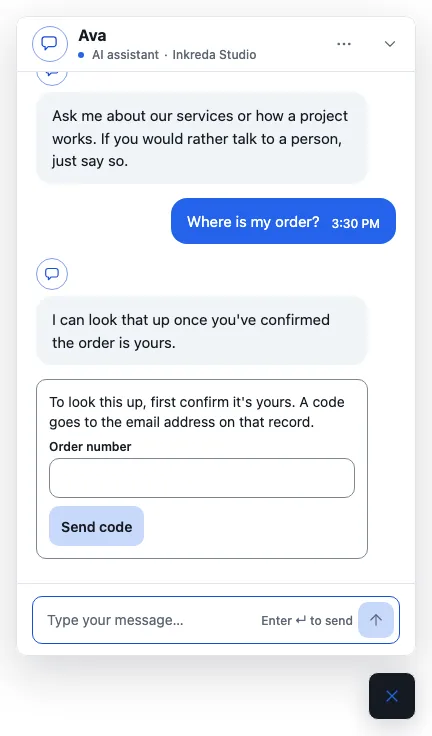
- “To look this up, first confirm it’s yours. A code goes to the email address on that record.” The visitor types the record’s number, in a field named with your What visitors type wording, and presses Send code.
- “If it’s one of ours, a code is on its way to the email address on that record. It expires in 10 minutes.” They type the code under Code from the email and press Confirm. Send a new code emails another code to the same record, and Change what I typed goes back to correct the number.
- “Confirmed. Ask about it again and I’ll look it up.” They ask again, and the AI answers from your system.
The visitor never sees the email address, and the message is the same whether the number exists or not, so nobody can find out which numbers are real. The code email comes from your company’s own mail account in your brand, or, without one, from EveryKnock’s shared sender in EveryKnock’s name (Record lookup). A confirmation lasts 30 minutes and covers one record. After 5 wrong tries a code stops working, even if the right one is typed next: the visitor presses Send a new code for another. At most 3 codes are sent for one chat in an hour. The form does not come back after a reload: the visitor asks again for a new one.
The platform switches Record lookup on for your company, and an admin connects it. Without it, the AI says it can’t look that up here and that your team can help.
If something goes wrong
Section titled “If something goes wrong”| What the visitor sees | What it means |
|---|---|
| “That didn’t go through. Please try sending your details again.” | Their details could not be sent. They try again; what they typed is kept |
| “That code isn’t right, or it has expired. Check it, or ask for a new one.” | A wrong or old code. Send a new code |
| “Too many codes were asked for. Please try again later.” | The visitor asked for more codes than one chat allows in an hour |
| “We can’t check that right now. Please try again in a few minutes, or ask the team.” | Your system did not answer the record lookup |
Related
Section titled “Related”Reviewed
Source files for this page
apps/widget/src/chatbot/ContactGateCard.tsxapps/widget/src/chatbot/useContactGates.tsapps/widget/src/chatbot/gateFold.tsapps/widget/src/chatbot/Panels.tsxapps/widget/src/chatbot/BookingCard.tsxservices/api/app/routers/chat_booking.pyservices/api/app/scheduled/handoff_timeout.pyapps/dashboard/src/timeline.tsapps/widget/src/chatbot/WelcomeStage.tsxapps/widget/src/chatbot/VerificationCard.tsxapps/widget/src/chatbot/useHistorySync.tsapps/widget/src/chatbot/strings.tsapps/dashboard/src/views/chatstudio/screens.tsapps/dashboard/src/views/chatstudio/editables.tsshared/web/src/views/settings/registry.tsxservices/api/app/routers/chat.pyservices/api/app/contact/contact_checks.pyservices/api/app/company/booking_link.pyservices/api/app/capabilities/verification.pyservices/api/app/settings/features.pyservices/api/app/routers/capabilities.pyapps/dashboard/src/views/integrations/RecordLookupDrawer.tsxdocs/CONVERSATION.mddocs/SETTINGS.md

