See how it's going
Reports: Answer quality
Who can open itViewer: yesOperator: yesSupervisor: yesAdmin: yes
A question here is one visitor message the AI looked up in your knowledge. It counts as answered when the AI found something relevant enough to answer from. A chat holds several questions, so the counts run higher than the number of chats.
Where to find it
Section titled “Where to find it”Insight, Reports, tab Answer quality. Every role can open it. Operators, Supervisors and Admins can save Unanswered questions, Most-shown sources and Off-topic chats as spreadsheet files (Export).
Read the headline
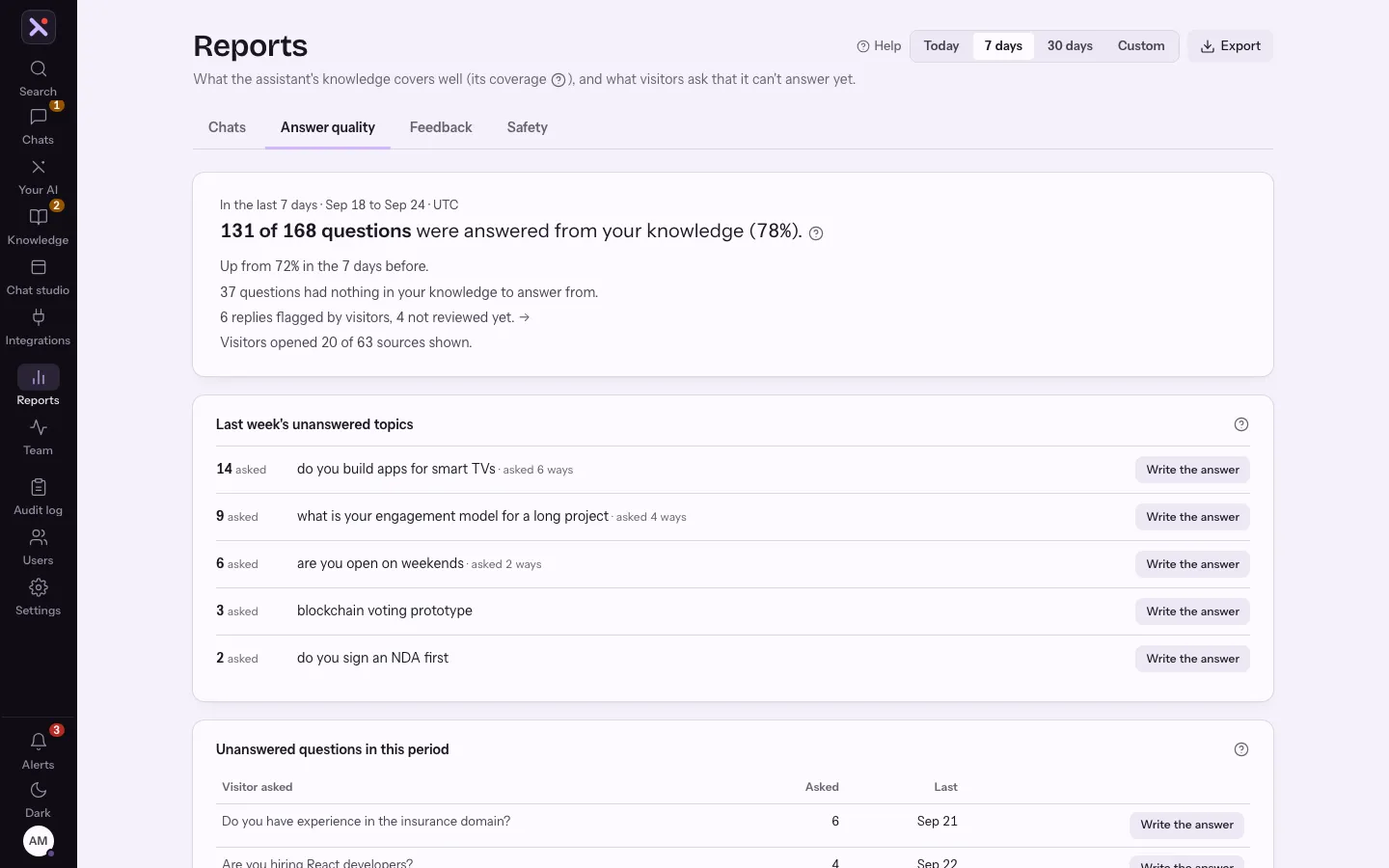
Section titled “Read the headline”The sentence gives your coverage: “131 of 168 questions were answered from your knowledge (78%).” Coverage is the share of visitor questions for which your knowledge held something relevant enough to answer from. The higher it is, the more of what visitors ask your knowledge covers. A period with no questions says “Visitors asked the AI no questions in this period.” instead. Under it:
- How coverage moved, for example “Up from 72% in the 7 days before.” A fall of 3 points or more is marked red.
- How many questions had nothing to answer from.
- How many AI replies visitors flagged and how many are not reviewed yet, as a link to Flagged replies, or “Visitors flagged no AI reply.”
- How many of the sources shown under replies visitors opened, for example “Visitors opened 12 of 90 sources shown.”
A warning at the top means the AI is not looking in your knowledge at all: it is switched off in Knowledge settings, and the figures cover only the time it was on.
Close the gaps
Section titled “Close the gaps”Last week’s unanswered topics
Section titled “Last week’s unanswered topics”What visitors asked last week that nothing in your knowledge answered, grouped by meaning, most asked first. “14 asked · asked 6 ways” means fourteen questions in six different wordings. It covers one whole week whatever range you chose, because the grouping is worked out once a week, and is left out while there is nothing to show. Start here when it is shown: one answer on a topic closes every wording of it. An Admin has Write the answer beside each topic.
Questions with no good answer
Section titled “Questions with no good answer”The Unanswered questions in this period card lists each question as the visitor wrote it, in the days you chose. Asked is how often it was asked and Last when it was last asked. Repeats of the same wording are one row, most asked first, ten rows to a page.
- Start at the top: the most-asked questions are worth writing up first.
- Press a question to open the chat where it was last asked and see what the visitor wanted.
- An Admin presses Write the answer: Knowledge opens on Answers with the question filled in (Answers). Write the answer and save it; it is used from the next chat on.
- Anyone else can press Copy questions to copy them all, one per line (“Questions copied”), and send them to an Admin.
- Come back after a few days: the date under Last should stop moving for a question you answered, and coverage should rise.
A written answer is not the only fix. Pick the one that fits:
| The question is | Fix it by |
|---|---|
| One your team can answer in a sentence or two | Write the answer (Answers) |
| Answered on a page of your website the AI has not read | Adding the page, or updating the website source (Website) |
| Answered in a document or a video | Adding the file or video (Files, Videos) |
| About a fact that is the same in every chat, such as your opening hours | Adding it to Your business (Your business) |
| Something your chat should not answer | Leaving it. To have the AI decline or pass it on in your own way, see Restricted topics |
When every question found something, the card reads “Every question in this period found a relevant source.”
Check what is working
Section titled “Check what is working”| Card | What it tells you |
|---|---|
| Coverage over time | Coverage day by day (week by week for a range over 14 days). Rising means your knowledge is closing gaps; point at a dot to read “131 of 168 questions”. The sentence under the title says whether coverage rose, fell or held through the period |
| Suggestion buttons used | The share of replies offering suggestion buttons where the visitor’s next message was one of them. Low means the suggestions are not what visitors want to ask |
| Most-shown sources | The sources cited under the AI’s replies most often, each with its kind beside its title, Shown, Opened and Open rate. A grey bar is a source opened less often than the typical one. Rarely opened marks sources shown often but seldom opened: worth checking their titles, or whether they are the right source for those answers |
| Off-topic chats | Chats where visitors asked about things outside what your chat is for, most off-topic first, with the visitor’s last message, how many off-topic questions the chat held and when it was last active. Press a row to open the chat. A pattern here is either a gap worth covering, topics to add under Business on Your AI, or a chat placed on the wrong page |
Good to know
Section titled “Good to know”- This tab counts each question by the day it was asked, and each source by the day it was shown, not by when the chat started. Off-topic chats and Suggestion buttons used count chats that started in the period.
- The lists are capped: up to 100 questions, 50 sources and 50 off-topic chats, 10 to a page. The headline counts them all.
- Suggestion buttons used comes from the Chats tab; if that fails to load, the figure is missing and the rest of the page is whole.
If something goes wrong
Section titled “If something goes wrong”| What you see | What to do |
|---|---|
| The warning that the AI is not looking in your knowledge | An Admin turns Use your knowledge sources back on (Knowledge settings) |
| “Could not copy the questions.” | Your browser blocked copying. Select the questions on the page and copy them by hand, or use Export |
| No Write the answer button | Only an Admin can write answers. Use Copy questions and send them to one |
| “Visitors asked the AI no questions in this period.” | Nobody asked anything the AI looked up in these days. Choose a longer range |
| “No sources were shown in this period.” | No reply drew on your knowledge. Check that sources are added and up to date on Knowledge |
| A question you answered is still listed | The list covers the days you chose, so it shows questions asked before your answer. Look at Last: a date after your answer means it still finds nothing, so test it on Test and fix |
Related
Section titled “Related”Reviewed
Source files for this page
apps/dashboard/src/views/InsightsView.tsxapps/dashboard/src/views/PerformanceView.tsxshared/web/src/views/reports.tsxshared/web/src/reportFindings.tsapps/dashboard/src/useReportRange.tsservices/api/app/reports/insights_store.pyservices/api/app/routers/insights.pyservices/api/app/knowledge/query_themes.pyshared/web/src/glossary.ts

