See how it's going · Step-by-step guide
Review how the team and the AI are doing
Who can open itViewer: noOperator: noSupervisor: yesAdmin: yes
Before you start
Section titled “Before you start”- You are a Supervisor or Admin for the whole review. A Viewer or Operator reads Reports, and an Operator also sees the Leaderboard while points are on (Roles).
- Reviews and points need AI coaching on closed chats and Award points switched on. An Admin does that with Settings on the Team page (Coaching settings).
- A chat is reviewed after it closes, once your team has replied enough in it (Chat reviews).
-
Pick the period. Open Reports under Insight in the menu. The date buttons at the top right of every tab start on 7 days on Reports and 30 days on Team, and each figure compares with the period before (Date range and export).
-
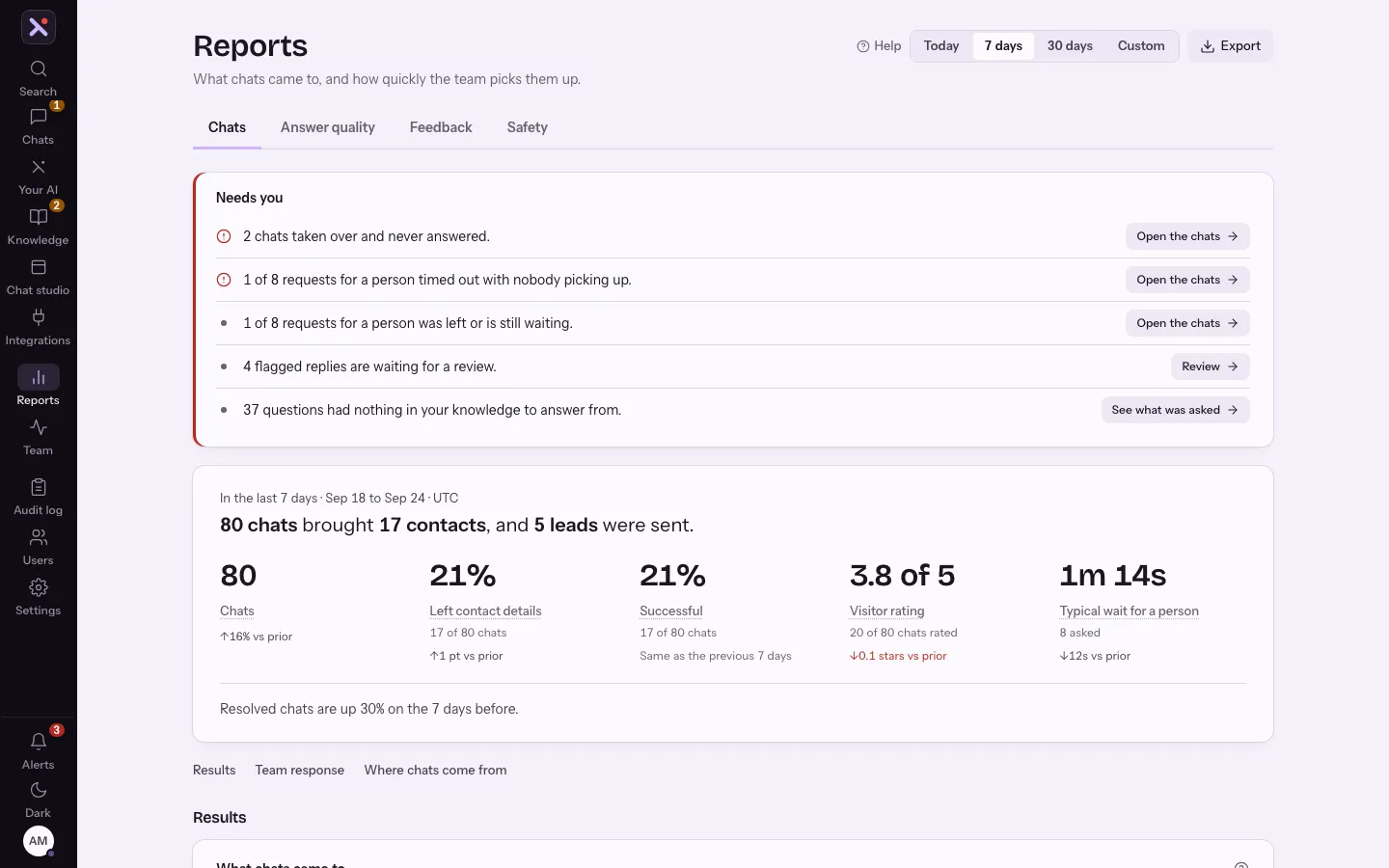
Deal with what is waiting. On the Chats tab, work through Needs you at the top: each line has the one button that deals with it, such as Open the chats for visitors who asked for a person and got nobody.
-
See what chats came to. Still on Chats, read the headline: how many chats there were, how many left contact details, how many were a success, and how fast hand-offs were picked up. Click a figure to open the chats behind it (Chats report).
-
Find where the AI fell short. On Answer quality, read the questions with no good answer, most asked first. An Admin presses Write the answer beside one to answer it (Answer quality).
-
Read what visitors said. On Feedback, read the star ratings and the replies visitors flagged. Press Mark reviewed on each flagged reply you have dealt with (Ratings, Flagged replies).
-
Check what was turned away. On Safety, see the share of messages stopped, the visitors turned away most, and who is blocked or muted (Safety).
-
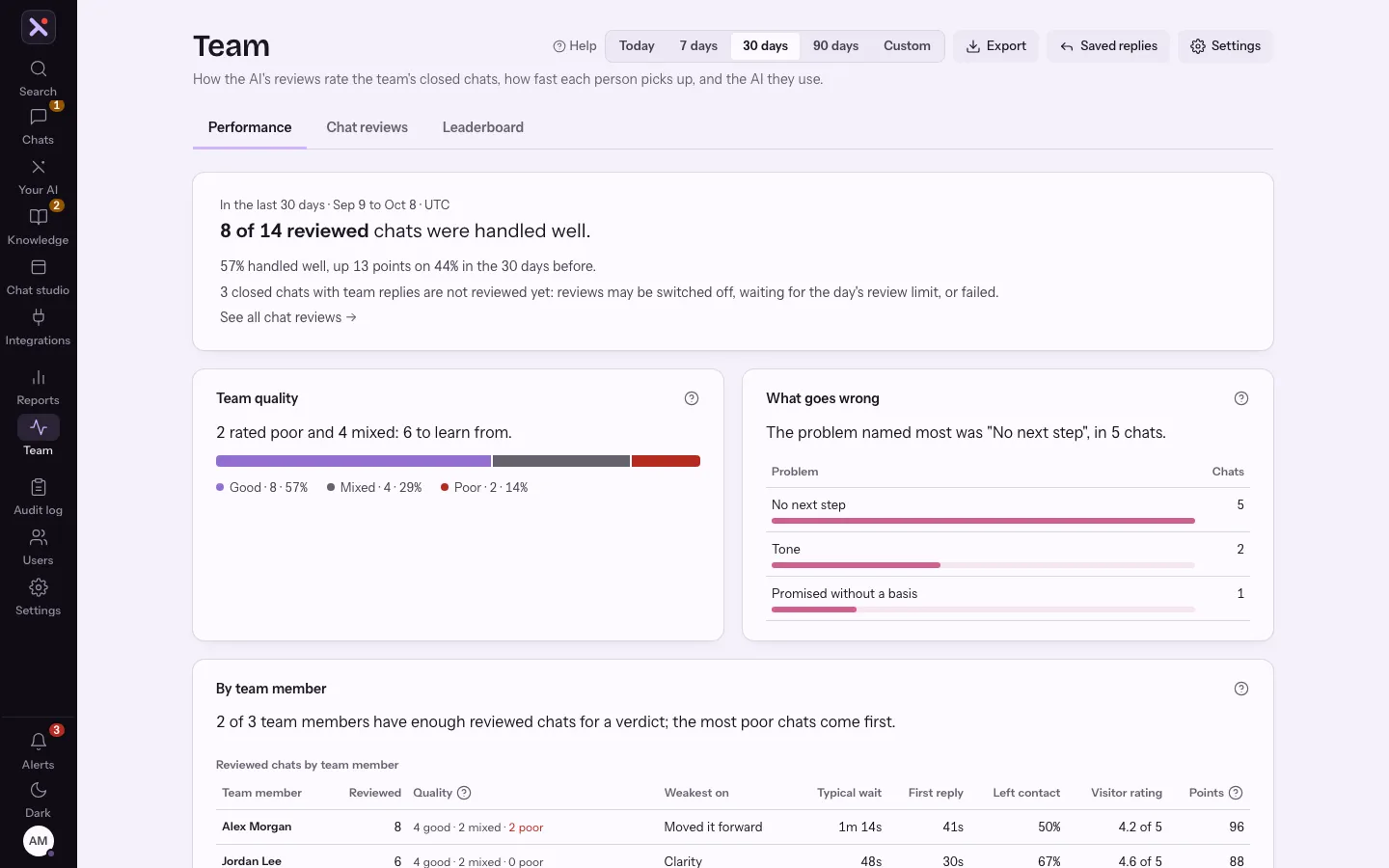
Read the team’s quality. Open Team, Performance. It counts reviewed chats as good, mixed or poor, ranks what went wrong most, and gives each team member a verdict once they have enough reviewed chats. Chats to coach from lists the recent chats that did not go well (Team performance).
-
Read reviews one by one. On Chat reviews, filter by quality, team member or kind of problem, or sort by Needs attention first. Open one to read What went well, What to improve and Next time, and say whether the advice was useful. Under Not reviewed yet, press Review now for a chat that has no review.
-
Look at points. The Leaderboard tab ranks the team by points per reviewed chat (Leaderboard and points).
-
Keep a copy. Export beside the date buttons prints the page or saves it as a PDF; an Operator, Supervisor or Admin can also download the tables as spreadsheets.
An Admin can also have the week’s figures sent to the team once a week: switch on Weekly summary in When to alert.
Act on what you find
Section titled “Act on what you find”| You found | Do | Who |
|---|---|---|
| Requests for a person that timed out | Check team hours, waits and who is alerted (Set up team hours, waits and alerts) | Admin |
| Chats taken over and never answered | Open them, follow up with the visitors, and talk to the team member | Supervisor |
| Questions with no good answer | Write the answer, or add the page or file that answers them (Change what the AI knows or says) | Admin |
| Low ratings with the same reason | Read two or three of the chats, then fix the cause: knowledge, wording or the team’s replies | Supervisor, Admin |
| A flagged reply that was wrong | Correct the source it used, then Mark reviewed | Admin, then Supervisor |
| One visitor turned away again and again | Open their chat and block them (Mute and block) | Supervisor |
| One kind of problem leading What goes wrong | Make it this week’s coaching topic, with examples from Chat reviews | Supervisor |
| A team member with mostly poor chats | Go through their reviews with them, one or two points at a time | Supervisor |
If something goes wrong
Section titled “If something goes wrong”| What you see | What to do |
|---|---|
| “Chat reviews are switched off.” | Ask an Admin to switch on AI coaching on closed chats. |
| No review for a closed chat | It is waiting for the next run, your team replied too little in it, or the day’s limit for reviews was reached. Not reviewed yet says which. |
| “Points are switched off.” | Ask an Admin to switch on Award points. |
| “Nothing earlier to compare with” | Your chats do not reach back that far yet. |
| A team member shows no verdict | They have too few reviewed chats in the period. Pick a longer one. |
Related
Section titled “Related”- Reports
- Team
- Connect your website: fill the gaps the reports show
Reviewed
Source files for this page
apps/dashboard/src/pageTabs.tsapps/dashboard/src/views/AnalyticsView.tsxapps/dashboard/src/views/InsightsView.tsxapps/dashboard/src/views/FeedbackView.tsxapps/dashboard/src/views/SafetyView.tsxapps/dashboard/src/views/OperatorQualityView.tsxapps/dashboard/src/views/ChatReviewsView.tsxapps/dashboard/src/views/ChatReviewsPending.tsxapps/dashboard/src/views/ChatReviewsParts.tsxapps/dashboard/src/views/LeaderboardView.tsxapps/dashboard/src/views/ReportPrint.tsx

