Settings reference
Chat studio
Who can open itViewer: noOperator: noSupervisor: noAdmin: yes
How the chat window looks and what it says before the AI’s first answer, on every website that shows it, what visitors may tell you, and the websites it may run on. The code you paste into your website only says where the chat appears: everything here is set in the dashboard, and reaches every website that has the code within about a minute of Publish.
Where to find it
Section titled “Where to find it”Chat studio in the rail (Work). Only admins can open it.
The page draws your chat on each screen a visitor meets, side by side: Closed, Welcome, A chat, Waiting for a person (only with Talk to a person) and Ended. Click any part of a chat (tap, on a phone) to change it in a small editor beside it, or a screen’s Edit for everything said and switched on there. The look is the toolbar above the chats: Colours, Style, Corners, Font and Pictures.
Nothing reaches visitors until Publish, which first lists each change for a last look; Discard drops what you have not published, and History brings back an earlier Publish as a draft. The pictures, the allowed websites and Allow any website are the exceptions: each saves the moment you set it.
Add to website (Website & code once your chat is live) opens the steps that put the chat on a website: list the websites it may run on (Where it runs) and copy the code. The Settings search finds these settings and opens this page.
How to change the look is on Choose how the chat looks; the page itself, with the websites and the code, is described on Chat studio.
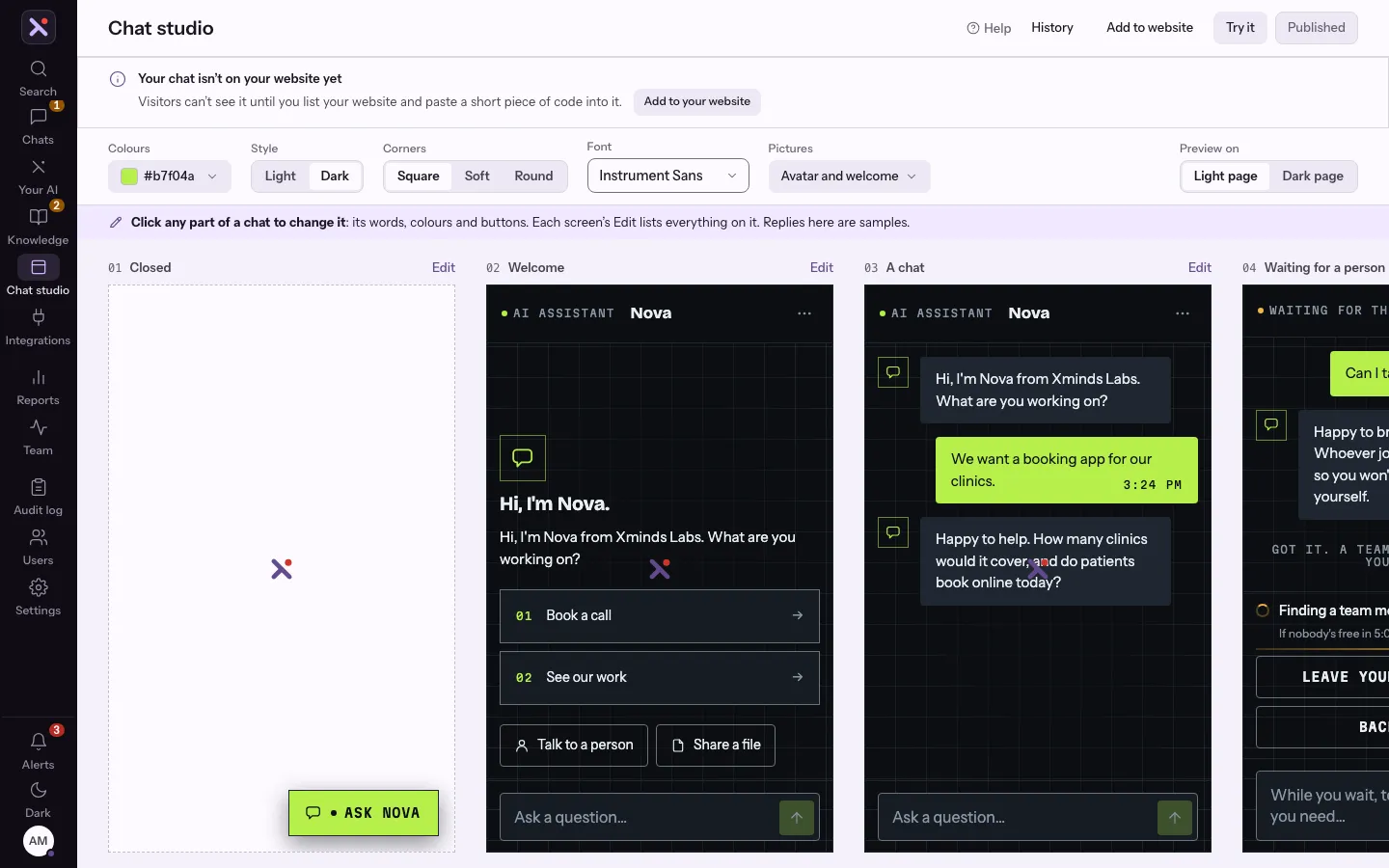
The picture shown next to the AI’s messages and the picture on the welcome screen belong to this group too, under Pictures in the toolbar: they are images, not settings, and each is saved as soon as it is chosen, not by Publish.
The nine settings below are the chat’s look, set from the toolbar at the top of the Chat studio: Colours (the brand colour, the header, launcher, button and visitor-message colours, and the grid), Style, Corners and Font. The toolbar uses shorter names for some: Style is the colour scheme, and the colours are Launcher, Buttons, Visitor messages and Grid and corner brackets. Publish saves the look with your other changes. A colour whose text would be hard to read (contrast under 4.5 to 1) is refused, with a button that puts in the nearest colour that works. Colours are written #rrggbb.
| Setting | Starts as | Allowed values or range | Example | What it does |
|---|---|---|---|---|
| Colour scheme | Light | Light; Dark | Dark | Whether the chat’s window is light or dark. A page with its own light and dark switch can set it for itself. |
| Brand colour | blank | — | #1d6fd8 |
The colour of the chat’s buttons, links, the visitor’s messages and the launcher; the text on it is chosen to be readable. Blank: the chat’s own blue. |
| Header colour | blank | — | #14233c |
The bar at the top of the chat. Blank: follows the brand colour. |
| Launcher colour | blank | — | #14233c |
The floating button that opens the chat. Blank: follows the brand colour. |
| Button colour | blank | — | #1d6fd8 |
Send and the other action buttons. Blank: follows the brand colour. |
| Your visitors’ messages colour | blank | — | #e8eef7 |
The visitor’s message bubbles. Blank: follows the brand colour. |
| Corners | Soft | Square; Soft; Round | Square | How round the chat’s corners, bubbles and buttons are: square, soft or round. |
| Grid and brackets | Off | On or off | On | Draws a faint grid behind the chat and brackets at its corners. |
| Font | Device font | Device font; Instrument Sans; Inter; Manrope; Source Serif | Manrope | The chat’s typeface: system uses the visitor’s own font; console is Instrument Sans with mono labels (EveryKnock’s own); inter, manrope and serif (Source Serif) are faces the chat hosts itself. |
Welcome
Section titled “Welcome”What a visitor reads before the first message. The three buttons sit under the suggested first questions; hiding one removes the button only: a visitor can still ask for a person in the message box, files can still be shared from the chat’s menu, and the Book a call button in the chat follows its own switch on the Ended screen. The heading and the three button texts are the chat’s own labels, in your words: each is one line, and empty uses the chat’s built-in line. Each reaches visitors within a minute.
| Setting | Starts as | Allowed values or range | Example | What it does |
|---|---|---|---|---|
| Your AI’s name | blank | One line, up to 60 characters | Ava |
What the AI calls itself, such as “Ava”. Empty: it is called “the [company name] assistant”, with your company name filled in. |
| Welcome message | blank | One line, up to 300 characters | Tell me what you're trying to build, fix, or improve, and I'll pass the essentials to the team at {company}. |
The first message every visitor sees, under “Hi, I’m {name}.” so write it without its own hello. {name} becomes the name in the chat, {company} the company name. The AI is told what it said, so it can follow on from it. Empty: “I’m an AI assistant. Tell me how I can help. You can ask for a person from the team at any time.” |
| Suggested first questions | What can you help with? (+1 rows) |
Up to 6 rows | I have an app idea (one per row) |
Buttons a visitor can tap instead of typing their first message, one per row. Only the first six are shown. Empty: no buttons. |
| Welcome heading | blank | One line, up to 120 characters | Welcome to {company}. |
The big line at the top of the welcome screen (120 characters). {name} becomes the assistant’s name and {company} the company name. Empty: “Hi, I’m {name}.” |
| “Talk to a person” button on the welcome screen | Off | On or off | On | Shows a Talk to a person button under the suggested first questions when a chat opens. Off (the default): the button is hidden, so the chat starts with the AI; a visitor can still ask for a person in the message box, and the AI answers a first ask before a person is brought in. |
| “Talk to a person” button text | blank | One line, up to 40 characters | Speak to the team |
The words on that welcome-screen button (40 characters). Empty: “Talk to a person”. |
| “Share a file” button | On | On or off | Off | Shows a Share a file button under the suggested first questions when a chat opens, which opens the file panel. Off: the button is hidden; files can still be shared from the chat’s menu. |
| “Share a file” button text | blank | One line, up to 40 characters | Send us a document |
The words on that welcome-screen button (40 characters). Empty: “Share a file”. |
| “Schedule a call” button Needs: Booking link |
On | On or off | Off | Shows a Schedule a call button under the suggested first questions when a chat opens; pressing it sends “Schedule a call” as the visitor’s own message, and the reply carries the Book a call button with your booking link. Needs the booking link (the booking card, on the Ended screen). Off: the button is hidden; the Book a call button in the chat follows its own switch. |
| “Schedule a call” button text | blank | One line, up to 40 characters | Book a time |
The words on that welcome-screen button (40 characters). Empty: “Schedule a call”. |
| Privacy notice | blank | One line, up to 300 characters | Chats are kept for {retention_days} days so the team can follow up. [Privacy policy](https://www.example.com/privacy/) |
One short line at the foot of the chat’s welcome screen, read before the first message, usually a privacy notice. It may hold one link, written [label](https://…), which the chat’s menu also offers for the rest of the chat. {retention_days} becomes the number of days chats are kept (Keep chats for), so the notice never says another number. Empty: nothing is shown. |
A chat
Section titled “A chat”A chat under way: the message box and its microphone, the lines shown while the AI is thinking, the suggested replies under an AI answer, the source cards and the tracking added to their links, whether visitors may flag an answer, and the button under the AI’s answer when a visitor first asks for a person (shown only with Talk to a person: the AI answers that first ask itself, and the button lets the visitor insist). Everything a visitor flags is collected on the dashboard’s Feedback tab and in the chat; nothing is sent to the AI or acted on. Each reaches visitors within a minute of Publish.
| Setting | Starts as | Allowed values or range | Example | What it does |
|---|---|---|---|---|
| Let visitors attach files | On | On or off | Off | On: a visitor can send your team a document (a brief, a spec) from the chat’s menu; the AI never opens it. Off: the menu’s files entry and the Share a file button are gone. Shown only when your plan includes file attachments; how large and how many files are your plan’s (Limits). |
| Message box hint | blank | One line, up to 80 characters | Describe your project or ask a question… |
The grey text in the empty message box. Empty: “Type your message…”. |
| Voice typing | Off | Off; Team only; Team and visitors | Team and visitors | Who gets the microphone: Off, the team only, or the team and visitors. Each recording is turned into text and counts toward your plan’s daily limits: visitors’ recordings toward the limit for visitors’ chats and the team’s toward the limit for team AI tools, so staff dictating never uses up the visitors’ allowance. Team only and Team and visitors also put a microphone in the team’s reply box. |
| “Thinking” lines | blank | Up to 5 rows | Consulting the office plant… (one per row) |
Said beside the typing cursor, one after the other, while a reply takes a few seconds: the first after about 2 seconds, a new one every 3 or 4, never repeated. After 20 seconds the chat says the answer is taking a while. One per row, up to five, 48 characters each. Empty: “Looking into it…”, “Checking the details…”, “Putting it together…”, “Nearly there…”. |
| Suggested replies | On | On or off | Off | Shows tappable suggested replies under an AI answer. Off: the AI is not asked for them at all, so none are drawn. |
| Let visitors pick several suggested replies | On | On or off | Off | Lets a visitor tap more than one suggested reply and send them together, when the AI’s question can have several answers (such as which features they need). Off: every suggested reply sends on its own tap. |
| Show sources | On | On or off | Off | Shows the cards for the pages an answer drew on. Off: the cards are left out; the answer and its numbered references are unchanged. |
| Link tracking: source | everyknock |
One line, up to 100 characters | everyknock |
Added to the links on source cards as the “utm_source” tag, so your website analytics can tell which visits came from the chat. |
| Link tracking: medium | chat |
One line, up to 100 characters | chat |
The same, as the “utm_medium” tag. |
| Link tracking: campaign | ai_conversation |
One line, up to 100 characters | ai_conversation |
The same, as the “utm_campaign” tag. |
| Let visitors flag an answer | Off | On or off | On | Shows a flag under each AI reply, so a visitor can mark an answer for you to look at later, with an optional reason and comment. Team members’ messages cannot be flagged. |
| Reasons offered for a flag Shown only while “Let visitors flag an answer” is on |
Incorrect (+4 rows) |
Up to 6 rows | Out of date (one per row) |
The choices shown when a visitor flags a reply. One to six rows of 40 characters. |
| “Talk to a person” button after the AI’s first answer | On | On or off | Off | Shows a Talk to a person button under the AI’s answer to a first ask for a person. Off: the answer is the same without the button, and a visitor who still wants a person asks again. |
| Wording of that button Shown only while ‘“Talk to a person” button after the AI’s first answer’ is on |
blank | One line, up to 60 characters | No, I want to talk to a person now |
What the button under the AI’s first answer says. Pressing it sends these words as the visitor’s message, so word it as a request for a person. Empty: “I’d still like to talk to a person”. |
Waiting
Section titled “Waiting”What a visitor reads while the team is being asked to join. It reaches visitors within a minute. A company with no team in the chat has no such screen.
| Setting | Starts as | Allowed values or range | Example | What it does |
|---|---|---|---|---|
| Waiting for a team member title | blank | One line, up to 80 characters | Finding someone for you... |
The heading shown while the chat waits for a team member to join (80 characters). Empty: “Finding a team member…”. |
The end of a chat: the closing line, the rating a visitor may give, the contact card and the booking card. A rating is collected on the dashboard’s Feedback tab; nothing a visitor says in it is sent to the AI or acted on. The lines are the chat’s own labels, in your words: each is one line, and empty uses the chat’s built-in line. Each reaches visitors within a minute.
The contact card is an optional form asking for an email address, a phone number or both, offered under a useful answer during a chat and again when a chat ends without them; the visitor can always skip it and keep chatting. How an address left in it is checked is the same for every company. The booking card is a Book a call button beside the contact card for a visitor who wants what only your team can give: a quote or a timeline, a call, or a person when nobody can take the chat. It opens your booking link in a new tab and never replaces the contact card. The CRM a chat’s record goes to is connected on the Integrations page, and the thank-you email to a visitor who leaves an address is set there too (Visitor emails).
| Setting | Starts as | Allowed values or range | Example | What it does |
|---|---|---|---|---|
| Ended chat text | blank | One line, up to 80 characters | This chat has finished |
What the chat says once a chat has ended (80 characters). Empty: “Conversation ended”. |
| Ask visitors to rate the chat | Any time | Never; When the chat ends; Any time | When the chat ends | Where a visitor is asked to rate the chat with one to five stars, some reasons and an optional comment. Never: not asked. When the chat ends: only once it has ended. Any time: also from the chat’s menu, so a visitor who leaves without it ending can still rate. |
| Reasons offered for 1 to 3 stars Shown only while “Ask visitors to rate the chat” is not “Never” |
Did not answer my question (+4 rows) |
Up to 6 rows | Too slow (one per row) |
The choices shown after a rating of three stars or fewer. One to six rows of 40 characters. |
| Reasons offered for 4 or 5 stars Shown only while “Ask visitors to rate the chat” is not “Never” |
Quick answer (+4 rows) |
Up to 6 rows | Accurate (one per row) |
The choices shown after a rating of four stars or more. One to six rows of 40 characters. |
| Ask visitors for their contact details | On | On or off | On | On: after a genuinely useful answer, visitors are offered a small form for their email or phone, which they can skip. Off: never. |
| Ask for an email address Shown only while “Ask visitors for their contact details” is on |
On | On or off | On | The form has an email field. With email and phone both off, no form is shown. |
| Ask for a phone number Shown only while “Ask visitors for their contact details” is on |
On | On or off | On | The form has a phone field with a country code. |
| Times to ask in one chat Shown only while “Ask visitors for their contact details” is on |
1 |
0 to 65535 times (0 = off) | 1 |
How many times one chat may show the form, skipped ones included. 0 also turns it off. Above 0, a visitor who asks how to leave their details still gets it. |
| Earliest answer to ask after Shown only while “Ask visitors for their contact details” is on Under Advanced |
2 |
2 to 50 | 2 |
The form never appears before this answer (2: never on the first answer). |
| Contact card prompt | blank | One line, up to 160 characters | Leave your email and we will follow up. |
The line above the email box when the chat asks for contact details (160 characters). Empty: the chat’s own line. |
| Contact card reassurance | blank | One line, up to 160 characters | We only use it to reply to you. |
The small line under that box (160 characters). Empty: the chat’s own line. |
| Offer a “Book a call” button | Off | On or off | On | On: a Book a call button opens your booking link beside the contact form when a visitor asks for a quote, a call or a person nobody can answer for, and the opening screen of the chat has a Schedule a call button. Off: never. Needs the booking link below. |
| Booking link Shown only while ‘Offer a “Book a call” button’ is on |
blank | One line, up to 300 characters | https://calendly.com/inkreda/intro |
The page the Book a call button opens, an https:// address such as your Calendly link. Empty: no booking button. |
| Booking prompt | blank | One line, up to 160 characters | Prefer a call? Pick a time. |
The line above the Book a call button (160 characters). Empty: the chat’s own line. |
| Booking button text | blank | One line, up to 40 characters | Pick a time |
The words on the Book a call button (40 characters). Empty: “Book a call”. |
Button
Section titled “Button”The closed chat’s button and the nudge beside it (launcher label, teaser and its delay). They reach visitors within a minute.
| Setting | Starts as | Allowed values or range | Example | What it does |
|---|---|---|---|---|
| Launcher label | blank | One line, up to 40 characters | Ask us |
The words on the floating button (40 characters). {name} becomes the assistant’s name and {company} the company name. Empty: “Ask {name}”. |
| Teaser | blank | One line, up to 120 characters | Questions about pricing? Ask here. |
A short line shown beside the closed launcher to invite a visitor in (120 characters; {name} and {company} work). Empty: none. |
| Teaser delay | 8 |
0 to 60 seconds | 15 |
Seconds after the page loads before the teaser shows, 0 to 60. |
Where it runs
Section titled “Where it runs”Where the chat may run, set in the steps Add to website opens, under Say where it runs. The site key (the public ID of your chat) in the embed code can be seen by anyone, so this list is what stops a copy of the code from working on another site. The list has its own Save websites button, and the Allow any website switch saves the moment it is switched: neither waits for Publish.
| Setting | Starts as | Allowed values or range | Example | What it does |
|---|---|---|---|---|
| Allowed websites | blank | — | inkreda.example (one per row) |
The websites your chat may be started on, one per row. A website address also covers its sub-addresses (example.com covers www.example.com); add localhost to try the chat while you build it. Empty: the chat is closed to every website, unless Allow any website is on. A chat started anywhere else is refused, so a copy of your embed code on another site does not work. Someone using a tool other than a web browser can pretend to be a listed site, so this stops casual copying, not a determined abuser. |
| Allow any website | Off | On or off | On | Lets every website start a chat while Allowed websites is empty. Off: an empty list keeps the chat closed everywhere. Use it only to test, or while you list your sites: any website with your site key can then use the chat and counts against your budget. Once a website is listed, only listed websites can start a chat, whatever this says. |
Source files for this page
docs/SETTINGS.mdservices/api/app/settings/settings_store.py

