Answer chats · Step-by-step guide
Handle a waiting chat
Who can open itViewer: noOperator: yesSupervisor: yesAdmin: yes
Before you start
Section titled “Before you start”- You are an Operator, Supervisor or Admin. A Viewer sees the chat but cannot take it over (Roles).
- Your switch in the account menu says Available. While you are Away, a visitor is not kept waiting for you.
- The dashboard is open in a browser tab for the sound, the pop-up and the waiting count. With it closed, a push message to your phone or an email can still reach you, if you switched them on (Your preferences).
The visitor waits for Wait for someone to join, 3 minutes unless an Admin changed it. After that the AI carries on and asks for their contact details, so the first minute or two matter.
-
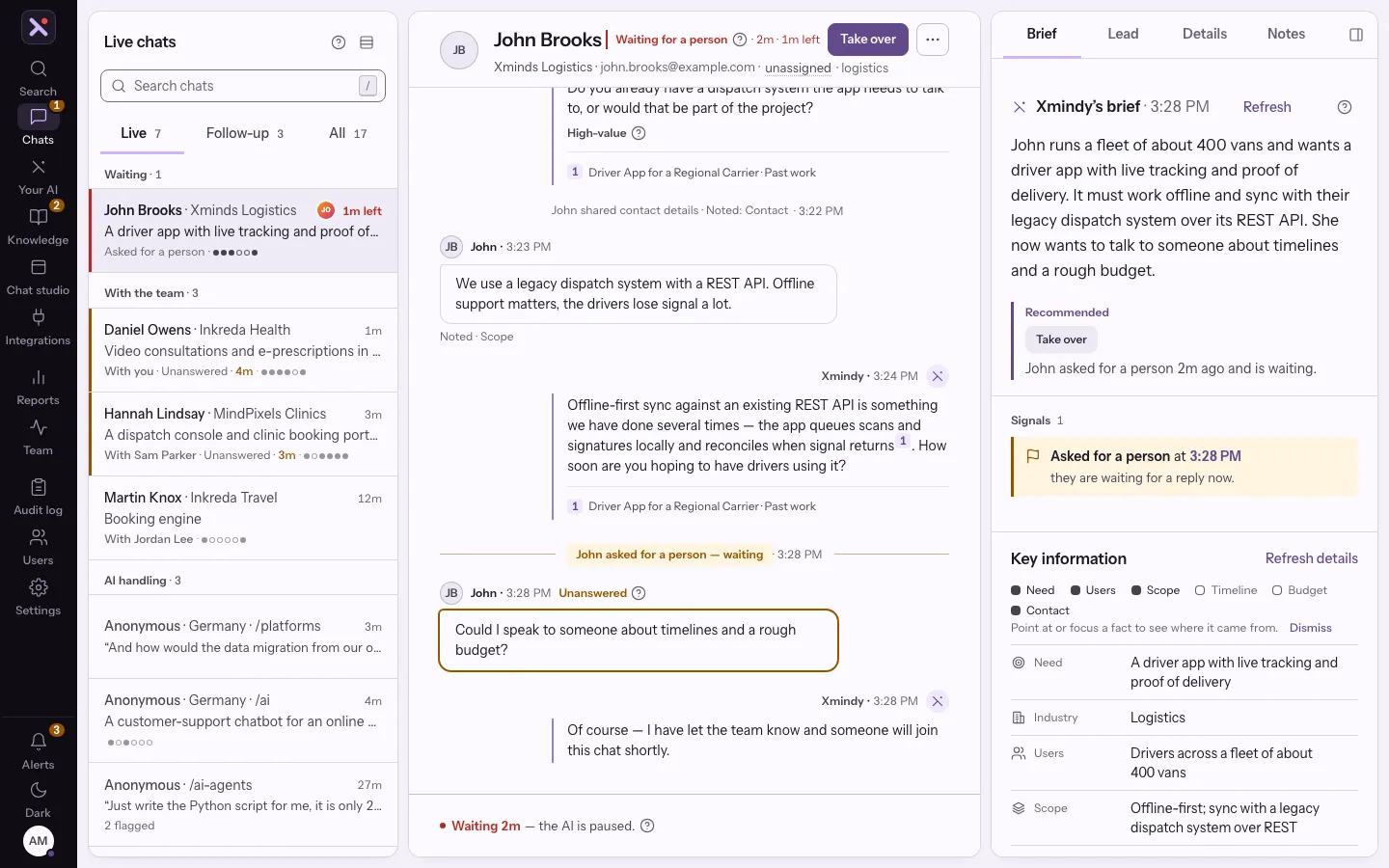
Notice the chat. It moves into the Waiting group on Live, marked “Asked for a person” with how long the visitor has waited: amber at first, red after a minute, and “1m left” in the last minute. Chats in the menu shows a count, the browser tab reads “(1 waiting)”, and with your alerts on for Needs a person you hear a sound and see a pop-up and an alert in the bell.
-
Open it. Click the row or the alert, or press
nto open the visitor who has waited longest. The header reads Waiting for a person, and the AI is paused. -
Read before you write. The brief beside the chat sums up who the visitor is and what they want, and Recommended reads Take over. Anything they typed while waiting is in the transcript, the last message marked Unanswered (The AI’s brief).
-
Press Take over (or point at the row on Live and press Take over there). Because the visitor is waiting, it happens at once. A message says “You’re in. The visitor now sees your name.”, the reply box opens, and the visitor sees “{your name} has joined the chat.”
-
Reply. Type in the box and press
Enteror Send. To save time, press Use on the suggested reply above the box, type/in an empty box for a saved reply, or press Draft with AI for a first draft to edit (Take over and reply). -
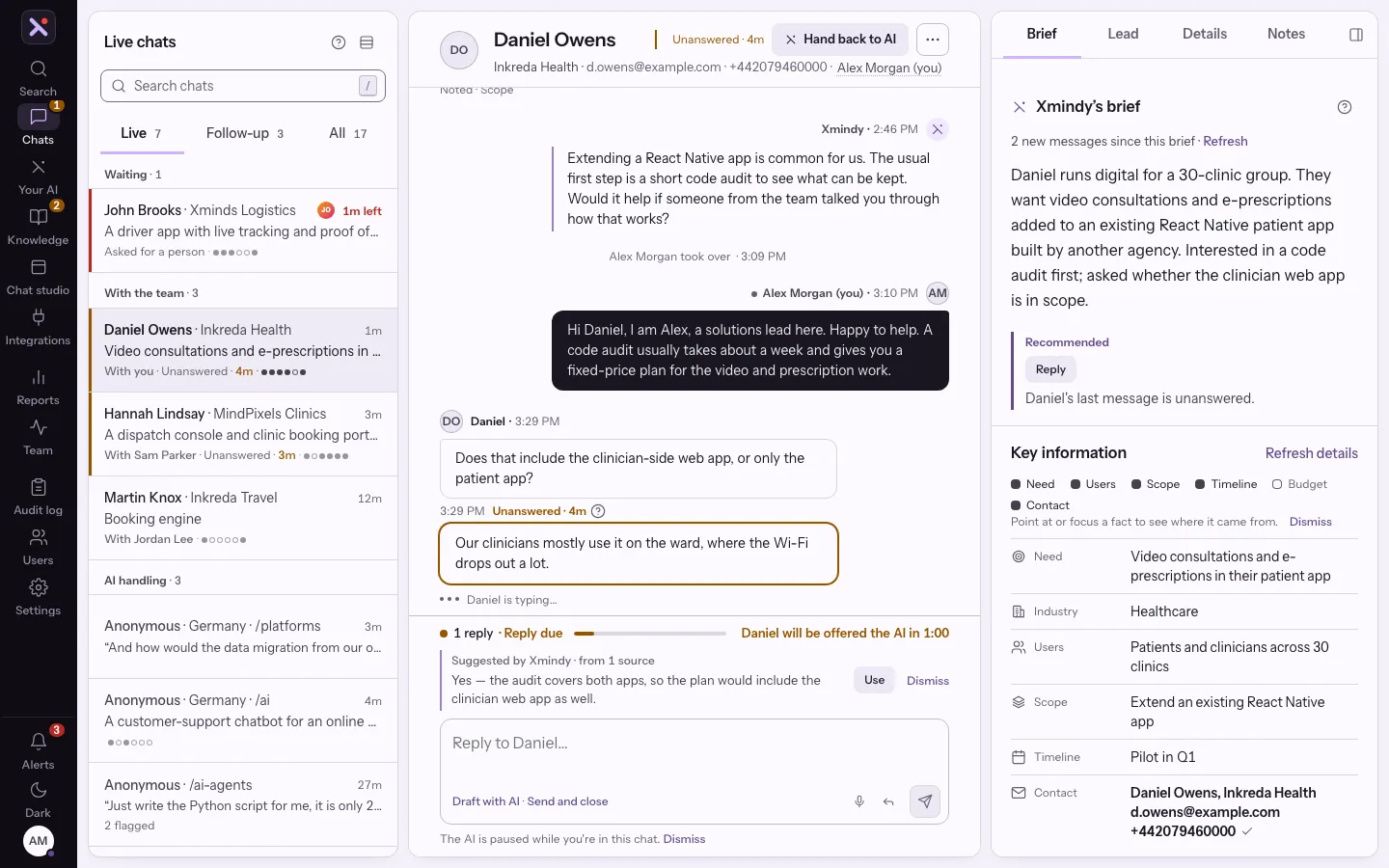
Keep answering in time. Each time the visitor writes, their message is marked Unanswered with a clock. If you have not replied within Wait for a team member’s reply, the visitor is offered the AI again; the last minute counts down above your reply box.
-
Finish. Choose one:
- Hand back to AI lets the AI answer again. If the visitor’s last message has no reply yet, you are asked first: Reply first or Hand back anyway. The visitor is told the AI is back and can ask for a person again.
- Send and close puts your company’s farewell in the reply box. Edit it, press Send and close again and confirm. The visitor reads it and the chat ends.
- Close chat… in the
⋯menu ends the chat without a message, after you confirm.
After a hand-back the chat moves to AI handling on Live. After a close it leaves Live and stays under All; if the visitor left an email or phone, it also waits under Follow-up (Send a chat’s record to your CRM). A closed chat cannot be reopened.
If something goes wrong
Section titled “If something goes wrong”| What you see | What to do |
|---|---|
| “Name took over this chat” | A colleague pressed Take over first. The chat is theirs; open another. |
| “This chat can’t be taken over: a team member already has it, or it is closed.” | The same, or the chat closed while you were reading. Open another. |
| No Take over button | You are a Viewer, the chat is closed, or someone holds it. A Supervisor or Admin can take it from a colleague. |
| The chat left Waiting before you got to it | Nobody joined in time, so the AI carried on (“Nobody from the team responded — returned to the AI” in the transcript). You can still take it over, or follow the visitor up if they left contact details. |
| “AI limit · closes in 2m” on the row | The AI has given its last answer for this chat. Take it over before the time runs out, or it closes. It cannot go back to the AI afterwards. |
| No Hand back to AI | The chat has used all its AI answers, so it cannot go back. Close it when you are done. |
| “You no longer have this chat. Refresh and take it over again.” | A colleague took it, or you handed it back. Your unsent words stay on screen with Copy. |
| “Reconnecting… messages may be out of date.” | The live connection dropped. Wait, or press Retry now. |
t or r does nothing |
You are typing in a box, a window is open, or single-key shortcuts are off. Help in the Keyboard shortcuts list (press ?) opens When a shortcut does nothing |
| You were not alerted | Check that you are Available, the dashboard tab is open, and Needs a person is on in Your preferences, Alerts. |
Related
Section titled “Related”- Take over and reply
- Close a chat and send its record
- Asking for a person: when a visitor waits and for how long
- Talking to a person: what the visitor sees
Reviewed
Source files for this page
apps/dashboard/src/views/workspace/Workspace.tsxapps/dashboard/src/views/workspace/Confirmations.tsxapps/dashboard/src/views/workspace/Composer.tsxapps/dashboard/src/useConversationDetail.tsapps/dashboard/src/views/inbox/useInboxList.tsapps/dashboard/src/views/shell/AvailabilitySwitch.tsxapps/dashboard/src/views/shell/ShortcutsDialog.tsxshared/web/src/documentTitle.tsapps/dashboard/src/notificationGroups.tsapps/widget/src/chatbot/strings.tsapps/dashboard/src/views/inbox/QueueRow.tsxapps/dashboard/src/views/workspace/understandingModel.tsapps/dashboard/src/inbox/display.tsdocs/SETTINGS.md

