See how it's going · Step-by-step guide
Control use and abuse
Who can open itViewer: noOperator: yesSupervisor: yesAdmin: yes
Before you start
Section titled “Before you start”- An Admin changes the limits; a Supervisor or Admin blocks; an Operator mutes (Roles).
- A “visitor” is one internet address. Staff in one office often share one, so a block or a tight limit covers everyone behind it.
Set the limits (Admin)
Section titled “Set the limits (Admin)”-
Know your plan’s limits. The daily limits on AI use and on what all visitors may send come with your plan, not your Settings page. Your EveryKnock contact can change them (Settings you do not edit here).
-
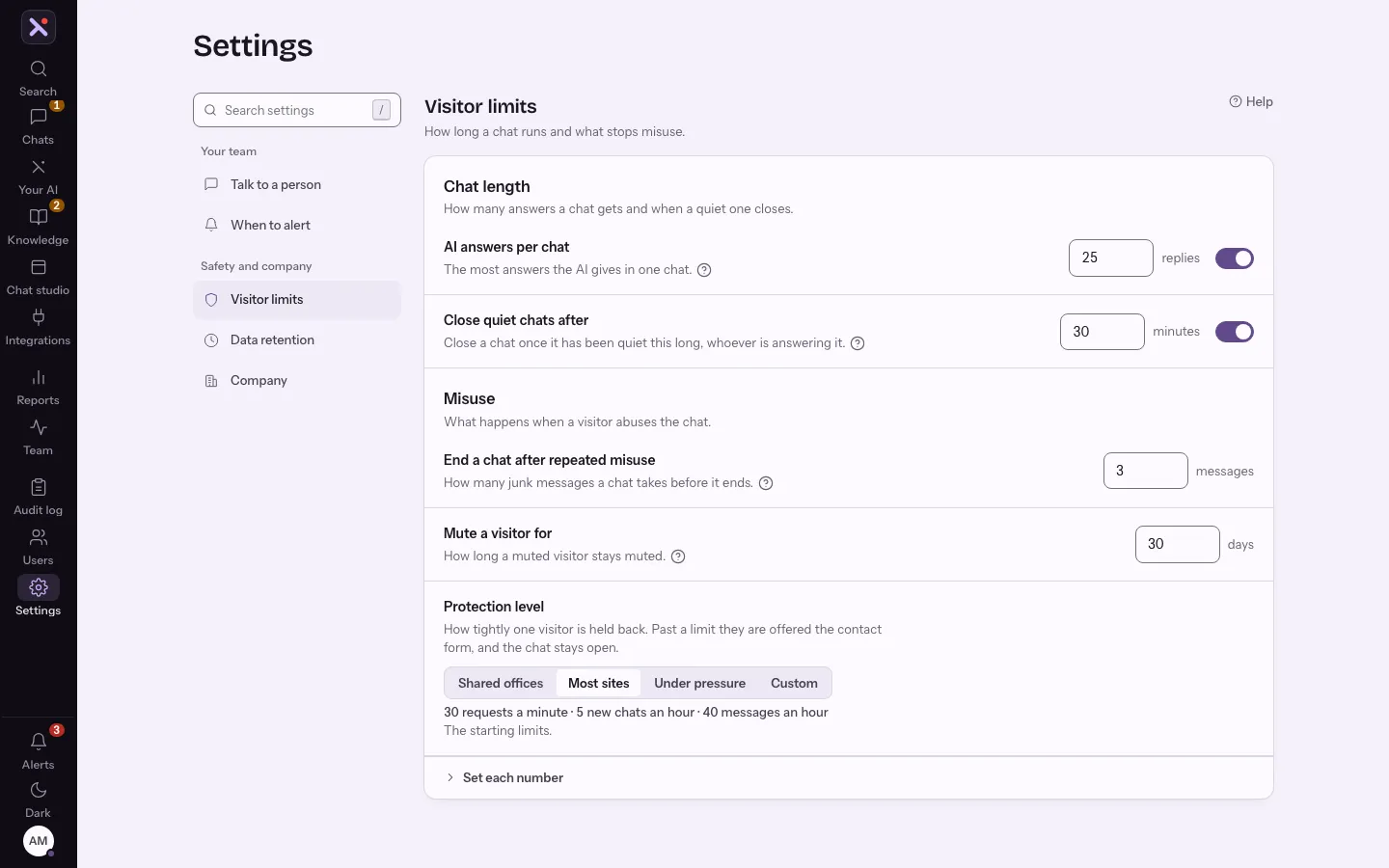
Set the chat length. Open Settings, Visitor limits. AI answers per chat caps the AI’s answers in one chat; then the visitor is passed to your team (Chat length).
-
Set the misuse limits. End a chat after repeated misuse ends a chat after a number of insults, spam or attempts to rewrite the AI’s instructions. Mute a visitor for sets how long a mute lasts (Misuse).
-
Pick a protection level. Choose Shared offices, Most sites or Under pressure. Each says what it allows and saves at once, with Undo. Custom opens the limits behind it under Set each number (Protection level).
-
Turn on the bot check, if bots trouble you. On Integrations, open Cloudflare Turnstile or Google reCAPTCHA, save that service’s two keys, choose it under Run the bot check with, then switch on Check that visitors aren’t bots. Then try the chat on your website: a wrong key stops every visitor (Connect the bot check).
-
Keep the alert on. In When to alert, A daily plan limit is reached tells your team when a plan limit is reached (When to alert).
Act on a visitor (Operator and up)
Section titled “Act on a visitor (Operator and up)”-
Mute. In the chat, open
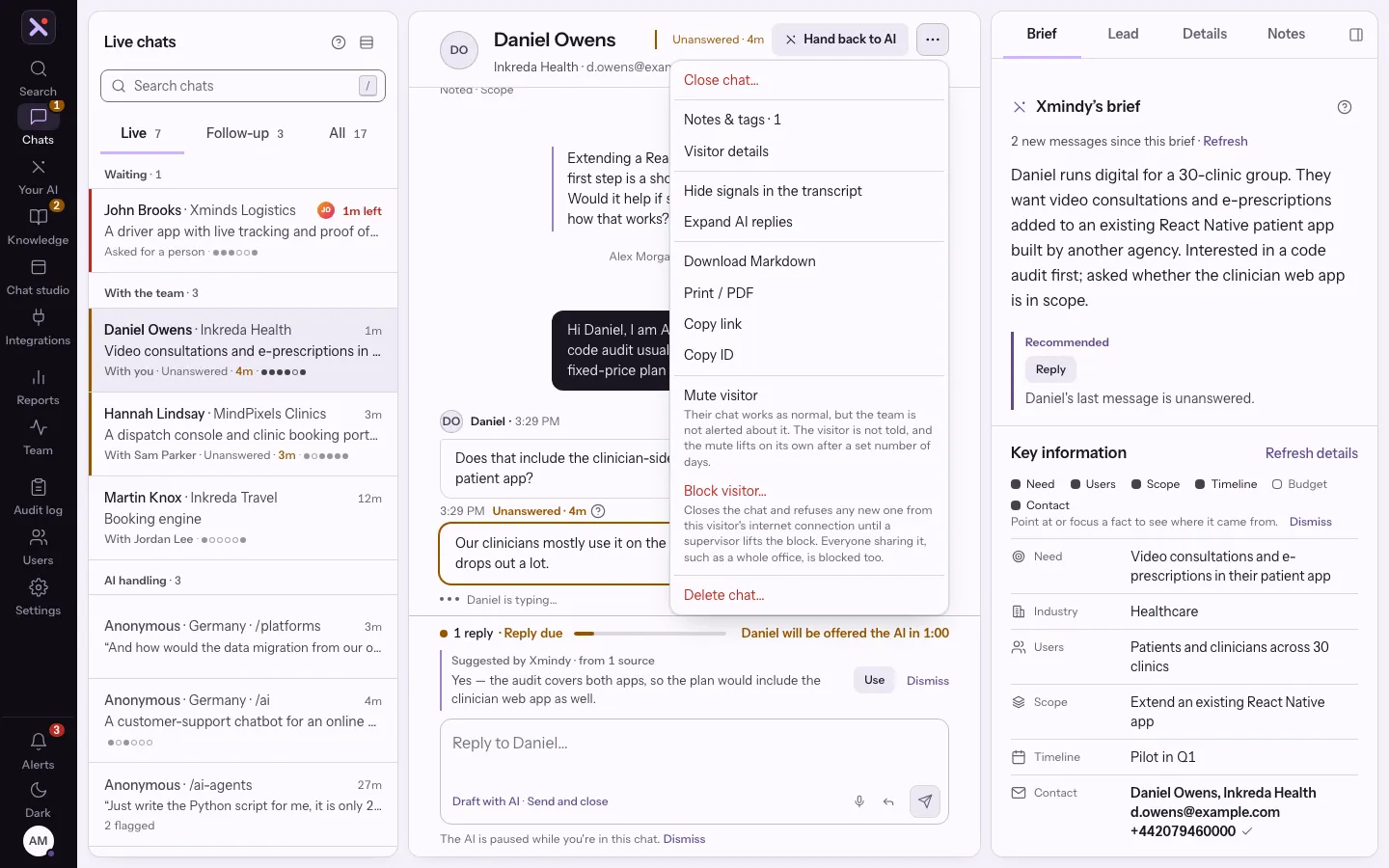
⋯and choose Mute visitor. A message says “Visitor muted”. The chat carries on and the visitor is not told, but your team is no longer alerted about their chats. It ends by itself. -
Block (Supervisor or Admin). Choose Block visitor… and confirm Block visitor in the window Block this visitor?. The chat closes, and no new chat can start from that internet address until someone lifts the block. A muted visitor can be blocked too; the block replaces the mute.
-
Undo either. In the chat’s
⋯menu choose Unmute visitor, or Unblock visitor (Supervisor or Admin), or use Blocked and muted visitors on Safety (Mute and block).
Watch it (anyone signed in)
Section titled “Watch it (anyone signed in)”Reports, Safety shows the share of messages turned away, the visitors turned away most, who is blocked or muted, and when a daily limit was reached (Safety).
If something goes wrong
Section titled “If something goes wrong”| What you see | What to do |
|---|---|
| No Block visitor… in the menu | You are an Operator. Ask a Supervisor or Admin, or mute instead. |
| Check that visitors aren’t bots cannot be switched on | Save both Cloudflare keys first. |
| No chat can start after the bot check was switched on | The site key is wrong, or your website is not listed on the key in Cloudflare. Fix it, or switch the check off. |
| Visitors see “You’re sending messages too quickly.” | One visitor passed the per-minute limit. If real visitors hit it, pick a looser protection level. |
| Every visitor is offered a form instead of answers | A daily limit of your plan is reached. It lifts as earlier use passes 24 hours. Ask your EveryKnock contact if it happens often. |
| “The daily limit on AI assists is reached” | Your team’s AI tools, such as drafting a reply, are paused the same way. |
Related
Section titled “Related”Reviewed
Source files for this page
shared/web/src/views/settings/registry.tsxapps/dashboard/src/views/settings/ProtectionLevel.tsxapps/dashboard/src/views/workspace/Workspace.tsxapps/dashboard/src/views/workspace/Confirmations.tsxapps/dashboard/src/views/SafetyView.tsxapps/dashboard/src/permissions.tsdocs/SECURITY.md

