Answer chats · Step-by-step guide
Take a chat from a colleague
Who can open itViewer: noOperator: noSupervisor: yesAdmin: yes
Use it when a colleague has stepped away and their visitor is left without a reply. If the visitor has already gone back to the AI, a plain Take over is enough.
Before you start
Section titled “Before you start”- You are a Supervisor or Admin. An Operator is not offered the choice (Roles).
- A colleague holds the chat: its header reads With {name} and its row names them.
-
Find the chat. On Live, look in the With the team group. A chat whose visitor is owed a reply reads “Unanswered” with how long they have waited, with an amber edge; it turns red once the wait for a team member’s reply is over.
-
Open it and read. The visitor’s unanswered message is marked in the transcript. Check whether your colleague is typing (a line at the foot of the transcript says so) before you step in.
-
Choose the takeover. Open the
⋯menu and choose Take over from {name}…; it is offered at any time. Once the visitor has been offered the AI back because nobody replied, Take over from {name} also appears in the header. On a Live row, the same choice is in the row’s menu (right-click, or press and hold).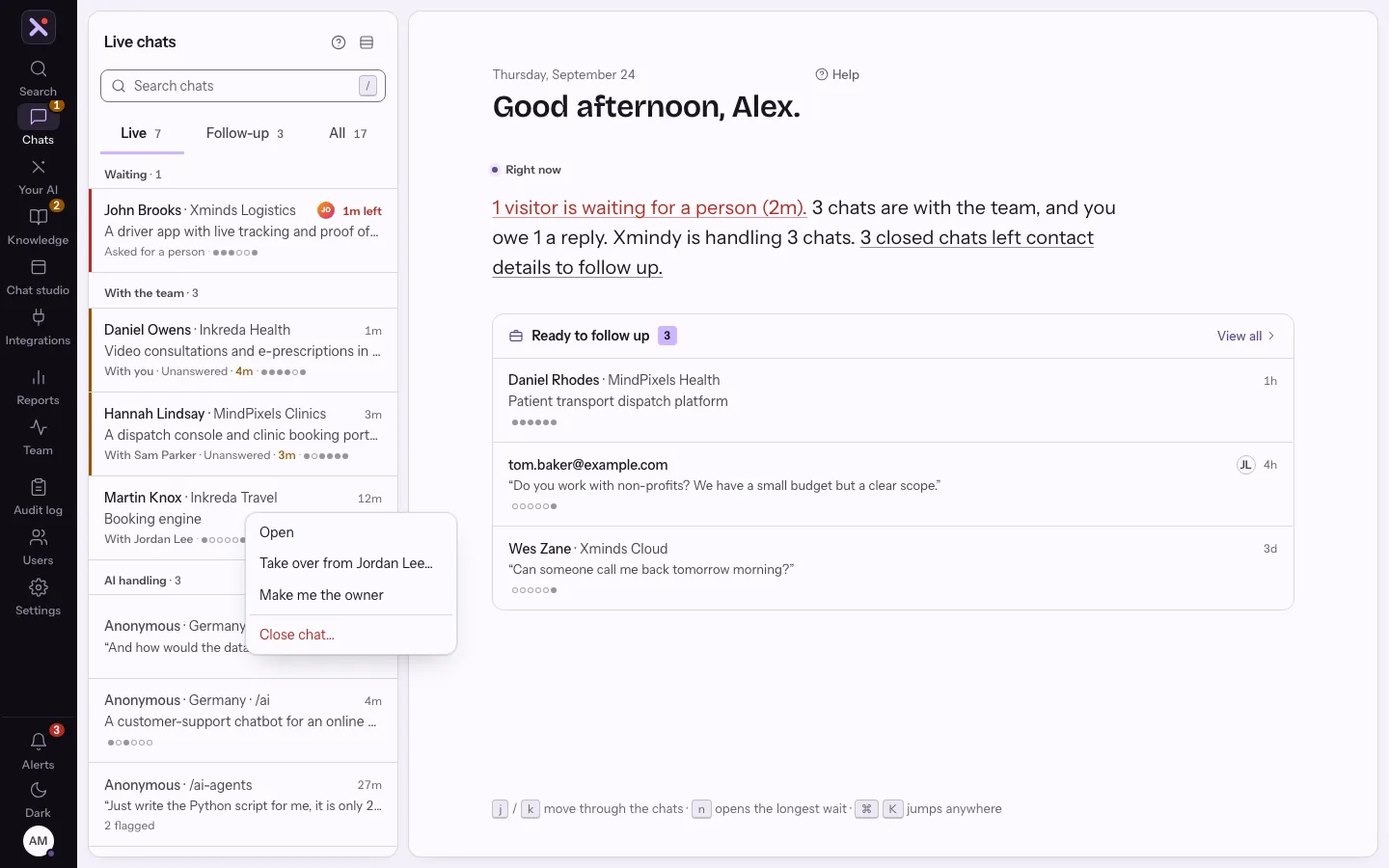
-
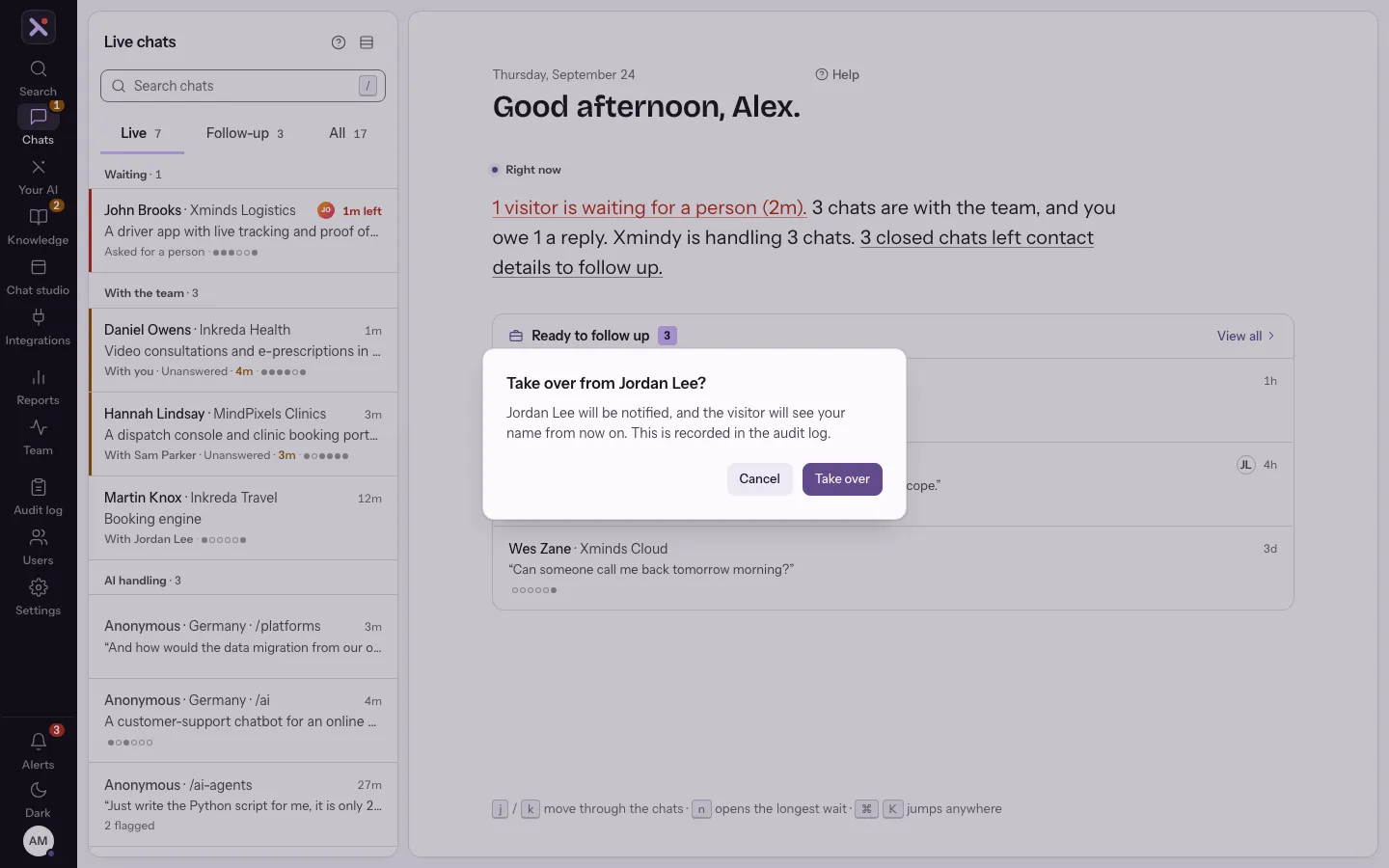
Confirm. The window Take over from {name}? says your colleague will be notified and the visitor will see your name from now on. Press Take over. A message says “You’re in. The visitor now sees your name.”, the header reads With you, and the visitor sees “{your name} has taken over to help you from here.”
-
Reply. Write in the reply box and send. Then hand the chat back to the AI or close it, as in Handle a waiting chat.
Your colleague gets an alert that you took over (if their alerts for My chats are on) and a message on screen. Anything they had typed but not sent stays on their screen with Copy, so nothing is lost. The transcript shows “You took over from them”, and the audit log records it.
Good to know
Section titled “Good to know”- Taking a chat over does not change its owner, the person who follows it up afterwards. Change the owner in the header if you will follow it up yourself.
- To follow a colleague’s chat without taking it, make yourself its owner (Make me the owner in the row’s menu) or add a note for them on the Notes tab.
If something goes wrong
Section titled “If something goes wrong”| What you see | What to do |
|---|---|
| “No other team member has this chat. It may have been handed back or closed, or you already have it.” | Your colleague handed it back or closed it, or you already hold it. Open it again to see where it stands. |
| “Name has this chat now, so it was not taken. Take it over from them if you still mean to.” | Someone else took the chat while you were looking. Take it from the person now named, if you still need to. |
| A plain Take over instead | The visitor has already gone back to the AI. Any Operator, Supervisor or Admin can take it over the usual way. |
| No Take over from {name}… in the menu | You are an Operator, or the chat is not held by anyone. |
| “Only a Supervisor or Admin can take over a chat another team member has.” | Your role changed while the page was open. Ask a Supervisor or an Admin. |
Related
Section titled “Related”- Take over and reply
- The Chats page: the states a chat goes through
- Talk to a person settings: how long a visitor waits for a team member’s reply
- Audit log
Reviewed
Source files for this page
apps/dashboard/src/views/workspace/Workspace.tsxapps/dashboard/src/views/workspace/Confirmations.tsxapps/dashboard/src/views/inbox/QueueRow.tsxapps/dashboard/src/inbox/queueRow.tsapps/dashboard/src/inbox/display.tsapps/dashboard/src/permissions.tsapps/widget/src/chatbot/strings.tsapps/dashboard/src/views/workspace/Composer.tsxapps/dashboard/src/views/workspace/WrapUpNudge.tsxapps/dashboard/src/notificationGroups.tsservices/api/app/routers/conversations.py

