Your team and account
Your preferences
Who can open itViewer: yesOperator: yesSupervisor: yesAdmin: yes
These choices are yours alone, and most follow you to any browser.
Where to find it
Section titled “Where to find it”Open the account menu: your picture at the foot of the menu on a computer, or in the ☰ menu on a tablet or phone. Under your name, address, role and company it holds Available, Switch company (if you belong to more than one company), Your preferences, Theme, Keyboard shortcuts, Help and Sign out. A dot on your picture shows whether you are Available or Away.
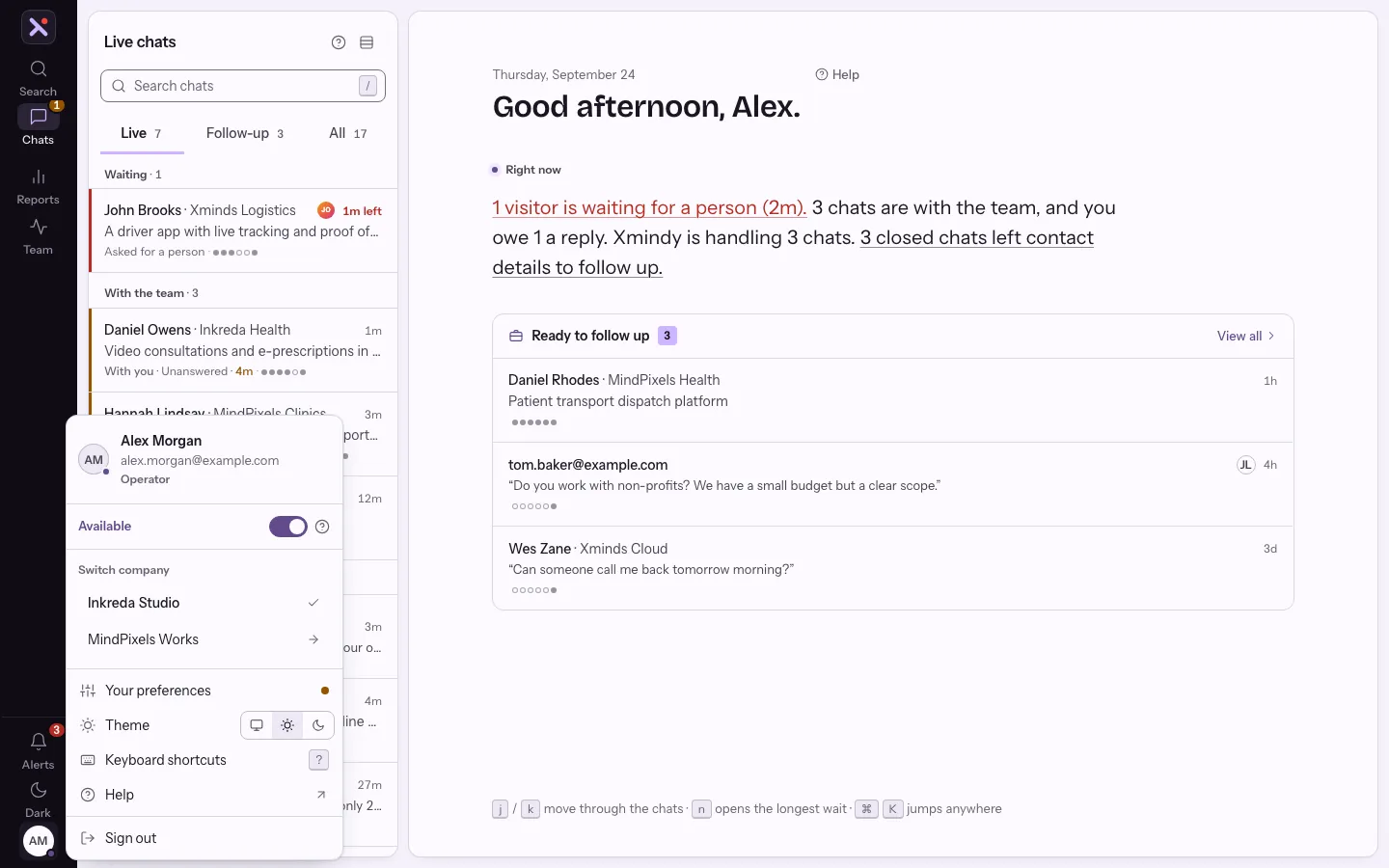
Your preferences opens a window with the tabs Profile, Alerts, Sign-in and Appearance. A Viewer has no Alerts tab, since a Viewer takes no chats. Sign-in is there when your browser can make passkeys or your company has password sign-in (Sign in). EveryKnock MCP is there for an Operator, Supervisor or Admin, unless it is switched off for your company (EveryKnock MCP). Each change saves as you make it, except the profile, which has its own Save. A small dot beside Your preferences in the menu means an alert you switched on cannot reach you.
Your profile
Section titled “Your profile”- Open Your preferences at Profile.
- Press Upload photo (or Change photo) and choose a PNG, JPEG or WebP image up to 10 MB. It is cropped to a square and saved straight away.
- Change your Display name and Job title (optional), up to 60 characters each, for example “John Hale” and “Solutions consultant”. How visitors see you shows the result.
- Press Save. The message “Profile saved” appears.
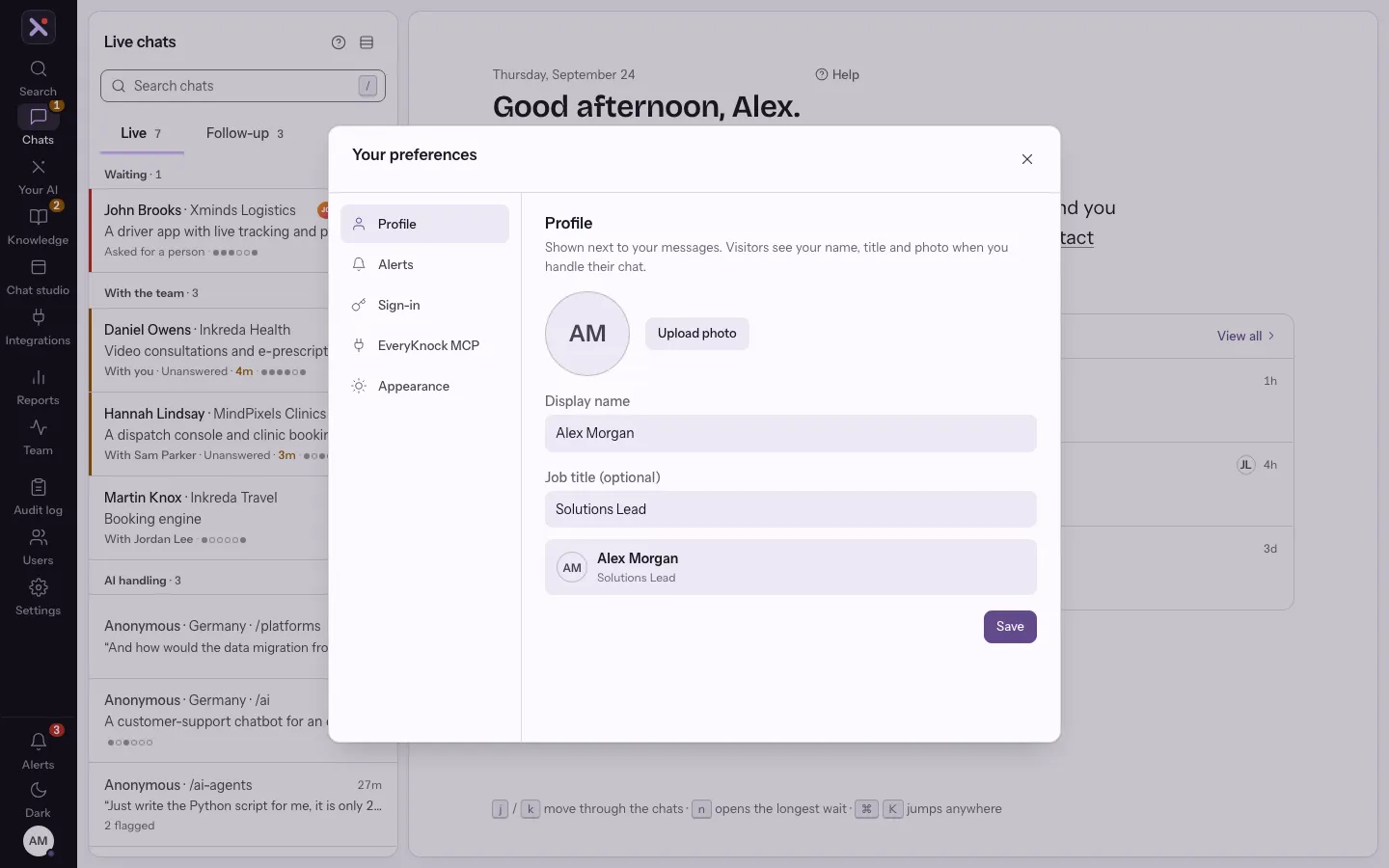
Remove photo puts your initials back. Closing the window without Save keeps your old name and title.
Your availability
Section titled “Your availability”The Available switch in your account menu says whether you want new chats. Turn it off when you step out, and on when you are back.
| While you are | What happens |
|---|---|
| Available | You are listed as free in alerts about new chats, you get the alerts you chose, and a visitor who asks for a person can be kept waiting for you |
| Away | You are not listed as free, you get no alert emails or pushes about new visitors and visitors who need a person, and a visitor who asks for a person is not kept waiting for you |
Alerts about chats you hold still reach you while you are Away, and so do the emails about your company itself (below). An Admin can also set your availability on the Users page. A Viewer has no switch.
Your alerts
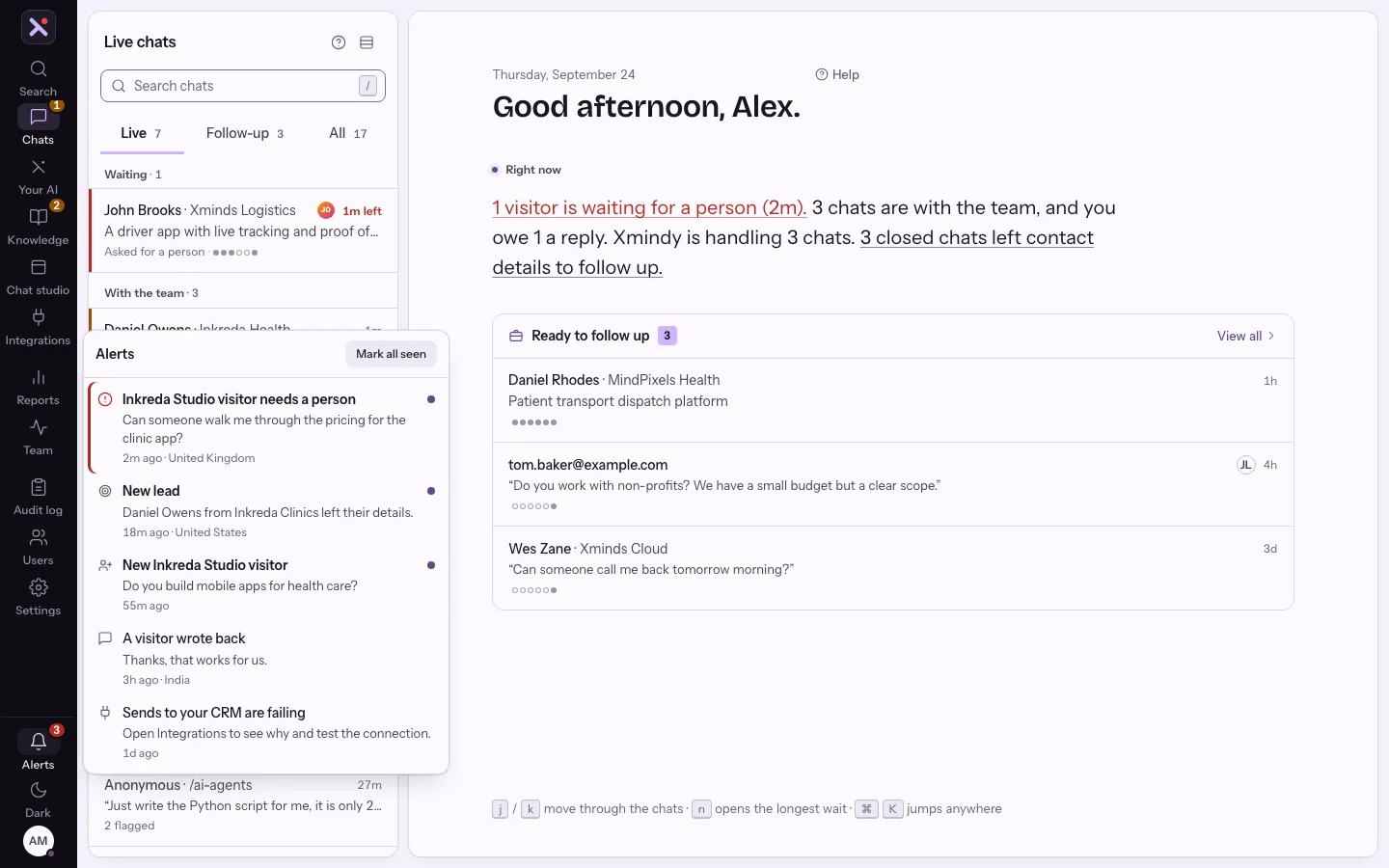
Section titled “Your alerts”The bell (Alerts in the menu) lists your latest alerts, newest first, each with how long ago it came and, where known, the visitor’s country. A number on it counts the ones you have not seen, and turns red while an urgent one is unread. Press an alert to open its chat; Mark all seen clears the count. The bell keeps every alert for you, whatever you choose below.
To choose how you are told:
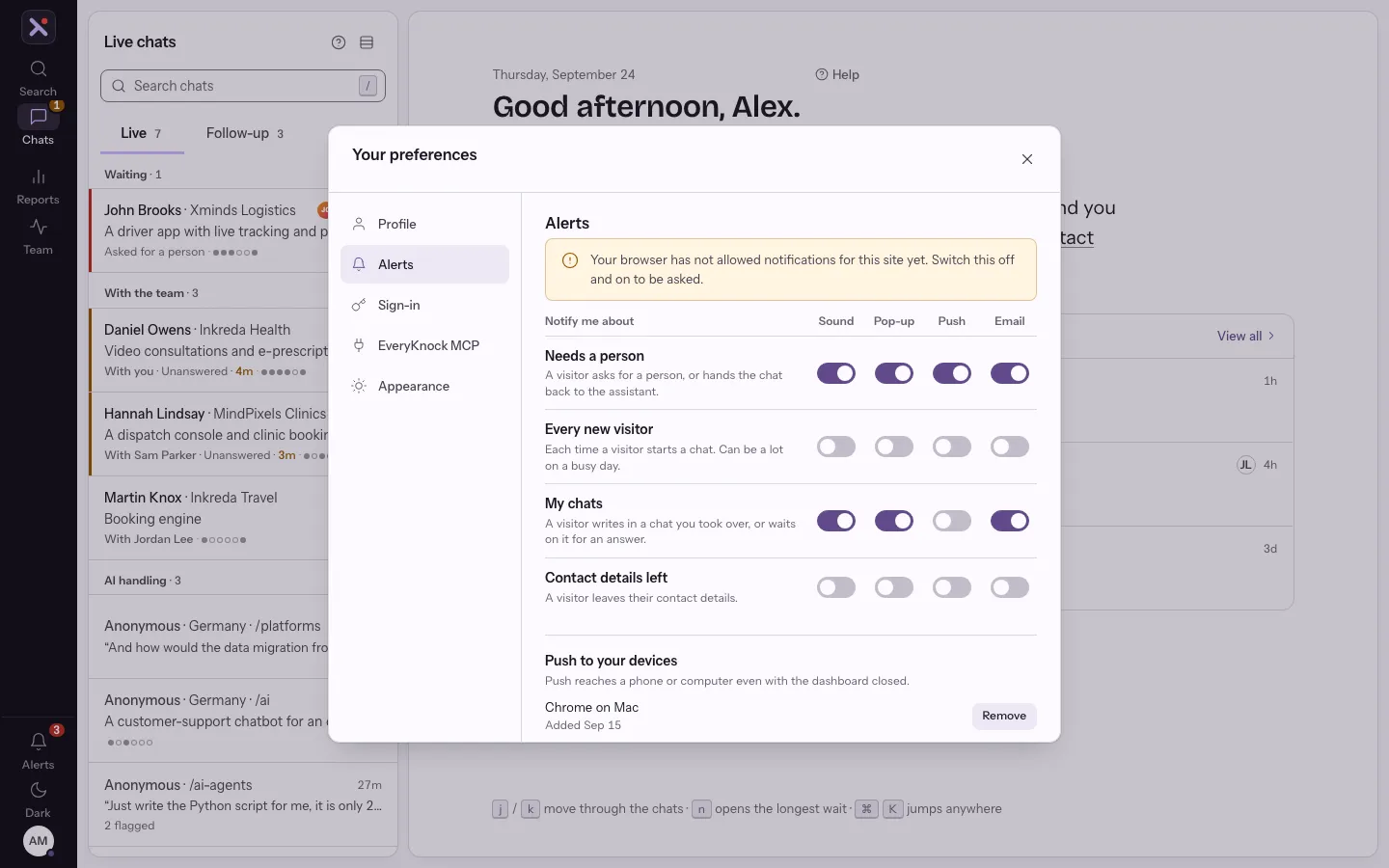
- Open Your preferences at Alerts. Under Notify me about, each row is a kind of alert and each column a way to tell you.
- Switch on the ways you want for each row.
- For Push, also add your phone or computer (Get alerts on your phone or computer).
| Row | You are told when | Starts with |
|---|---|---|
| Needs a person | A visitor asks for a person, or one who was waiting goes back to the AI | Sound, Pop-up and Push on |
| Every new visitor | A visitor starts a chat | All off |
| My chats | A visitor writes or waits for your answer in a chat you hold, or a colleague takes it over from you | Sound, Pop-up and Push on |
| Contact details left | A visitor leaves an email address or phone number | All off |
An Admin also starts with Email on for Needs a person and Contact details left while your company can send email, so a company of one still hears of a visitor. A company with no team in the chat has only the Every new visitor and Contact details left rows.
| Column | What it does |
|---|---|
| Sound | A tone while the dashboard is open. A visitor who needs a person gets a louder one |
| Pop-up | A notice on your computer’s screen while the dashboard is open. Your browser asks for permission first |
| Push | A message on a phone or computer you added, even with the dashboard closed |
| An email to you. Needs your company’s email sending to be set up |
Which to switch on:
- At a computer with the dashboard open: Sound and Pop-up for Needs a person and My chats.
- Away from your desk, or with the dashboard closed: Push, with your phone added.
- Alone, or rarely in the dashboard: Email for Needs a person as well.
With Email on for Needs a person or Every new visitor, you are also emailed the alerts about your company itself: AI replies stopped or failing, a plan limit reached, a scheduled knowledge update that needs a look, chats about to be deleted, and the weekly summary. These come even while you are Away. Each alert email’s subject starts with your assistant’s name (or your company’s), so you can tell whose it is if you are on more than one team.
An Admin’s bell also carries notices about your company’s set-up, such as a record that did not reach your CRM, an alert that did not go out, or your platform administrator making someone an Admin. Each opens the page that fixes it. They never make a sound or send a push or email.
Get alerts on your phone or computer
Section titled “Get alerts on your phone or computer”- Open the dashboard on the device. On an iPhone or iPad, first add it to your Home Screen (Share, then Add to Home Screen) and open it from there.
- Open Your preferences at Alerts and, under Push to your devices, press Use this device.
- Allow notifications when the browser asks.
- Press Send a test. A message arrives on the device.
- Make sure Push is on for the rows you want.
Each device is listed by its browser and system, such as “Chrome on Windows”; the one you are using is marked “(this device)”, and Remove forgets a device. You can add up to ten. A push only tells you: two people can be alerted at once, and whoever takes the chat over first has it.
How the dashboard looks
Section titled “How the dashboard looks”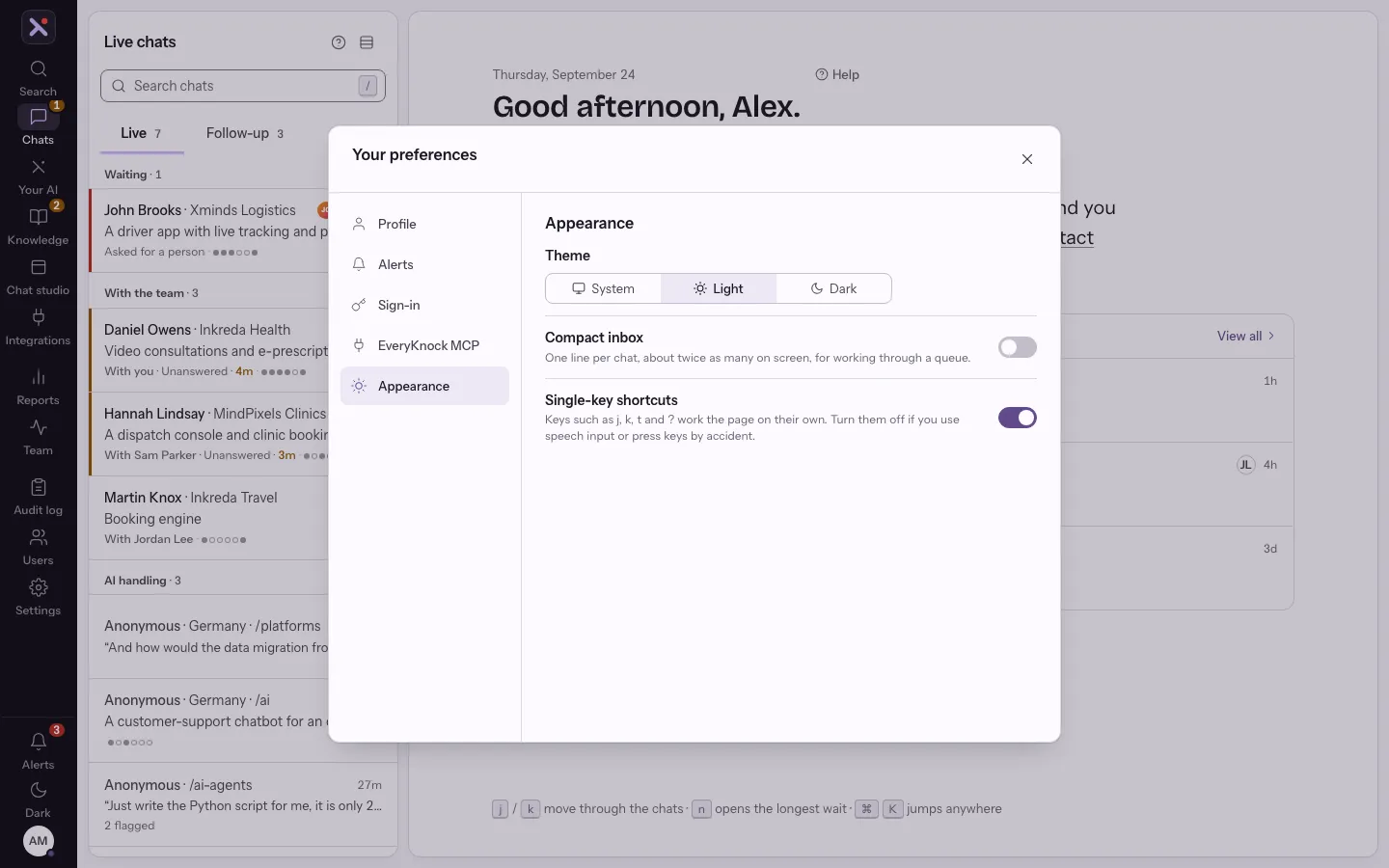
| Choice | Where | What it does |
|---|---|---|
| Theme | The account menu, or Your preferences > Appearance | System follows your device; Light and Dark stay as chosen. Follows you to any browser |
| Compact inbox | Your preferences > Appearance, or the button in the chat list’s header | One line per chat, about twice as many on screen. Kept in this browser only |
| Single-key shortcuts | Your preferences > Appearance | On at first. Off stops the shortcuts that are one key on its own, such as j, k, t and ?, so speech input or a stray key cannot open or take over a chat; the rest still work (Keyboard shortcuts). Kept in this browser only |
The sign-in page is always dark. The dashboard always shows EveryKnock’s own name and mark; your company’s logo is for its emails.
If something goes wrong
Section titled “If something goes wrong”| What you see | What to do |
|---|---|
| “Your browser has not allowed notifications for this site yet. Switch this off and on to be asked.” | Switch Pop-up off and on, and allow notifications when the browser asks |
| “Notifications are blocked for this site. …” | Allow notifications for the dashboard in your browser’s settings, then switch Pop-up off and on |
| “This browser doesn’t support notifications.” or “This browser can’t receive push messages. …” | Use a recent version of Chrome, Edge, Firefox or Safari |
| “Email is not set up yet, so none is sent. …” | Your company has no email sending yet. An Admin sets it up on the Integrations page |
| “Push messages are not set up for this service yet, so no device can receive them.” | Push is not available on your platform yet. Use Sound, Pop-up or Email |
| “The test couldn’t be delivered. Remove the device and add it again.”, or the test never arrives | Press Remove on the device, then Use this device again. Check the device itself allows notifications from your browser |
| “Push messages reach you only on a device you add here.” | Push is on but no device is added. Follow the steps above on your phone or computer |
| “Enter a name: visitors see it when you join a chat.” | Type a display name before you save |
Related
Section titled “Related”- Signing in, for passkeys and a password
- Staying signed in
- Getting around the dashboard
- Connect Teams and Slack, for alerts to your whole team
Reviewed
Source files for this page
apps/dashboard/src/views/shell/AccountMenu.tsxapps/dashboard/src/views/PreferencesDialog.tsxapps/dashboard/src/views/ProfilePanel.tsxapps/dashboard/src/image.tsapps/dashboard/src/views/shell/AvailabilitySwitch.tsxapps/dashboard/src/views/shell/WorkspaceSwitcher.tsxshared/web/src/views/shell/ThemePicker.tsxapps/dashboard/src/views/shell/DensityToggle.tsxapps/dashboard/src/views/shell/SingleKeysToggle.tsxapps/dashboard/src/keys.tsapps/dashboard/src/views/shell/NotificationBell.tsxapps/dashboard/src/views/shell/NotificationSettings.tsxapps/dashboard/src/views/shell/PushDevices.tsxapps/dashboard/src/push.tsapps/dashboard/src/notificationGroups.tsservices/api/app/notifications/events.pyservices/api/app/access/profiles.pyservices/api/app/access/users_store.pyservices/api/app/notifications/devices.py

