Answer chats
Close a chat and send its record
Who can open itViewer: noOperator: yesSupervisor: yesAdmin: yes
Operators and above close chats and send records; Viewers can read the record card. Everything here happens in an open chat on Chats.
Wrap up a long chat
Section titled “Wrap up a long chat”The wrap-up reminder counts your team’s replies in a chat: above the reply box for whoever holds it (“6 replies · Wrap up soon”), as a small count in the header for everyone else. With the usual allowance of 10 replies, it reads On track below 5, Wrap up soon from 5 (half the allowance), Time to close from 8 (four fifths) and Overtime from 11.
From Wrap up soon, the strip offers three ways to finish (on a phone, behind Options):
- Ask for contact details puts a ready sentence asking for an email or phone in your reply box, for you to edit and send. It shows until the visitor has left their details.
- Offer a call puts a ready sentence offering a call in your reply box.
- Send and close sends a last message and closes the chat (below).
An Admin switches the reminder on or off, sets the allowance (Aim to wrap up within) and chooses playful or plain wording in Coaching.
Close a chat
Section titled “Close a chat”Operators can close a chat the AI is handling, a waiting chat, or one they hold. Supervisors and Admins can close any open chat, including one a colleague holds.
With a last message
- Press Send and close under the reply box (or
⌘ Enter, Ctrl Enter on Windows and Linux). - With the box empty, it fills the box with your company’s
/thankssaved reply. Read and edit it, then press Send and close again. - With words in the box, a window shows them and asks “Send this and close?”. Confirm with Send and close.
Without a message
- Choose Close chat… in the ⋯ menu.
- Confirm with Close chat. If the visitor’s last message has no reply, or you have unsent words in the box, the window says so.
“Chat closed” appears. The visitor sees that the chat has ended and cannot write in it again, though they can start a new one. The transcript and notes are kept; a closed chat cannot be reopened. The list’s Close chat… and Close… do the same (Act on chats from the list).
Send the record to your CRM
Section titled “Send the record to your CRM”When a chat closes with the visitor’s email or phone number, its details become a record: the card your CRM will receive, row for row, named in your company’s word (“lead”, for example). Sending needs a CRM connected by an Admin (Connect your CRM, or your own system), where your plan includes it.
- Open the closed chat from Follow-up on the chat list. On a wide screen its record tab opens by itself; on narrower screens the card replaces the brief’s details.
- Read the line at the top. “Ready: contact verified…” means it can go. Otherwise it says what is missing, such as “Add a name, company, email or phone before sending the record.”, or that no CRM is connected yet.
- Check each row (the table below) and fix what is wrong. The pencil on a row edits it; Edit all opens every field (on a phone, Edit record). Press Save, or
Escto cancel. Emptying a detail marks it as not right, so it is left out. - Check the description, the summary text your CRM receives. Edit description (or Write description when there is none) changes it, up to 2,000 characters.
- Press Send record to {CRM} (on a phone, Send record). A sheet shows exactly what will be sent, field by field, the fields of your CRM they go into, the link back to the chat, and what is left out.
- Press Send record. The card shows “Sent to” with your CRM’s name, the time and your name. The transcript shows that you sent it, the brief’s Chat progress reaches In CRM, and the chat leaves Follow-up. View record opens it in your CRM when the CRM gives a link.
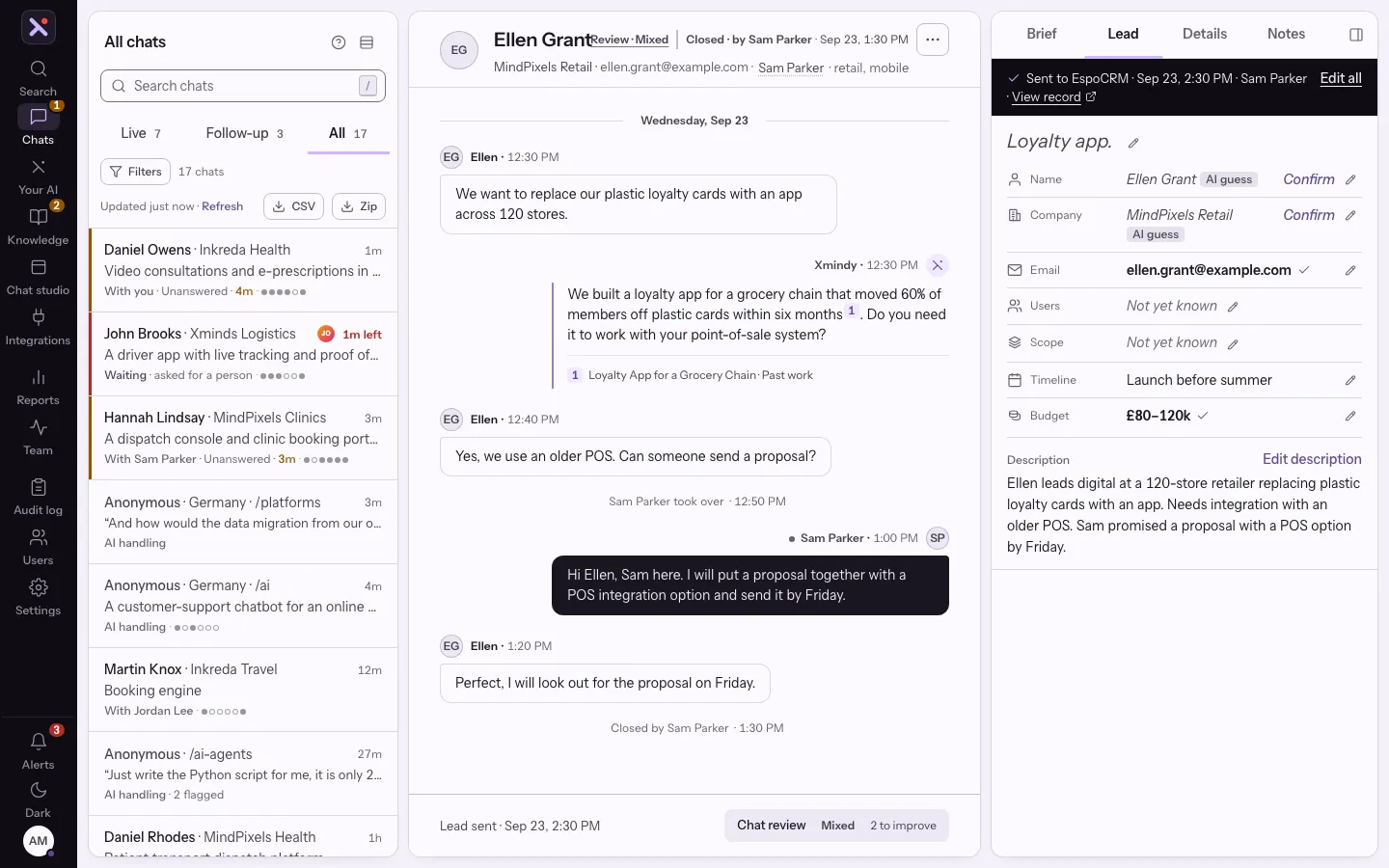
What a row on the card tells you:
| You see | It means | What to do |
|---|---|---|
| A value with a check | Verified: the visitor submitted it, or a team member set it. | Nothing. |
| A value tagged “AI guess”, with Confirm | A name or company the AI read from the chat. | Press Confirm if it is right, or the pencil to correct it. |
| A value with no tag | What the visitor told the AI. Point at it to see their words. | Correct it if the AI misread. |
| “Not yet known” | A detail a record needs that the chat did not learn. | Add it with the pencil if you know it. |
| A note under the email | “Possible typo: did you mean …?”, “Disposable address: it may not be read for long”, “Looks like a test or placeholder address”, “Shared inbox: several people read it”, or what became of the thank-you email (sent, delivered, bounced, marked as spam). “Confirmed by the visitor” means the mailbox is theirs. | A note never blocks the record. Correct a typo before sending. |
| A note under the phone | The kind of line: “Mobile”, “Landline”, “Internet (VoIP) number”, “Premium-rate number: calling it costs money” and so on. | Think twice before calling a premium-rate number. |
| Left out | Details a team member marked Not right. They are never sent. | Restore one in the brief to send it (The AI’s brief). |
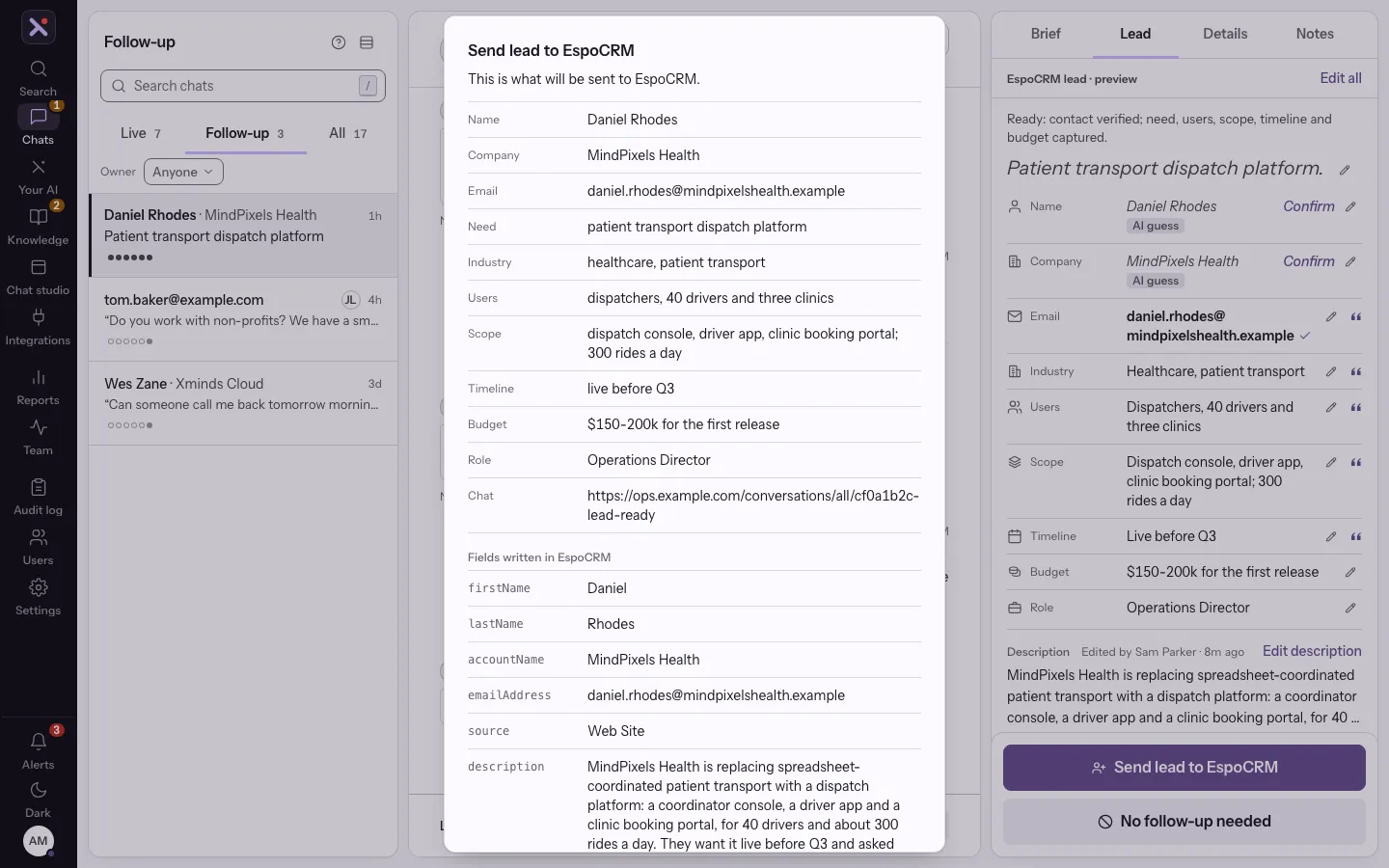
Good to know:
- While you are editing a row or the description, sending waits (“Save or cancel the Budget change first”).
- Some CRMs need more than one detail: HubSpot a name or email, Freshsales an email or phone, Zoho CRM and Salesforce a name or company.
- After sending, when something the card was made from changes, it says “Changed since it was sent.” and Update record in {CRM} (Update record in the sheet) updates the record already there, never a second one.
- Send automatically. Where an Admin switched it on, the record goes as soon as the visitor leaves their details, and the card reads “Sent to” your CRM “automatically”. You only update it when something changes.
- Never sent: the transcript, notes and tags. The record carries a link back to the chat.
No follow-up needed
Section titled “No follow-up needed”When there is nothing to send, press No follow-up needed (on a phone, in the ⋯ menu). “Marked as needing no follow-up” appears with Undo, the chat leaves Follow-up, and nothing is sent. Later, Restore on the card, or Restore to follow-up in the ⋯ menu, puts it back.
Delete a chat
Section titled “Delete a chat”Admins can remove a chat for good with Delete chat… in its ⋯ menu. Read Delete a chat first: it cannot be undone.
If something goes wrong
Section titled “If something goes wrong”| You see | What to do |
|---|---|
| “The CRM is not connected. An admin can set it up on the Integrations page.”, or “Your CRM is not fully set up. An admin can finish it on the Integrations page.” | Ask an Admin to connect your CRM, or finish the connection, which is missing its key. Until then, follow the visitor up directly. |
| “The CRM connection needs to be set up again. Ask an admin to open Integrations and test it.” | Sending again will not help. An Admin presses Test connection on Integrations (Connect your CRM). |
| “Add … before sending to …”, naming your CRM | Add the detail it names, then send again. |
| Your CRM already has someone with this email, and the button reads Send anyway | Check your CRM first: what sending anyway does depends on the CRM. |
| “Someone else is sending this record right now.” (in your company’s word) | Close the sheet. The card shows what your colleague sent. |
| “Sent to the CRM, but the dashboard could not save that it was. Send again to finish: it updates the record it made.” | Send it again. The record your CRM already holds is updated, not made twice. |
| “Sent to the CRM, but the dashboard could not save that it was. Your CRM may already hold this record: check it before sending again.” | Look for the visitor in your CRM first. Send again only if the record is not there. |
| The send failed, and the button reads Try again | Press Try again. If your CRM made part of the record, it finishes it rather than starting over. |
| The CRM refused a field | An Admin checks the field mapping on Integrations. |
| “The brief is out of date” in the sheet | The chat moved on after the brief. Press Refresh for a current description, or send as it is. |
| “No link: your dashboard’s address is not set, so the CRM gets none. Ask your platform administrator to set it.” | The record can still go, without a link back to the chat. Your platform administrator sets the address, not Settings. |
| “Someone changed the description while you were editing it. Load the latest to see it; your text is kept.” | Press Load the latest. Their text shows above yours; Save puts yours in place of theirs. |
| “You no longer have this chat, so nothing was sent or closed. Refresh and take it over again.” | Someone else has the chat, or it was handed back. Reload it and take it over again to close it. |
| “Another team member has just taken this chat over, so it was not closed.” | It stays open with your colleague. Leave it to them. |
| “Only the team member who has this chat, a Supervisor or an Admin can close it.” | A colleague holds the chat. Ask them, a Supervisor or an Admin. |
Related
Section titled “Related”- Send a chat’s record to your CRM, the same job step by step
- Take over and reply
- Connect your CRM
- Download and delete chats
- Chat reviews, the AI’s advice on a closed chat
- Saved replies
Reviewed
Source files for this page
apps/dashboard/src/views/workspace/wrapUp.tsapps/dashboard/src/views/workspace/WrapUpNudge.tsxapps/dashboard/src/views/workspace/Workspace.tsxapps/dashboard/src/views/workspace/Confirmations.tsxapps/dashboard/src/views/workspace/ActionBar.tsxapps/dashboard/src/views/workspace/Disposition.tsxapps/dashboard/src/views/workspace/contactNotes.tsapps/dashboard/src/views/workspace/brief/RecordReview.tsxapps/dashboard/src/views/workspace/brief/DescriptionBlock.tsxapps/dashboard/src/views/workspace/brief/LeftOutFacts.tsxapps/dashboard/src/views/workspace/brief/recordState.tsapps/dashboard/src/views/workspace/brief/useRecordPreview.tsapps/dashboard/src/views/workspace/ReviewEntry.tsxapps/dashboard/src/views/workspace/Understanding.tsxapps/dashboard/src/views/workspace/OverflowMenu.tsxapps/dashboard/src/useConversationDetail.tsapps/dashboard/src/views/inbox/Queue.tsxapps/dashboard/src/permissions.tsservices/api/app/routers/assist.pyservices/api/app/routers/conversations.pyservices/api/app/crm/__init__.pyservices/api/app/conversations/saved_replies_store.pydocs/CONVERSATION.md

