Teach your AI
Knowledge, Content from Strapi
Who can open itViewer: noOperator: noSupervisor: noAdmin: yes
When it is included
Section titled “When it is included”Strapi collections are part of your plan unless the platform has taken them away for your company: ask your EveryKnock contact. Without them, Add knowledge offers no Content from Strapi, the Strapi address in Settings is gone, a collection you set up shows Not in your plan on Sources and cannot be changed, no update reads it, and the AI stops using its entries until they are back. Nothing is deleted, so the answers return with them.
Where to find it
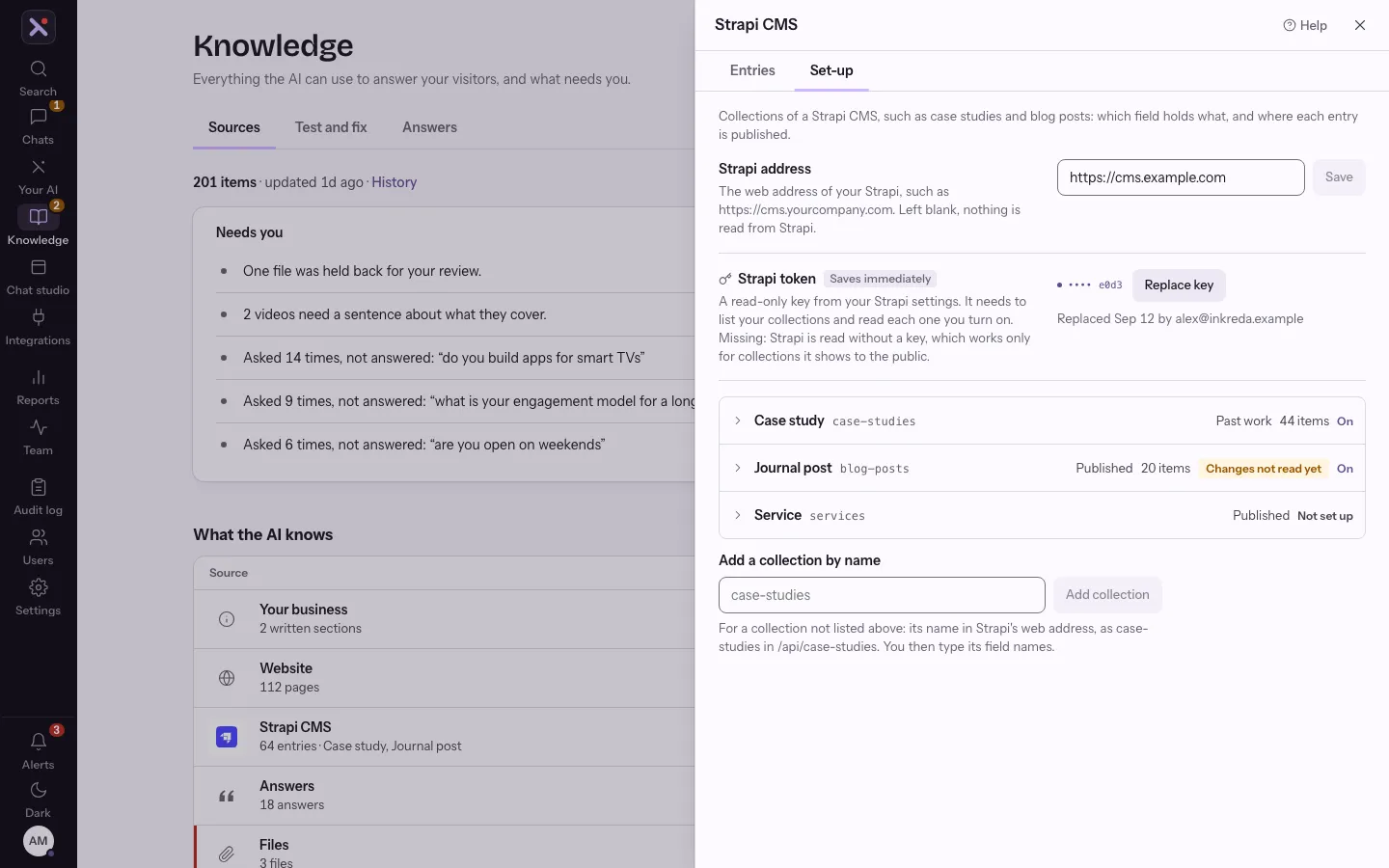
Section titled “Where to find it”Work, Knowledge, then Add knowledge and Content from Strapi, or the Strapi CMS row on Sources. It opens in the Strapi CMS drawer. Only an Admin can open it. Once a collection is saved, the drawer has two tabs: Entries, what the AI read, and Set-up.
Before you start
Section titled “Before you start”Ask whoever looks after your Strapi for:
- its public web address, starting with
https://; - a read-only key (Strapi calls it an API token) that can list your collections and read each one you want the AI to use;
- for each collection, the web address its entries are published at on your website, such as
https://example.com/work/followed by each entry’s own name.
Connect Strapi
Section titled “Connect Strapi”- Type the Strapi address, such as
https://cms.yourcompany.com, and press Save beside it. “Strapi address saved” confirms it. Left blank, nothing is read from Strapi. - Under Strapi token, press Set, paste the key and press Save. It saves at once and is never shown again; Replace key changes it and Remove deletes it. Without a key, only collections Strapi shows to the public can be read.
The drawer then lists the collections Strapi offers, each Not set up until you save it. A collection not listed can be added under Add a collection by name: type its name as it appears in Strapi’s web address, such as case-studies in /api/case-studies, and press Add collection. You then type its field names yourself.
A collection’s editor
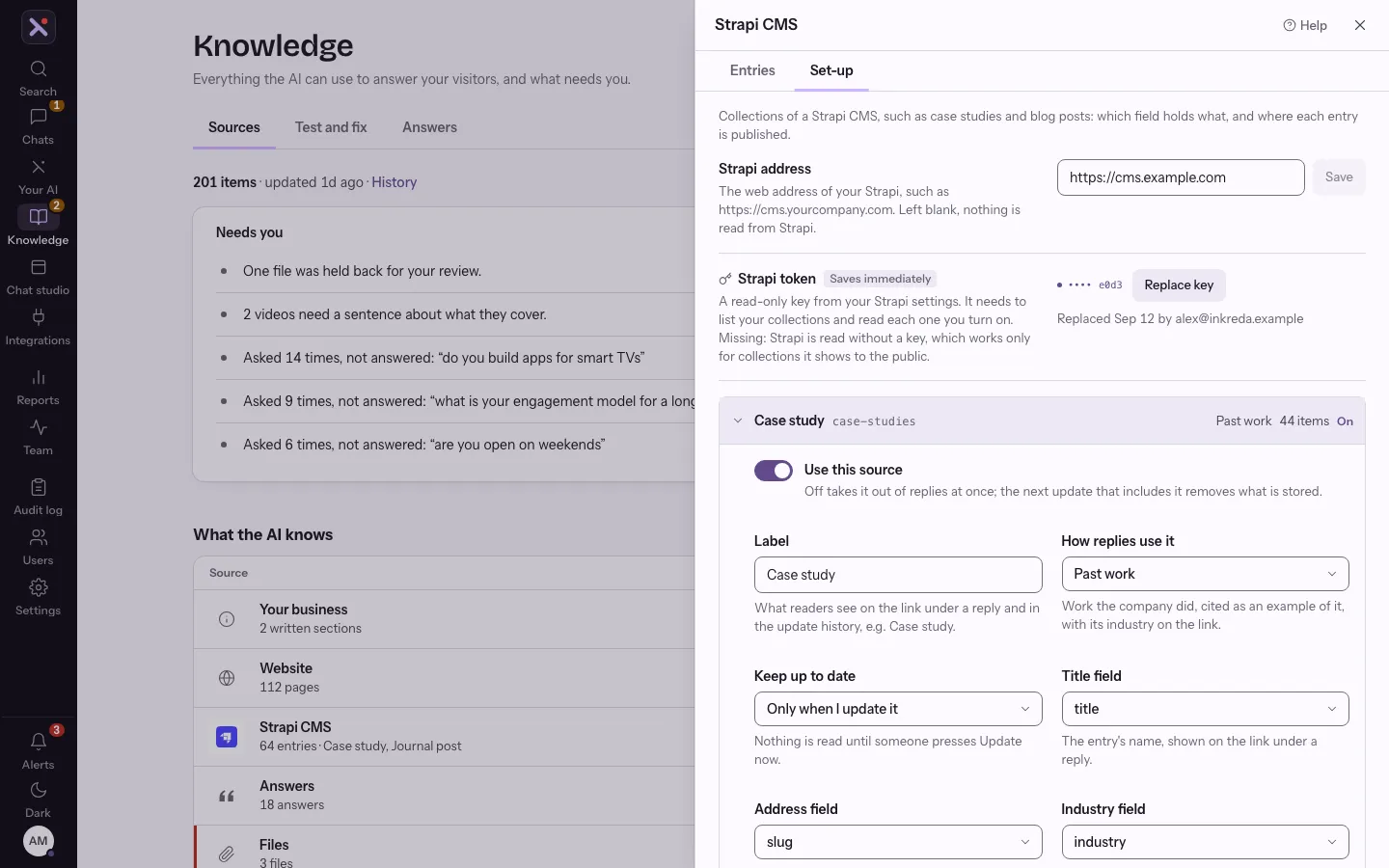
Section titled “A collection’s editor”Press a collection to open its editor.
-
Switch on Use this source. A collection Strapi offers starts off.
-
Fill in how it is used:
Field What to choose Label What visitors see on the link under a reply, such as “Case study”. Up to 40 characters How replies use it Past work: work your business did, shown as an example of it. Published: writing such as a blog post, shown as an article. Background: used, never shown Keep up to date Only when I update it (where it starts), Every day or Every week -
Say which of the collection’s fields holds what. When Strapi lists the collection, each is a choice of its fields; otherwise type the field’s name as Strapi has it.
Field What it is for Title field The entry’s name, shown on the link under a reply. Needed Content fields What the AI reads, in this order. Tick at least one (typed, they are separated by commas, such as body, summary)Address field Optional. The part of the entry’s page address that names it (Strapi calls this a slug) Category field Optional. The topic the entry is filed under. For Past work it is Industry field, shown as the industry of the work Image field Optional. The picture on the link under a reply Page address Where each entry is published, with a field in braces where the entry’s own part goes, for example https://example.com/work/{slug}/. The link under a reply goes here. Needed while the collection is on; Background entries need none -
Press Save. The AI reads the collection about a minute later.
-
Open the Entries tab to see what it read, then ask about an entry on Test and fix.
Update now in the editor reads the collection straight away, for example after you publish in Strapi. Discard puts the editor back to what is saved. Tidy up the text works as it does for a website (A website).
Read a collection’s row
Section titled “Read a collection’s row”Each row shows the collection’s name, how replies use it, how many items are stored, and whether it is On, Off or Not set up. A tag says what is waiting:
| Tag | Means |
|---|---|
| Not read yet | Saved, and the AI has not read it yet |
| Changes not read yet | A saved change to its set-up is waiting for the next update |
| Items to remove | Turned off with entries still stored. They are already out of answers, and the next update that includes it removes them |
| Not found in Strapi | Strapi no longer lists the collection. Check its name in Strapi |
Turn it off or remove it
Section titled “Turn it off or remove it”- Switch Use this source off and press Save. When entries are already stored, a window asks first: press Turn off and save. The entries leave answers at once.
- Press Update now in the editor: the update removes what is stored.
- To remove the collection from the list, press Remove source and confirm. It is available only once no entries are stored; a line beside it says how many still are.
To leave out one entry and keep the rest, use Keep out on the Entries tab.
Good to know
Section titled “Good to know”- One Strapi address and key serve every collection. A new address means every collection is read again.
- A change made inside Strapi reaches the AI at the next read: Update now, or the collection’s Keep up to date schedule while your plan includes scheduled updates (Keeping it up to date).
- The Entries tab works like a website’s list of pages, with a choice of Collection (Knowledge).
- Each collection counts as one of your company’s knowledge sources, and a collection, once saved, cannot be pointed at another one in Strapi: add the other as a new collection.
If something goes wrong
Section titled “If something goes wrong”A message about one box is shown under that box, and the cursor is put in it.
| What you see | What to do |
|---|---|
| “Couldn’t list Strapi’s collections” | Check the address and the key, then Try again. You can still add a collection by its name and type its field names |
| “Strapi address was not saved: that address is not allowed…” | Use Strapi’s public address, starting with https:// |
| “Use the collection’s name as it appears in Strapi’s web address…” | Type the name in lowercase letters, digits and dashes, such as case-studies |
| “…is already listed.” | Open that collection in the list instead |
| “Pick at least one content field: it is what the AI reads.” | Choose or type at least one content field |
| “Title field is required.” | Choose or type the title field |
| “Page address is required: the link under a reply goes there.” | Fill in Page address, or choose Background |
| “Page address needs a field in braces…” | Put the entry’s own part in braces, such as {slug} |
| “Another source is already labelled…” | Change the Label |
| Update now is missing | The Strapi address is blank, or the collection is off with nothing stored |
| “The AI is already updating. Try again when it has finished.” | Wait for the update going now |
Related
Section titled “Related”Reviewed
Source files for this page
services/api/app/rag/source_kinds.pyservices/api/app/settings/features.pyapps/dashboard/src/views/knowledge/StrapiPanel.tsxapps/dashboard/src/views/knowledge/SourceDrawer.tsxapps/dashboard/src/views/knowledge/SourceDocuments.tsxapps/dashboard/src/views/knowledge/SourceEditor.tsxapps/dashboard/src/views/knowledge/StrapiSources.tsxshared/web/src/views/SecretField.tsxservices/api/app/knowledge/rag_sources.pyservices/api/app/routers/sources.pyservices/api/app/knowledge/strapi_discovery.pyservices/api/app/settings/settings_store.pyservices/api/app/core/outbound.pyshared/python/src/everyknock_shared/outbound.pyservices/ingest/ingest/strapi_client.pydocs/RAG.md

