Your chat on your website
Chat studio
Who can open itViewer: noOperator: noSupervisor: noAdmin: yes
The chats on this page are the real chat, unsaved changes included. Their replies are samples: nothing you type in them goes anywhere.
Where to find it
Section titled “Where to find it”Chat studio under Work. Only an Admin can open it.
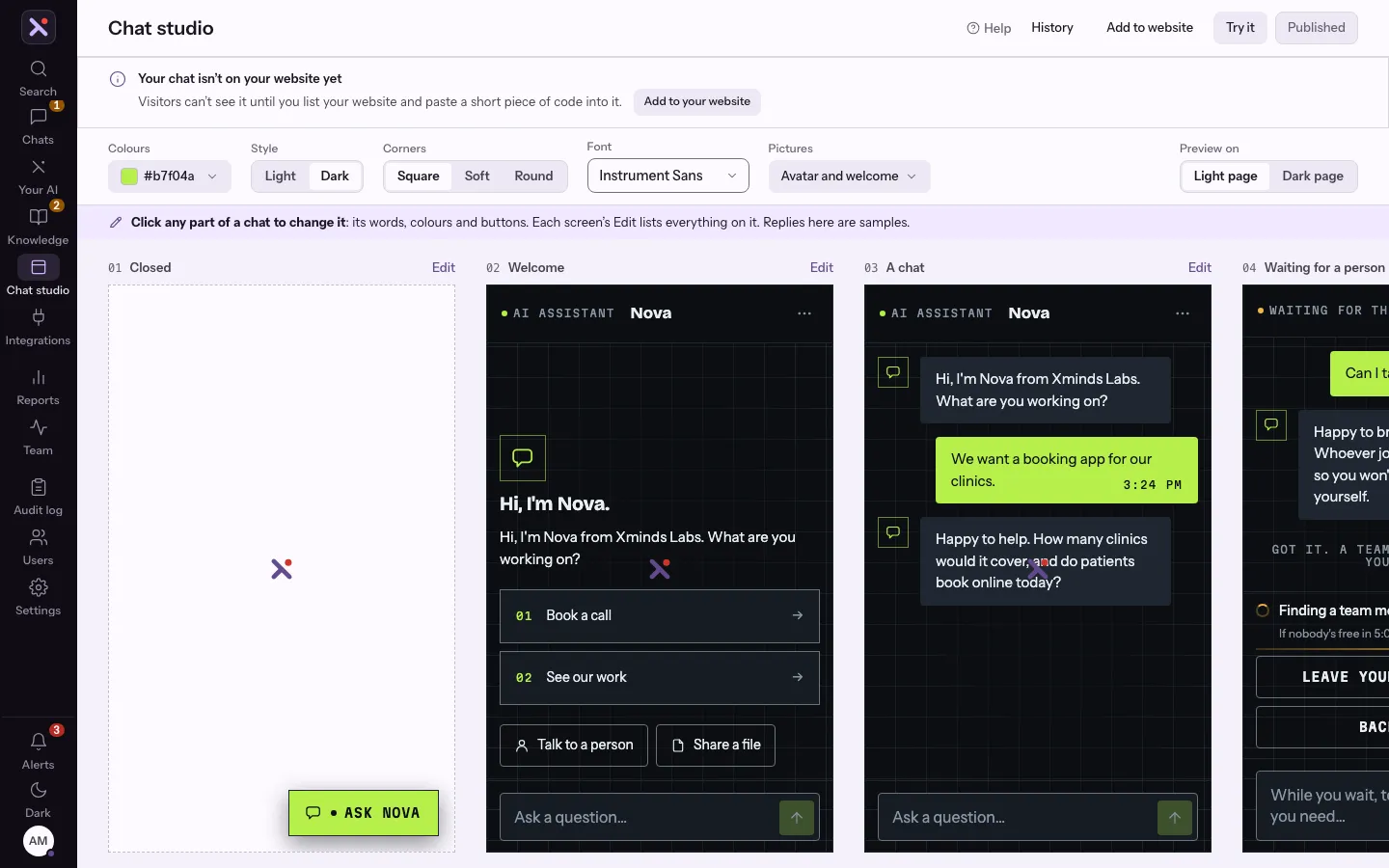
At the top of the page:
- The status beside the title says whether visitors can reach your chat (Put it on your website).
- History lists every Publish, with a way to bring one back (Version history).
- Add to website (Website & code once the chat is live) opens the steps that put the chat on a website.
- Try it opens your chat with the real assistant, when your plan includes it (Try your chat).
- Discard asks “Discard your changes?”, then puts everything back to what visitors see now.
- Publish · 2 reviews and publishes the changes that wait (here, two). It reads Published when nothing waits.
Under them, the toolbar sets the look (colours, style, corners, font and pictures): Choose how the chat looks.
Change what the chat says and does
Section titled “Change what the chat says and does”The canvas shows each screen a visitor meets, side by side: Closed (the button and the nudge beside it), Welcome, A chat, Waiting for a person (only when your company has Talk to a person) and Ended.
- Click any part of a chat (tap, on a phone). A small panel opens beside it: the header holds the assistant’s name and the header colour, the message box its hint and voice typing.
- Type or switch. Every chat on the page changes as you go, and each changed setting is marked Unsaved.
- Close the panel, or click elsewhere, to keep the change. Escape closes it and undoes what you changed in it.
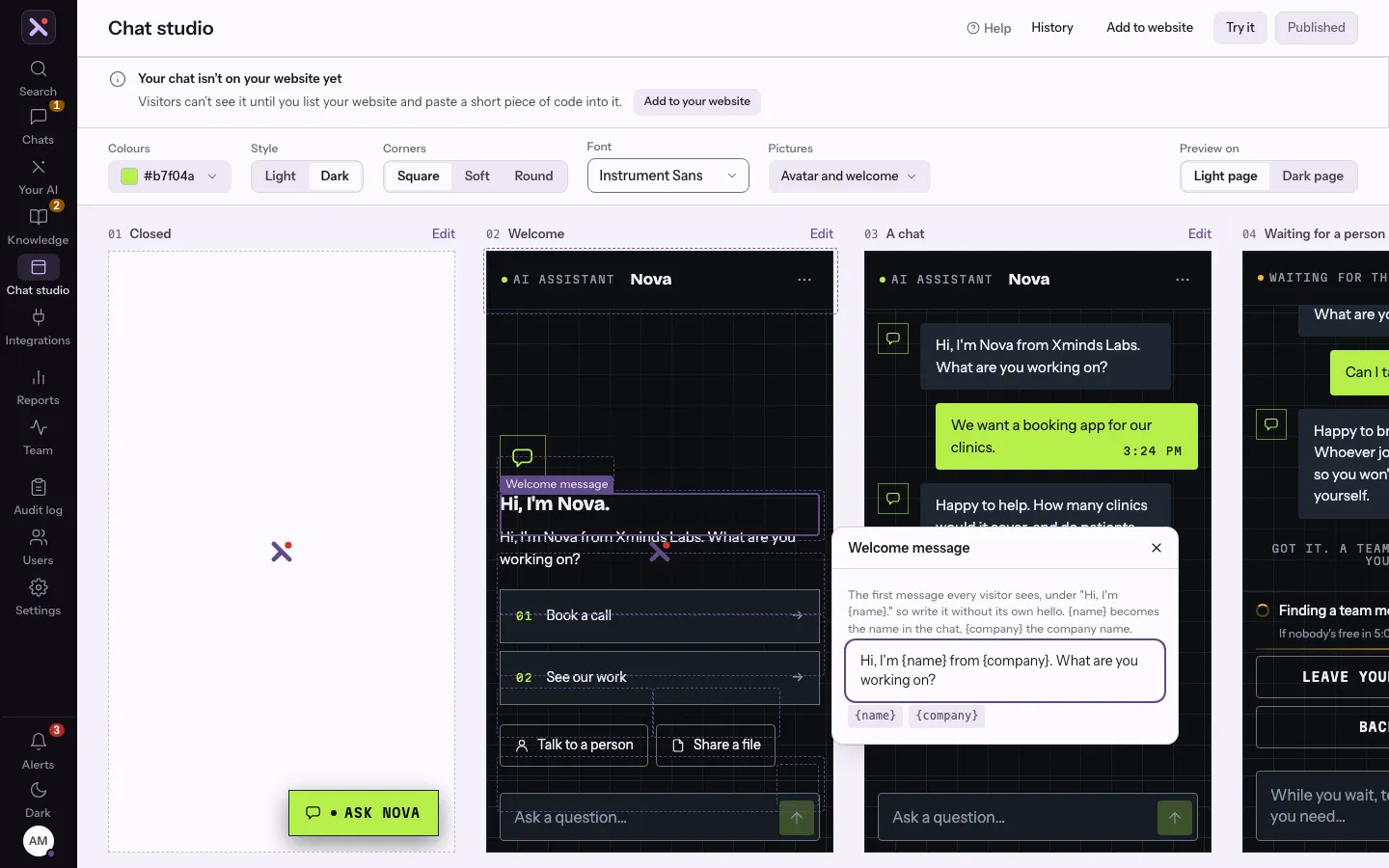
A part that is switched off is not drawn, so it cannot be clicked: open the screen’s Edit, which lists everything on that screen. A setting your plan does not include is left out, and one that matters only while a switch is on appears once you switch it on.
| Screen | What its Edit holds |
|---|---|
| Closed | The button’s words, and the nudge beside it with when it shows (settings) |
| Welcome | The assistant’s name, the heading, the welcome message, suggested first questions, the Talk to a person, Share a file and Schedule a call buttons, and your privacy line (settings) |
| A chat | Let visitors attach files, the message box hint, the “thinking” lines, Voice typing, suggested replies, source cards and their links’ tracking, flagging answers, and the button after a request for a person (settings) |
| Waiting for a person | The title a visitor reads while your team is asked to join (settings) |
| Ended | The closing line, the rating and its reasons, the contact card and the booking card (settings, Contact card and booking) |
In a field
Section titled “In a field”- A blank wording field shows the chat’s own wording in grey. Type to replace it; Use the chat’s own wording goes back to it.
- A blank list (the “thinking” lines, for example) shows the chat’s own lines under the box. Customise copies them into the box for you to change.
- Buttons such as
{name}and{company}add a placeholder the chat fills in with your assistant’s or company’s name. - A value that would be refused (too long, or a booking link that is not an
https://address) is marked in red with the reason when you leave the field. Fix it before you publish.
Each setting’s default and range: Chat studio settings.
Publish
Section titled “Publish”- Click Publish · 2. Review and publish lists each change under Look or the screen it belongs to, with what it was and what it will be.
- Click Publish. The page says “Published. Your chat shows the changes within a minute.” Keep editing closes the review and publishes nothing.
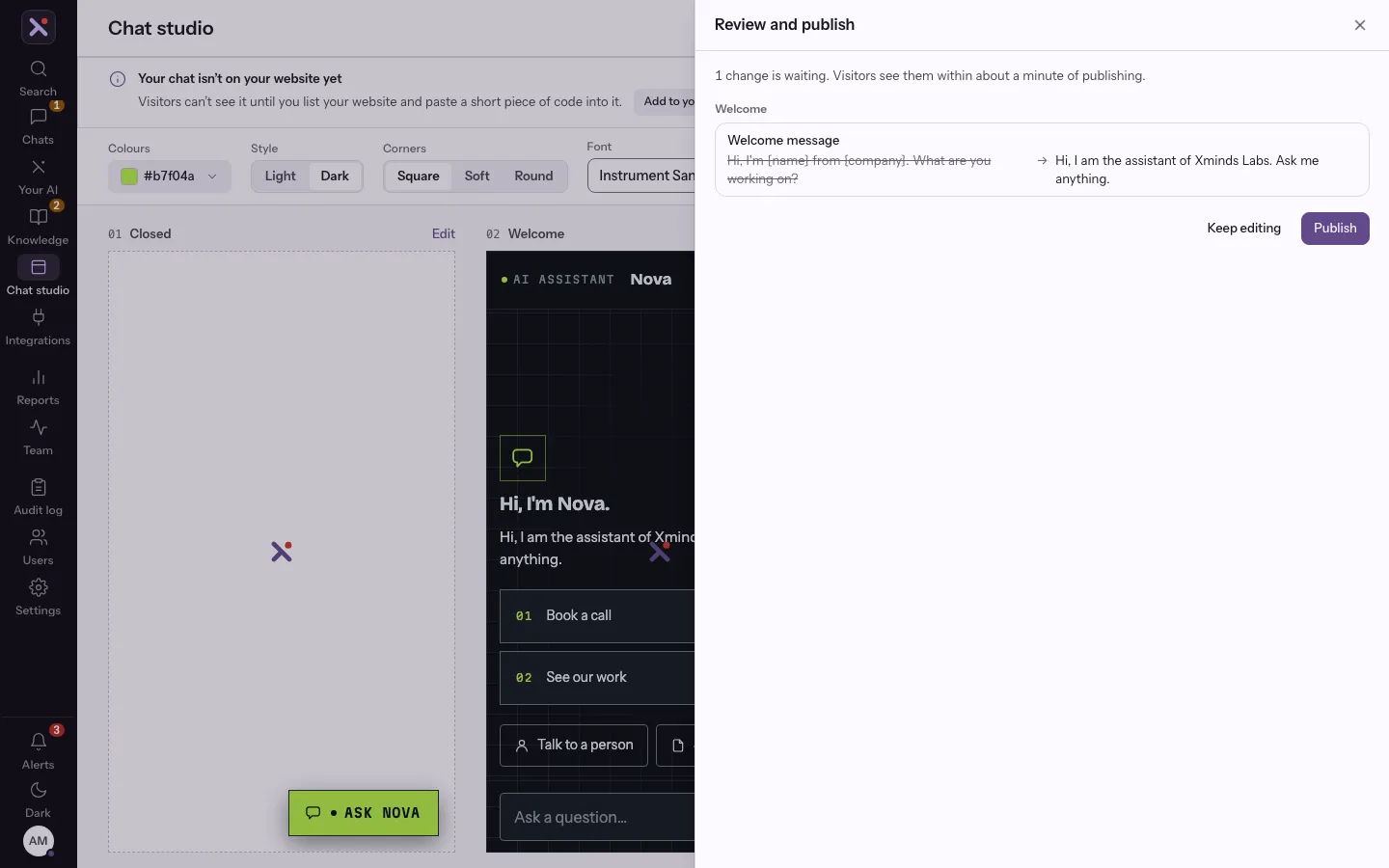
- Unpublished changes last while this browser tab stays open, through reloads and other dashboard pages. Closing the tab asks first, then loses them.
- The allowed websites and the pictures save the moment you change them, not with Publish.
Try your chat
Section titled “Try your chat”Try it opens Try your chat: your chat with the look and wording on this page, answered by the real assistant from what is published, with every safety check a visitor’s chat has.
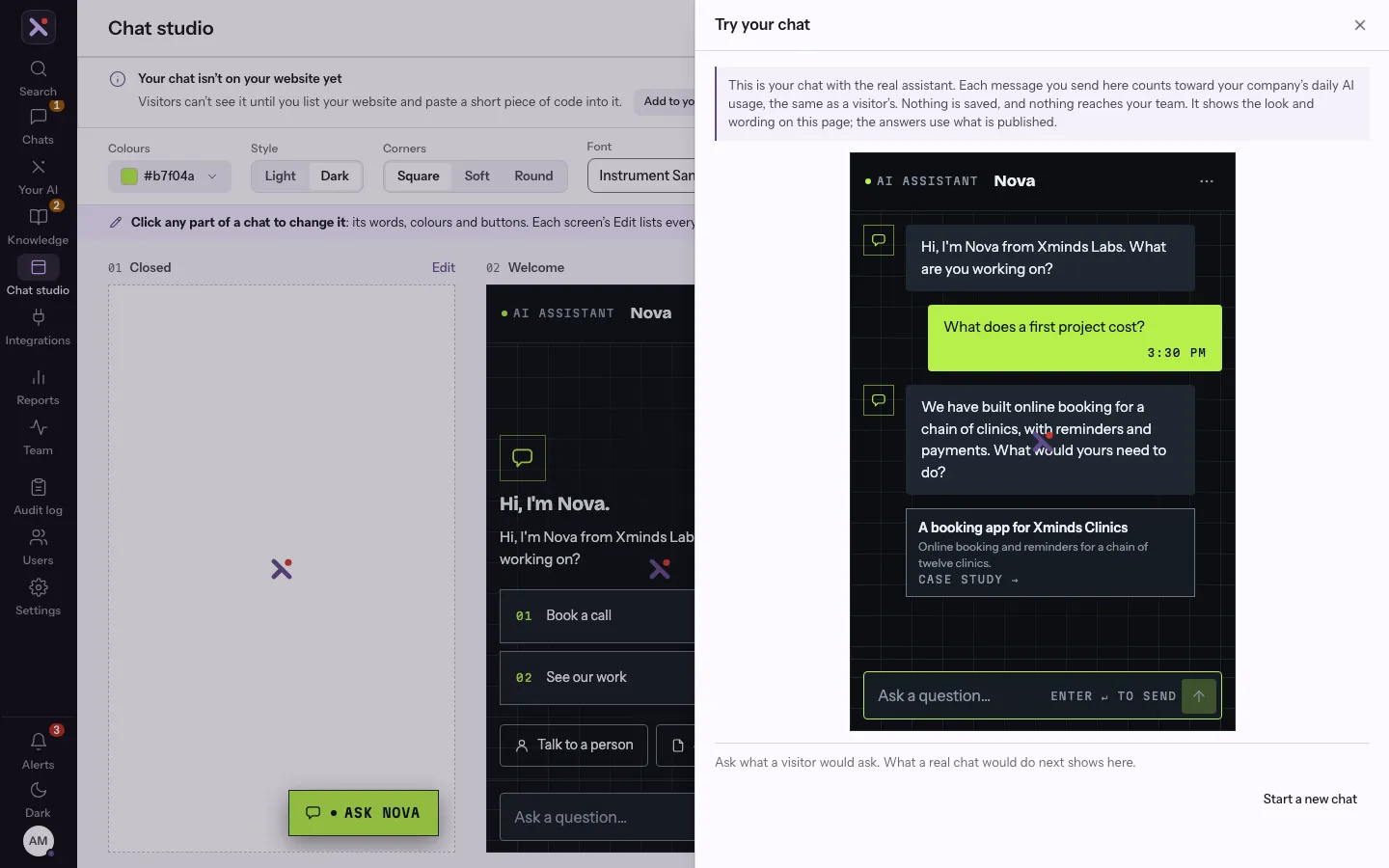
- Ask what a visitor would ask.
- Read After the last reply under the chat. It says what a real chat would do next, such as “Here a visitor would be offered your team.” or “The chat would ask for an email or a phone number.”
- Start a new chat begins again from the welcome screen.
Nothing is saved and nobody on your team is alerted, but each message counts toward your company’s daily AI usage. To try changes to what the AI is told before you save them, use the test chat on Your AI.
Put it on your website
Section titled “Put it on your website”Click Add to website or the status in the header. Put your chat on your website opens five steps, each ticked once done; with no website listed, it opens by itself the first time. Step by step: Put the chat on your website.
| Step | Done when |
|---|---|
| Teach the AI about your business | The AI has read at least one page or file. Open Knowledge takes you there |
| Publish your design | Nothing waits to be published |
| Say where it runs | A website is listed, or Allow any website is on |
| Put the code on your site and See it arrive | The chat has loaded on a listed website. The page looks every 15 seconds while it is open |
The status in the header follows the same facts:
| Status | What it means |
|---|---|
| “Your chat isn’t on your website yet” (a banner) | No website is listed, so the chat is closed everywhere |
| “Can start on example.com. No chat there yet” | The website is listed, and no chat has started there yet. Paste the code, open your site and send the chat a message |
| “Live: seen on example.com 3m ago” | A chat started on that website, the last one that long ago |
| “Any website can start your chat” | No website is listed and Allow any website is on |
Where it runs
Section titled “Where it runs”The site key in your code is public, so the chat starts only on the websites you list. On a website that is not listed, the chat is not drawn.
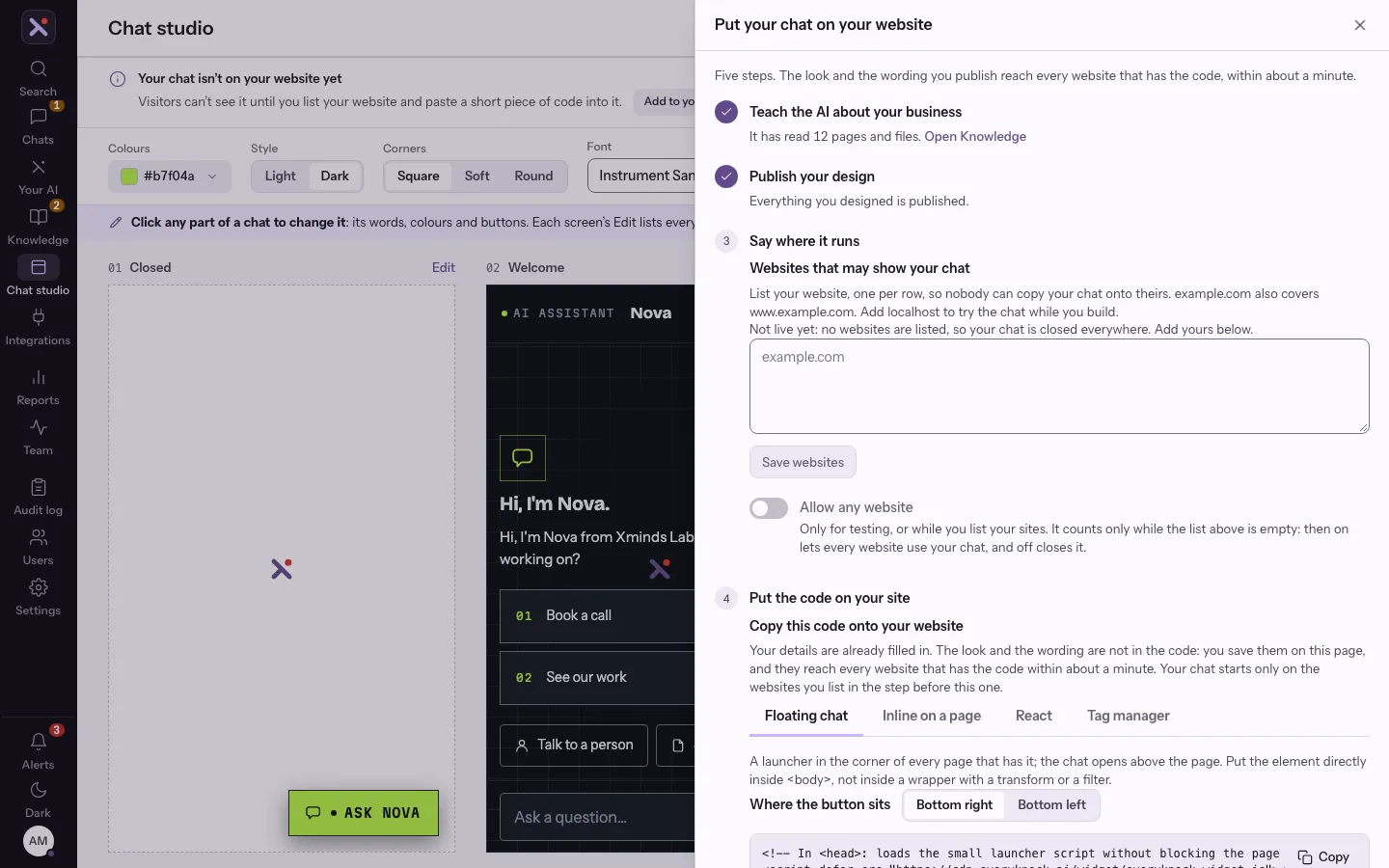
- Type each website on its own row, such as
example.com, withouthttps://, a path or a port. - Click Save websites. The page says “Allowed websites saved”, and the status in the header follows.
- A domain covers its subdomains:
example.comcoverswww.example.com, butwww.example.comdoes not coverexample.com. List the bare domain; the page warns you when you list only thewwwaddress. - Add
localhostto try the chat while your site is being built, and remove it when you go live. - Allow any website lets every website start your chat while the list is empty. Use it only for testing: every chat counts against your usage.
- Leaving no website listed with Allow any website off asks “Close your chat everywhere?” first: the chat then stops on every website, yours included.
- Your platform administrator sets how many websites your company may list. A save that lists more is refused with a message that says how many you may list. If your list is already longer, because the number was lowered, every website on it keeps working and you can remove websites, but not add one until the list fits.
The list stops copying; visitor limits are the defence against a determined abuser.
Your demo website
Section titled “Your demo website”When your platform administrator gives your company a demo website, a sample company website with your chat on it, Where it runs names it and links to it. Your chat runs there without the address being on your list, so leave it off the list. What it shows, who can find it, and what a demo company’s end means: Your demo website.
Put the code on your site
Section titled “Put the code on your site”- Pick the tab for your kind of site: Floating chat (a button in the corner of every page), Inline on a page (the chat fills a place in one page, such as a Contact page), React or Tag manager (Google Tag Manager or a similar tool).
- For a floating chat, choose Bottom right or Bottom left under Where the button sits.
- Click Copy and paste the code into your website, or send it to whoever looks after it. Your site key is already in it.
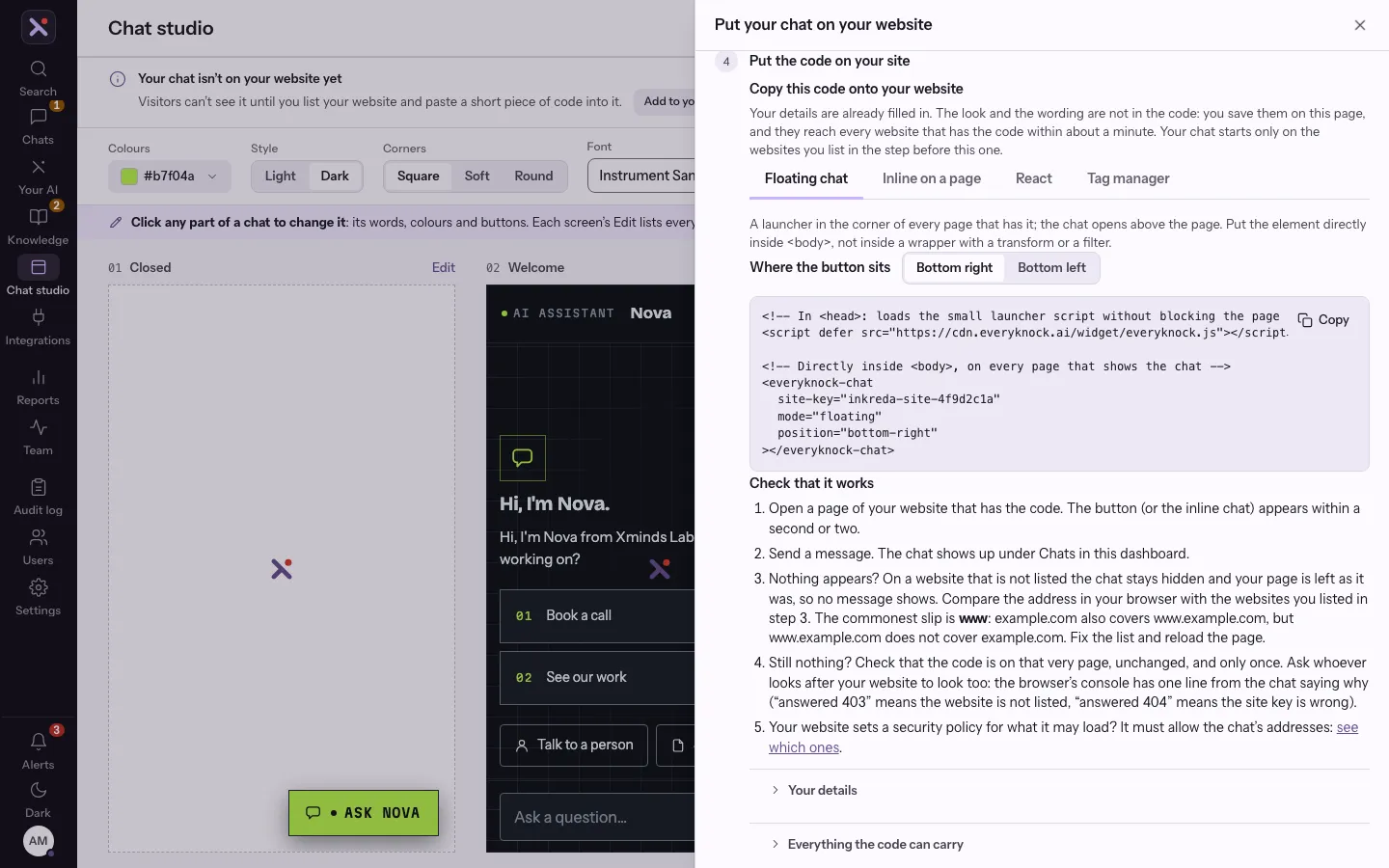
Each tab says where its code goes; the detail for a developer is Embed and attributes. Put the chat on a page once only. The look and wording are not in the code, so changing the chat never means changing the code. Your details, under the code, shows your site key and the script’s address.
Check that it works
Section titled “Check that it works”- Open a page of your website that has the code. The button, or the inline chat, appears within a second or two.
- Send a message. The AI answers, and the chat shows up under Chats.
- Back on this page, the status reads “Live: seen on example.com” with how long ago.
If something goes wrong
Section titled “If something goes wrong”| What you see | What to do |
|---|---|
| Nothing appears on your website | Compare the address in your browser with your list. The usual slip is listing www.example.com and opening example.com. Fix the list and reload the page |
| Still nothing | Check the code is on that page, unchanged and only once. Your web developer can look in the browser’s console: “answered 403” means the website is not listed, “answered 404” that the site key is wrong |
| Your website has a strict security policy | It must allow the chat’s addresses: Security policy and browsers |
| “AI replies are not available yet” above the steps | The AI service has no key yet. Your platform administrator sets it up; there is nothing to change here |
| “1 value needs fixing before you can publish.” | Click Keep editing and fix the field marked in red. A refused colour is marked on Colours in the toolbar |
| “Allowed websites can hold at most …” under the websites box | You listed more websites than your company may. Remove the ones you no longer need, or ask your platform administrator to raise the number |
| “Allowed websites already holds …” under the websites box | Your list is longer than your company may now list. Save it with fewer websites, or ask your platform administrator to raise the number before you add one |
| See it arrive stays quiet while Allow any website is on | The page only looks for your chat on a website you list. List yours |
The samples show YOUR_SITE_KEY |
Your site key did not load. Reload the page; if it stays, ask whoever runs EveryKnock for your company |
Related
Section titled “Related”Reviewed
Source files for this page
apps/dashboard/src/pages.tsxapps/dashboard/src/demoSite.tsxservices/api/app/platform/demo_sites.pyapps/dashboard/src/views/SettingsView.tsxapps/dashboard/src/views/chatstudio/ChatStudio.tsxservices/api/app/settings/limits.pyapps/dashboard/src/views/chatstudio/Canvas.tsxapps/dashboard/src/views/chatstudio/Toolbar.tsxapps/dashboard/src/views/chatstudio/EditorPopover.tsxapps/dashboard/src/views/chatstudio/Fields.tsxapps/dashboard/src/views/chatstudio/editables.tsapps/dashboard/src/views/chatstudio/screens.tsapps/dashboard/src/views/chatstudio/builtIns.tsapps/dashboard/src/views/chatstudio/changes.tsapps/dashboard/src/views/chatstudio/ReviewDrawer.tsxapps/dashboard/src/views/chatstudio/HistoryDrawer.tsxapps/dashboard/src/views/chatstudio/TryDrawer.tsxapps/dashboard/src/views/chatstudio/Launch.tsxapps/dashboard/src/views/chatstudio/EmbedGuide.tsxapps/dashboard/src/views/chatstudio/SeenLine.tsxapps/dashboard/src/views/chatstudio/status.tsapps/dashboard/src/views/chatstudio/useSightings.tsshared/web/src/views/install/samples.tsapps/dashboard/src/views/install/AllowedWebsites.tsxapps/dashboard/src/views/install/CodeBlock.tsxshared/web/src/views/settings/registry.tsxservices/api/app/routers/studio.pyservices/api/app/company/studio_try.pyservices/api/app/settings/features.pyservices/api/app/visitors/widget_origins.pyservices/api/app/visitors/widget_sightings.pydocs/SETTINGS.md

