Teach your AI
Knowledge, A website
Who can open itViewer: noOperator: noSupervisor: noAdmin: yes
When it is included
Section titled “When it is included”Website sources are part of your plan unless the platform has taken them away for your company: ask your EveryKnock contact. Without them, Add knowledge offers no Your website, a website you added shows Not in your plan on Sources and cannot be changed, no update reads it, and the AI stops using its pages until they are back. Nothing is deleted, so the answers return with them.
Where to find it
Section titled “Where to find it”Work, Knowledge, then the website’s row on Sources, or Add knowledge and Your website for a new one. It opens in a drawer. Only an Admin can open it. A saved website has two tabs: Pages, what the AI read from it, and Set-up.
Add a website
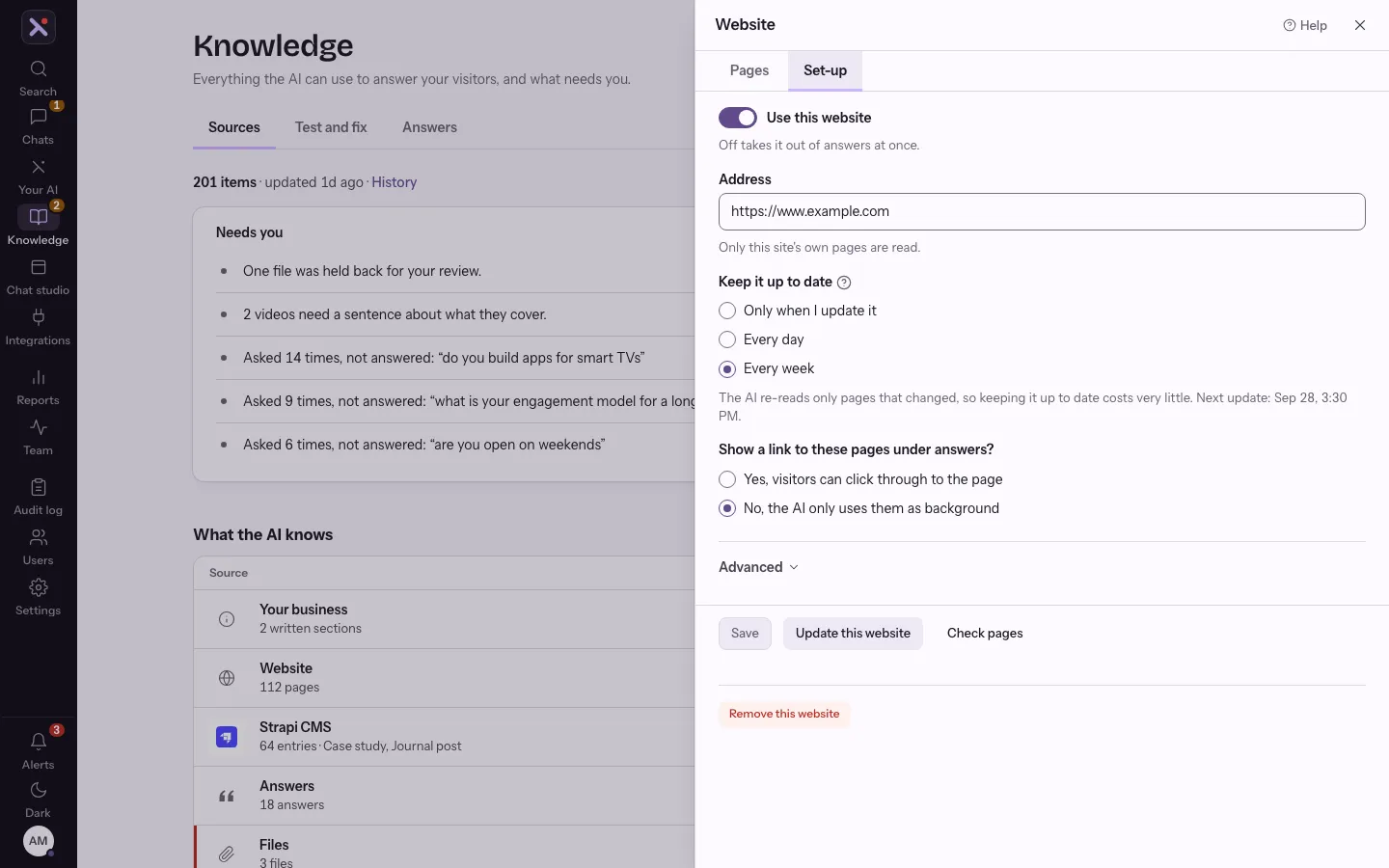
Section titled “Add a website”- Type the Address, for example
yourcompany.com(with or withouthttps://). - Choose how to Keep it up to date (below). A new website starts on Every week.
- Under Show a link to these pages under answers?, choose Yes, visitors can click through to the page, or No, the AI only uses them as background to use the pages without ever linking them.
- Press Save. The drawer closes with “Saved. The AI starts reading in a moment.”
On Sources, the website’s row shows Reading in a moment…, then Reading…, then In use with the number of pages. Open the row to see each page on the Pages tab, then ask a question on Test and fix.
Everything else is optional and sits under Advanced (Choose which pages it reads). To leave out a single page, use Keep out on the Pages tab (Knowledge).
Add another website
Section titled “Add another website”A blog, a shop or a help site on another address is a website of its own: press Add knowledge, then Your website, again, type its address and press Save. It is named after its address, such as shop.yourcompany.com, since two sources cannot share a name; to call it something else, such as “Blog”, change Name under Advanced. Each website counts as one of your company’s knowledge sources.
Keeping it up to date
Section titled “Keeping it up to date”Reading a website again on a schedule is part of your plan unless your EveryKnock contact has taken it out. Without it these choices are not shown, a new website is read only when you update it, and a website keeps the schedule it had for when it is back; Update this website and Update now still work.
| Choice | What happens |
|---|---|
| Every week | Read again about once a week. A new website starts here |
| Every day | Read again about once a day |
| Only when I update it | Read again only when you press Update this website or Update now, or after you change its set-up |
Under the choices, “Next update:” gives the date and time of the next read. If a scheduled update fails, your team is told once, when A scheduled knowledge update fails is on (When to alert). Your team is told about a page that cannot be read when it first fails, and again only if the reason changes, so a page that is gone does not bring a message at every update; it stays on the Knowledge page until you press Keep out.
Update it now, or stop using it
Section titled “Update it now, or stop using it”- Update this website reads it again now, for example after you publish a new page. “Updating this website now” confirms it.
- The switch Use this website, with Save, takes the website out of answers at once when off. Switch it on and save to use it again.
Update this website and Check pages are greyed while you have an unsaved change (save first) and while another update is going.
Check pages
Section titled “Check pages”Check pages lists the pages an update would read now, before you read anything. It stores nothing, and the AI learns nothing from it.
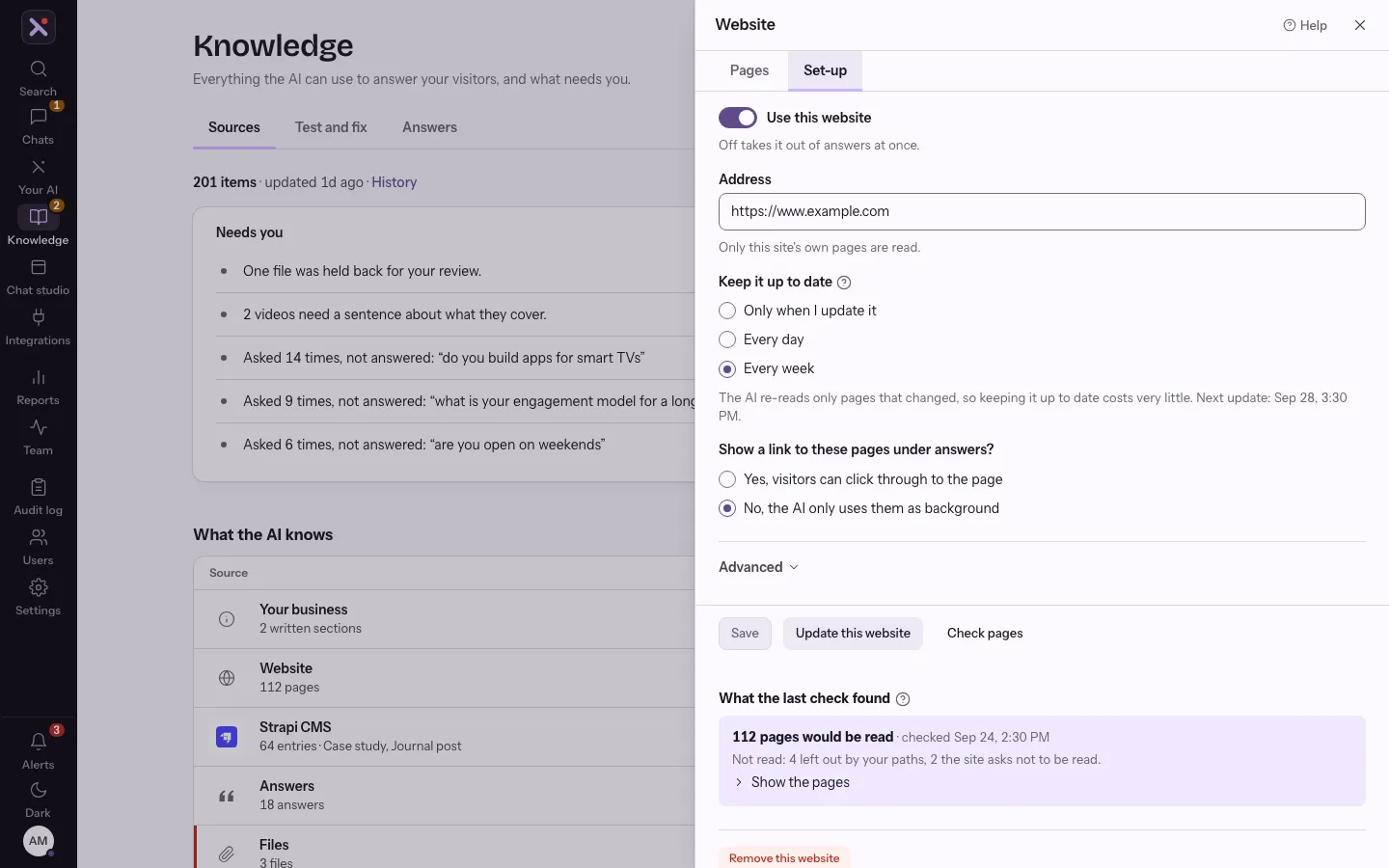
What the last check found says:
- how many pages would be read, and when the check ran;
- how many were left out, and why: by your paths, because the site asks not to be read, or past the page limit;
- whether the site has a sitemap (“No sitemap was found. Try Automatic or By following links.”).
Show the pages lists their addresses. A check that follows links stops at 200 pages and says so; a full update reads more. Run a check after changing Advanced options. Each check is also a line in the Update history.
Choose which pages it reads
Section titled “Choose which pages it reads”Advanced, at the foot of Set-up, holds the options for a site that needs them, in three groups: Which pages it reads, How it shows in the chat and Reading the text.
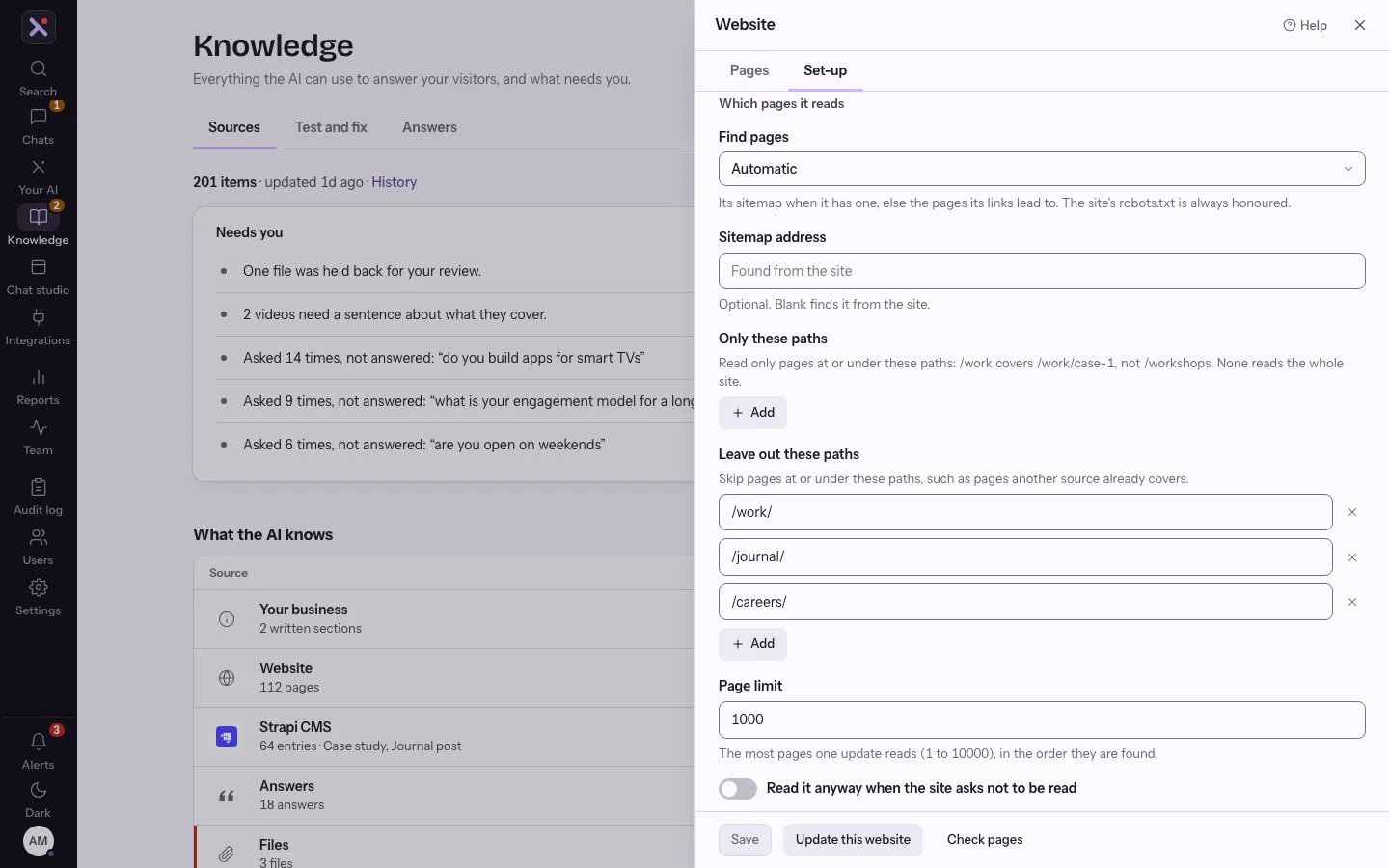
Which pages it reads
Section titled “Which pages it reads”| Option | What to enter | Use it to |
|---|---|---|
| Find pages | Automatic (the usual choice), From its sitemap, By following links, From a list or From WordPress | Choose how pages are found. Automatic uses the site’s sitemap when it has one, else the pages its links lead to. By following links starts at the front page and goes up to five links deep |
| Sitemap address | A web address. Blank finds it from the site | Point at a sitemap kept at an unusual address. Shown for Automatic and From its sitemap |
| Pages to read | One web address per line, on this website, up to 500 | List the only pages to read. Shown for From a list |
| Only these paths | One path per row, starting with /, such as /services |
Read only pages at or under these paths. /work covers /work/case-1, not /workshops. None reads the whole site |
| Leave out these paths | One path per row, such as /careers |
Skip pages at or under these paths, such as pages another source covers |
| Page limit | A whole number from 1 to 10,000 (1,000 to begin with) | Set the most pages one update reads, in the order they are found |
| Read it anyway when the site asks not to be read | On or off | Read a site you run whose robots.txt shuts readers out, such as one still being built. Leave it off otherwise |
How it shows in the chat
Section titled “How it shows in the chat”| Option | What to enter | Use it to |
|---|---|---|
| Name | Up to 40 characters | Change what visitors see on the link under an answer, and what the update history calls the website |
| These pages show past work | On or off | Show the pages as examples of your work. Needs links under answers |
Reading the text
Section titled “Reading the text”| Option | Use it to |
|---|---|
| Tidy up the text | Tick Drop picture markers, Bold lines as headings or Number tables as results when the Pages tab shows text that reads badly: stray markers where a picture sits, headings set only in bold, or two-column tables of figures |
| Read the text in pictures | Only while your plan includes Text in pictures. On to begin with: an update reads the words in this website’s pictures, such as posters, speaker lists and price lists, and passes over photos without words. Applies from the next update |
Press Save after any change, then Check pages to see its effect.
A WordPress site
Section titled “A WordPress site”When Check pages finds that your site runs WordPress, the drawer says “This looks like a WordPress site” and offers Switch to From WordPress, which usually gives cleaner text. You then tick What to read from WordPress, such as Pages and Posts. Drafts, private and password-protected items are never read. If the site does not let its content be read this way, the drawer says so: use From its sitemap instead.
Website password
Section titled “Website password”For a site that asks for a username and password before showing its pages, such as a staging site.
- Open Advanced and find Password for a protected site.
- Press Set, type the username and password as
username:password, and press Save. For a WordPress site that locks its content it can be a WordPress application password. - Press Update this website.
The password saves at once, on its own, and is never shown again. Replace key changes it and Remove deletes it. It is sent only to that site’s own pages, and only over https://: one password is used for every website, and while one is saved a website’s address must start with https://.
Remove a website
Section titled “Remove a website”Remove this website, at the foot of Set-up, asks first. A website whose pages are still stored cannot be removed yet:
- Switch off Use this website and press Save.
- Open the website again and press Update this website. The update takes its pages out.
- When the update has finished, press Remove this website, then Remove.
Good to know
Section titled “Good to know”- A page whose text only appears in a browser, or that has no text, is skipped with its reason. Write an answer for what it says.
- A page that will not load does not stop the update; the AI keeps the copy it read before.
- One update of one website may run for up to six hours. What it read by then is kept.
- Addresses must be plain web addresses on the usual ports, with no spaces or sign-in details in them.
If something goes wrong
Section titled “If something goes wrong”A message from Save is shown above the buttons; one about the address or the page limit also takes you to that field.
| What you see | What to do |
|---|---|
| “That does not look like a website address. Try something like yourcompany.com.” | Check Address |
| “The page limit must be a whole number from 1 to …” | Type a whole number in the range it names in Page limit |
| “…must be a path starting with /.” | Start each path with /, such as /services |
| “…is not a web address on…” | Every line of Pages to read must be a full address on this website |
| “Add at least one page to read while the source is on, or choose another way to find pages.” | Fill in Pages to read, or change Find pages |
| “Pick at least one WordPress content type to read.” | Tick at least one box under What to read from WordPress |
| “…must start with https:// while a website password is stored…” | Use the https:// address, or remove the password |
| “Another source is already labelled…” | Advanced opens at Name: give this website a name no other source has |
| “No sitemap was found. Try Automatic or By following links.” | Change Find pages, save, and check again |
| “The AI is already updating. Try again when it has finished.” or “The AI is reading something now…” | Wait for the update or check going now |
| “…still stored, so the AI could still use them. Turn it off and press Update now first…” | Follow Remove a website |
| A website “ran out of time” in the Update history | The site is very slow. Lower the Page limit or use Only these paths, then update again. What it read is kept |
| Needs you says the site asks tools like ours not to read it | Only for your own site: switch on Read it anyway when the site asks not to be read |
Related
Section titled “Related”Reviewed
Source files for this page
services/api/app/rag/source_kinds.pyservices/api/app/settings/features.pyapps/dashboard/src/views/knowledge/WebsitePanel.tsxapps/dashboard/src/views/knowledge/SourceDrawer.tsxapps/dashboard/src/views/knowledge/SourceDocuments.tsxapps/dashboard/src/views/knowledge/words.tsshared/web/src/views/SecretField.tsxapps/dashboard/src/views/knowledge/SourceEditor.tsxservices/api/app/knowledge/knowledge_messages.pyservices/api/app/knowledge/rag_sources.pyservices/api/app/routers/sources.pyservices/api/app/core/outbound.pyshared/python/src/everyknock_shared/outbound.pyservices/api/app/knowledge/ingest_sync.pyservices/ingest/ingest/website_client.pyservices/ingest/ingest/website_corpus.pyservices/ingest/ingest/image_text.pyservices/ingest/ingest/website_ingest.pyservices/ingest/ingest/website_preview.pyservices/ingest/ingest/wordpress.pydocs/RAG.md

