Settings reference
Talk to a person
Who can open itViewer: noOperator: noSupervisor: noAdmin: yes
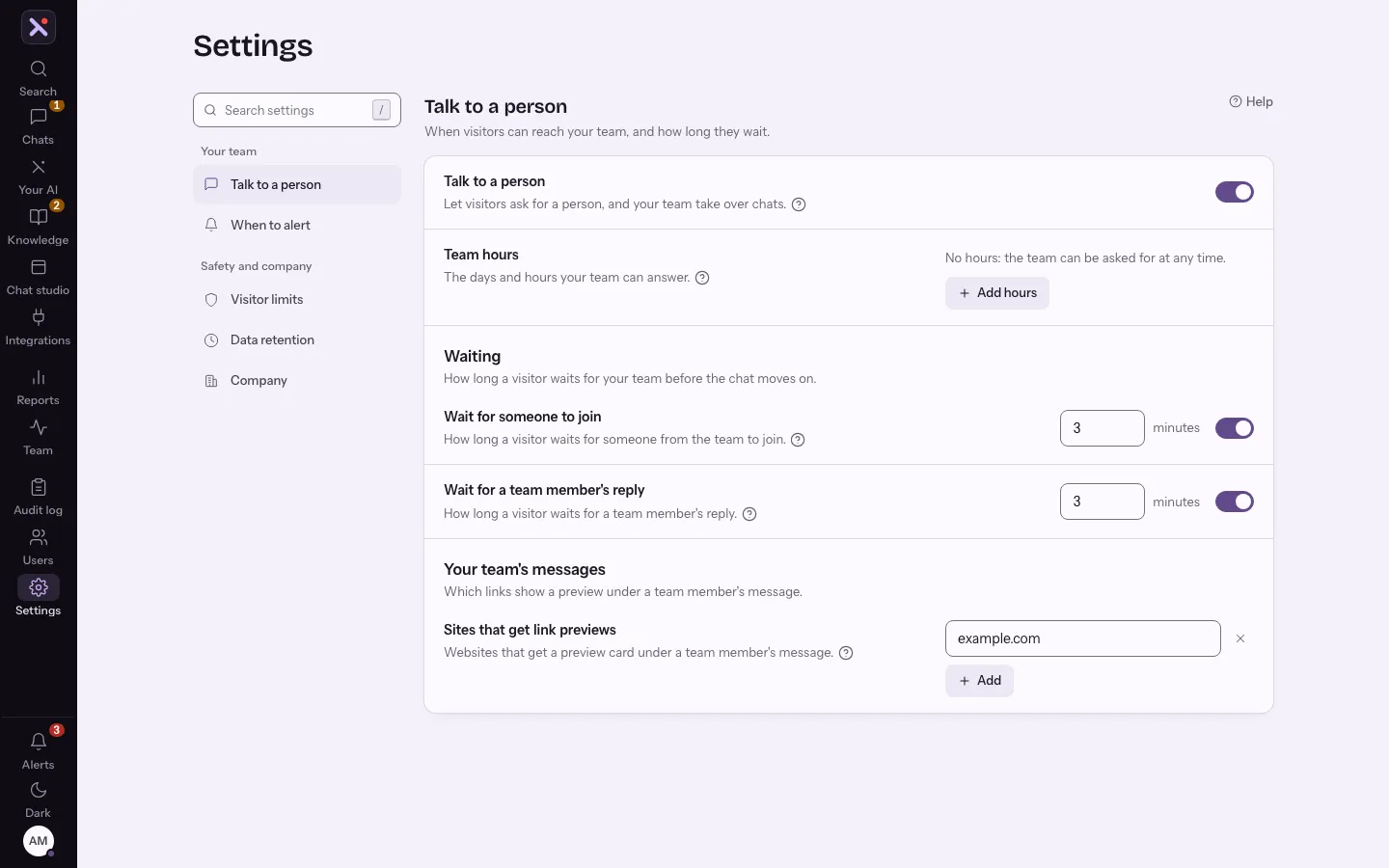
What happens when a visitor asks for a person: when the team can answer, how long a visitor waits, and the previews under a team member’s message. Every row but the switch is there only with Talk to a person. The buttons a visitor presses are the Chat studio’s (Welcome, A chat), the time zone is under Company, the idle close under Chat length, and the alerts on the When to alert panel; the wording a visitor reads is the platform’s.
Where to find it
Section titled “Where to find it”Settings in the rail (Admin), then Talk to a person under Your team.
The panel shows its groups one under another on one page, each with a heading and a line saying what it is for. Only admins can open Settings.
On or off
Section titled “On or off”| Setting | Starts as | Allowed values or range | Example | What it does |
|---|---|---|---|---|
| Talk to a person | On | On or off | Off | Let visitors ask for a person, and your team take over chats. Off: the AI handles every chat, visitors are never offered a person, and the screens for taking over, saved replies, points and chat reviews are hidden. What you saved on those screens is kept for when you turn it back on. Knock-on effect: Turning it off returns every visitor now waiting for a person to the AI within a minute of saving. |
Team hours
Section titled “Team hours”| Setting | Starts as | Allowed values or range | Example | What it does |
|---|---|---|---|---|
| Team hours Needs: Time zone |
blank | — | Mon-Fri 09:30-18:30 |
The days and hours your team can answer (a shift past midnight is two windows). Outside them, a visitor asking for a person gets the contact for the team at once instead of waiting for nobody; while a team member has the dashboard open, they wait at any hour. Empty: any time. You pick windows, each with a first and last day and a start and end time on the half hour, for example Mon-Fri 09:00-18:00 and Sat 10:00-14:00. |
Waiting
Section titled “Waiting”How long a visitor waits at each step of being passed to a person. Both waits must be shorter than Close quiet chats after, under Visitor limits. The reminder about a visitor left waiting is on the When to alert panel, and must also come before it.
| Setting | Starts as | Allowed values or range | Example | What it does |
|---|---|---|---|---|
| Wait for someone to join | 3 |
0 to 30 minutes (0 = don’t wait) | 3 |
How long a visitor waits for someone from the team to join. If nobody does, the AI carries on and asks for their contact details. 0 means never wait: they get the contact for the team straight away. Knock-on effect: Lowering it, 0 included, returns every visitor already waiting longer to the AI within a minute of saving. |
| Wait for a team member’s reply | 3 |
0 to 30 minutes (0 = never offer) | 3 |
How long a visitor waits for a team member’s reply. After that they are told nobody has replied and offered the way back to the AI, or to leave their details. A chat that has used its AI reply limit never goes back to the AI. 0 means no way back is offered. Knock-on effect: Lowering it, 0 included, offers the way back to every visitor already waiting longer within a minute of saving. |
Your team’s messages
Section titled “Your team’s messages”| Setting | Starts as | Allowed values or range | Example | What it does |
|---|---|---|---|---|
| Sites that get link previews | blank | — | inkreda.example, news.inkreda.example |
Websites that get a preview card under a team member’s message. Sub-addresses are included, such as blog.example.com for example.com. Empty: no previews. |
Source files for this page
docs/SETTINGS.mdservices/api/app/settings/settings_store.py

