Teach your AI
Knowledge, Questions and answers
Who can open itViewer: noOperator: noSupervisor: noAdmin: yes
When it is included
Section titled “When it is included”Saved answers are part of your plan unless the platform has taken them away for your company: ask your EveryKnock contact. Without them, Add knowledge offers no A question and an answer, your answers show Not in your plan on Sources, no answer can be added or changed, and the AI stops using them until they are back. You can still read, export and remove them, and nothing is deleted, so they answer again when they are back.
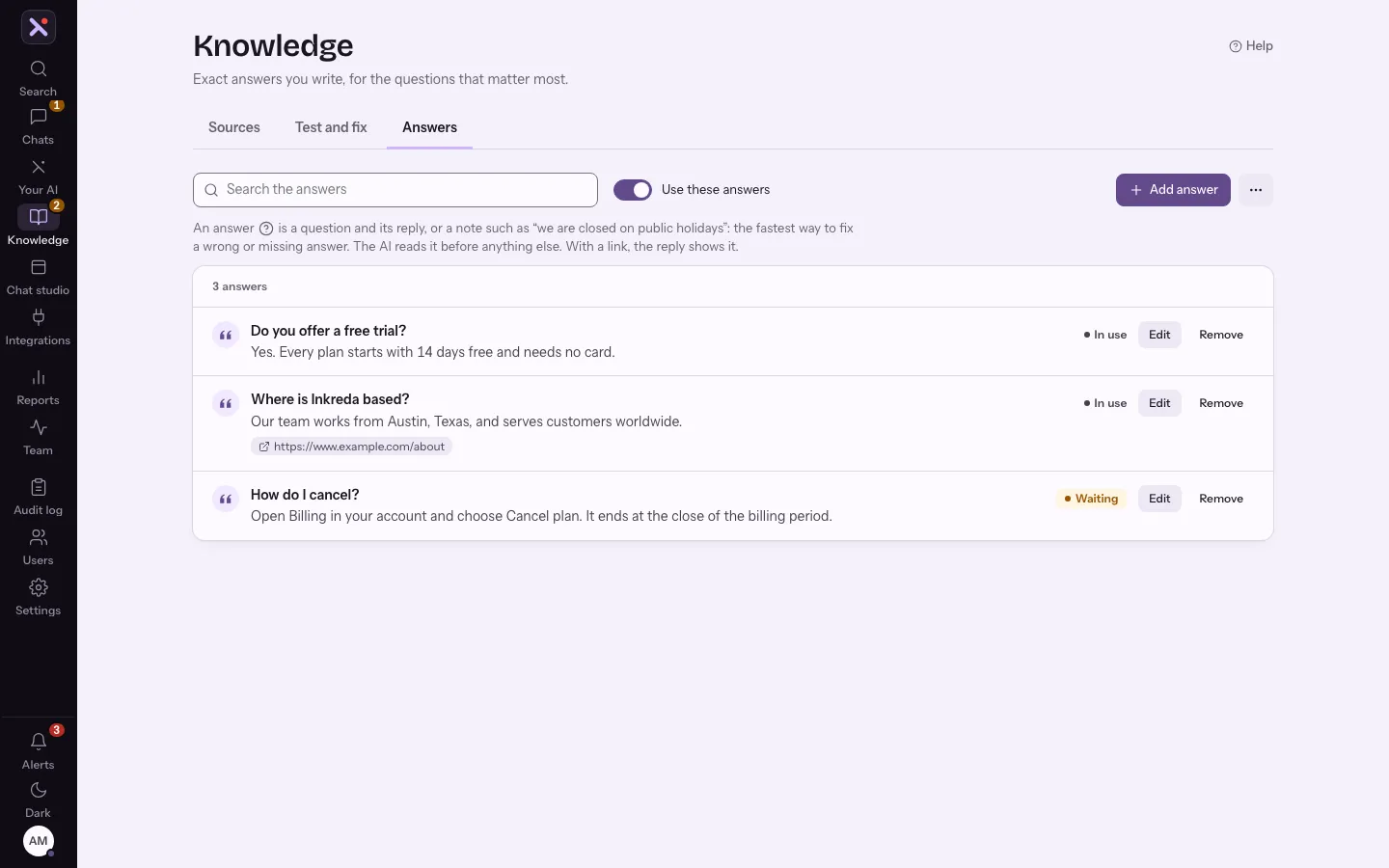
Use the Answers tab of Knowledge for what your website does not say, or says wrongly: your opening hours, what a service includes, a price policy.
Where to find it
Section titled “Where to find it”Work, Knowledge, then the Answers tab. Only an Admin can open it. It also opens, with the question filled in, from Write the answer on Test and fix, in Needs you, and on Answer quality.
Write an answer
Section titled “Write an answer”-
Press Add answer.
-
Fill in the form:
Field What to write Limit Question The question as a visitor would ask it, such as “How much does it cost?”. A visitor’s words are matched with it. For a note, write what the note is about 300 characters Answer The reply, in full sentences, as you would say it to a visitor. A count under the box shows how much room is left 4,000 characters Link (optional) A public page with more, starting with https://. It is shown as a link under a reply that uses the answer. Without one, the answer only informs the reply300 characters -
Press Save answer. “Answer saved. The AI starts reading in a moment.” confirms it, with Test this answer, which asks the question on Test and fix once the AI has read it.
The answer’s row shows Waiting until the AI has read it, about a minute, then In use. If you already have an answer to much the same question, a line says so: two answers to one question can disagree, so consider editing that one instead.
A half-written answer is kept if you leave Knowledge or reload the page. Opening another answer over one you have changed asks “Discard your changes?” first.
Change, find or remove an answer
Section titled “Change, find or remove an answer”| To | Do this |
|---|---|
| Change an answer | Press Edit on its row, change it, and press Save answer. The AI reads the change about a minute later |
| Find an answer | Type in Search the answers: it looks in the question, the answer and the link |
| Remove an answer | Press Remove on its row, then Remove in the window that asks. It leaves the AI’s answers at once |
| Stop using the answers for now | Switch off Use these answers (with several groups, Use and the group’s name, which switches off that group only). They leave replies at once, with Undo |
How an answer is used
Section titled “How an answer is used”When an answer you wrote fits the visitor’s question, the AI reads it before anything else, even a page that matches more closely, and treats it as your current answer. If a page says something different, the AI gives your answer and leaves the page’s version out. An answer that only shares a topic with the question does not go first and does not win.
Keep answers in groups
Section titled “Keep answers in groups”A group is a named set of answers with its own switch, such as Pricing or this season’s offers: switch the group off when the season ends, and on again next year. The first answer you save makes a group called “Answers”.
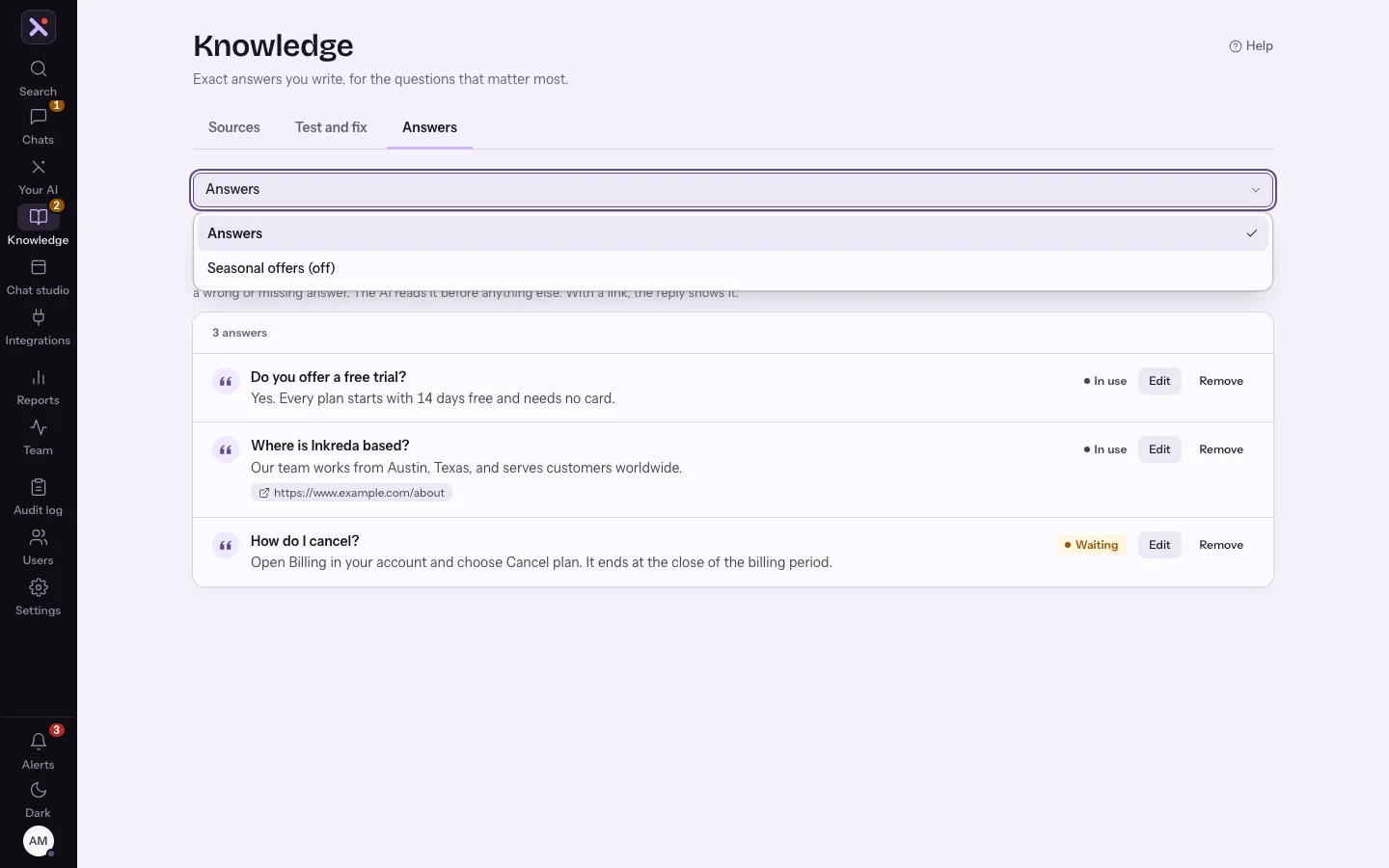
The three-dot More for answers menu holds the group actions:
| To | Do this |
|---|---|
| Add a group | New group, type a name of up to 40 characters, such as “Pricing”, and press Add group |
| Rename the group you are on | Rename and the group’s name, change it, and press Save name |
| Move between groups | With two or more groups, a picker at the top chooses which group you see. A group that is switched off shows “(off)”. A new answer goes to the group you are on |
| Remove the group you are on | Remove its answers first, wait about a minute for the AI to read that (or press Update now when Apply changes automatically is off), then choose Remove and the group’s name. Offered only with two or more groups |
An answer cannot be moved between groups: add it to the right group and remove the first. Each group counts as one of your company’s knowledge sources.
Import from a spreadsheet
Section titled “Import from a spreadsheet”Use this when you move from another chatbot or already keep your questions in a spreadsheet.
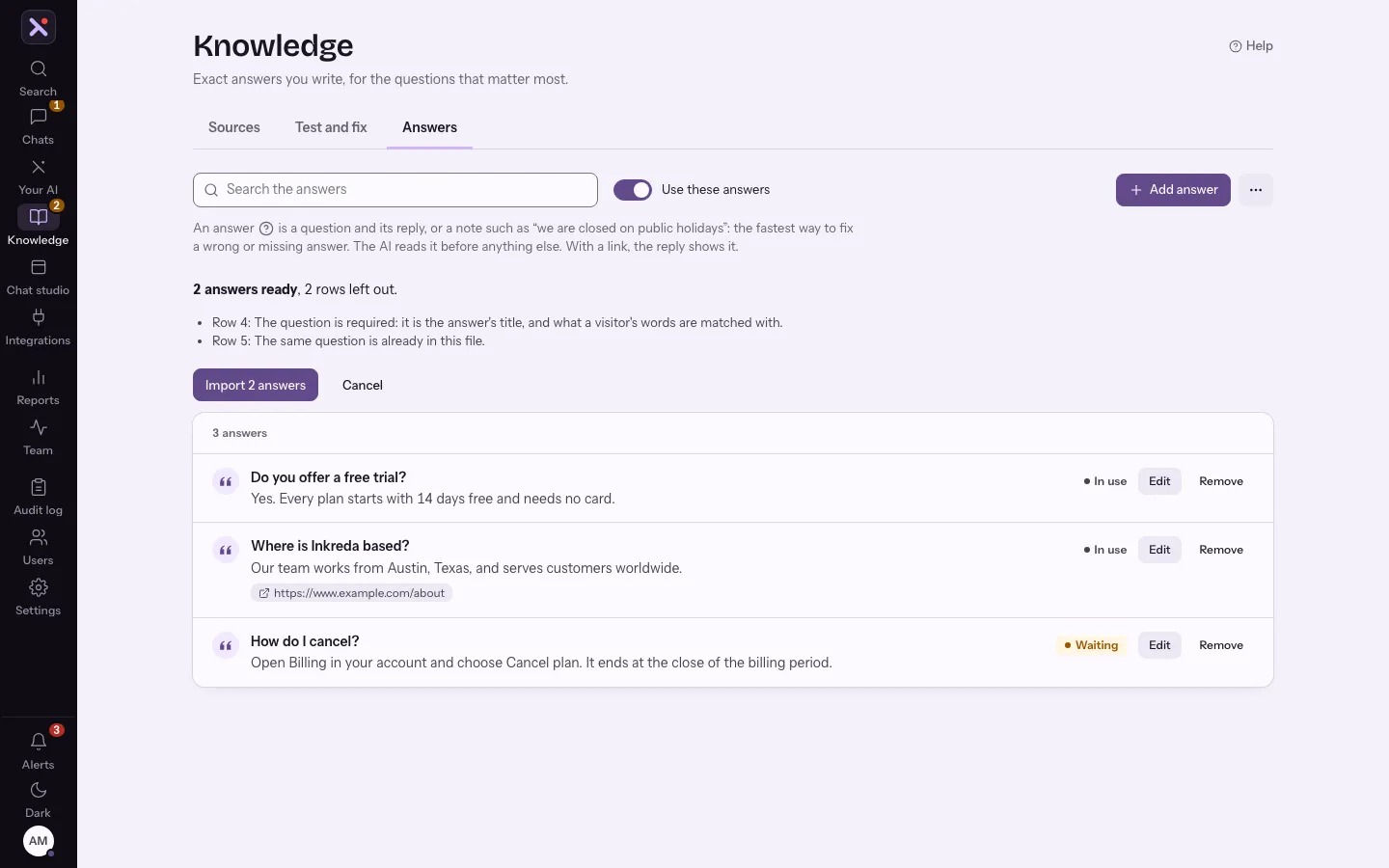
- Put the questions in the first column, the answers in the second and, if you have them, links in the third. A first row of column names (question, answer, link) is skipped.
- Save the spreadsheet as CSV UTF-8 (Excel calls it “CSV UTF-8”). Up to 500 rows and 1 MB.
- In the More for answers menu, choose Import from a spreadsheet and pick the file. Nothing is saved yet: it says how many answers are ready, how many are already there, and lists the rows left out, each with its row number and why.
- Press Import N answers, or Cancel to save none.
An import only adds, to the group you are on: answers already there are skipped, and nothing is changed or removed. A row is left out when its question or answer is missing or too long, its link is not a web address, or the same question appears earlier in the file.
Export to a spreadsheet downloads the group’s answers as answers.csv in the same columns, so you can edit them and import them again.
Good to know
Section titled “Good to know”- Answers are never read again on a schedule: they change only when you save them.
- If Apply changes automatically is off, a save says “Press Update now to read it.” (Knowledge settings).
- Every answer added, changed or removed is recorded in the audit log.
If something goes wrong
Section titled “If something goes wrong”A message about one box is shown under that box, and the cursor is put in it.
| What you see | What to do |
|---|---|
| “The link must be a web address starting with https:// or http://, up to 300 characters.” | Correct the link, or leave it blank |
| “The file is not UTF-8 text. In Excel, save it as “CSV UTF-8”.” | Save the file again in that format |
| “The file has N rows. Import at most 500 at a time.” | Split the file |
| “The file is over 1 MB.” | Split the file |
| “Give the group a name.” | Type a name before pressing Add group or Save name |
| “Another source is already labelled “…”.” | Give the group another name: it cannot share one with another group or source |
| Remove for a group is greyed, “Remove its answers first.” | Remove the group’s answers, then the group |
| Removing a group says items from it are still stored | The AI has not read yet that its answers are gone. Wait a minute, or press Update now on Knowledge, then remove the group |
| No Remove in the menu | You have one group. A last group cannot be removed |
| Export to a spreadsheet is greyed | The group has no answers yet |
Related
Section titled “Related”Reviewed
Source files for this page
services/api/app/rag/source_kinds.pyservices/api/app/settings/features.pyapps/dashboard/src/views/knowledge/AnswersTab.tsxapps/dashboard/src/views/knowledge/AnswersImport.tsxapps/dashboard/src/views/KnowledgeView.tsxapps/dashboard/src/views/knowledge/SourcesTab.tsxservices/api/app/knowledge/rag_answers.pyservices/api/app/routers/answers.pyservices/api/app/routers/sources.pyservices/api/app/rag/retriever.pyservices/api/app/prompts/context.tomldocs/RAG.mdapps/dashboard/src/views/InsightsView.tsx

