Your team and account · Step-by-step guide
Set up team hours, waits and alerts
Who can open itViewer: noOperator: noSupervisor: noAdmin: yes
Before you start
Section titled “Before you start”- You are an Admin: only an Admin can open Settings (Roles).
- The people who will answer are on Users as Operator, Supervisor or Admin (Add a colleague).
- For alerts in a Teams or Slack channel, the channel is connected on Integrations (Connect Teams and Slack). For email alerts, an email sender works (Send emails from your own address).
- Set your time zone. Open Settings, Company, and pick your Time zone by city, or press Use my time zone. Team hours are read in it, report days start in it, and the AI goes by its date (Company).
- Set your team hours. In Talk to a person, under Team hours, press Add hours and pick the first and last day and the start and end time, for example Mon to Fri, 09:00 to 18:00. Press Add hours again for another window, such as Sat 10:00 to 14:00; a shift past midnight is two windows. Outside the hours, a visitor who asks for a person gets your contact at once, unless a team member has the dashboard open. No hours means any time (Talk to a person).
- Set the waits. Under Waiting, set Wait for someone to join and Wait for a team member’s reply. Both start at 3 minutes; 0 means the visitor never waits. Both must be shorter than Close quiet chats after on Visitor limits (Waiting).
- Check each change saved. Settings saves each change as you make it, with a message and Undo. Lowering a wait first opens a window, because visitors already waiting longer go back to the AI; press Save changes there to go ahead.
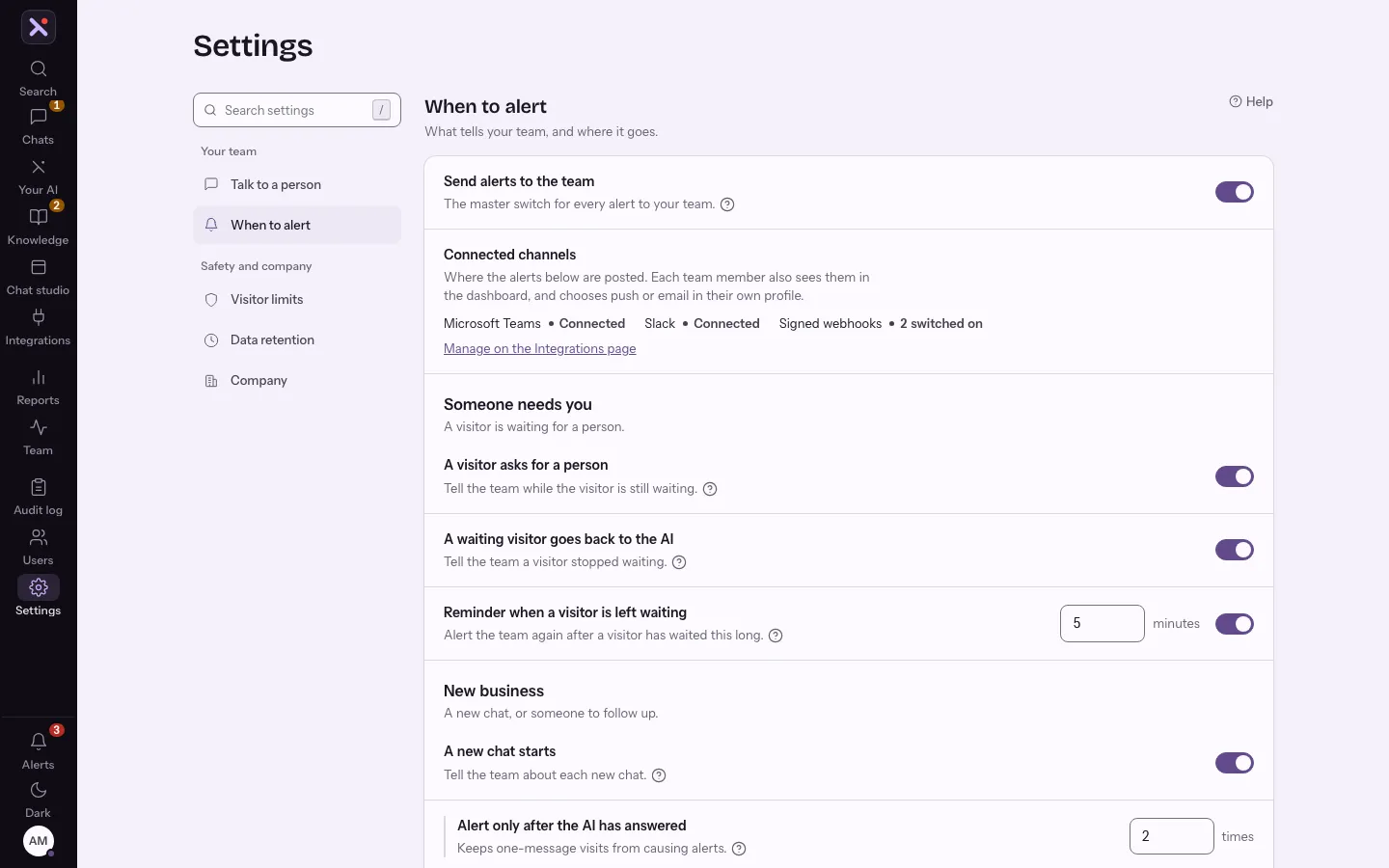
- Choose what is alerted. In When to alert, keep Send alerts to the team on, and keep A visitor asks for a person on. Set Reminder when a visitor is left waiting if you want the team told again, and switch A visitor leaves their contact details on if someone should follow up while the chat is fresh (When to alert).
- Check the alerts can reach someone. On the same panel, Connected channels shows whether Teams, Slack and your signed webhooks are connected, with a link to Integrations. If it warns “Nobody hears of a visitor while the dashboard is closed”, do what it says: until then visitors wait only while someone has the dashboard open.
- Say what visitors are told when nobody is free. On Your AI, Business, fill in Contact for the team and Promised reply time. Replies that send a visitor to your team name them (Fixed replies).
- Decide on the button under the first answer. The chat offers “I’d still like to talk to a person” under the AI’s first answer. In Chat studio, click it in a chat to change its words, or switch it off (Chat studio).
- Ask each team member to set their own alerts. In their account menu they switch to Available when they can take chats, and under Your preferences, Alerts, the Needs a person row starts with sound, pop-up and push on. Each person adds their phone or computer once to get push messages (Your preferences).
- Try it. Ask for a person in the chat on your website while a team member is Available. The chat moves to Waiting on Live and the team member is alerted (Handle a waiting chat).
What a visitor sees while waiting, and when the wait runs out, is on Talking to a person.
Good to know
Section titled “Good to know”- With the dashboard closed, a visitor waits only if an alert can bring someone in: a connected Teams or Slack channel, or an Available team member who has push or email on for Needs a person. A signed webhook by itself does not count.
- A team member who is Away is not counted, gets no alert emails, and is not listed as free in the alerts.
- An Admin who has chosen nothing gets email for Needs a person and Contact details left while email can be sent, so a company with one Admin and no channel still hears of a waiting visitor.
If something goes wrong
Section titled “If something goes wrong”| What you see | What to do |
|---|---|
| A wait or closing time is refused | Close quiet chats after must be longer than both waits, and the reminder must come before it. Change the one that makes room first. |
| A visitor never waits | Wait for someone to join is 0, it is outside your team hours with nobody online, or no alert can reach anyone. When to alert warns “Nobody hears of a visitor while the dashboard is closed” and says what to put right. |
| A team member is never alerted | They are Away, a Viewer, or their dashboard is closed and they have no push or email alert on. An alert that failed shows in the bell and on Integrations. |
| “These hours are written in a form the picker cannot read.” | Press Start again and pick the hours anew |
| Visitors are given your contact during your working hours | Check Time zone under Company: team hours are read in it |
Related
Section titled “Related”Reviewed
Source files for this page
shared/web/src/views/settings/registry.tsxapps/dashboard/src/views/SettingsView.tsxshared/web/src/views/HandoffFields.tsxapps/dashboard/src/views/settings/AlertRoutes.tsxapps/dashboard/src/views/shell/AvailabilitySwitch.tsxapps/dashboard/src/views/PreferencesDialog.tsxapps/dashboard/src/notificationGroups.tsservices/api/app/notifications/events.pyapps/widget/src/chatbot/strings.tsdocs/CONVERSATION.md

