See how it's going
Feedback: Ratings
Who can open itViewer: yesOperator: yesSupervisor: yesAdmin: yes
The Feedback tab shows what visitors said about your chat: the ratings they gave and the AI replies they flagged. This page covers the tab’s figures and its Ratings list; the other list is Flagged replies. Feedback is collected and shown, nothing more: it never changes how the AI answers.
Where to find it
Section titled “Where to find it”Insight, Reports, tab Feedback, then Ratings. Every role can open it. Operators, Supervisors and Admins can save Ratings as a spreadsheet file, with what visitors wrote (Export).
Choose when visitors are asked
Section titled “Choose when visitors are asked”Ratings are on for a new company, set to Any time. Only an Admin can change that:
- Open Chat studio and go to the chat’s ended screen (Chat studio).
- Set Ask visitors to rate the chat: Any time asks when the chat ends and lets visitors rate from the chat’s menu too, When the chat ends asks only then, and Never turns ratings off.
- Check the reasons visitors can pick after a low rating and after a high one, and change them to fit your business.
- Press Publish. Ratings appear here as visitors give them.
Values and starting points: Chat studio settings.
A visitor rates the chat with one to five stars, can pick some reasons and write a comment, and can change their rating later. A chat has one rating: a changed rating replaces the earlier one. The rating also shows at the end of the chat’s transcript, under Visitor rating.
Read the figures
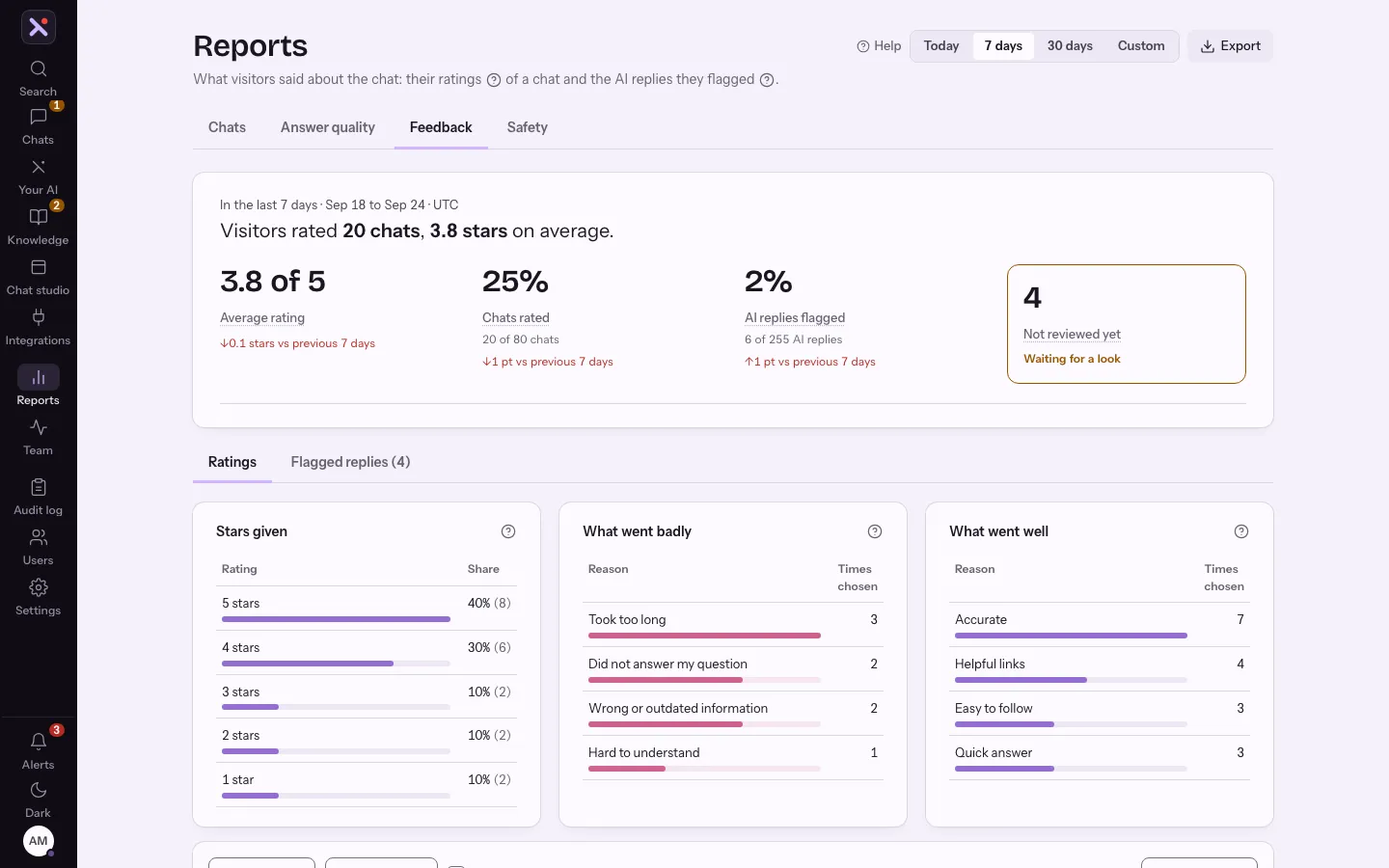
Section titled “Read the figures”The headline sentence reads, for example, “Visitors rated 20 chats, 3.8 stars on average.”, or “Nothing was rated or flagged in this period.” The four figures sit under it, for both lists:
| Figure | Means |
|---|---|
| Average rating | The average stars, out of 5 |
| Chats rated | The share of chats whose visitor rated them, with the count under it (“20 of 80 chats”). A high average from a small share is less reliable: the visitors who rate are often the very pleased and the very unhappy |
| AI replies flagged | The share of the AI’s replies a visitor flagged. Here a fall is good news |
| Not reviewed yet | Flagged replies nobody has marked reviewed, with “Waiting for a look” while above 0 |
A rating counts in the period its chat started in, not the day it was given.
Find what went wrong
Section titled “Find what went wrong”- Look at Stars given for how the ratings spread, and What went badly for the reasons chosen with three stars or fewer. What went well lists the reasons behind four and five stars.
- Press a row in any of the three cards to filter the list below to it; press it again to lift the filter.
- The list starts on Lowest first, with commented ratings first among equal stars. Switch Order to Newest first to follow recent chats.
- Narrow it with the filters over the list: the number of stars (All ratings to 1 star), the reason (All reasons), or With a comment only.
- Each row shows the stars, when it was given in your company’s time zone, “The chat began with” the visitor’s first message, the reasons and the comment. Open chat opens the chat to read it in full.
The list shows 50 ratings to a page.
Act on what you find
Section titled “Act on what you find”A rating is of the whole chat, so read the chat before deciding what went wrong.
| What the chat shows | What to do |
|---|---|
| The AI did not know the answer | Write the answer or add the source (Answers, Reports: Answer quality) |
| The AI answered, but not in the way you want | Change what it is told on Your AI, and try it in the test chat |
| The visitor wanted a person and did not get one in time | Check your hours, waits and alerts (Set up team hours, waits and alerts) |
| A team member’s replies let the visitor down | Read the chat’s review and coach from it (Chat reviews) |
| The same reason keeps coming up | Fix it at the source once, then watch What went badly over the next weeks |
If something goes wrong
Section titled “If something goes wrong”| What you see | What to do |
|---|---|
| “No ratings in this period.”, and “Visitors rate a chat once it is switched on in Chat studio, Ended.” | Ratings are off. An Admin follows the link and sets Ask visitors to rate the chat |
| “No ratings in this period.”, and “An admin switches feedback on in Chat studio, and then visitors can rate a chat.” | Ratings are off. Ask an Admin to turn them on |
| “No ratings in this period.”, and “Nobody has rated a chat in this period.” | Ratings are on; nobody rated in these days. Choose a longer range |
| “No ratings match these filters.” | Choose another number of stars or reason, or untick With a comment only |
| A reason you expect is missing from Reason | The list offers the reasons chosen most; press the reason in What went badly or What went well instead |
Related
Section titled “Related”- Feedback: Flagged replies
- Reports: Chats, whose Visitor rating opens this page
- Chat studio settings
Reviewed
Source files for this page
apps/dashboard/src/views/FeedbackView.tsxapps/dashboard/src/views/FeedbackParts.tsxshared/web/src/views/settings/registry.tsxservices/api/app/conversations/feedback_store.pyservices/api/app/routers/feedback.pydocs/SETTINGS.md

