Answer chats
Saved replies
Who can open itViewer: noOperator: noSupervisor: yesAdmin: yes
Saved replies keep your team’s common answers consistent and quick: a greeting, a request for contact details, a farewell. One list serves your whole company.
Where to find it
Section titled “Where to find it”A Supervisor or an Admin opens the Saved replies window in any of three ways. The first two need no chat:
| From | How |
|---|---|
| The Team page | Press Saved replies at the top right of the page |
| Anywhere | Open the command palette (⌘ K, or Ctrl K on Windows and Linux) and choose Manage saved replies |
| A chat you hold | Press Saved replies at the right end of the reply box, then Manage saved replies at the foot of the list. The window opens over the chat; what you had typed in the box stays as it was |
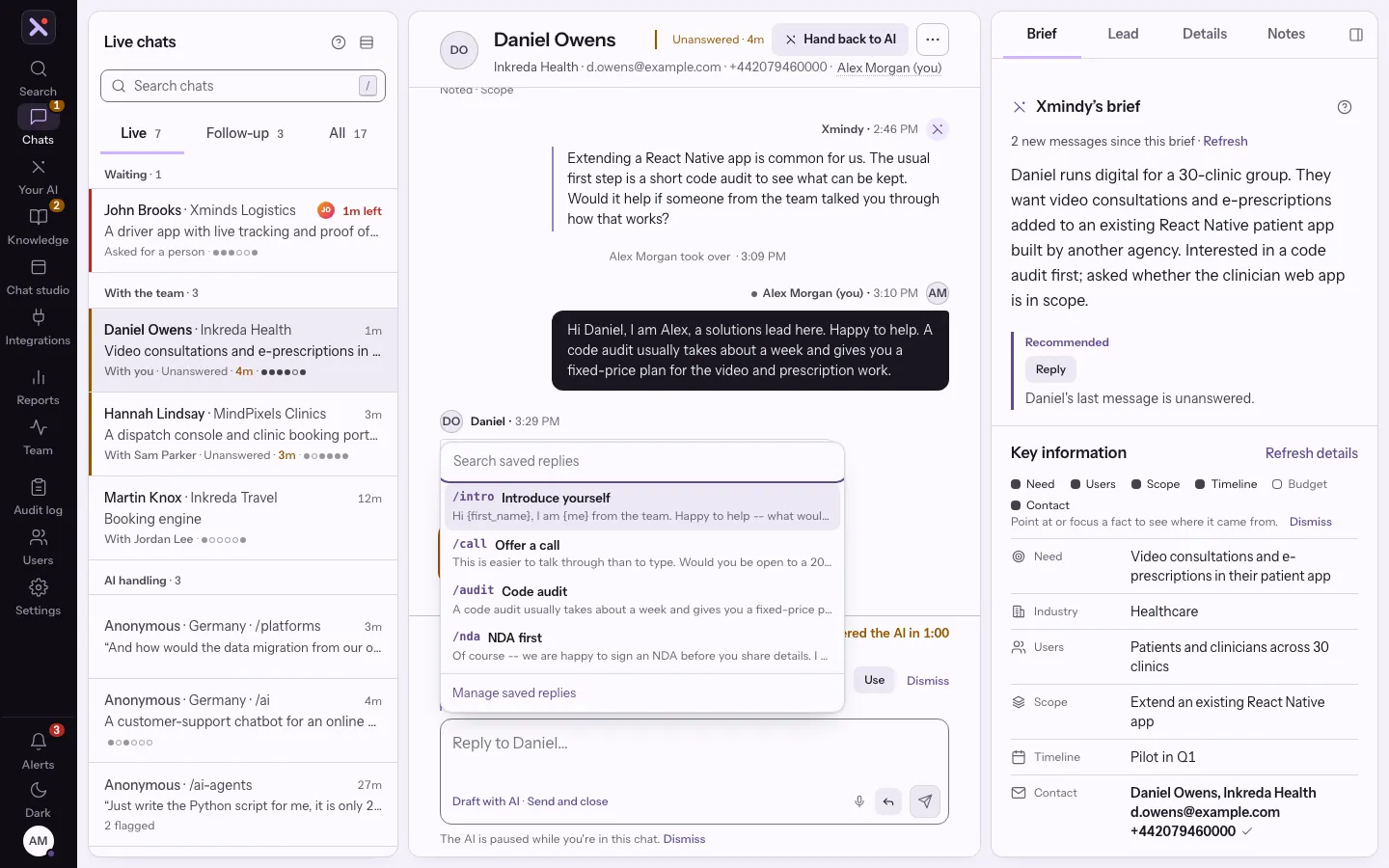
In a chat, Supervisors and Admins always have the reply box’s Saved replies button. An Operator sees it, and can type /, only once at least one reply exists, and has no Manage saved replies anywhere.
At the top of the window, Help beside the line about typing / opens this page in a new tab.
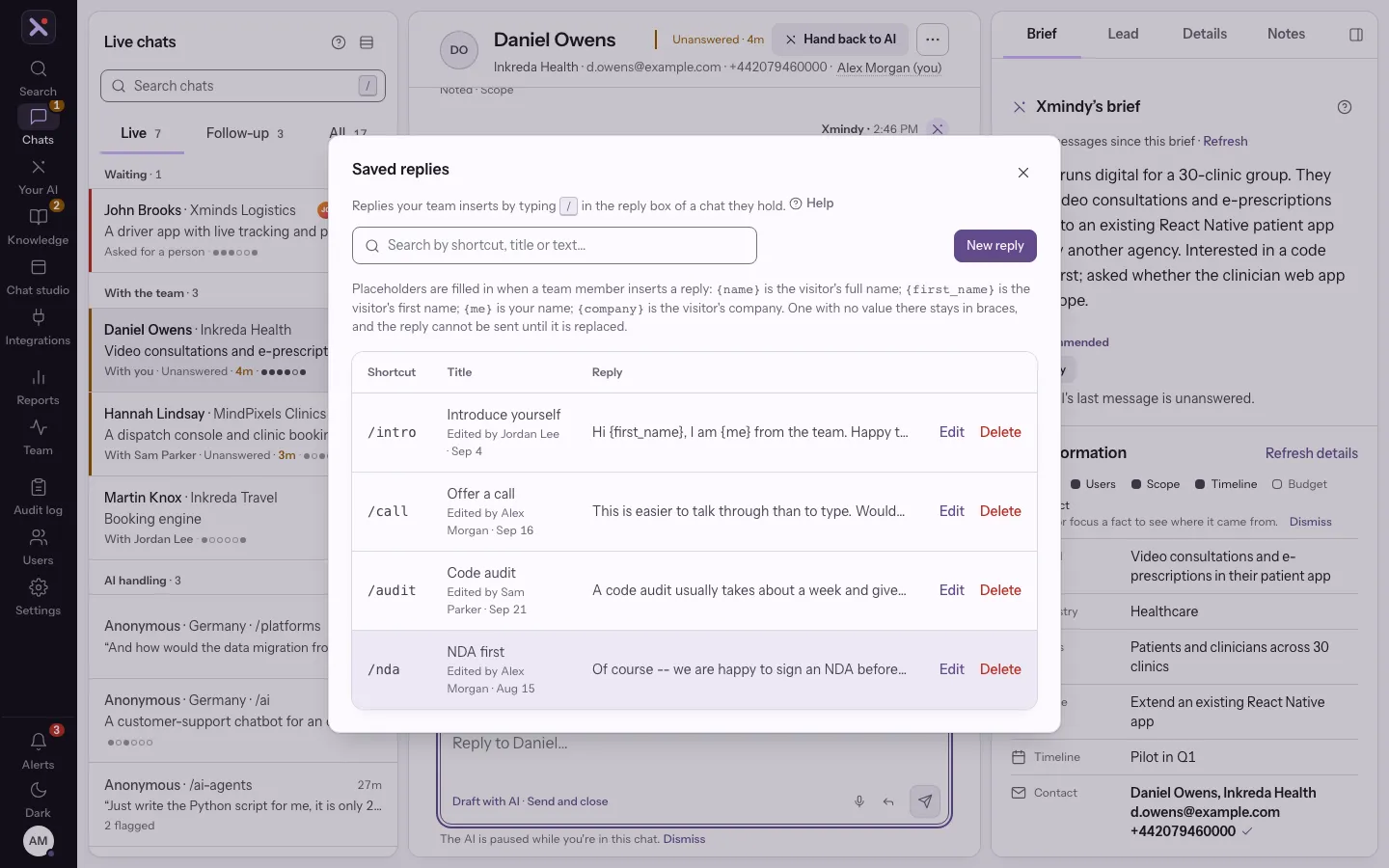
Add or change a saved reply
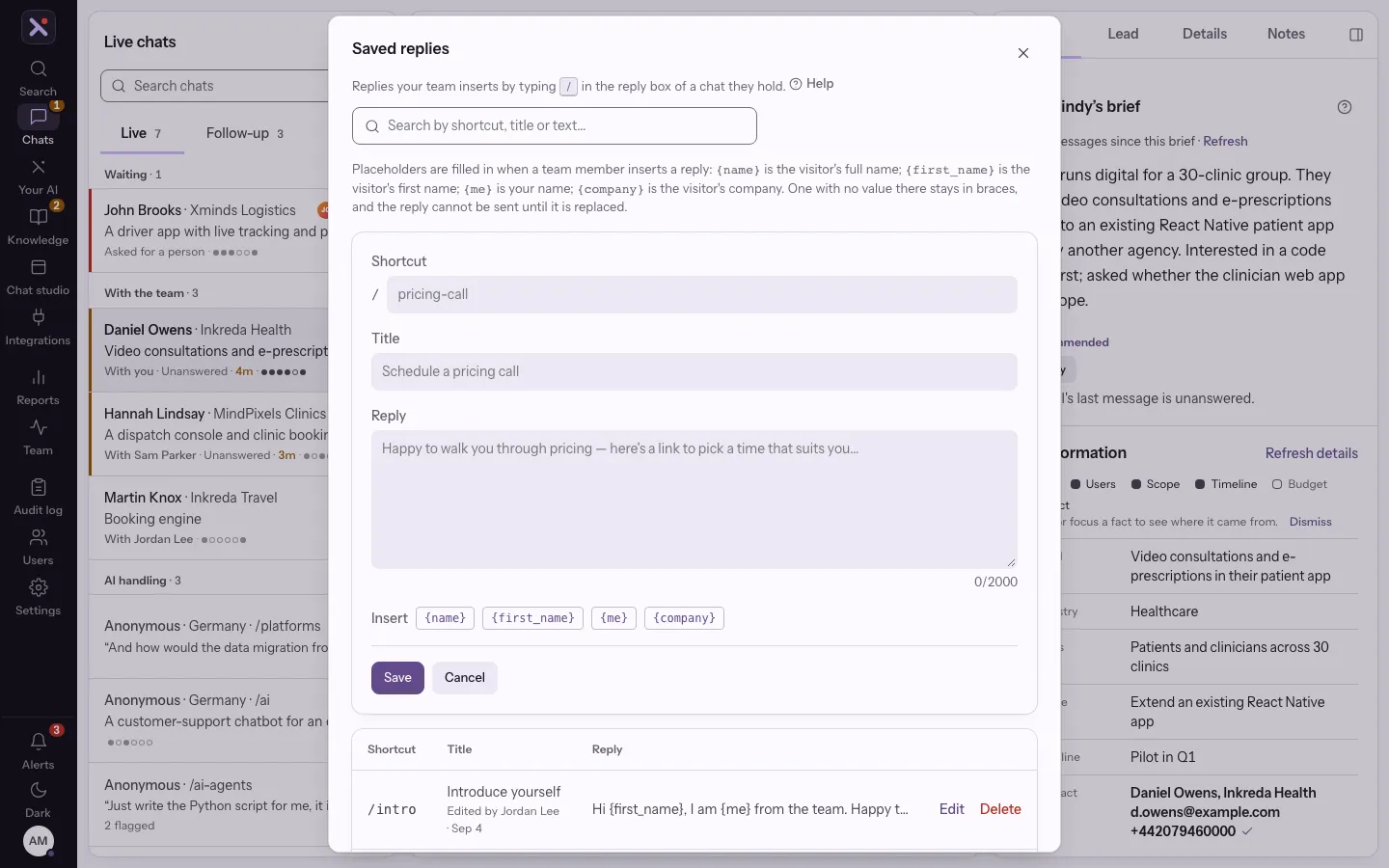
Section titled “Add or change a saved reply”- Press New reply, or Edit on a reply in the table.
- Fill in the three fields of the form (below).
- Press Save. “Saved reply added” or “Saved reply updated” appears, and the table shows who changed it last and when.
| Field | What to enter | Example |
|---|---|---|
| Shortcut | What a team member types after /. Lower-case letters, digits and hyphens, starting with a letter or digit, up to 30 characters, and different from every other shortcut. Anything else you type is dropped. |
pricing-call |
| Title | The name the list shows, up to 80 characters. | Schedule a pricing call |
| Reply | The text that goes into the box, up to 2,000 characters; a counter under it shows how many you have used. The buttons after Insert add a field at the cursor. | Hi {first_name}, happy to walk you through pricing. What time suits you? |
The list in your reply box shows a new or changed reply as soon as you close the window. A colleague gets it the next time they open a chat.
Find or delete a saved reply
Section titled “Find or delete a saved reply”- Find one. Type in the search box above the table; it looks in each reply’s shortcut, title and text. A long list is split into pages.
- Delete one. Press Delete on its row, then Delete again in the window that names the shortcut. “Saved reply deleted” appears. It cannot be undone.
Every add, change and delete is recorded in the audit log.
Fields that fill themselves in
Section titled “Fields that fill themselves in”| Field | Becomes |
|---|---|
{name} |
The visitor’s full name |
{first_name} |
The visitor’s first name |
{me} |
The name of the team member inserting the reply |
{company} |
The visitor’s company |
Fields are lower case only: {Name} is not one. A field with no value for this visitor stays in its braces, and the message cannot be sent until the team member replaces it; a line under the box says which. The same goes for anything else you leave in braces, such as {time}: it works as a blank the team member must fill in before sending.
The replies every company starts with
Section titled “The replies every company starts with”Every company starts with ten replies, which you can edit or delete like any other:
| Shortcut | Title |
|---|---|
/hello |
Greeting |
/moment |
One moment |
/details |
Ask for more detail |
/contact |
Ask for contact details |
/call |
Offer a call |
/pricing |
Pricing |
/followup |
Follow up by email |
/outside |
Outside what we can help with |
/still-there |
Check the visitor is there |
/thanks |
Thanks and close |
/thanks is the farewell Send and close puts in an empty reply box for the team member to read and send (Close a chat). Edit its text to change that farewell. If you rename or delete it, Send and close leaves the box empty and the team member writes their own.
How your team uses them
Section titled “How your team uses them”In an empty reply box, a team member types /, then part of a shortcut or title, and picks a reply with the arrow keys and Enter or a click. It goes in at the cursor, never over what they already wrote. Take over and reply has the details.
Good to know
Section titled “Good to know”- A company that has switched Talk to a person off, or whose plan has no team in the chat, has no saved replies window and no
/list. Its saved replies are kept for when it is switched back on. - If two people edit the same reply, the last save wins.
- Write a reply the way you want a visitor to read it: nothing is added or reworded when it is inserted.
If something goes wrong
Section titled “If something goes wrong”A problem with a field is said under that field, and Save takes you to it.
| You see | What to do |
|---|---|
| “The shortcut /pricing is already used.” (with your shortcut) | Choose another shortcut, or edit the reply that has it. |
| “Enter a shortcut: lowercase letters, numbers and hyphens, starting with a letter or number.” | Type a shortcut that starts with a letter or a digit. |
| “Enter a title, so the team can tell the replies apart.” | Give the reply a title. |
| “Enter the text this reply inserts.” | Type the reply text. |
| “Saved reply not found.” | Someone deleted it meanwhile. Close the window and open it again. |
| “No saved reply matches your search.” | Try part of the shortcut or of the reply’s text, or clear the search box. |
| No Manage saved replies | You are an Operator. Ask a Supervisor or an Admin to add or change a reply. |
Related
Section titled “Related”Reviewed
Source files for this page
apps/dashboard/src/views/SavedRepliesView.tsxapps/dashboard/src/views/workspace/SavedRepliesSheet.tsxapps/dashboard/src/views/workspace/SavedReplyPicker.tsxapps/dashboard/src/views/workspace/savedReplyTokens.tsapps/dashboard/src/views/workspace/Composer.tsxapps/dashboard/src/views/TeamView.tsxapps/dashboard/src/views/shell/CommandPalette.tsxservices/api/app/routers/saved_replies.pyservices/api/app/conversations/saved_replies_store.pyservices/api/app/platform/create_tenant.pyapps/dashboard/src/permissions.ts

