Connect your tools
Record lookup
Who can open itViewer: noOperator: noSupervisor: noAdmin: yes
When it is included
Section titled “When it is included”Record lookup is part of your plan only when your platform has switched it on for your company. Until then the Record lookup card reads Not in your plan, and the AI tells a visitor who asks about their record that it can’t look that up here and that your team can help.
Where to find it
Section titled “Where to find it”Work > Integrations, the Record lookup card under Your systems. Only an Admin can open the page. How card states, tests and Recent activity work is on The Integrations page.
How it goes for a visitor
Section titled “How it goes for a visitor”- The visitor asks about their own record. Under the AI’s reply, the chat shows a short form: “To look this up, first confirm it’s yours. A code goes to the email address on that record.”
- They type the number (your What visitors type names the box) and press Send code.
- Your system is asked for the email address on that record, and a six-digit code goes to it. The chat says the same thing whether or not the number exists, and never shows the address.
- They type the code and press Confirm: “Confirmed. Ask about it again and I’ll look it up.”
- They ask again, and the AI answers from what your system returns for that record.
More on what the visitor sees: Contact and booking.
Before you start
Section titled “Before you start”- A developer to build the web service that answers (What your system answers). Agree on its address first.
- An email sender. The code goes by email, so the card reads Not fully set up (“No email can be sent yet”) until one works. Open Email sending in the panel takes you there (Send emails from your own address).
- The email address on each record in your system must be the customer’s own: it is the only thing that proves who is asking.
Set it up
Section titled “Set it up”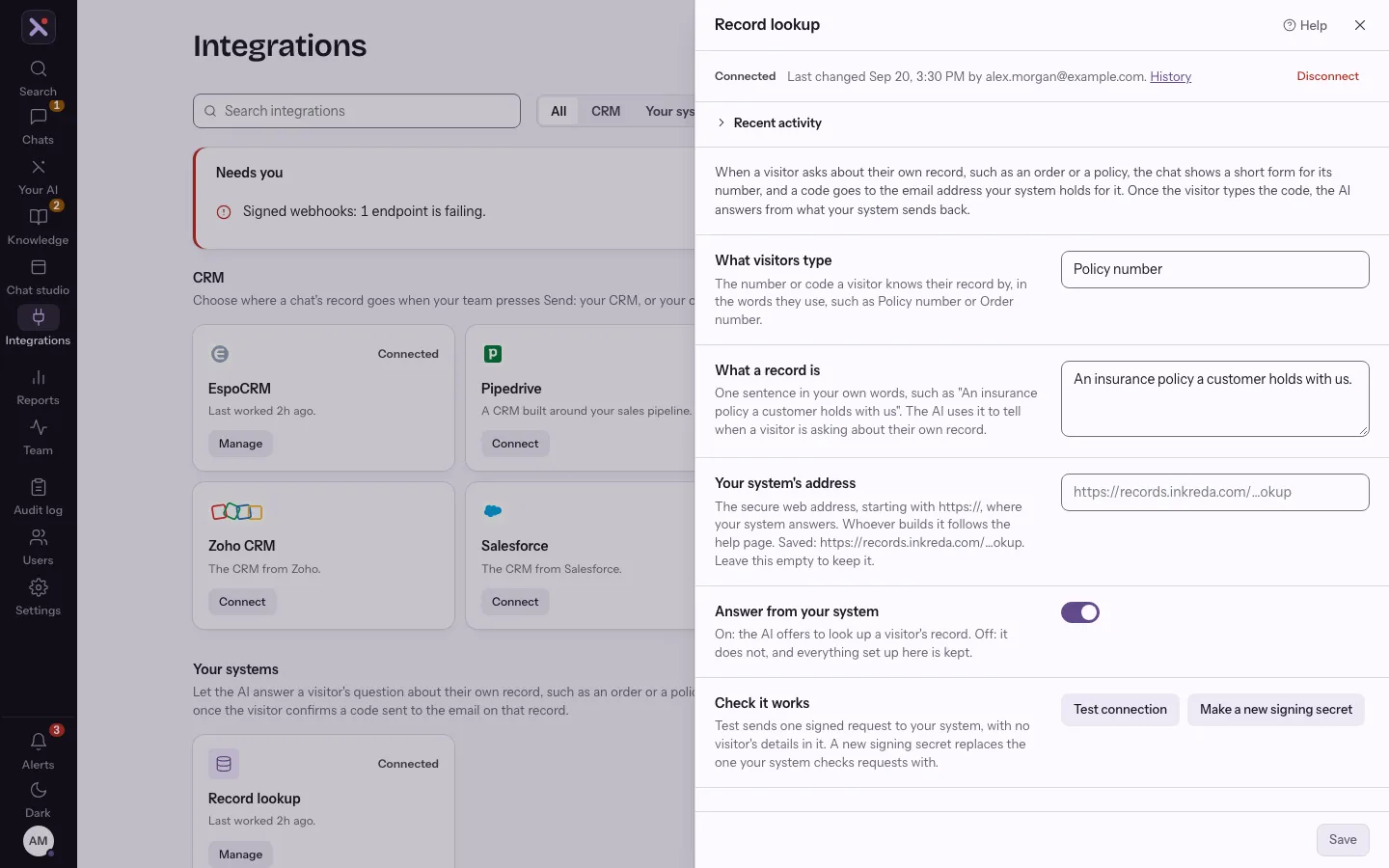
- Open the Record lookup card.
- Fill in What visitors type: the number a visitor knows their record by, in their words, such as “Order number” (up to 40 characters).
- Fill in What a record is: one sentence in your words, such as “An order a customer placed with us” (up to 200 characters). The AI uses it to tell when a visitor is asking about their own record, so describe the record; a sentence that reads as an instruction is refused.
- Enter Your system’s address, starting with
https://, such ashttps://api.inkreda.example/everyknock/records. - Leave Answer from your system on and press Save. You see “Record lookup saved”.
- The first save shows the signing secret once. Press Copy, give it to whoever builds your system, and press Done.
- Press Test connection once your system is ready. “Worked: Your endpoint accepted the signed test request.” makes the card read Connected.
- Try it in the chat on your website with a record whose email you can read.
| The card reads | It means |
|---|---|
| Not fully set up | Your system’s address is missing, or no email can be sent |
| Off | Answer from your system is off: the AI does not look up records, and everything is kept |
| Not tested | Saved, and not tried since the last change. Press Test connection |
| Connected | The last test worked |
| Not working | Your system failed a visitor’s lookup; the card says why. It clears once a lookup or a test works |
Change, pause or disconnect
Section titled “Change, pause or disconnect”| You want to | Do this |
|---|---|
| Change the wording or the address | Edit and Save. The saved address is shown shortened; leave the box empty to keep it |
| Pause lookups | Switch Answer from your system off and Save |
| Replace the secret | Make a new signing secret, confirm, and copy the new one. The old one stops at once, so your system refuses every request until it uses the new one |
| Remove it | Disconnect. The address, both descriptions and the secret are removed, and the AI stops looking up records at once |
Every change is in the audit log; History at the top of the panel opens it there.
What your system answers
Section titled “What your system answers”For the person who builds it. Every request is a POST of one JSON document with Content-Type: application/json and User-Agent: Xmindy-Capability/1, signed the same way as webhook alerts: X-Xmindy-Event, X-Xmindy-Timestamp and X-Xmindy-Signature. Check the signature and the time before you answer.
{ "version": 1, "event": "verify", "kind": "record_lookup", "requestId": "5f0c2a9d7b1e4c3fa8d6e2b40917c5aa", "identifier": "ORD-1001", "conversationId": "c-1f3a"}identifier is what the visitor typed, with extra spaces removed, up to 64 characters. requestId is new for every request.
event |
Sent when | Answer |
|---|---|---|
verify, with identifier |
A visitor enters their number | {"found": true, "email": "john@example.com"}, the address your record holds; or {"found": false} or a 404 |
lookup, with identifier |
A visitor who entered the right code asks about it | {"found": true, "record": {"title": "Order 1001", "fields": [{"label": "Status", "value": "Shipped"}]}}, or not found |
test, with no identifier or conversationId |
An Admin presses Test connection | Any 2xx |
- Answer within 4 seconds, in at most 16 KB, on port 443, with no redirect.
- A record keeps its title (80 characters) and up to 12 fields (label 40, value 200 characters). Anything longer is cut, and a field with an empty label or value is dropped.
- Answer
verifyonly with the address of the person the record belongs to: that is what proves the visitor holds it. The visitor never sees the address, and is told the same thing whether or not the number exists. - Anything else (another status, an answer that is not this JSON, no answer in time): the AI tells the visitor it can’t look that up right now, and gives your contact.
Good to know
Section titled “Good to know”- The AI says only what the record says: no guessed status, date or next step.
- A code lives 10 minutes and allows 5 wrong tries. At most 3 codes are sent for one chat in an hour.
- The code email from your own mail account wears your logo, footer line and assistant’s picture, and calls the record by your What visitors type wording. With no mail account of your own, it goes from EveryKnock’s shared sender in EveryKnock’s name and mark, with fixed words: it says “record” and names your company by the name EveryKnock holds for it (“the chat” while it holds none), without your logo, footer line or wording.
- A confirmation lasts 30 minutes, for one record at a time. Asking about another number starts again.
- What your system returns is not stored, not in reports or exports. The reply the visitor read is in the transcript like any other.
- A field that reads like an instruction to the AI is left out of what the AI reads.
- When your system fails a visitor’s lookup, Admins get “Record lookup is not working” in the bell, with the reason, at most once an hour.
If something goes wrong
Section titled “If something goes wrong”A message about one box is shown under that box, and the cursor is put in it.
| What you see | What to do |
|---|---|
| “What visitors type is required, at most 40 characters, with no braces or angle brackets.” | Shorten it, and remove { } and < > |
| “… reads as an instruction for the assistant. Describe the record instead.” | Say what the record is (“An order a customer placed with us”), not what the AI should do |
| “The endpoint address must be an https:// URL to a public host, answering on port 443, with no spaces.” | Use a public https:// address with no port other than 443 |
| “Could not reach your endpoint.” | Check the address is public and answers on port 443. A signing secret your system no longer has can also answer like this |
| “Your endpoint took too long to answer.” | Answer within 4 seconds; do slow work after answering |
| “Your endpoint’s answer was too large.” | Keep the answer under 16 KB |
| “Your endpoint answered 401 to the signed test request.” (or another number) | Your system refused the test. Check it uses the current signing secret |
| “Too many lookups are running right now. Try again in a moment.” | Test again shortly |
| The card reads Not working | Your system failed a visitor’s lookup; the card says why. It clears once a lookup or a test works |
| Your system refuses every request | The secret changed. Give your system the new one |
Related
Section titled “Related”- Contact and booking: the form the visitor fills in
- Webhook alerts: the code that checks a signature
- Send emails from your own address: the sender of the code email
Reviewed
Source files for this page
apps/dashboard/src/views/integrations/RecordLookupDrawer.tsxapps/dashboard/src/views/IntegrationsView.tsxapps/dashboard/src/views/integrations/catalog.tsapps/dashboard/src/views/settings/WebhookDialogs.tsxapps/widget/src/chatbot/strings.tsservices/api/app/capabilities/__init__.pyservices/api/app/capabilities/record_lookup.pyservices/api/app/capabilities/verification.pyservices/api/app/capabilities/store.pyservices/api/app/routers/capabilities.pyservices/api/app/core/deployment_config.pyservices/api/app/settings/features.py

