Your team and account
Staying signed in
Who can open itViewer: yesOperator: yesSupervisor: yesAdmin: yes
How long a sign-in lasts
Section titled “How long a sign-in lasts”Your browser stays signed in, even if you close it, until the first of these:
- 12 hours away. Time with no dashboard open in this browser. A tab left open never counts as time away.
- 7 days. Counted from when you signed in, however busy you are.
These are the usual lengths. Your platform sets the two for every company and may have chosen others. Your access is checked at every step all the same: if an Admin removes you or your end date passes, you are signed out.
Renew before it ends
Section titled “Renew before it ends”About 30 minutes before the 7 days are up, a banner says “Your session is about to end.” with the minutes left.
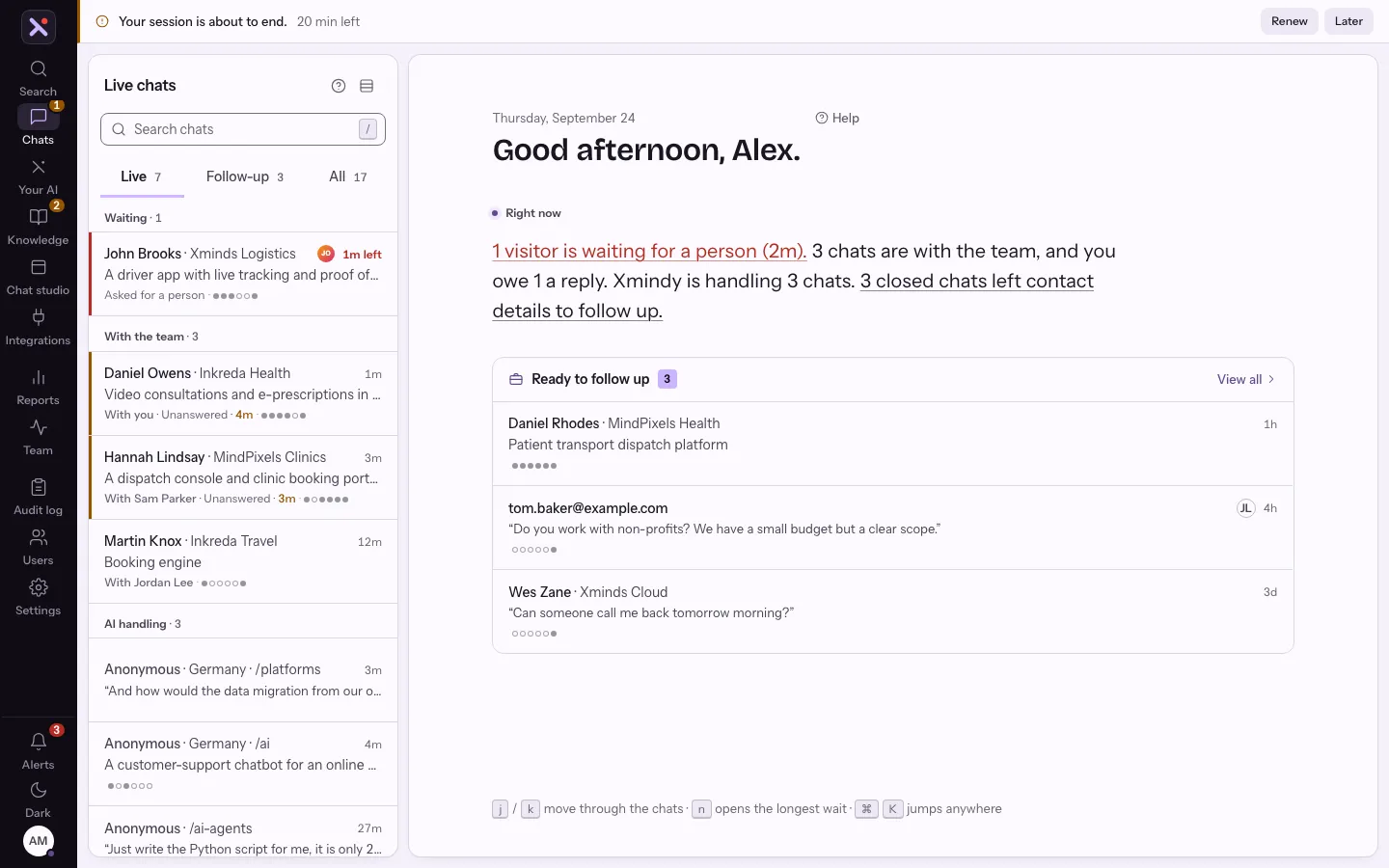
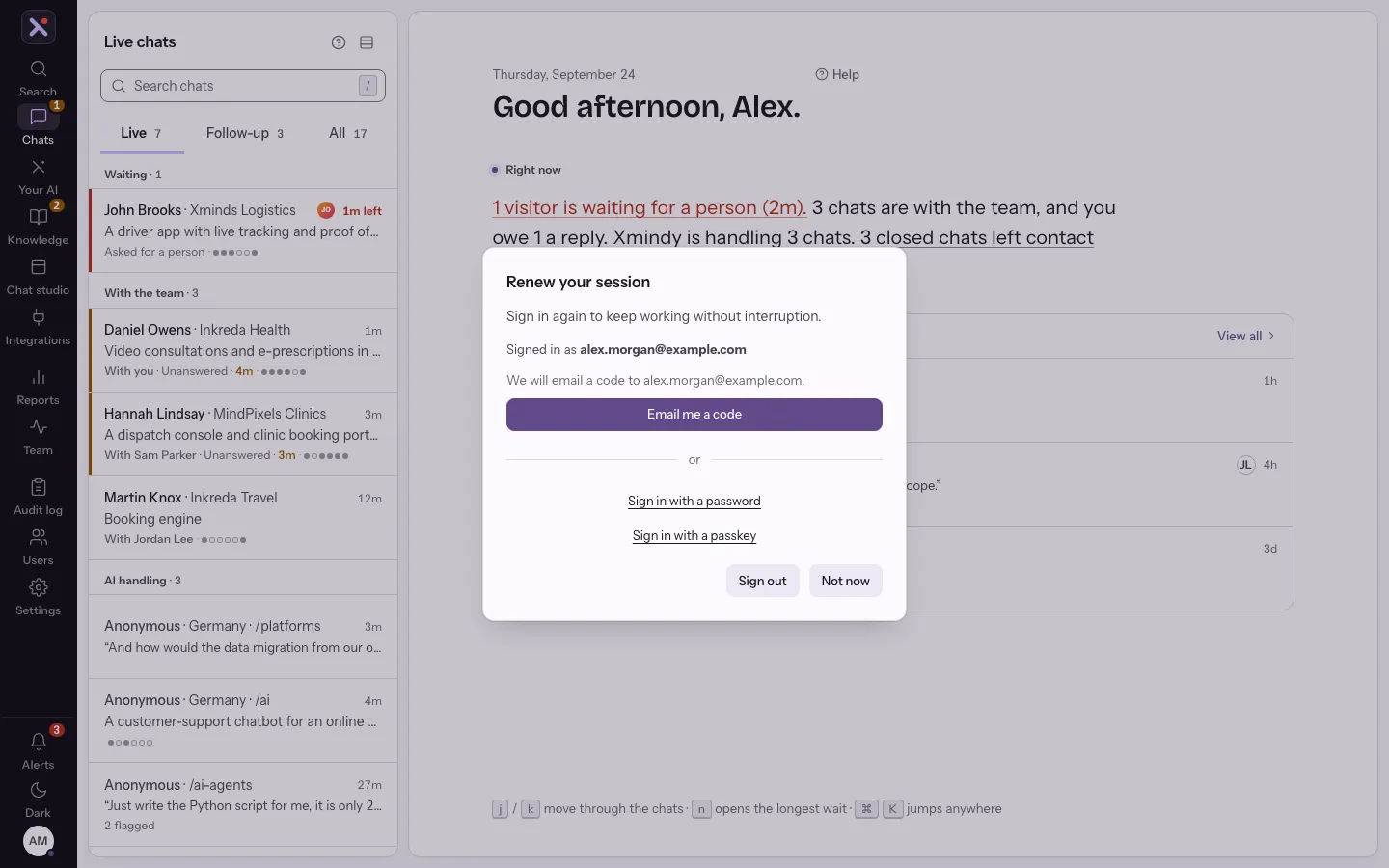
- Press Renew. The Renew your session window opens over the page and names the account it renews (“Signed in as” and your address).
- Sign in again: Email me a code, Sign in with a passkey or, if you signed in with one, your password. Only that account’s own passkey is accepted.
- Carry on. The chat, a half-written reply and your place on the page all stay.
Later hides the banner for 5 minutes; Not now closes the window without renewing.
If your sign-in has already ended
Section titled “If your sign-in has already ended”The same window opens as Sign in to carry on, and it stays until you sign in or press Sign out. Nothing on the page is lost when you answer it. This also happens after an Admin chooses Sign out everywhere… for you.
Sign out
Section titled “Sign out”Choose Sign out at the foot of your account menu. It signs out this browser only and forgets any reply you had not sent.
To sign out of every browser, for example after losing a laptop, ask an Admin to use Sign out everywhere… on the Users page. Changing or removing your password also signs out every other browser that password signed in (Signing in).
Good to know
Section titled “Good to know”- A new version. When a new version of the dashboard is released, an open page may reload once by itself. A reply you were typing comes back after the reload.
- Belonging to several companies. A renewal takes you back to the company you were in.
If something goes wrong
Section titled “If something goes wrong”| What you see | What to do |
|---|---|
| “Your session has ended.” on the banner | Press Renew and sign in again. Your page is still there |
| You signed out and cannot get back in | Press Trouble signing in? on the sign-in page, or see Signing in |
| “That passkey didn’t work. Try again, or use a code.” in the window | The passkey belongs to another address, or was removed. Use Email me a code |
| “Email codes aren’t set up here. …” in the window | Sign in again in the new tab the window opens with Google or Microsoft, come back and press I’ve signed in |
| “You no longer have access to the workspace you were in. Choose another to carry on.” | Your access to that company ended. Choose another of your companies, or ask that company’s Admin |
| You are signed out although you were working | An Admin removed your access or signed you out everywhere, or your end date passed. Ask your Admin |
Related
Section titled “Related”Reviewed
Source files for this page
apps/dashboard/src/App.tsxapps/dashboard/src/views/shell/SessionRenewal.tsxapps/dashboard/src/views/SignInForm.tsxapps/dashboard/src/views/shell/AccountMenu.tsxshared/web/src/views/ErrorBoundary.tsxapps/dashboard/src/staleBuild.tsservices/api/app/access/sessions_store.pyservices/api/app/settings/settings_store.pyservices/api/app/routers/auth_session.pydocs/SECURITY.md

