Teach your AI · Step-by-step guide
Connect your website
Who can open itViewer: noOperator: noSupervisor: noAdmin: yes
Before you start
Section titled “Before you start”- You are an Admin: only an Admin can open Knowledge (Roles).
- Everything on the website is public. The AI can repeat anything it reads to any visitor, so a page you would not show a stranger does not belong in it.
- You know the address your visitors use, such as
yourcompany.com. Only that site’s own pages are read, so a blog or shop on another address is added as a second website afterwards (A website). - For a site behind a password, such as a test site, the first read fails and the card offers only Try again. Reload the page, open the website under Sources, press Set beside Password for a protected site under Advanced, then press Update this website (A website).
-
Open Knowledge under Work in the menu. With nothing added yet, you see “Teach the AI about your business”.
-
Type the address under Your website address, with or without
https://. Your first allowed website is filled in when you have one.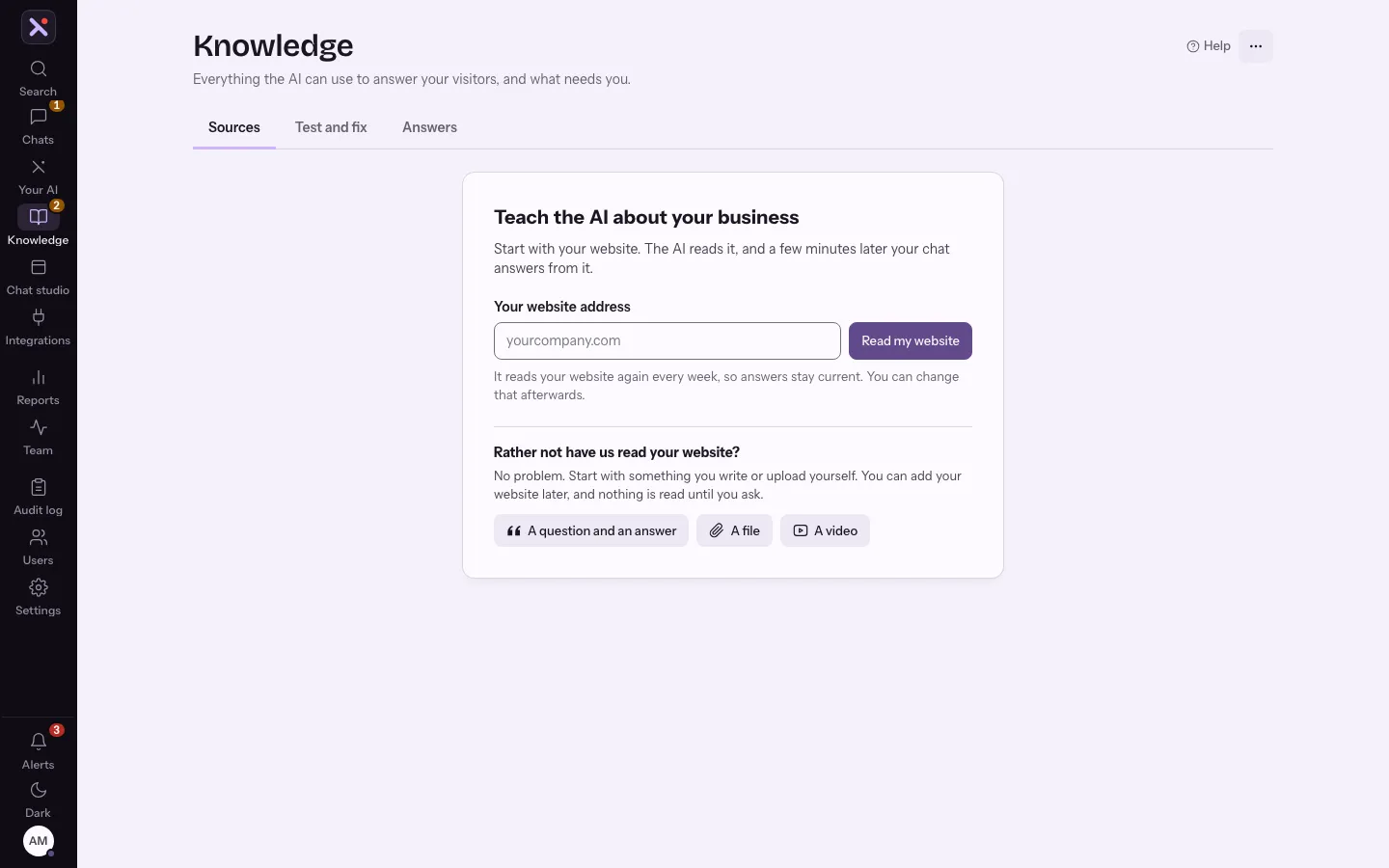
-
Press Read my website. The page shows “Reading your website…” with a bar and the stage it is at: “Getting ready to read…” for up to a minute, “Finding the pages to read…” while it looks for your pages, then how many it has read, such as “12 of 40 pages read”. A site with no sitemap shows “12 pages read so far…”, since how many there are is found only as they are read. It finds the pages by itself and reads the site again every week; you can change that later in the website’s drawer.
-
Read the result. When it is done you see “Your website is read:” with the number of pages. If the number is much lower than your site has, see the table below.
-
Ask a question. Press Ask it a question. The Test and fix tab opens: type what a visitor would ask and press Ask. You see the reply a new visitor would get and, under What it found, the passages it used, each marked as a strong, good or weak match (Test and fix).
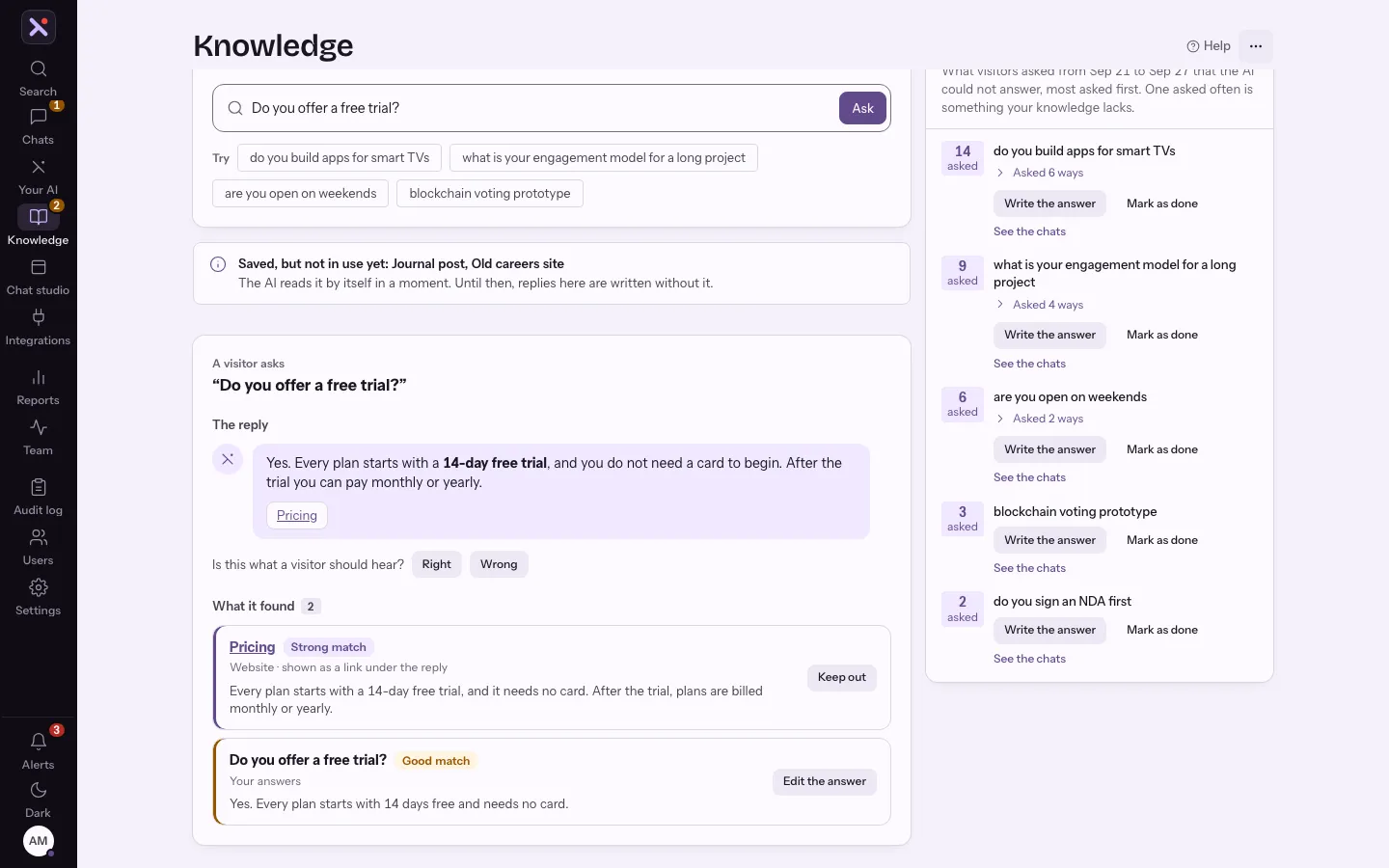
-
Look at what it read. Go back to the Sources tab: the website is now a row there. Open it for the Pages tab, which lists every page. Press Keep out on an old or unwanted page: it leaves answers at once (Knowledge).
-
Tell it the basics. Open the Your business row and write what you do, what you sell and your key facts, such as opening hours. The AI is told these with every answer (Your business).
-
Try it in the chat. Ask the chat on your website, or Try it in Chat studio. A reply drawn from a page shows a link to that page under it, unless you chose to use the pages only as background.
-
Fill the gaps. Questions it could not answer, beside the question box on Test and fix, lists what visitors asked that nothing answered, most asked first. Press Write the answer to answer one yourself, or publish the missing page on your website and update. The list is worked out once a week, so it fills after your first full week of chats.
-
Check again each week. Reports, Answer quality shows how many questions your knowledge could answer and the questions with no good answer in any period you pick (Answer quality).
To see which pages would be read before reading anything, or to read only part of a site, open the website’s row and use Check pages and Advanced (A website).
If something goes wrong
Section titled “If something goes wrong”| What you see | What to do |
|---|---|
| “That does not look like a website address.” | Type a plain address such as yourcompany.com. |
| “… asks tools like ours not to read it.” | The site asks readers to stay away. If it is your own site, press the button to read it anyway. |
| “No pages were found on …” | Press Try following its links. |
| “We could not reach …” | Open the address in a browser. When it opens, press Try again on the card (or, after a reload, Update now). |
| “Nothing could be read from that address.” | Check that the address opens your website in a browser, then press Try again. |
| “The AI could not read N pages on …: their text only appears in a browser.” | Those pages build their text as they open. Write answers for what they say (Answers). |
| Far fewer pages than your site has | Open the website’s row and press Check pages: it says what was left out and why. A site with no list of its pages may need Find pages set to By following links (A website). |
| An update stays waiting or stops moving | Stop it in Update history and press Update now. If it stalls again, tell your EveryKnock contact (Update history). |
| Replies do not use your pages | The website is switched off, still reading, or Use your knowledge sources is off. Sources then says the AI is not using any of it (Knowledge settings). |
Related
Section titled “Related”Reviewed
Source files for this page
apps/dashboard/src/views/knowledge/FirstWebsite.tsxapps/dashboard/src/views/knowledge/SourcesTab.tsxapps/dashboard/src/views/knowledge/TestTab.tsxapps/dashboard/src/views/knowledge/WebsitePanel.tsxapps/dashboard/src/views/knowledge/SourceDocuments.tsxapps/dashboard/src/views/knowledge/words.tsapps/dashboard/src/views/knowledge/QueryThemes.tsxapps/dashboard/src/views/InsightsView.tsxservices/api/app/knowledge/knowledge_messages.py

