Connect your tools
Choose what goes into each CRM field
Who can open itViewer: noOperator: noSupervisor: noAdmin: yes
Where to find it
Section titled “Where to find it”Work > Integrations, open your CRM’s card (Manage), then What goes where. Only an Admin can open the page. Connect the CRM first: Connect your CRM. The Webhook card has no rows: your own system decides where each value goes (Send records to your own system).
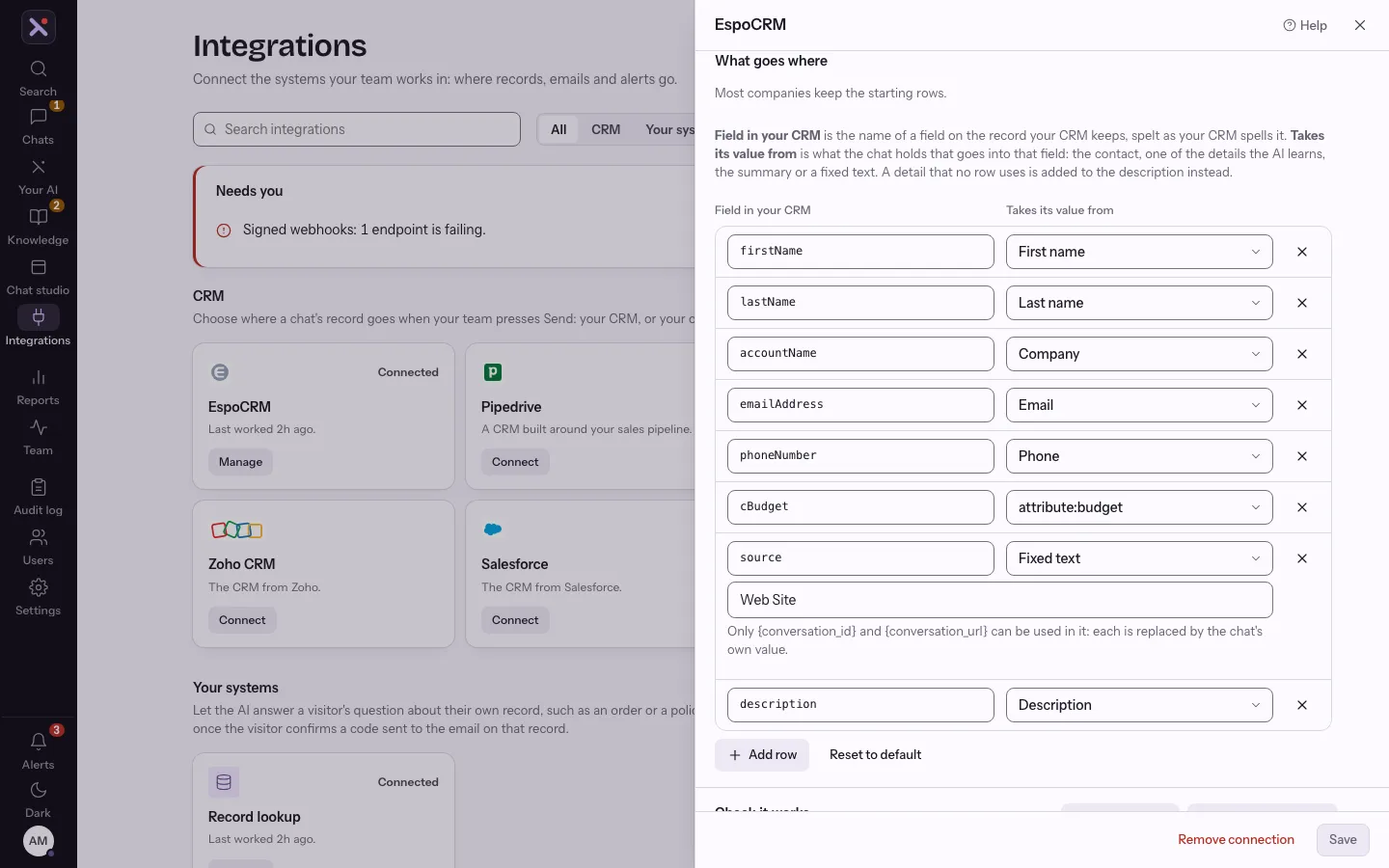
What a row can take its value from
Section titled “What a row can take its value from”A row has two parts. Field in your CRM is the name of a field on the record your CRM keeps, spelt as your CRM spells it. Takes its value from is one of these:
| Choice | What goes into the field |
|---|---|
| Name | The contact’s name, as written |
| First name | The first word of the name, when the name has a second word. Empty for a one-word name |
| Last name | Everything after the first word. For a one-word name: the company, or that word when there is no company, so a CRM that requires a last name still gets one |
| Company, Email, Phone | That part of the contact |
| A detail, by its name | What the chat learned for one of the details on What the AI learns (What the AI learns). A detail your team marked Not right is left out |
| Summary | The summary of the chat (the brief), as the team member reviewed it |
| Description | The summary, then a note: that your assistant created the record, the conversation ID, where the visitor came from and the campaign their link named, each detail no row carries, what the contact checks found, and a link to the chat |
| Conversation link | The link back to the chat in the dashboard. Opening it needs a sign-in |
| Conversation ID | The chat’s ID, to find the transcript by |
| Source | Where the visitor came from, as Reports groups it: the source named in their link, else the site that sent them, else direct |
| Campaign | The campaign their link named. Empty when it named none |
| Contact checks | What the checks of the email and phone found, one line each: a likely typo, a shared or disposable address, a bounced thank-you email, a number that does not reach a person |
| Fixed text | A text you type, the same on every record, up to 500 characters. It may hold {conversation_id} and {conversation_url}, each replaced by the chat’s own value |
Add or change a row
Section titled “Add or change a row”- Press Add row. A new row appears at the foot of the list.
- Under Field in your CRM, pick the field from the list, or type its name. Where your CRM cannot list its fields, you type (How each CRM names its fields).
- Under Takes its value from, choose what fills it. For a fixed text, type the text in the box that appears under the row.
- Press Save at the foot of the panel. The change applies to the next record sent.
To remove a row, press the cross at its end. Reset to default brings back the starting rows; nothing changes until you press Save.
Example: a custom field. Your EspoCRM has a custom field cBudget. Press Add row, type cBudget, choose the Budget detail and press Save.
Example: a fixed value. To mark every record as coming from the chat, add a row for your CRM’s source field, choose the fixed text and type the value. Use a value your CRM’s list already holds: a CRM can refuse a value its list does not have, and then every record fails to send.
How each CRM names its fields
Section titled “How each CRM names its fields”| CRM | The starting rows fill | A custom field is written | Pick from a list |
|---|---|---|---|
| EspoCRM | source (the fixed text “Web Site”), lastName, firstName, accountName, emailAddress, phoneNumber, description |
Its name, which starts with c: cBudget |
No: type the name |
| Pipedrive | person.name, person.email, person.phone, organization.name, lead.title, note.content |
person., organization. or lead., then the field’s 40-character key. Pick it by name from the list |
Your custom fields |
| HubSpot | contact.firstname, contact.lastname, contact.email, contact.phone, company.name, note.hs_note_body |
contact. or company., then the property’s internal name: contact.budget |
The properties of contacts and companies you can write |
| Freshsales | first_name, last_name, email, mobile_number, company, note |
custom_field.cf_ and its name: custom_field.cf_budget |
The contact’s fields |
| Zoho CRM | First_Name, Last_Name, Company, Email, Phone, Description |
Its API name | The Leads fields that take text |
| Salesforce | FirstName, LastName, Company, Email, Phone, Description |
Its API name, ending __c: Budget__c |
The Lead’s fields you can write |
- In Pipedrive,
lead.titlestarts with the detail you show as the inbox’s one-line summary on What the AI learns. With no such detail the row is left out, and the lead is titled with the person’s name (or their email, phone or company). - HubSpot and Freshsales keep the description as a note, and Pipedrive as a note on the lead, because their contact has no description field.
- Zoho CRM has no Lead Source row to start with: add one only with a value your Zoho list holds.
- A field your CRM fills itself (an ID, a created or modified date, an owner) cannot be in a row.
- A field that needs something other than text (a number, a date, a tick box, a link to another record) may be refused by your CRM when a text arrives. The message names the field.
Check a mapping
Section titled “Check a mapping”- Send a sample record shows where the name, company, email and description land (Check it works). The sample has no phone and no details, so it cannot show a detail’s field.
- To check a detail’s field, send a real chat’s record. Before sending, the team member’s review lists each field and the value going into it, under “Fields written in” and your CRM’s name (Close a chat and send its record).
Good to know
Section titled “Good to know”- An empty value is left out, so a field is never sent blank.
- A field can be in one row only, and a mapping can have up to 40 rows.
- With no rows at all, nothing is written to a field and everything goes into the description.
- If a detail is deleted on What the AI learns, its row fills nothing, and the next Save of the mapping asks you to remove the row or choose another value.
- If your CRM’s fields cannot be listed, the panel says so with the reason, and you type the names instead.
If something goes wrong
Section titled “If something goes wrong”Messages about a row start with its number and are shown beside Save. Nothing is saved until every row is accepted.
| You see | What to do |
|---|---|
| “Row 3: … is filled by another row too.” | Two rows name the same field. Remove one |
| “Row 3: a fixed text needs its text.” | Type the text, or choose another value for that row |
| “Row 3: {…} is not a placeholder.” | A fixed text may hold only {conversation_id} and {conversation_url}. Remove the other braces |
| “Row 3: … is set by …” your CRM “itself.” | That field is filled by your CRM. Remove the row |
| “Row 3:” then how a field name is written | Write the name the way that CRM takes it (How each CRM names its fields) |
| “Row 3 names an attribute this company does not define.” | The detail was deleted on What the AI learns. Choose another value, or remove the row |
| “… refused the field …”, when a record is sent | Your CRM does not have that field, will not take the value, or the key’s user may not write it. Fix the row or the field in your CRM, Save, send again |
| “… needs a value for the field …”, when a record is sent | Your CRM requires that field. Add a row that fills it |
Related
Section titled “Related”- Connect your CRM: connecting, testing and what to do in each CRM
- What the AI learns: the details a row can carry
- Close a chat and send its record: the review before a record is sent
Reviewed
Source files for this page
apps/dashboard/src/views/integrations/MappingEditor.tsxapps/dashboard/src/views/integrations/CrmCard.tsxapps/dashboard/src/views/settings/WhatTheAiLearns.tsxapps/dashboard/src/views/workspace/brief/RecordReview.tsxservices/api/app/crm/__init__.pyservices/api/app/crm/mapping.pyservices/api/app/crm/record.pyservices/api/app/crm/espocrm.pyservices/api/app/crm/pipedrive.pyservices/api/app/crm/hubspot.pyservices/api/app/crm/freshsales.pyservices/api/app/crm/zoho.pyservices/api/app/crm/salesforce.py

