Get started
What EveryKnock does
Who can open itViewer: yesOperator: yesSupervisor: yesAdmin: yes
Start here for your role
Section titled “Start here for your role”Your role is shown in your account menu (your picture, at the foot of the menu), under your name.
| You are | You | Start with |
|---|---|---|
| An Admin | Set EveryKnock up and run it for your company | Set up your company |
| An Operator | Answer visitors’ chats | Your first day on the team |
| A Supervisor | Answer chats and look after the team | Your first week as a team lead |
| A Viewer | Read chats and reports without acting on them | The chat list and Reports |
What each role can open and do is on Roles.
How a chat goes
Section titled “How a chat goes”- A visitor opens the chat on your website and asks a question.
- The AI answers from your knowledge: your website, files, videos and the answers you write. It answers in the visitor’s language, keeps to your business, and leaves prices and dates to your team.
- The AI learns as it goes: who the visitor is, what they want, and the details your business asks for. When the chat is worth it, it asks for an email or phone number.
- Your team steps in when needed. A visitor can ask for a person, and an Operator, Supervisor or Admin can take a chat over from the AI at any time. Your team hears about it by sound, pop-up, push, email, Teams or Slack.
- The chat closes when it goes quiet or your team closes it (Closing a chat). A team member checks the record (the contact and what the AI learned) and sends it to your CRM.
Words you will meet
Section titled “Words you will meet”| Word | Meaning |
|---|---|
| Chat | One visitor’s conversation, from their first message until it closes |
| Take over | A team member takes the chat from the AI; the visitor hears from that person until they hand it back or close it |
| Your AI | The short brief that tells the AI who it speaks for, who writes in and what it may do |
Every other term is in the Glossary.
The dashboard
Section titled “The dashboard”The menu down the left side has three groups. What you see depends on your role.
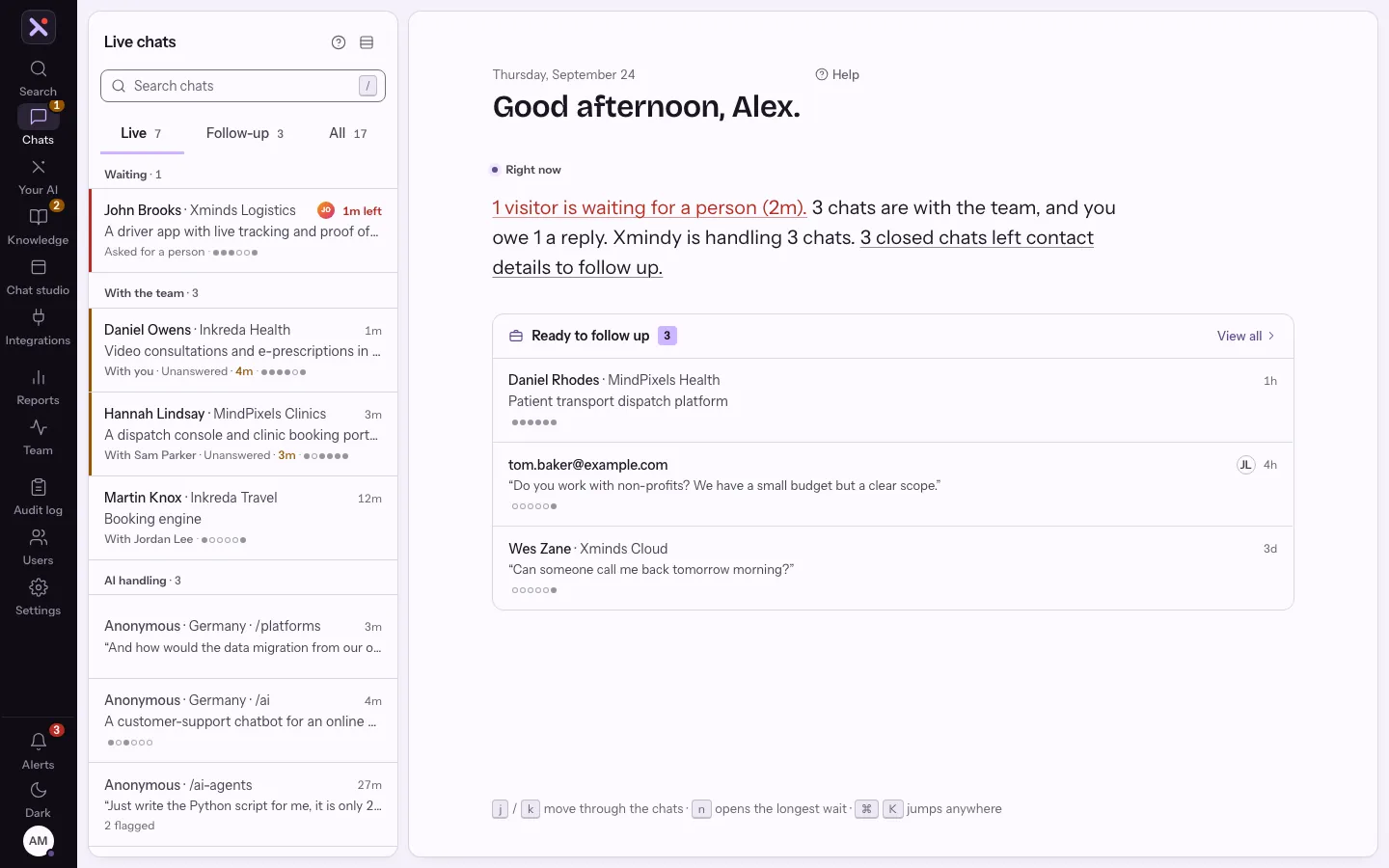
| Group | Page | What it is for | Who |
|---|---|---|---|
| Work | Chats | Every chat, live and past; take over, reply, close and send (Answer chats) | Everyone; replying needs Operator |
| Your AI | What the AI knows about your business and what it may do (Your AI) | Admin | |
| Knowledge | What the AI answers from (Knowledge) | Admin | |
| Chat studio | How the chat looks and reads, the websites it runs on, the code for your site (Chat studio) | Admin | |
| Integrations | Your CRM, email, Teams or Slack, and alerts to your own systems (The Integrations page) | Admin | |
| Insight | Reports | How the chat is doing, answer quality, feedback and safety (Reports) | Everyone |
| Team | How your team is doing, chat reviews and points (Team) | Supervisor and Admin; an Operator while points are on | |
| Admin | Users | Who can sign in, and their roles (Users) | Admin |
| Settings | Your team’s hours and alerts, visitor limits, how long data is kept, your company (Settings reference) | Admin | |
| Audit log | Who changed what, and when (Audit log) | Supervisor and Admin |
A Supervisor has no Admin group: their Audit log is under Insight. On a tablet or phone the same pages are in the ☰ menu (Getting around the dashboard).
Parts your company may not have
Section titled “Parts your company may not have”Some parts come only with a plan that has them; without one, its page, tab or button is not shown to anyone. If you cannot find something a page describes, check your role first, then ask your EveryKnock contact about your plan.
| Part | What goes without it | Read more |
|---|---|---|
| Talk to a person, and the team’s side | Take over, saved replies, the Team page, chat reviews and points; the AI handles every chat | Asking for a person |
| Sending records to a CRM, Slack alerts, alerts to your own system | Their cards on Integrations | Connect your CRM |
| File attachments, voice typing, the booking card | Their controls in the visitor’s chat and in Chat studio | Chat studio |
| Trying the assistant | Test your AI on Your AI, and the test chat in Chat studio | Your AI |
| Reading the text in pictures | The AI does not read the words inside pictures on your website or in your files | Text in pictures |
| Looking up a visitor’s own record | The AI cannot answer from your own system | Record lookup |
| Password sign-in | Sign in with a password on the sign-in page | Signing in |
| Downloading every chat of a list as one file | The download in the chat list, for an Admin | The chat list |
| Relaxed answer settings | The choices under How it answers on Your AI stay at their strictest | How replies are checked |
Where to go next
Section titled “Where to go next”- One job, step by step? Pick it in Guides.
- A question? Try Questions and answers, or search at the top of the page.
Reviewed
Source files for this page
docs/FEATURES.mdservices/api/app/settings/features.pyapps/dashboard/src/pages.tsxshared/web/src/pageMeta.tsapps/dashboard/src/pageTabs.tsapps/dashboard/src/permissions.tsapps/dashboard/src/views/shell/RailNav.tsxapps/dashboard/src/views/shell/PhoneTabs.tsx

