Answer chats
An open chat
Who can open itViewer: yesOperator: yesSupervisor: yesAdmin: yes
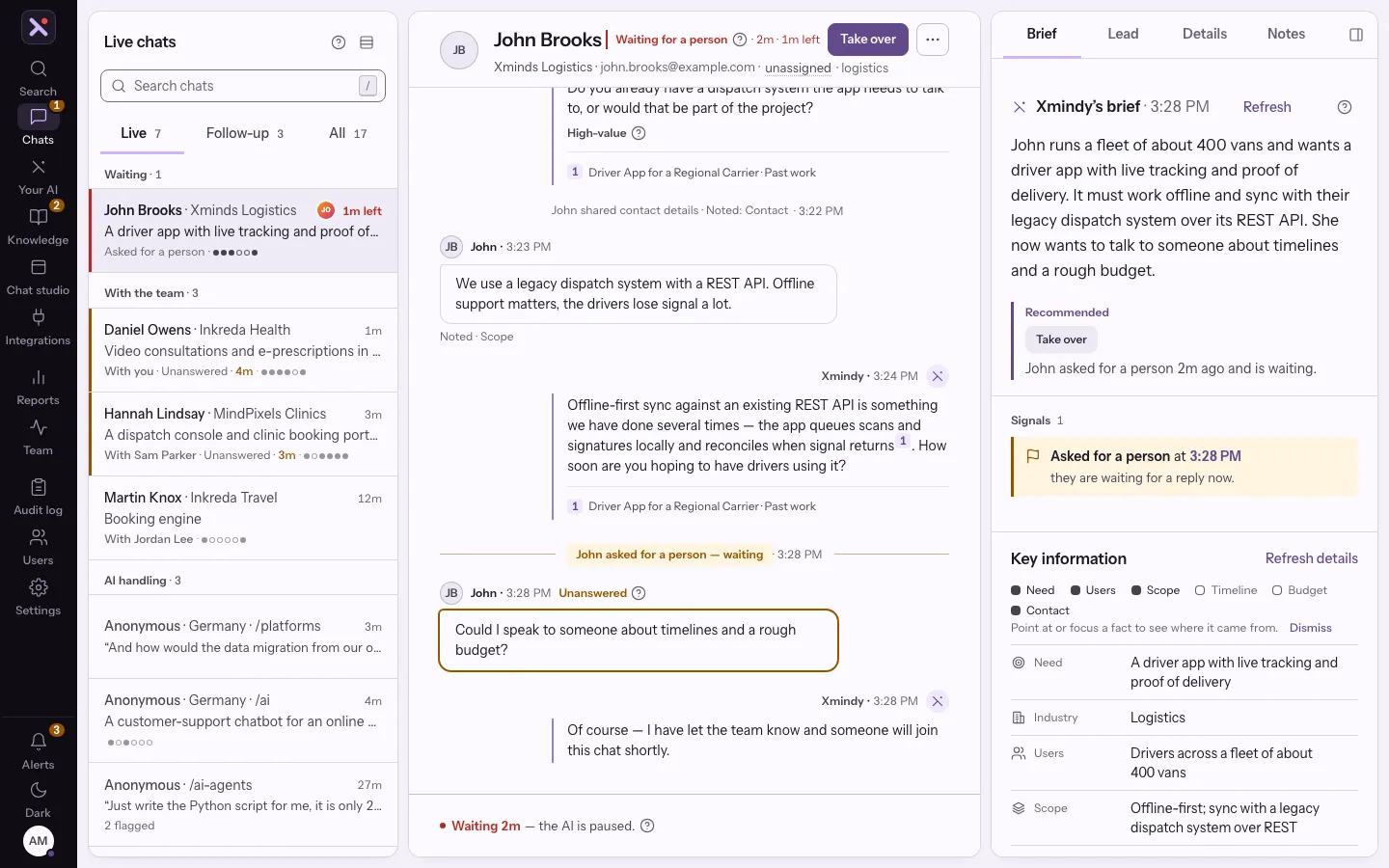
Where to find it
Section titled “Where to find it”Pick a row on the chat list. j and k open the next and previous chat, Esc closes it, t takes it over and r moves to the reply box (Keyboard shortcuts).
| Screen | How the chat is laid out |
|---|---|
| Wide | The transcript, and a panel beside it with the tabs Brief, your company’s word for a record (such as “Lead”), Details and Notes. Hide this panel puts it away and Show brief brings it back. |
| Narrower | One column: the brief is a band above the transcript (Hide folds it to one line, which stays in view as you scroll), and details and notes open from the ⋯ menu. |
| Phone | The chat fills the screen. The brief is a one-line strip you tap to open, and the arrow at the top goes back to the list. |
The header
Section titled “The header”- The name: the contact’s name and company, else their email or phone, else Anonymous visitor.
- The state: AI handling, Waiting for a person with how long (and “1m left” in the last minute before the visitor is offered the AI again), With you or With {name} (with “Unanswered” and how long when the visitor is owed a reply), or Closed with the reason and the time.
- The owner: who follows the chat up, or “unassigned”. Operators and above press it to pick a team member or Unassigned; the message that confirms it has Undo. Changing the owner does not change who answers the visitor.
- Who else is here: “Sam is here too” while a colleague has the chat open.
- The small print: the chat’s tags, when it started and how many messages it holds.
- The reply count: on a chat a colleague holds, such as “6 replies · Wrap up soon” (Wrap up a long chat).
- One button: Take over, Hand back to AI, or for a Supervisor or an Admin Take over from {name} (Take over and reply).
The bar under the transcript holds your reply box while you hold the chat, and reads “You have view-only access.” for a Viewer.
The ⋯ menu
Section titled “The ⋯ menu”Each entry shows only when it applies to this chat and your role. On a phone the menu also holds the owner, Hand back to AI and No follow-up needed.
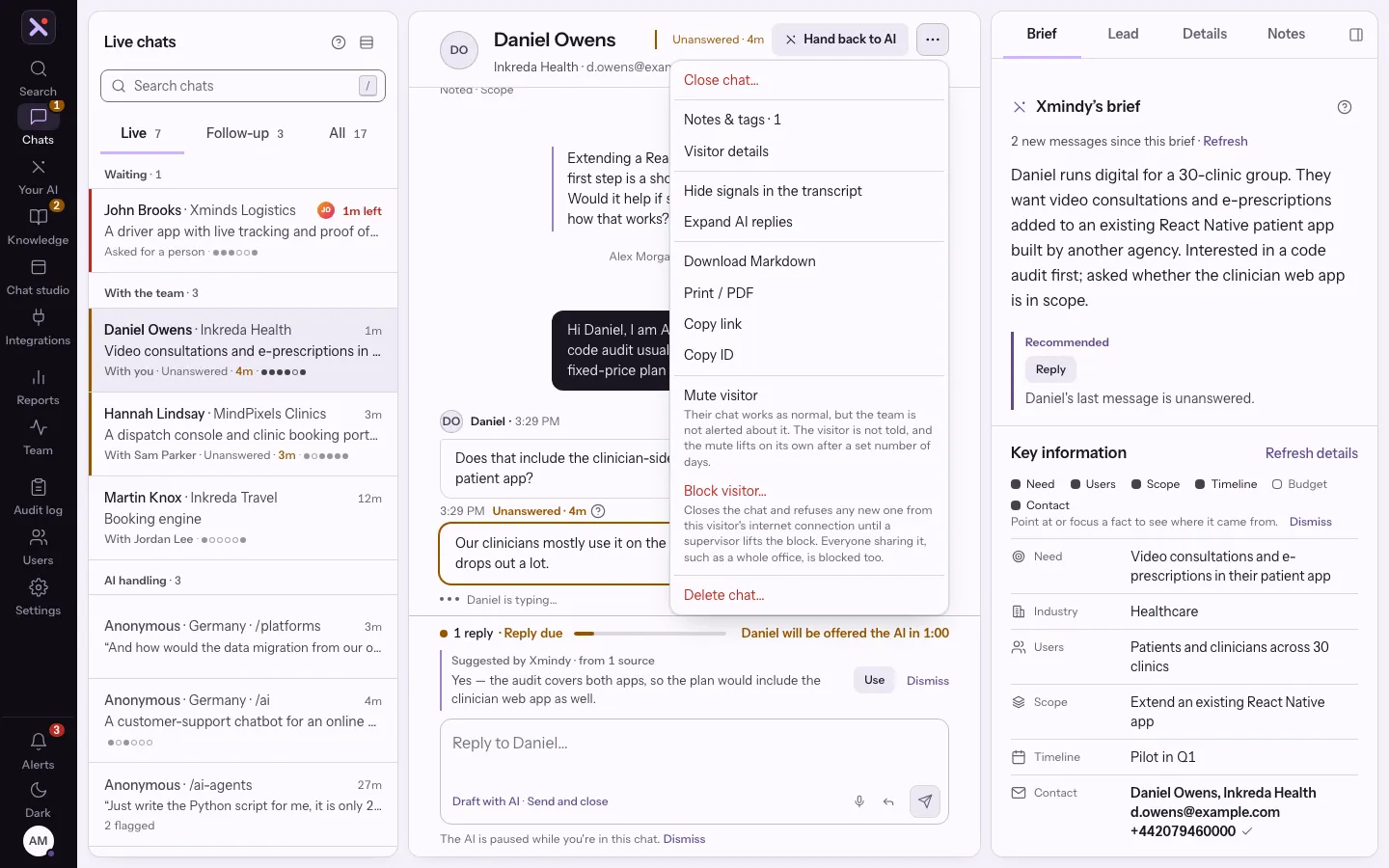
| Entry | Does | Who |
|---|---|---|
| Take over from {name}… | Take a chat from a colleague | Supervisor, Admin |
| Close chat… | Close a chat | Operator and above |
| Restore to follow-up | Puts a chat marked No follow-up needed back in Follow-up | Operator and above |
| Notes & tags | Notes and tags, with a count when there are notes | Everyone; writing needs Operator |
| Visitor details | Opens the visitor’s details | Everyone |
| Chat review | The AI’s advice on a closed chat (Chat reviews) | A team member who replied in it, Supervisor, Admin |
| Hide signals in the transcript, Show signals in the transcript | Hides or shows the chips under visitor messages, remembered by your browser | Everyone |
| Expand AI replies, Collapse AI replies | Shows long AI replies in full, or shortened | Everyone |
| Download Markdown, Print / PDF, Download all {n} files | Download chats | Operator and above |
| Copy link, Copy ID | Copies a link that opens this chat for a signed-in colleague, or the chat’s ID | Everyone |
| Mute visitor, Unmute visitor, Block visitor…, Unblock visitor | Mute and block a visitor | Operator and above; blocking needs Supervisor |
| Delete chat… | Delete a chat, for good | Admin |
The transcript
Section titled “The transcript”The visitor is on the left; the AI and your team on the right, each message with its author and time. A line across the middle marks each day and each event:
| Line | Means |
|---|---|
| “John asked for a person — waiting” | The chat is waiting for your team. |
| “AI reply limit reached — John is waiting for a person” | The AI gave its last answer. |
| “Sam Parker took over”, “Sam Parker handed back to the AI” | A team member joined, or left the chat to the AI again. |
| “Nobody from the team responded — returned to the AI” | Nobody took the chat in time. Follow the visitor up. |
| “John went back to the AI — Sam Parker had not replied” | The team member holding it did not reply in time. You can still take over. |
| “John opened the booking page” | The visitor pressed Book a call and opened your booking page. Check your booking tool for a time they booked (Contact card and booking). |
| “Sam Parker sent the record to the CRM”, “The record went to the CRM automatically” | The record was sent. |
| “Closed by Sam Parker”, “Closed automatically: no activity” | How the chat ended. |
Under a message you may see:
| Mark | Means |
|---|---|
| Unanswered, with how long | The visitor’s last message has no reply yet. |
| Noted | The details the AI learned from this message. Press one to see it in the brief. |
| AI reply with a number | This reply counts toward the chat’s limit of AI answers (Visitor limits). Fixed answers, such as your team’s contact, are not counted. |
| High-value | The reply earned the contact card: it used a source or was a substantial answer. |
| A numbered source | Press it to read the passage the reply was based on and open the page. |
| Flagged by the visitor | The visitor flagged this answer, with their reasons. |
| Show more | The message is long and shown shortened. |
A chip under a visitor’s message says what the AI noticed or how it handled the message:
| Chip | The AI |
|---|---|
| “Asked for something off-topic”, “Off-topic” | Declined a request outside what your business covers. |
| “Asked about a restricted topic” | Declined a topic your Admin restricted (Your AI). |
| “Abusive”, “Tried to change how the AI behaves” | Refused the message. Consider muting or blocking the visitor. |
| “Low quality” | Took the message for junk. Enough of them close the chat. |
| “Pointed elsewhere” | Sent the visitor to the right contact for who they are, such as a job seeker. |
| “Reply held for the contact card” | Offered the contact card instead of answering: only your team can help. |
| “Booking link offered” | Showed your booking button. |
| “Asked for a person, AI answered first” | Answered once more before offering a person. |
Also in the transcript:
- Files the visitor shared show as links; the AI never reads them.
- A rating the visitor left shows at the end, with their stars, reasons and comment.
- A line at the foot says when the visitor or a colleague is typing.
- Jump to latest ↓ takes you to new messages that arrive while you read further up.
The brief
Section titled “The brief”The panel beside the transcript (or the band above it) is the AI’s brief, explained on The AI’s brief with how Operators and above check and correct what the AI learned.
Details
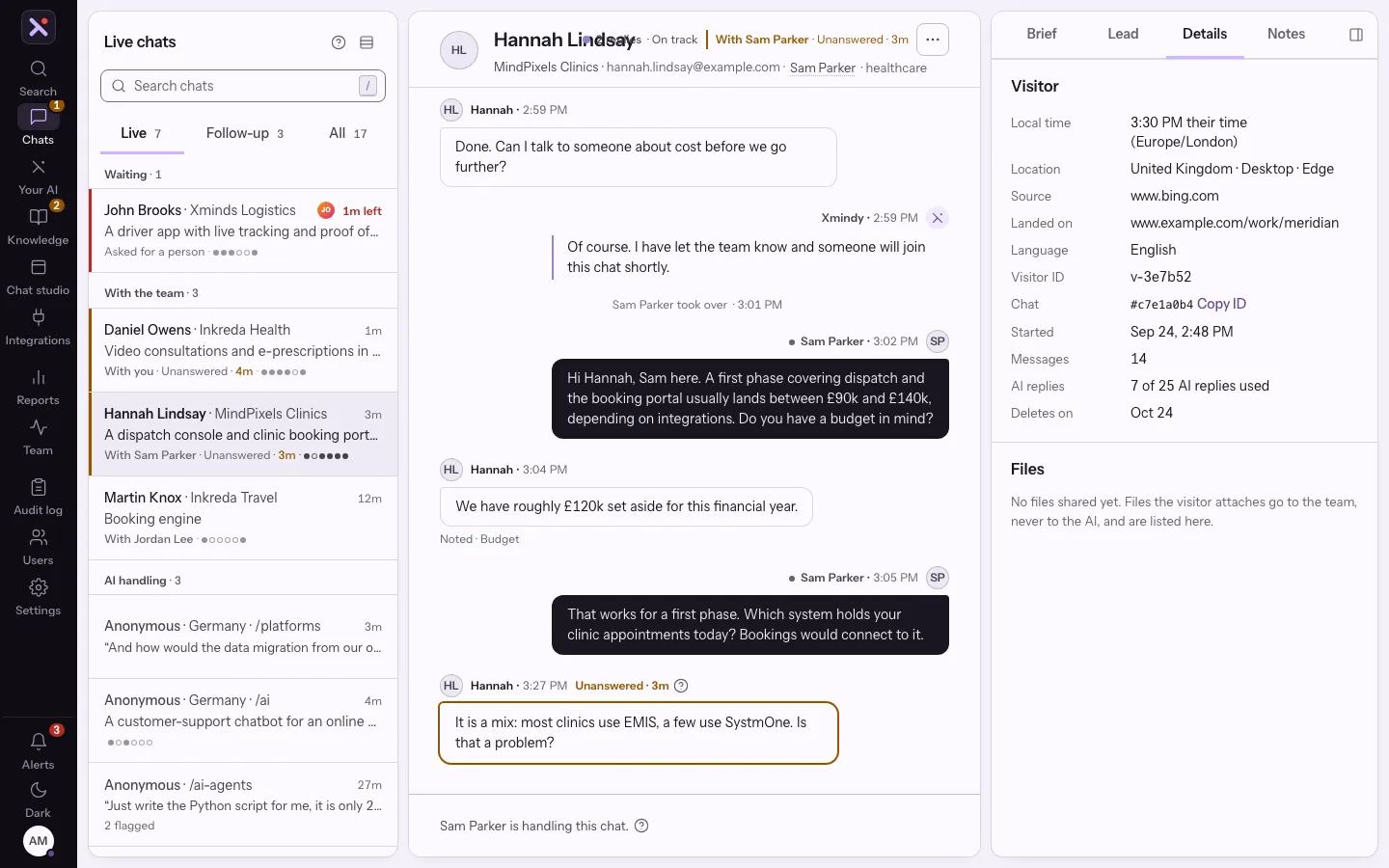
Section titled “Details”The Details tab (on narrower screens, Visitor details in the ⋯ menu) shows:
| Row | Shows |
|---|---|
| Local time | The time where the visitor is, so you know whether it is a sensible hour to call. |
| Location | Their country, device and browser. |
| Source | Where they came from: a campaign, the website that linked to yours, or “Direct”. |
| Landed on | The page they started the chat on. |
| Language | Their browser’s language. |
| Visitor ID | A code that stands for the visitor’s internet connection. |
| Access | “Muted: not announced to the team” or “Blocked: refused a chat”, when either applies. |
| Chat | The chat’s short ID, with Copy ID. |
| Started, Messages, AI replies | When it began, its messages and the AI replies it has used. |
| Deletes on | The day the chat is deleted (Data retention). |
Under it, Files lists what the visitor shared, with each file’s size and time. Operators and above can download each one, or all of them with Download all {n} files; a Viewer sees the names only.
Notes and tags
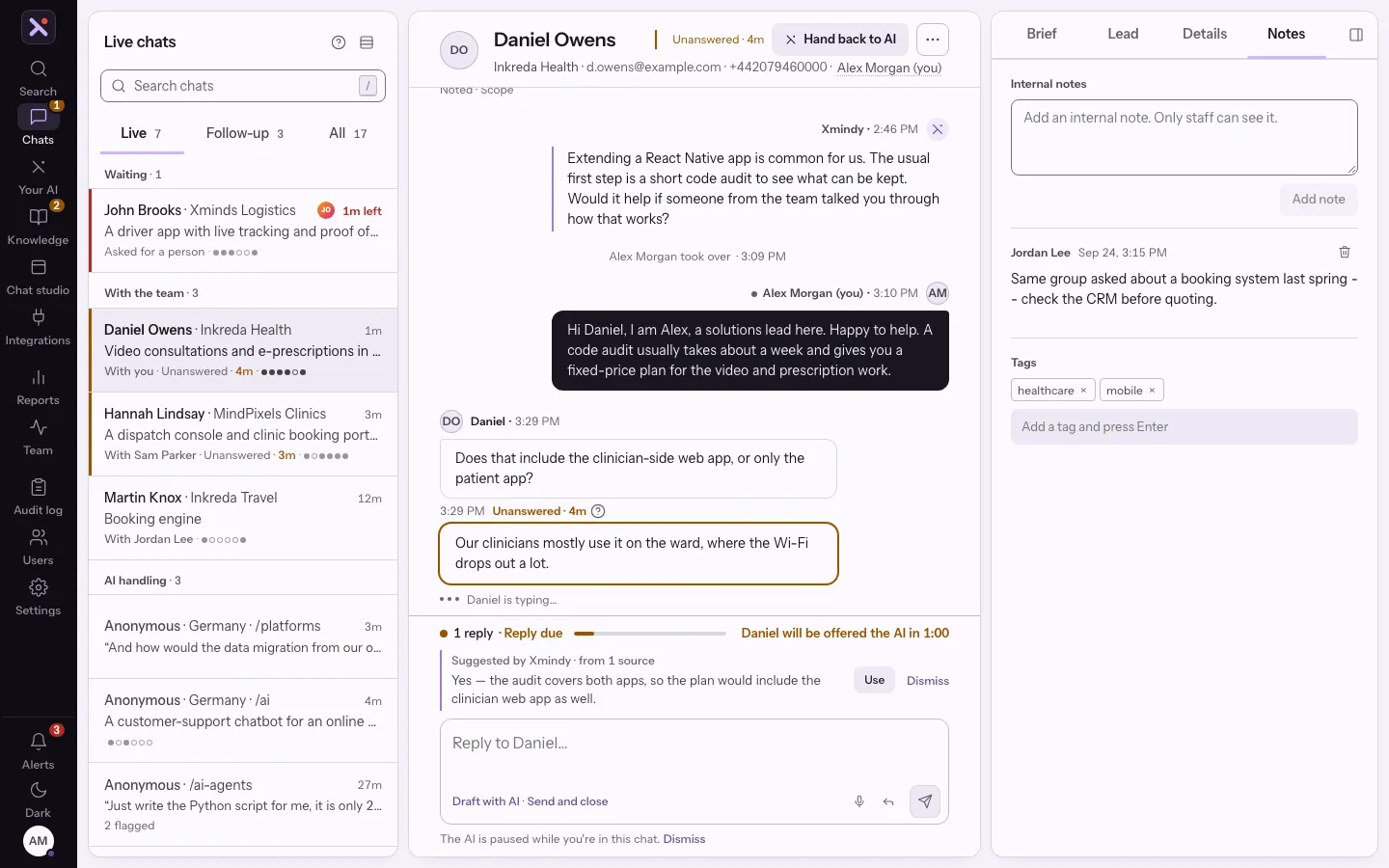
Section titled “Notes and tags”The Notes tab holds the chat’s tags and your team’s internal notes, which visitors and the AI never see. Operators and above write both (Notes and tags).
Good to know
Section titled “Good to know”- If two people change the owner at once, the last change wins.
- Text in a right-to-left language, such as Arabic or Hebrew, reads right to left: the visitor’s messages and name, the brief, and the reply you type.
If something goes wrong
Section titled “If something goes wrong”| You see | What to do |
|---|---|
| “This chat no longer exists.” | It was deleted at the end of your Data retention period, or by an Admin. Press Back to chats. |
| “This chat could not be refreshed, so it may be out of date.” | Press Retry now. It also keeps trying by itself. |
| An error under the header with Retry | Your last action did not go through. Press Retry. |
| “Downloads need the Operator role.” on a file | Ask an Operator or above to download it. |
Related
Section titled “Related”Reviewed
Source files for this page
apps/dashboard/src/views/workspace/Workspace.tsxapps/dashboard/src/views/workspace/ConversationHeader.tsxapps/dashboard/src/views/workspace/OverflowMenu.tsxapps/dashboard/src/views/workspace/OwnerMenu.tsxapps/dashboard/src/views/workspace/ActionBar.tsxapps/dashboard/src/views/workspace/Transcript.tsxapps/dashboard/src/views/workspace/TranscriptEntry.tsxapps/dashboard/src/views/workspace/transcriptModel.tsapps/dashboard/src/views/workspace/EvidenceItem.tsxapps/dashboard/src/timeline.tsapps/dashboard/src/views/workspace/WorkspaceSheets.tsxapps/dashboard/src/views/workspace/brief/NotesPanel.tsxapps/dashboard/src/views/workspace/brief/TagsPanel.tsxapps/dashboard/src/inbox/origin.tsshared/web/src/glossary.tsshared/web/src/useLayout.tsapps/dashboard/src/permissions.tsservices/api/app/routers/conversations.pyservices/api/app/conversations/triage_store.pydocs/CONVERSATION.md

