Answer chats
Act on chats from the list
Who can open itViewer: noOperator: yesSupervisor: yesAdmin: yes
Working from the list is the quick way through a queue: clear the closed chats that need nothing, share the rest out, and open only the ones you will answer.
Where to find it
Section titled “Where to find it”Chats in the menu, on any view. Picking several rows works in Follow-up and All; Live rows are acted on one at a time.
Act on one chat
Section titled “Act on one chat”Right-click a row (on a touch screen, press and hold it) for its menu:
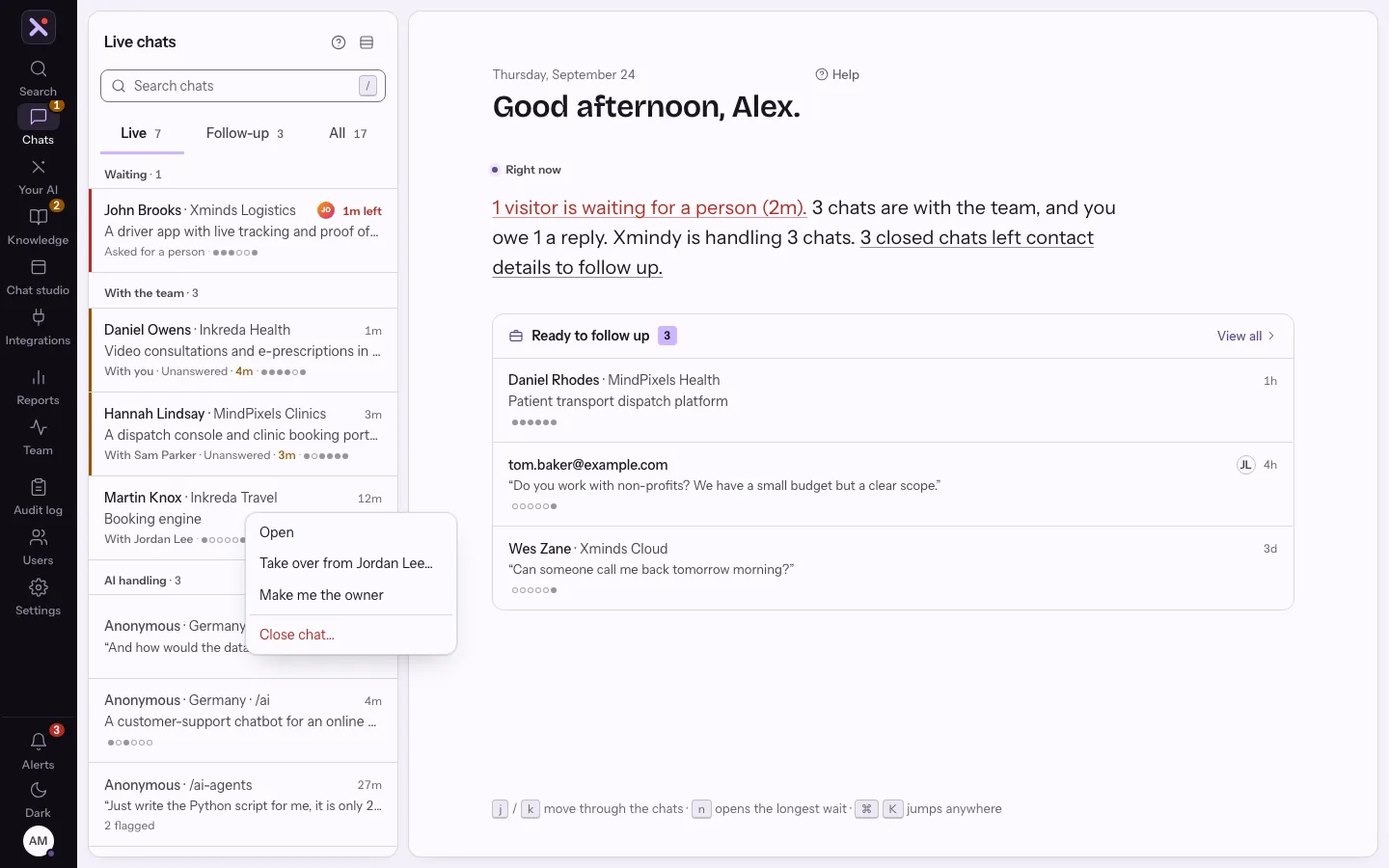
| Entry | On | Does |
|---|---|---|
| Open | Any row | Opens the chat. |
| Take over… | A chat the AI handles or a waiting one | Asks “Take over this chat?”, then opens the chat ready for your reply. A waiting row also shows Take over when you point at it. |
| Take over from {name}… | A chat a colleague holds, for a Supervisor or an Admin | Asks first; your colleague is told. |
| Assign to me, or Make me the owner | A chat you do not own | Makes you its owner. On a chat a colleague holds, they keep answering. |
| Assign to… | A closed chat | Opens Assign this chat: pick yourself, a colleague, or Nobody (clear the owner), then Assign. The message that follows has Undo. |
| Close chat… | An open chat you may close | Asks “Close this chat?”. Closing cannot be undone. |
| Send {record}… | A closed chat still to follow up | Opens the chat at its record. |
| No follow-up needed | A closed chat still to follow up | Takes it off Follow-up; the message has Undo. |
| Select, Deselect | Any row in Follow-up or All | Starts or changes a selection (below). |
The owner follows a chat up. Assigning never takes the chat over or changes who answers the visitor. Take over and reply and Close a chat and send its record explain each action.
Act on several chats at once
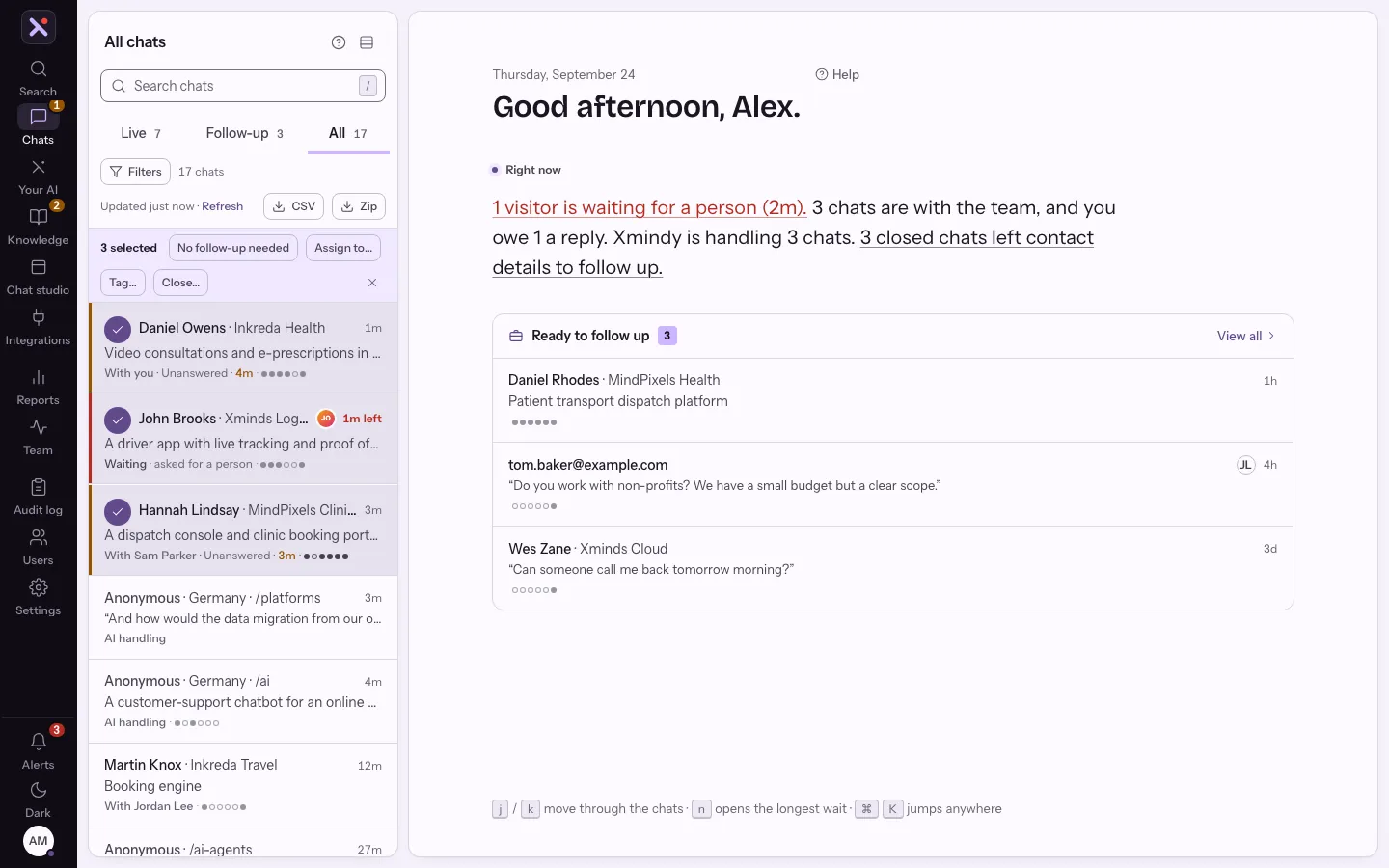
Section titled “Act on several chats at once”In Follow-up and All you can pick several rows and act on all of them:
- Hold ⌘ (Ctrl on Windows and Linux) and click a row, or highlight it and press
x. Then a plain click picks more, and Shift-click picks every row in between. A picked row shows a tick. - In the bar that appears (“3 selected”), choose one of its four buttons (below).
- A message says what was done; after No follow-up needed it has Undo, which puts those chats back. A chat that could not be changed is skipped with the reason and stays selected.
| Button | Does |
|---|---|
| No follow-up needed | Takes each closed chat off Follow-up, at once. |
| Assign to… | Gives every picked chat one owner, or Nobody (clear the owner). |
| Tag… | Adds tags to each chat’s own. Type them separated by commas, such as follow up, pricing, then press Add tags. |
| Close… | Asks first (“Close 3 chats?”), then closes each open chat you may close. |
| A chat is skipped when | The reason shown |
|---|---|
| It is open and you chose No follow-up needed | “Still open” |
| Its record went to your CRM | “Its record was already sent” |
| It is already marked | “Already marked as needing no follow-up” |
| It already carries 10 tags | “Already at the limit of 10 tags” |
| It is closed and you chose Close… | “Already closed” |
| A colleague holds it and you are an Operator | “Another team member has it” |
Esc, or the cross in the bar, clears the selection. Changing the view, the search or a filter clears it too.
Good to know
Section titled “Good to know”- A long selection is sent in batches; the message at the end counts what was done and what was skipped.
- Assigning, tagging and No follow-up needed are never seen by the visitor. Taking over shows them your name, and closing shows them that the chat has ended.
- A Supervisor or an Admin closing several chats also closes the ones colleagues hold; an Operator’s are left open.
If something goes wrong
Section titled “If something goes wrong”| You see | What to do |
|---|---|
| “Nothing changed.” with the reasons | Every picked chat was skipped. Read the reasons, change the selection and try again. |
| “Name owns this chat now: it changed while you were looking. Choose again if you still mean to.” | A colleague changed the owner first, so yours was not saved. The list shows the new owner; choose again if you still need to. |
| “Choose a team member who can take chats over, not a Viewer.” | The person you picked as owner is a Viewer. Pick an Operator, a Supervisor or an Admin. |
| “This chat can’t be taken over: a team member already has it, or it is closed.” | Someone took it first, or it closed. The row now shows where it stands. |
| “2 of 5 couldn’t be put back in Follow-up. Use Restore on each.” (after Undo) | Open each of those chats and press Restore on its record card. |
| No menu on a row, and rows cannot be picked | You are a Viewer. Ask an Admin if you need the Operator role (Roles). |
Related
Section titled “Related”Reviewed
Source files for this page
apps/dashboard/src/views/inbox/Queue.tsxapps/dashboard/src/views/inbox/QueueRow.tsxapps/dashboard/src/views/inbox/BulkBar.tsxapps/dashboard/src/views/inbox/BulkActions.tsxapps/dashboard/src/views/inbox/useRowPicks.tsapps/dashboard/src/views/workspace/Confirmations.tsxapps/dashboard/src/permissions.tsservices/api/app/routers/conversation_bulk.pyservices/api/app/routers/conversations.pyservices/api/app/conversations/triage_store.py

