Connect your tools
Connect the bot check (Cloudflare Turnstile or Google reCAPTCHA)
Who can open itViewer: noOperator: noSupervisor: noAdmin: yes
Where to find it
Section titled “Where to find it”Work > Integrations, the Cloudflare Turnstile and Google reCAPTCHA cards under Security. Only an Admin can open the page. Searching “captcha” finds both. How card states, tests and Recent activity work is on The Integrations page.
Both cards share two fields: Run the bot check with says which service runs the check, and Check that visitors aren’t bots switches it on or off. Each card keeps its own two keys, so switching from one service to the other and back loses nothing.
Before you start
Section titled “Before you start”- An account with the service you choose: Cloudflare for Turnstile, or a Google account for reCAPTCHA. The key pair is made there; the panel’s link takes you to it. If someone else manages the account, Email these steps to my IT person writes the request.
- The address of every website your chat runs on: the ones you listed as allowed websites in Chat studio. A key works only on the websites added to it, so keep the two lists the same.
Set it up with Cloudflare Turnstile
Section titled “Set it up with Cloudflare Turnstile”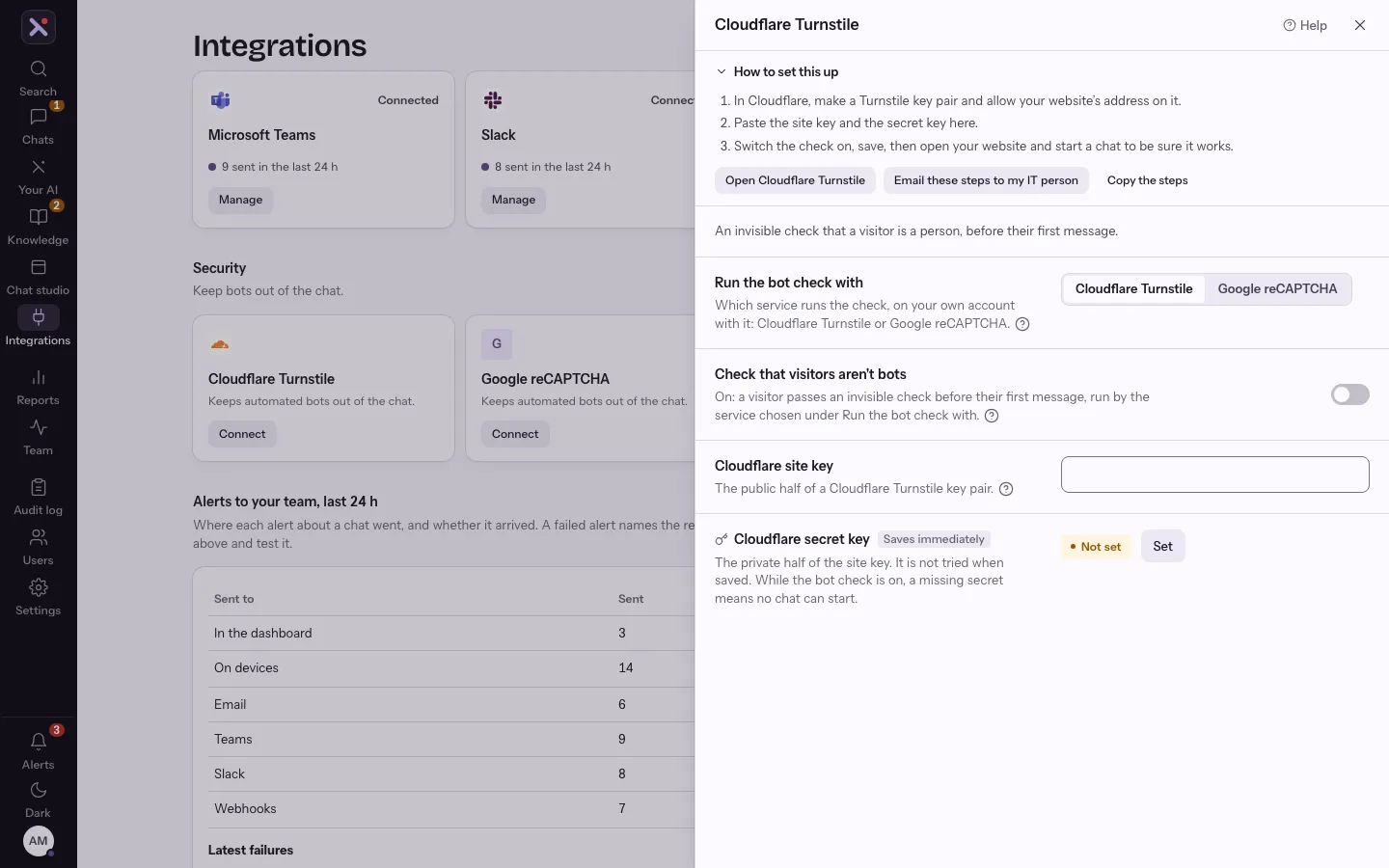
- In Cloudflare, create a Turnstile key pair and add each website’s address to it.
- On the Cloudflare Turnstile card, paste the Cloudflare site key and press Save changes.
- Press Set beside Cloudflare secret key, paste the secret and press Save in its box.
- Leave Run the bot check with on Cloudflare Turnstile, switch Check that visitors aren’t bots on and press Save changes. It cannot be switched on until both keys are saved.
- Press Send a test. “Cloudflare accepted the secret key.” means the secret is right. The test cannot check the site key.
- Open each website and start a chat. The first message goes through as usual: the check is invisible when it passes.
Set it up with Google reCAPTCHA
Section titled “Set it up with Google reCAPTCHA”- In the Google reCAPTCHA admin console (Open the reCAPTCHA admin console in the panel), create a key pair of type Invisible reCAPTCHA v2 and add each website’s address to it. Another type of key does not work with the chat.
- On the Google reCAPTCHA card, paste the Google reCAPTCHA site key and press Save changes.
- Press Set beside Google reCAPTCHA secret key, paste the secret and press Save in its box.
- Choose Google reCAPTCHA under Run the bot check with, switch Check that visitors aren’t bots on and press Save changes. Neither can be done until both reCAPTCHA keys are saved.
- Press Send a test. “Google accepted the secret key.” means the secret is right. The test cannot check the site key.
- Open each website and start a chat. Most visitors see nothing; while the check runs, Google’s small reCAPTCHA badge shows in the bottom corner away from the chat button, and goes when it is done.
| The card reads | It means |
|---|---|
| Not fully set up | Only one key is saved: “Save both keys: the bot check needs the site key and the secret key.” |
| Off | Both keys are saved but the check is off, or the check runs with the other service. Nothing is checked with this one |
| Not tested | Everything is saved; press Send a test |
| Connected | This service runs the check, it is on, and the service accepted the secret key |
| Not working | The service refused the secret key for a real visitor, so no chat can start |
Add a website later
Section titled “Add a website later”Add the new website’s address to the key at Cloudflare or Google before you add it as an allowed website in Chat studio, then start a chat on it. A website that is not on the key gets no chat, only the contact card.
Switch it off or disconnect
Section titled “Switch it off or disconnect”- Switch Check that visitors aren’t bots off and press Save changes: no visitor is checked, and every key stays saved for when you turn it back on.
- Disconnect on a card removes that service’s two keys. If that service runs the check, the check is switched off first; if the other service runs it, the check carries on.
Without the check, any automated program can start chats. Your other limits still apply (Visitor limits).
What a visitor sees
Section titled “What a visitor sees”Nothing, when the check passes. With Turnstile, a visitor Cloudflare is unsure of gets a small panel inside the chat to complete; with reCAPTCHA, Google shows its own picture challenge over the page. When the check cannot run in their browser, often because of a content blocker, the chat says “We couldn’t verify your browser. Please try again.” and offers the contact card instead (Errors and notices). A website with a strict Content Security Policy must allow the service’s addresses (Content Security Policy).
If something goes wrong
Section titled “If something goes wrong”| What happens | What to do |
|---|---|
| Every visitor gets only the contact card | The site key is wrong, it is not an Invisible reCAPTCHA v2 key, or the website’s address is not on the key. Fix it at Cloudflare or Google, or paste the right site key, then start a chat on the website |
| “The bot check is stopping your visitors” in the bell, and the card reads Not working | The service no longer accepts the secret key, or a key is missing while the check is on. Make a new secret at the service and Replace key, then Send a test |
| “Cloudflare refused the secret key.” or “Google refused the secret key.” | The secret is not the one that belongs to the site key. Copy it again and Replace key |
| “Cloudflare could not be reached. Try again in a moment.” or the same for Google | Test again shortly. Nothing is wrong with your keys |
| The switch will not turn on, or Run the bot check with will not change | Save both keys of the service you are choosing first |
| The site key cannot be removed | That service runs the check: switch the check off first, choose the other service, or use Disconnect |
| Automated programs start chats | The check is off. Your other limits still apply (Visitor limits) |
Related
Section titled “Related”- Control use and abuse
- Limits and abuse controls
- Integrations page settings: every field with its default
Reviewed
Source files for this page
apps/dashboard/src/views/IntegrationsView.tsxapps/dashboard/src/views/integrations/ConnectionDrawer.tsxapps/dashboard/src/views/integrations/readiness.tsapps/dashboard/src/views/integrations/catalog.tsapps/dashboard/src/views/integrations/disconnect.tsshared/web/src/views/settings/registry.tsxshared/web/src/views/SecretField.tsxservices/api/app/settings/settings_store.pyservices/api/app/visitors/challenge.pyservices/api/app/routers/connections.pyapps/widget/src/chatbot/strings.tsapps/widget/src/chatbot/challenge.ts

