Get started
Your first day on the team
Who can open itViewer: noOperator: yesSupervisor: yesAdmin: yes
Before you start
Section titled “Before you start”- An Admin has added your email address on Users as an Operator, Supervisor or Admin. A Viewer can read chats but not answer them (Roles).
- You have the dashboard’s address from your Admin. There is no sign-up and nothing to install.
- Sign in. Open the dashboard’s address and use the email your Admin added: a code sent to that address, Google, Microsoft or a passkey, whichever the page offers. If you belong to more than one company, choose one after signing in. The dashboard opens on Chats (Signing in).
- Check how visitors will see you. Open your account menu (your picture, at the foot of the menu), then Your preferences. On Profile, set your Display name, a Job title (optional) and a photo, then press Save. Visitors see these when you join their chat, never your email address (Your preferences).
- Set your alerts. In the same window, open Alerts. Choose how you hear about a waiting visitor: Sound, Pop-up, Push or Email. To be told with the dashboard closed, press Use this device under Push to your devices on your phone or computer (Your alerts).
- Say you are here. The switch at the top of your account menu reads Available or Away. While you are Away, a visitor who asks for a person is not kept waiting for you and you get no alerts about new visitors. Switch to Away when you step out, and back when you return.
- Find a waiting chat. Open Chats. The Live view lists the chats happening now; those waiting for a person come first, and the number on Chats in the menu counts them. Press
nto open the visitor who has waited longest (The chat list). - Read before you write. Open the chat. The side panel sums up who the visitor is and what they want, so you rarely need to read the whole transcript (An open chat).
- Take it over. Press Take over. The AI stops answering and the visitor sees you have joined. A message says “You’re in. The visitor now sees your name.”
- Reply. Type in the reply box and press
Enteror Send. Type/in an empty box for your team’s saved replies, or press Draft with AI for a first draft to edit (Take over and reply). - Finish. Press Hand back to AI if the visitor still has questions the AI can answer, or close the chat. After it closes, check the record and send it to your CRM, or mark it as needing no follow-up (Close and send).
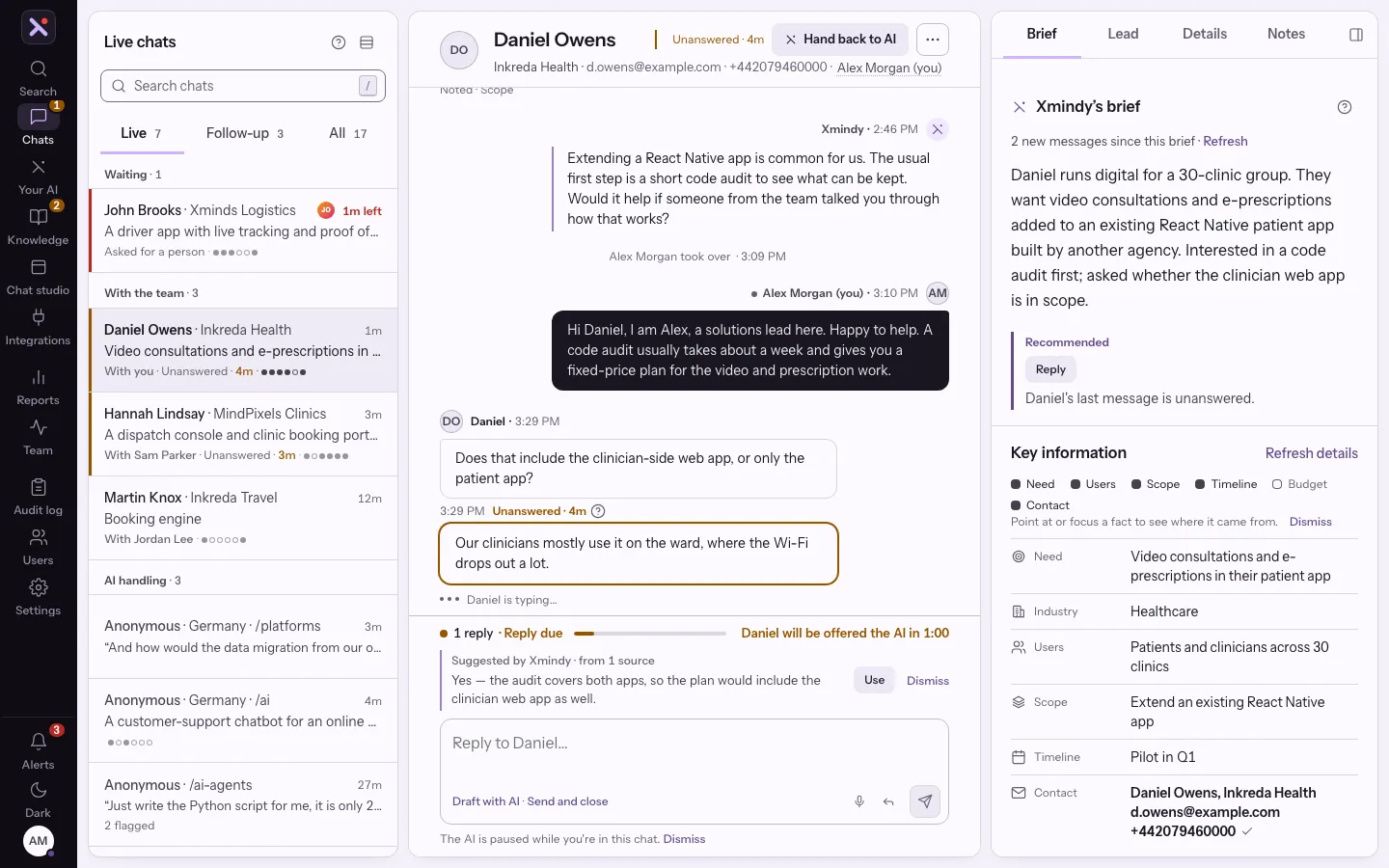
The three views of Chats
Section titled “The three views of Chats”| View | Shows | Key |
|---|---|---|
| Live | Chats open now: visitors waiting for a person first, then chats with the team, then chats the AI is handling | 1 |
| Follow-up | Closed chats where the visitor left contact details and nothing has been sent or ruled out yet | 2 |
| All | Every chat, with search and filters | 3 |
Good to know
Section titled “Good to know”- Nothing to answer yet? Before your company’s first chat, Chats reads “Your inbox is ready”. Chats arrive there the moment a visitor writes.
- You can step in at any time. A chat the AI is handling has Take over too; it asks you to confirm first.
- Only one person holds a chat. When two people press Take over together, the first has it. A Supervisor or an Admin can take a chat from a colleague (Take a chat from a colleague).
- Your keyboard does most of the work. Press
?to see the shortcuts, and ⌘ K or Ctrl K to find a chat or a page (Keyboard shortcuts, Getting around). - Help is in the dashboard too. Help in your account menu opens this site, and a Help link on a screen opens the page about it, both in a new tab (Help from the dashboard).
- After a chat closes, the AI may write you advice on how it went. It shows on the closed chat, and visitors never see it (Chat reviews).
If something goes wrong
Section titled “If something goes wrong”| What you see | What to do |
|---|---|
| “You have view-only access.” where the buttons would be | You are a Viewer. Ask your Admin for the Operator role |
| No Take over on a chat | A colleague holds it, it is closed, or your company has no team in the chat. See Take over and reply |
| You were not alerted | Check that you are Available, the dashboard is open in a tab (or you added a device for Push), and Needs a person is on under Alerts |
| No sign-in code arrives | Check your spam folder and the spelling of your address, then ask your Admin whether that exact address was added. Trouble signing in? on the sign-in page lists what else to try |
Related
Section titled “Related”Reviewed
Source files for this page
apps/dashboard/src/views/LoginView.tsxapps/dashboard/src/views/PreferencesDialog.tsxapps/dashboard/src/views/ProfilePanel.tsxapps/dashboard/src/views/shell/AccountMenu.tsxapps/dashboard/src/views/shell/AvailabilitySwitch.tsxapps/dashboard/src/views/shell/NotificationBell.tsxapps/dashboard/src/views/shell/NotificationSettings.tsxapps/dashboard/src/notificationGroups.tsapps/dashboard/src/views/inbox/Queue.tsxapps/dashboard/src/views/inbox/FirstRun.tsxapps/dashboard/src/views/workspace/ActionBar.tsxapps/dashboard/src/permissions.ts

