Your team and account
Users
Who can open itViewer: noOperator: noSupervisor: noAdmin: yes
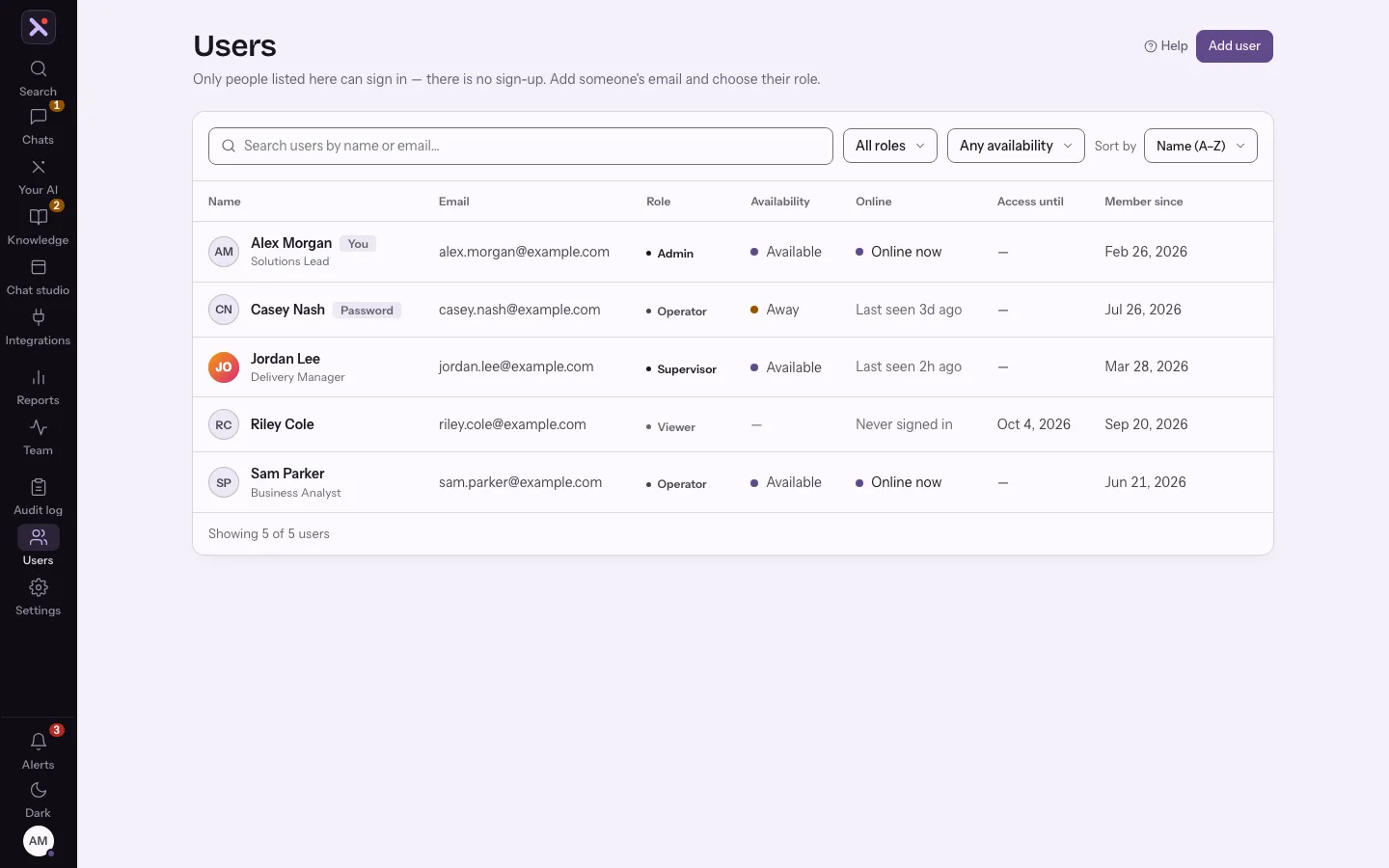
The Users page lists the people who can sign in to your company’s dashboard: add someone by their email address, choose what they can do, and change or end their access later.
Where to find it
Section titled “Where to find it”Admin > Users in the menu. Only an Admin can open it.
Add someone
Section titled “Add someone”- Press Add user.
- Type their Email address. The First name fills itself in from the address; change it if it is wrong. Visitors see this name when the person joins a chat, and the person can change it later in their profile.
- Choose a Role. It starts at Viewer, and each choice says what it can do. Pick the lowest role that covers the person’s job: Viewer to read, Operator to answer chats, Supervisor to lead the team, Admin to set things up (Roles).
- If their access should end, pick a day under Access until (optional). They can sign in until the end of that day.
- Leave Send a welcome email on to tell them they have access. The line under it says whether the email will go.
- Press Add user. A short message says “address can now sign in”, and the person appears in the list with “Never signed in” until they do.
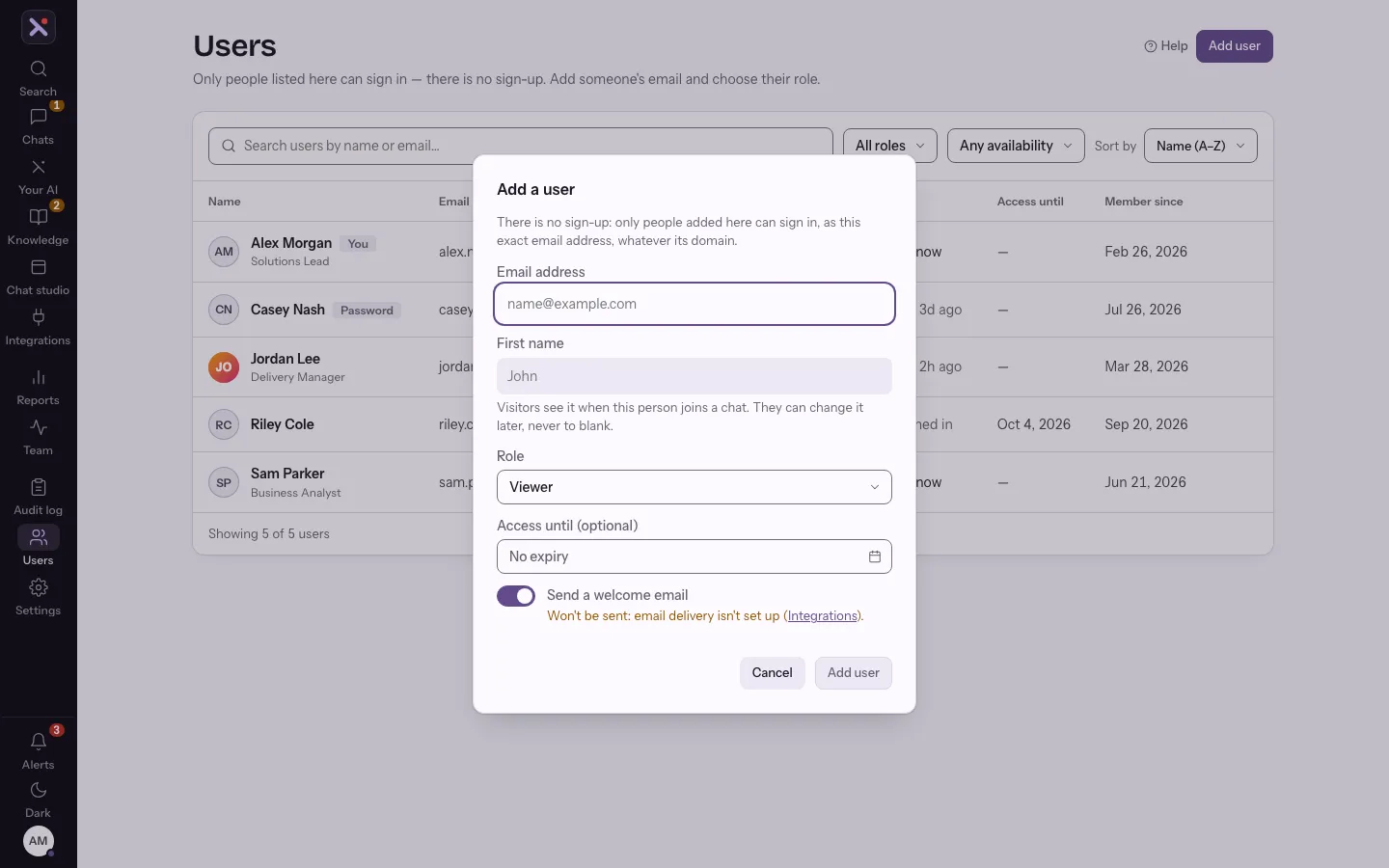
The person signs in with an emailed code, a passkey, or Google or Microsoft, whichever your platform offers (Signing in). If emailed codes are not offered, the window warns you that the person needs a Google or Microsoft account at that exact address.
The welcome email
Section titled “The welcome email”It tells the person your company added them, by the company name EveryKnock holds for you (while it holds none: by your Company name when it goes from your own mail account, and by no company name when it goes from EveryKnock’s shared sender), with the address they sign in as, their role, how to sign in, a button that opens the dashboard, and their end date if any. There is no password to send. It goes while the switch is on and email can be sent: from EveryKnock’s shared sender, with EveryKnock’s name and mark and no logo or footer line of yours, or from your own mail account once you connect one on Integrations (Send emails from your own address).
An email the mail server does not take is tried again for about 45 minutes. If it still has not gone, a notice in your bell says so: choose Resend welcome email from the person’s row menu later.
Read the list
Section titled “Read the list”Search by name or email, filter by role (All roles) or availability (Any availability), and sort by name, Newest first or Oldest first. The list refreshes itself every 30 seconds while the page is open.
| Column | Tells you |
|---|---|
| Name | The name visitors see, with the person’s job title if they set one. You marks your own row, and Password a person who has a sign-in password |
| The exact address they sign in with | |
| Role | Viewer, Operator, Supervisor or Admin |
| Availability | Available or Away: whether the person wants new chats. “—” for a Viewer. Not shown when your plan has no team in the chat |
| Online | Online now while their dashboard is open; otherwise when they were last seen, or “Never signed in” |
| Access until | The last day of access, or “—” when it never ends. “Expired” once the day has passed: the person stays in the list until you remove them |
| Member since | The day they were added |
An Available person who is not Online now has left the dashboard without setting themselves Away. They can still be reached by a push or an email alert if they turned those on (Your preferences).
Change someone’s access
Section titled “Change someone’s access”Open the menu at the end of the person’s row (Actions for name).
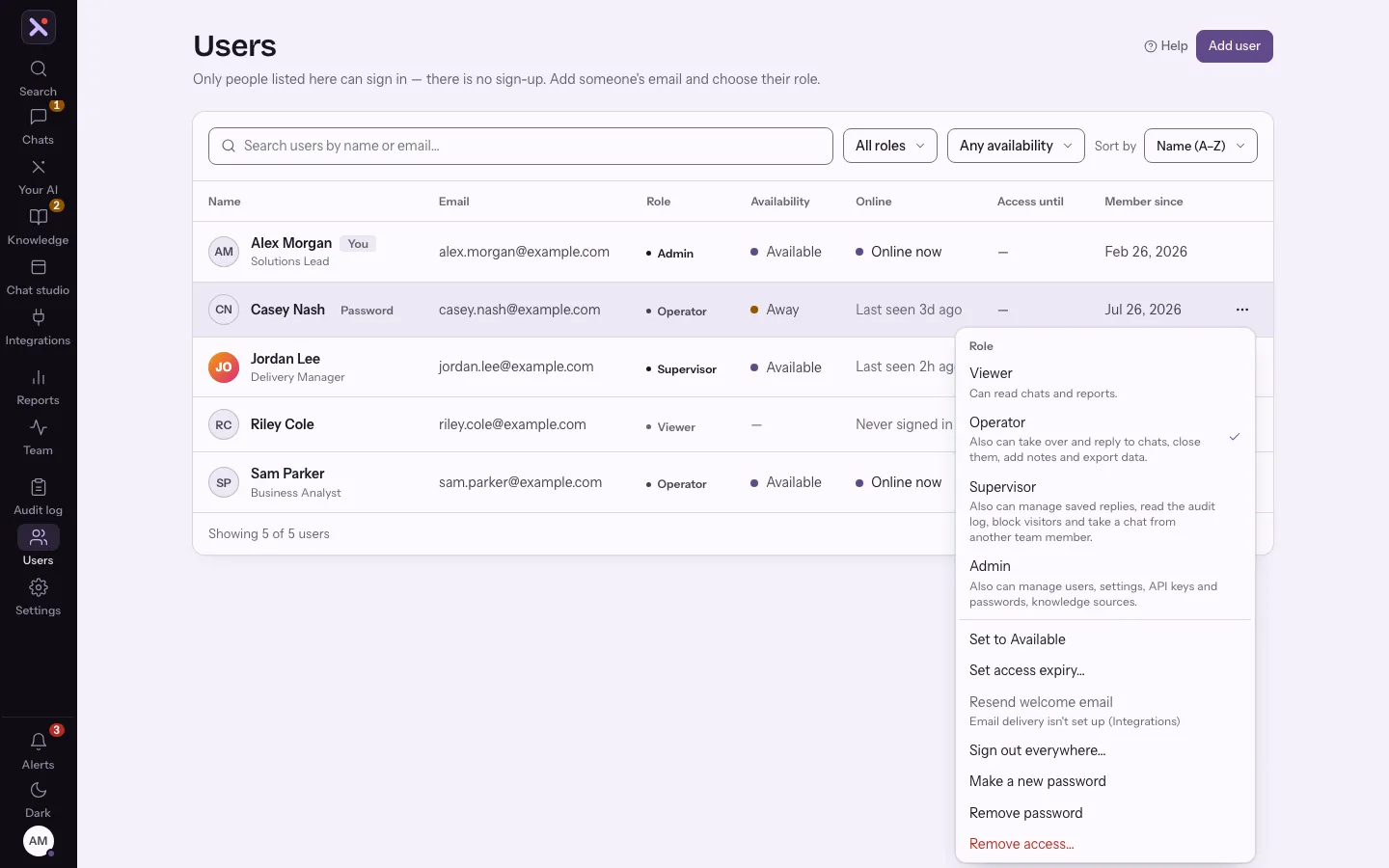
| To | Choose | What happens |
|---|---|---|
| Change their role | A role under Role, then confirm (“Make John a supervisor?”) | The window says what they gain or lose. It applies on their next click, and a message says “John is now a Supervisor”. Moving someone to Viewer hands every chat they hold back to the AI and sets them to Away |
| Set their availability | Set to Away or Set to Available | For someone who left for the day still Available. Not offered for a Viewer |
| End their access on a day | Set access expiry… or Change access expiry… | Pick the last day under Access until and press Save: they can sign in through the end of that day. Clear the date to make access never end |
| Give access back after it expired | Change access expiry… | Pick a later day, or clear the date, and press Save. The person can sign in again at once |
| Send the welcome email again | Resend welcome email | Needs email sending to be set up. The same address can be sent it again after 10 minutes |
| Sign them out of every browser | Sign out everywhere…, then Sign out everywhere | For a lost laptop or a shared computer. Every browser asks them to sign in again; their access is unchanged |
| Remove them | Remove access…, then Remove access | A message says “name can no longer sign in”, and any chat they hold goes back to the AI. Their past chats, notes and audit entries are kept |
If a change is refused, the reason shows in red on that row.
When someone leaves your company
Section titled “When someone leaves your company”- If they hold open chats, tell the team: the chats go back to the AI the moment access ends, and a colleague can take them over from there.
- Open the person’s row menu and choose Remove access…, then Remove access. For someone leaving on a known day, set Access until to their last day instead and remove them later.
- If they shared a password account with others, choose Make a new password on that account and give the new one only to the people who stay (Give someone a password).
When access ends, by an end date or by removal, the person’s follow-ups are cleared as well. Adding the same address again later makes a new person; if they belong to no other company, their passkeys are gone and must be added again.
Give someone a password
Section titled “Give someone a password”Where your platform has switched on password sign-in for your company, a person’s row menu also has Make a password, Make a new password and Remove password, and people with a password carry the Password mark. A password suits an account a team shares, or someone who cannot receive the sign-in code. Steps and what each action does: Give someone a password.
Good to know
Section titled “Good to know”- The last Admin. At least one Admin whose access never expires must remain. For that Admin the row menu says so, and the other roles, Set access expiry… and Remove access… are unavailable. Make someone else an Admin without an end date first.
- Your own row. You cannot change your own role, end date or access. Ask another Admin. You can still set your own availability and sign yourself out everywhere.
- Every change is recorded in the Audit log, under Users.
- Welcome emails are limited so they cannot be used to mail strangers: one address gets at most 5 a day, and a company without its own mail account can send 50 a day. A person added past a limit is still added; only the email waits.
- No Admin left? Ask your platform administrator. They can make an address you name an Admin with access that never expires. They cannot see your list of people, and the change shows in your Audit log. Your other Admins also get a notice in their bell naming who was made an Admin and when, with a link to Users; if nobody is left, the new Admin’s own bell keeps it. If nobody at your company asked for it, remove the person and tell your platform administrator.
If something goes wrong
Section titled “If something goes wrong”| What you see | What to do |
|---|---|
| “That email is already on the list.”, under Email address | The person is already listed. Search for them and change their row instead |
| “At least one admin must keep access that never expires. …” | Make another person an Admin with no end date, then try again |
| “The expiry must be in the future.” | Pick today or a later day |
| “Won’t be sent: email delivery isn’t set up (Integrations).”, or Resend welcome email greyed out with “Email delivery isn’t set up” | Set up email sending on the Integrations page (Send emails from your own address), then use Resend welcome email |
| “The welcome email did not go: a daily limit was reached. …” on a row | The person was added. Choose Resend welcome email later |
| “Nobody can sign in yet: no sign-in method is set up. …” | Your platform has no sign-in method ready. Ask your platform administrator before you add anyone |
| A person says they cannot sign in | Check that their address is spelled right and that Access until has not passed. An address typed wrongly cannot be edited: remove the row and add the right address |
| “A workspace can have at most 500 people. Remove someone first.” | Remove people who no longer need access, then add the new person |
Related
Section titled “Related”Reviewed
Source files for this page
apps/dashboard/src/views/UsersView.tsxapps/dashboard/src/views/AddUserDialog.tsxapps/dashboard/src/views/UserPasswordDialog.tsxapps/dashboard/src/permissions.tsservices/api/app/access/users_store.pyservices/api/app/access/welcome_email.pyservices/api/app/notifications/notices.pyservices/api/app/platform/platform_tenants.pyservices/api/app/routers/users.pyservices/api/app/access/passwords.pyservices/api/app/settings/features.pydocs/SECURITY.md

