Your team and account
Getting around the dashboard
Who can open itViewer: yesOperator: yesSupervisor: yesAdmin: yes
The menu
Section titled “The menu”On a computer 1280 pixels wide or more, the menu is the narrow bar on the left. Top to bottom: Search (the command palette), the pages under Work, Insight and Admin, then at the foot Alerts (the bell), a button that switches between light and dark, and your picture, which opens your account menu.
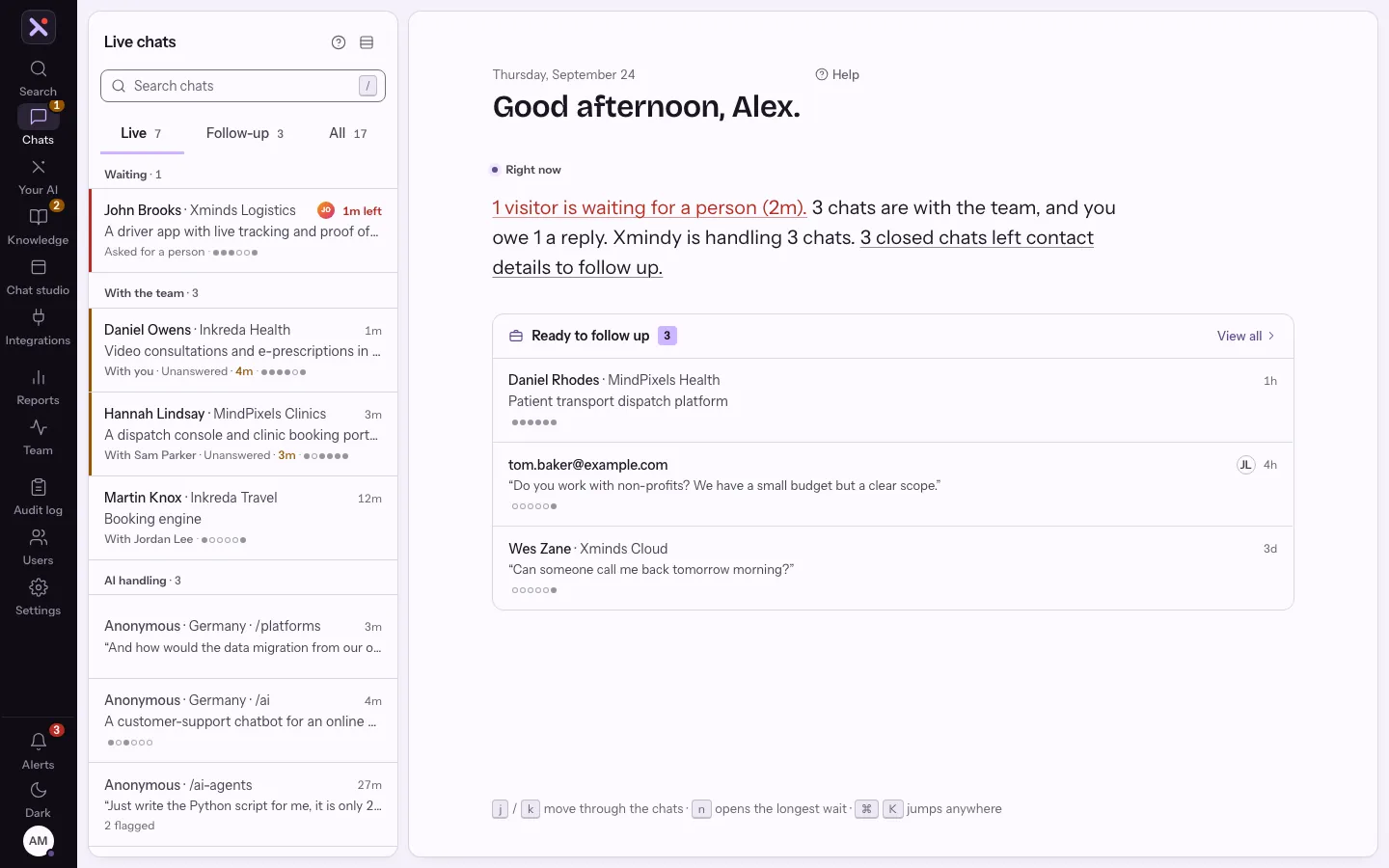
| Group | Pages |
|---|---|
| Work | Chats for everyone; Your AI, Knowledge, Chat studio and Integrations for an Admin |
| Insight | Reports for everyone; Team for Supervisors and Admins, and for Operators while points are on; the Audit log for a Supervisor |
| Admin | Audit log, Users and Settings, for an Admin only |
Who sees what is set out on Roles. A page your company’s plan does not include is left out too.
On a tablet or phone
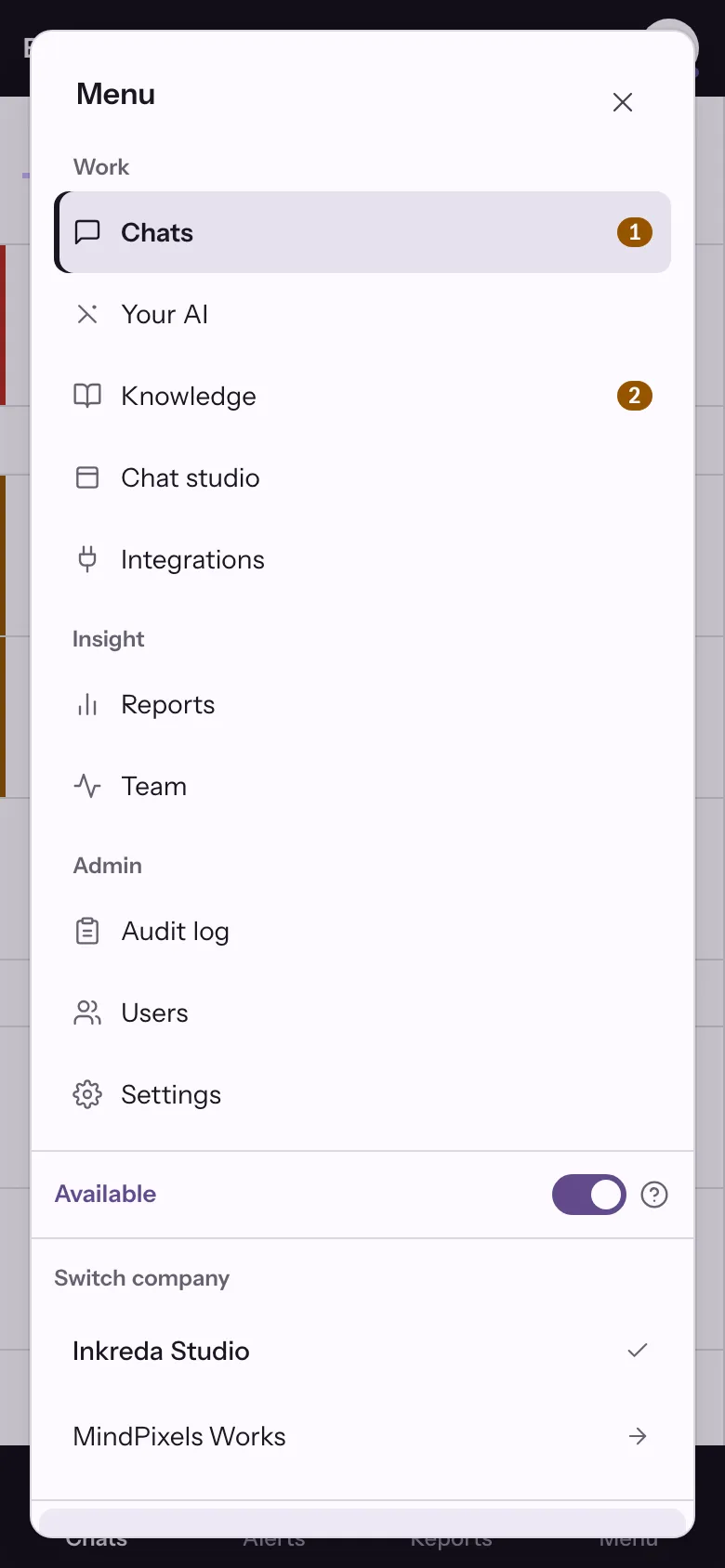
Section titled “On a tablet or phone”Below 1280 pixels the bar is replaced by the ☰ menu, which lists the same pages and then the rows of your account menu. On a phone, a bar at the bottom holds Chats, Alerts, Reports and Menu (a Viewer has no Alerts); an open chat takes the whole screen and has the bell in its own header.
On a tablet or phone, pressing your picture at the top opens the same menu at your account rows, with Available first.
Counts that need you
Section titled “Counts that need you”| Count | On | Means | Who sees it |
|---|---|---|---|
| Amber | Chats and the ☰ button | Visitors waiting for a person | Everyone |
| Amber | Knowledge | Saved changes your AI has not read yet: run an update | Admin |
| Red | Integrations | Connections whose last test failed | Admin |
| On the bell | Alerts | Alerts you have not seen | Operator, Supervisor, Admin |
The browser tab shows the waiting count too, for example “(2 waiting) Reports · EveryKnock”, so you can see it from another tab.
Where to find things
Section titled “Where to find things”| Looking for | Go to | Who |
|---|---|---|
| Your role, your company, Sign out | Your account menu (your picture) | Everyone |
| This help site | Help in your account menu (Help from the dashboard) | Everyone |
| Your name and photo, your alerts, passkeys, theme | Your account menu, Your preferences (Your preferences) | Everyone; alerts from Operator |
| A visitor waiting for a person | Chats, Live, or press n | Everyone; taking over from Operator |
| A past chat | Chats, All, then Search chats; or the command palette | Everyone |
| Saved replies | Saved replies in a chat’s reply box (Saved replies) | Use: Operator. Change: Supervisor |
| Blocked and muted visitors | Reports, Safety (Safety) | Everyone; lifting from Supervisor |
| Questions the AI could not answer | Reports, Answer quality (Answer quality) | Everyone |
| How the team is doing | Team (Team) | Supervisor, Admin |
| Who changed something | Audit log (Audit log) | Supervisor, Admin |
| What the AI says and may do | Your AI (Your AI) | Admin |
| What the AI answers from | Knowledge (Knowledge) | Admin |
| The chat’s look, and the code for your website | Chat studio (Chat studio) | Admin |
| Your CRM, email, Teams or Slack | Integrations (Connect your CRM) | Admin |
| Team hours, waits, alerts, limits | Settings (Settings reference) | Admin |
| Adding or removing a person | Users (Users) | Admin |
The command palette
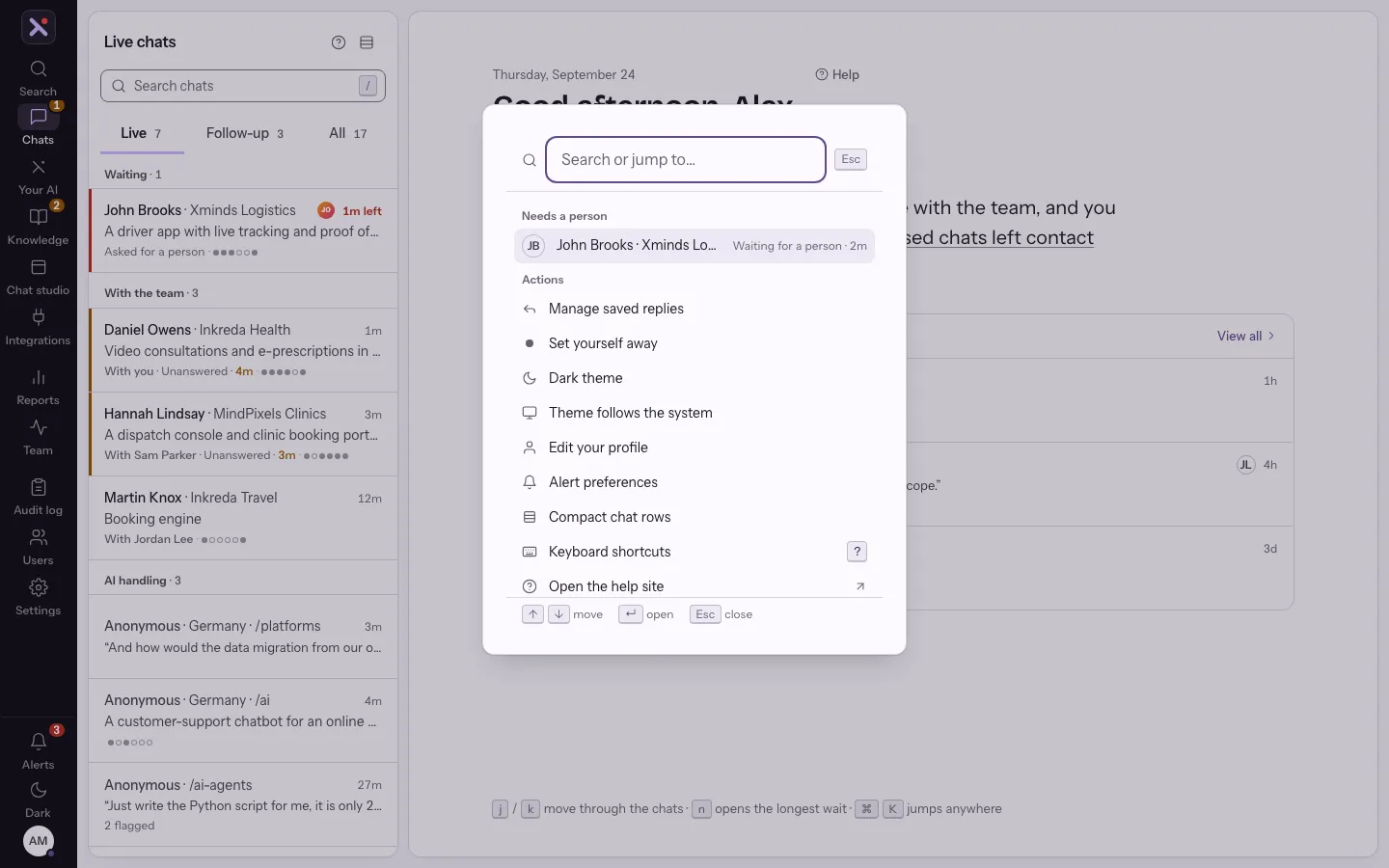
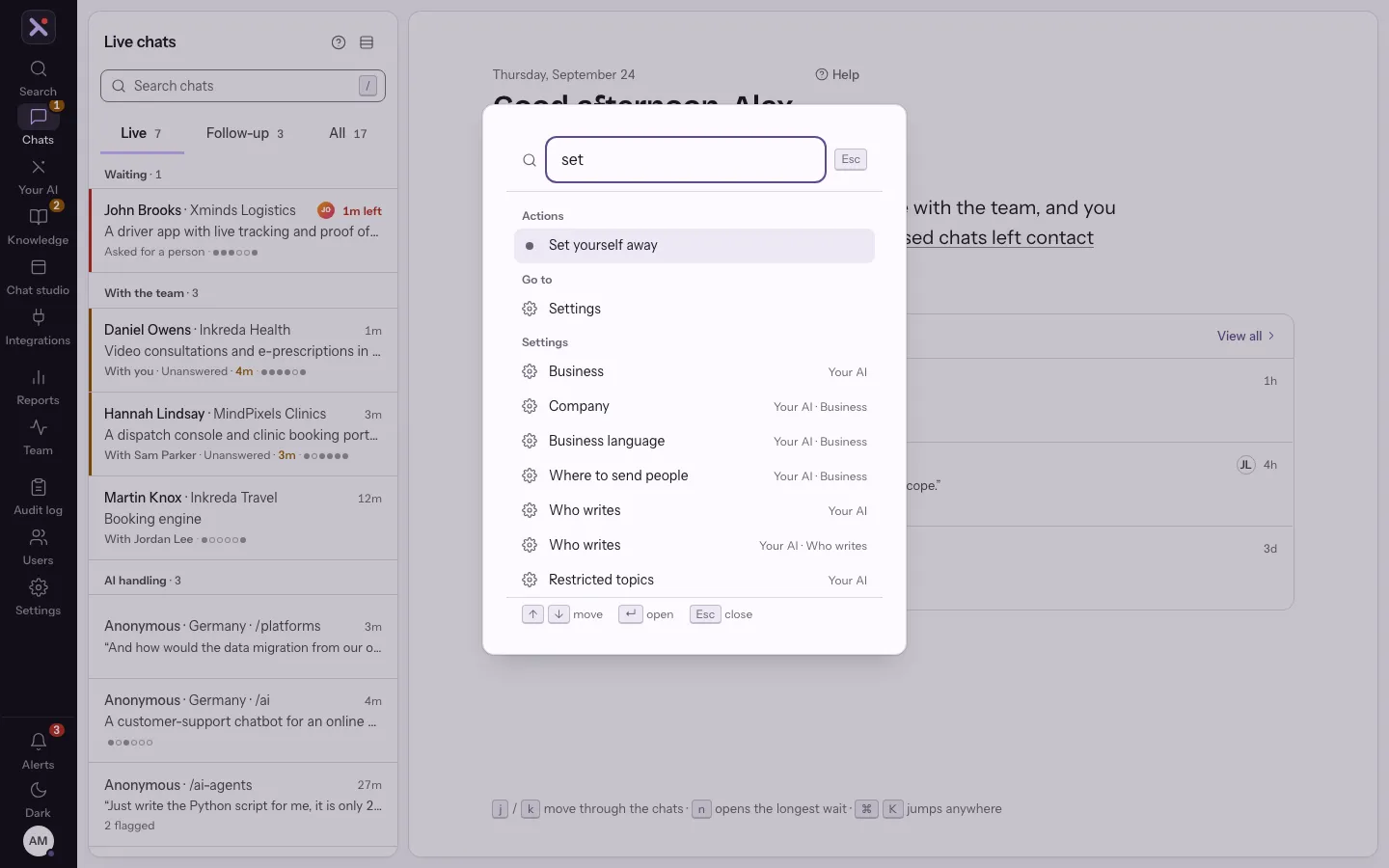
Section titled “The command palette”Press ⌘ K or Ctrl K, or Search in the menu, and type. It works from any page, even while you are typing in a box.
| You see | What it does |
|---|---|
| Needs a person | With nothing typed: up to five visitors waiting for a person |
| Recent | With nothing typed: up to three chats you opened last that are still open |
| Chats | From two letters typed, chats whose messages or visitor match, opened in All |
| Go to | Pages and tabs, such as Answer quality or Chat reviews |
| Actions | On the open chat: Take over this chat, Send record from this chat, Hand back to the AI, Assign this chat to me, Close this chat…, each only when that chat allows it. Also: Manage saved replies (a Supervisor or an Admin), set yourself away or available, change the theme, Edit your profile, Alert preferences, Compact chat rows or Comfortable chat rows, Keyboard shortcuts, Open the help site (in a new tab), Sign out |
| Settings | For an Admin: every settings panel and group by name |
Use ↑ and ↓ to move, Enter to open, Esc to close. The first row is always highlighted, so Enter runs it. The palette offers only what your role can do. When nothing fits, it says “Nothing matches” with what you typed.
Keyboard shortcuts
Section titled “Keyboard shortcuts”Press ? anywhere (outside a text box) to show the list, and ? again to hide it. Keyboard shortcuts in the account menu opens it too, and Help at its foot opens Keyboard shortcuts. On a Mac the modifier key is ⌘; elsewhere it is Ctrl. Every shortcut and what Esc does: Keyboard shortcuts.
To stop the shortcuts that are one key on its own, for example if you use speech input or press keys by accident, switch off Single-key shortcuts in Your preferences.
When a shortcut does nothing
Section titled “When a shortcut does nothing”- While you type in a box (except Esc in the search box), or while ⌘, Ctrl or Alt is held, so your browser’s own shortcuts still work.
- While a window, confirmation or sheet is open.
- On a phone with a chat open, for /, 1, 2 and 3, because the list is not on screen.
- For a Viewer, t, r and x: a Viewer cannot act on chats.
- While Single-key shortcuts is off in your preferences, for every shortcut that is one key on its own. / typed into an empty reply box is not one of them: it opens your saved replies all the same.
Help from the dashboard
Section titled “Help from the dashboard”The dashboard links to this site where a screen has more to it than it can say. Each link opens in a new tab, so a chat, a draft reply or an unsaved setting stays as it was.
| Where | Opens |
|---|---|
| Help in your account menu (on a tablet or phone, in the ☰ menu), or Open the help site in the command palette | The front page of this site |
| Help at the top right of a page or a tab: Reports, Team, Knowledge, Integrations, Chat studio, Users, Audit log | The page about it |
| Help at the top of a drawer or a settings panel, and ? beside a section of Your AI | The page about that drawer, panel or section |
| Help in Chats with no chat open | The chat list |
| More about the brief, under What this panel means in a chat’s brief | The AI’s brief |
| Help in a chat’s Chat review, in Saved replies and in Keyboard shortcuts | Chat reviews, Saved replies, Keyboard shortcuts |
| Trouble signing in? on the sign-in page | Signing in |
The ? beside a word, such as one in a report, shows a sentence or two about it where you are, without leaving the page.
Good to know
Section titled “Good to know”- Short messages appear in a corner of the screen for about 4 seconds, or 10 when they offer a button such as Undo, and pause while your pointer is on them. Press F6 to reach one with the keyboard.
- Skip to content is the first stop when you press Tab, and jumps past the menu to the page.
- Old links still work. A bookmark to a page that has moved opens the page that replaced it.
If something goes wrong
Section titled “If something goes wrong”| What you see | What to do |
|---|---|
| “You don’t have access to page. Ask an admin.” | Your role cannot open that page; you are taken to Chats instead. See Roles |
| “That page doesn’t exist.” | The link is wrong or out of date. Use the menu |
| “You are offline. …” | Check your connection. What you see may be out of date and nothing you send goes through until the dashboard reconnects, which it does by itself |
| “Could not search the chats. Check your connection and try again.” in the command palette | Pages and actions still work. Check your connection, then type again |
| “Something went wrong” with Reload the dashboard | Press it. Your other work is not affected |
| Search is not in the menu | On a tablet or phone it is not shown. Use ⌘ K or Ctrl K on a keyboard, or the search in the chat list |
Related
Section titled “Related”Reviewed
Source files for this page
apps/dashboard/src/pages.tsxshared/web/src/pageMeta.tsapps/dashboard/src/pageTabs.tsshared/web/src/useLayout.tsshared/web/src/documentTitle.tsshared/web/src/toast.tsxapps/dashboard/src/views/shell/AppShell.tsxapps/dashboard/src/views/shell/RailNav.tsxapps/dashboard/src/views/shell/NavMenu.tsxapps/dashboard/src/views/shell/AppBar.tsxapps/dashboard/src/views/shell/PhoneTabs.tsxapps/dashboard/src/views/shell/navEntries.tsxapps/dashboard/src/views/shell/CountChip.tsxapps/dashboard/src/views/shell/CommandPalette.tsxapps/dashboard/src/views/shell/useCommandShortcut.tsapps/dashboard/src/views/shell/ShortcutsDialog.tsxshared/web/src/views/shell/OfflineBanner.tsxapps/dashboard/src/views/shell/NotificationBell.tsxapps/dashboard/src/recentChats.tsshared/web/src/views/ErrorBoundary.tsxapps/dashboard/src/views/ConversationsView.tsxapps/dashboard/src/views/inbox/Queue.tsxapps/dashboard/src/views/inbox/InboxSearch.tsxapps/dashboard/src/views/workspace/Workspace.tsxapps/dashboard/src/shortcutLabels.tsshared/web/src/help.tsshared/web/src/views/HelpLink.tsxapps/dashboard/src/views/shell/AccountMenu.tsxapps/dashboard/src/keys.ts

