Get started
Your first week as a team lead
Who can open itViewer: noOperator: noSupervisor: yesAdmin: yes
Before you start
Section titled “Before you start”- An Admin has given you the Supervisor role on Users. Your role is shown in your account menu, under your name (Roles).
- You can already answer a chat. If not, start with Your first day on the team.
- Your company has a team in the chat. Without Talk to a person there is no Take over, no saved replies and no Team page for anyone.
What you can do that an Operator cannot
Section titled “What you can do that an Operator cannot”| You can | Where | Read more |
|---|---|---|
| Take a chat from the colleague who holds it | The chat’s ⋯ menu, or its row’s menu on Live | Take a chat from a colleague |
| Close a chat a colleague holds | The chat’s ⋯ menu | Close a chat and send its record |
| Add, change and delete saved replies | Saved replies at the top right of the Team page, or in a reply box | Saved replies |
| Block a visitor, and lift a block | The chat’s ⋯ menu; Reports, Safety | Mute and block |
| Delete anyone’s note on a chat | The chat’s notes | An open chat |
| See how each team member’s chats went | Team, tab Performance | Team performance |
| Read the AI’s review of any closed chat | Team, tab Chat reviews, or the closed chat | Chat reviews |
| Mark a flagged reply as reviewed | Reports, Feedback, Flagged replies | Flagged replies |
| Read who changed what | Audit log, under Insight in your menu | Audit log |
-
Watch the team’s chats. On Chats, Live, the With the team group lists the chats your colleagues hold. One whose visitor is owed a reply reads “Unanswered” with how long they have waited, and turns red once the wait for a reply is over (The chat list).
-
Step in when a visitor is left waiting. Open the chat, open the ⋯ menu and choose Take over from {name}…, then confirm with Take over. Your colleague is told and keeps their unsent words; the visitor sees your name from then on. The takeover is kept in the audit log.
-
Give the team its saved replies. Open Team and press Saved replies at the top right; you need no chat for it. Press New reply and fill in the shortcut a team member types after
/, a title and the reply. Operators can use saved replies once at least one exists. Help in the window opens Saved replies for the rest. -
Block a visitor who misuses the chat. Open the chat’s ⋯ menu and choose Block visitor…, then confirm. The chat closes and new chats from that visitor’s internet connection are refused, which can be a whole office. An Operator can only mute.
-
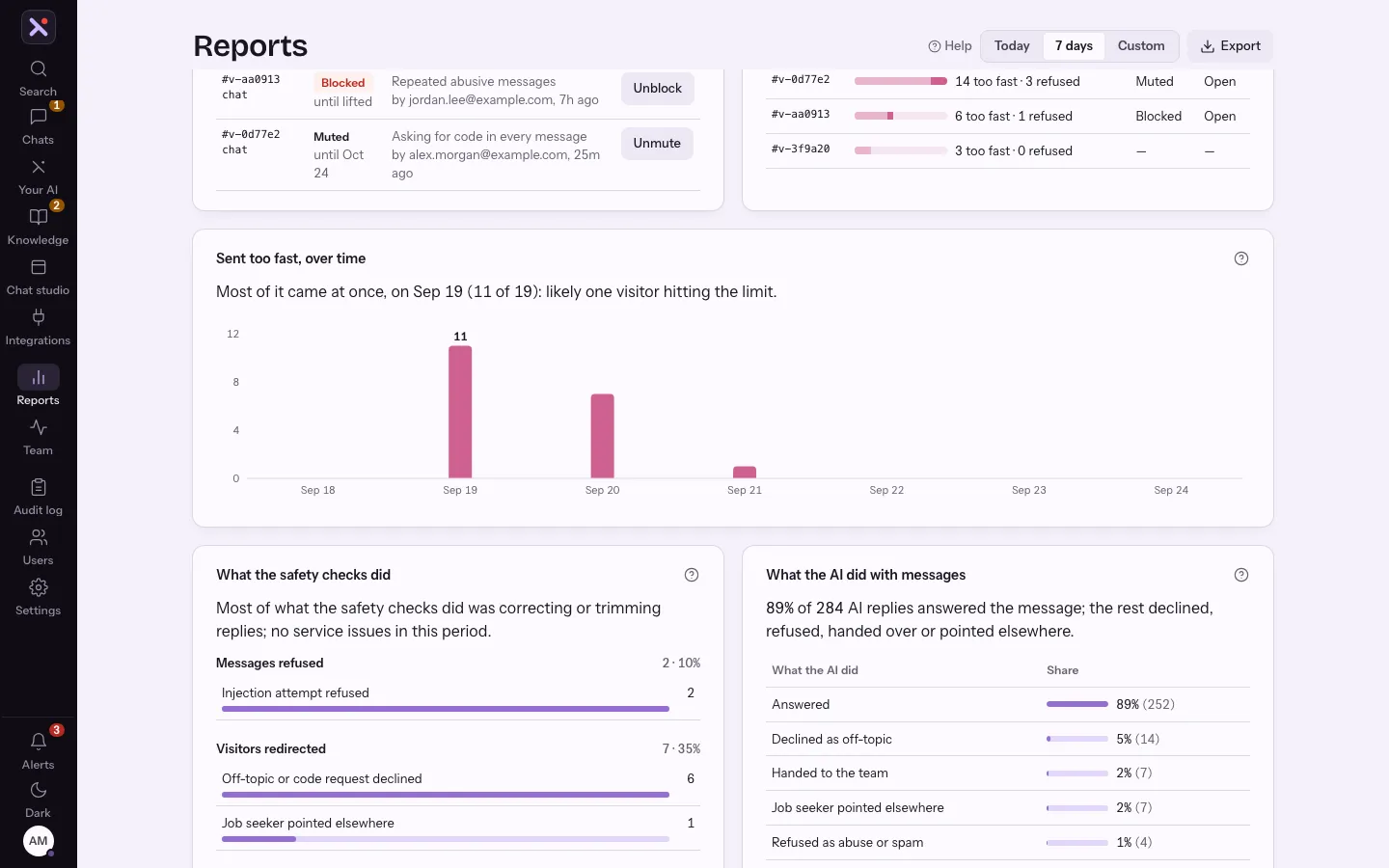
Lift a block or a mute. Open Reports, then Safety. Under Blocked and muted visitors, press Unblock or Unmute. It takes effect at once (Safety).
-
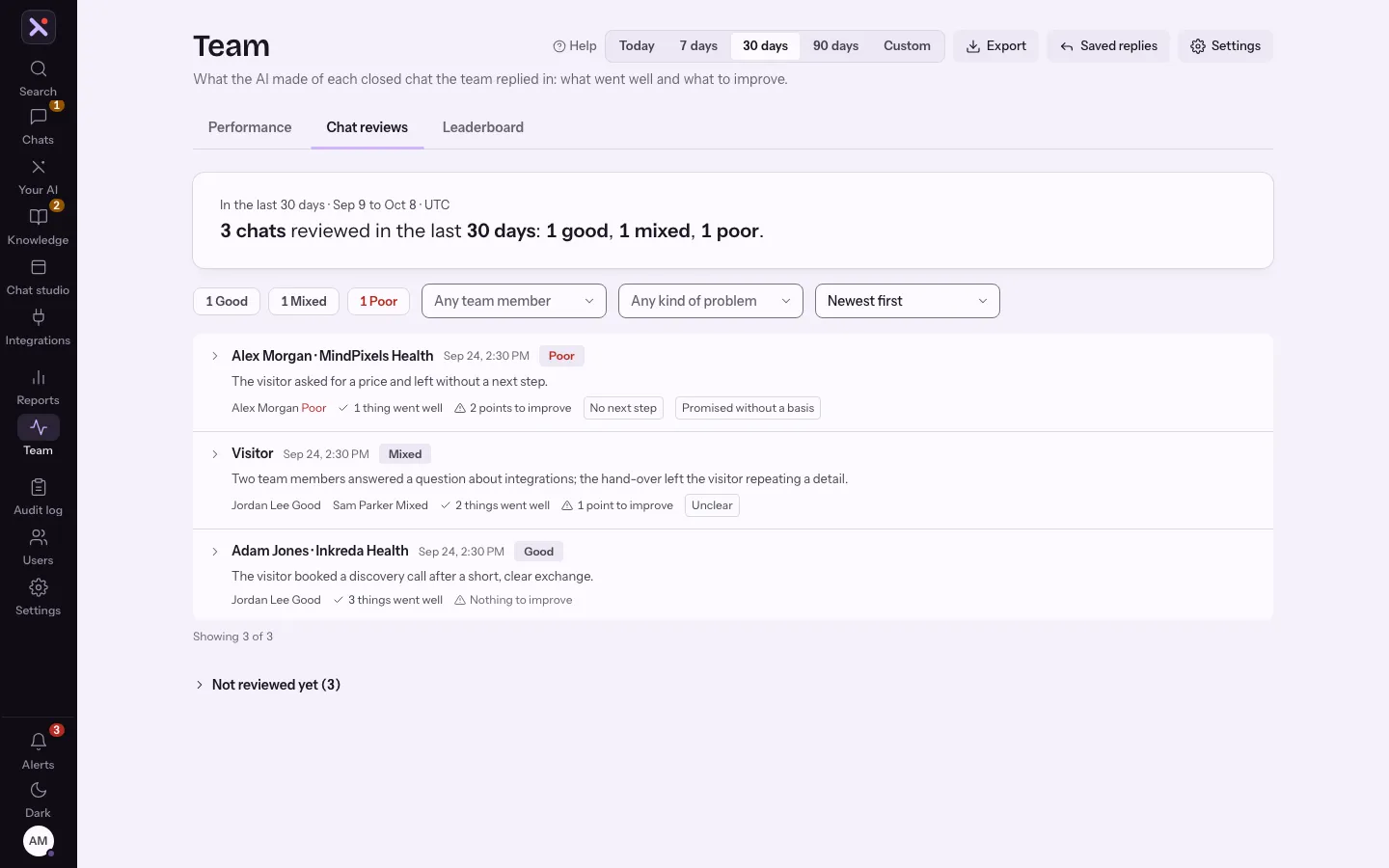
Read how the team is doing. Open Team. Performance adds up the AI’s reviews of closed chats, with a row per team member; Chat reviews lists each reviewed chat with what went well and what to do better. Both open on the last 30 days (Team).
-
Coach from real chats. On Chat reviews, press Poor to list the chats that went badly, press a row to read what to improve, and Open the full review to see it on the chat itself. A review is advice only: it never changes the chat, and visitors never see it.
-
Look at what visitors flagged. Open Reports, Feedback, then Flagged replies. Read each flag in its chat, tell your Admin what to fix in Knowledge or on Your AI, then press Mark reviewed.
-
Check the week. On Reports, start with Needs you at the top of the Chats tab: it lists the few things that need a person first (Review how the team and the AI are doing).
-
Find out who changed something. Open Audit log. Filter by date, kind of change and person. A takeover from a colleague, a block and every change to a saved reply are there.
What stays with an Admin
Section titled “What stays with an Admin”- Your AI, Knowledge, Chat studio, Integrations, Users and Settings: you do not see them in your menu.
- The Team page’s own settings (the wrap-up reminder, the AI’s chat reviews and the points).
- Writing an answer for the AI, switching visitor feedback on, deleting a chat for good, and downloading a whole list of chats with their files.
If something goes wrong
Section titled “If something goes wrong”| What you see | What to do |
|---|---|
| No Team in your menu | Your company has no team in the chat, or you are not a Supervisor yet. Check your role in your account menu |
| No Leaderboard tab on Team | Points are off. An Admin switches them on in the Team page’s settings (Leaderboard and points) |
| No Take over from {name}… in a chat’s menu | Nobody holds the chat, or you hold it yourself. A waiting chat has Take over instead |
| “Supervisor or admin role required.” | Your role changed while the page was open. The dashboard updates to your current role |
| Performance or Chat reviews is empty | Reviews are written after chats a team member replied in have closed. Widen the date range, or ask your Admin whether the AI’s chat reviews are on |
Related
Section titled “Related”Reviewed
Source files for this page
apps/dashboard/src/permissions.tsapps/dashboard/src/pages.tsxapps/dashboard/src/pageTabs.tsapps/dashboard/src/views/workspace/Workspace.tsxapps/dashboard/src/views/workspace/ActionBar.tsxapps/dashboard/src/views/workspace/brief/NotesPanel.tsxapps/dashboard/src/views/inbox/QueueRow.tsxapps/dashboard/src/views/PerformanceView.tsxapps/dashboard/src/views/SavedRepliesView.tsxapps/dashboard/src/views/SafetyView.tsxapps/dashboard/src/views/FeedbackView.tsxapps/dashboard/src/views/TeamView.tsxapps/dashboard/src/views/AuditView.tsx

