Teach your AI
Knowledge, Videos
Who can open itViewer: noOperator: noSupervisor: noAdmin: yes
When it is included
Section titled “When it is included”Videos by link are part of your plan unless the platform has taken them away for your company: ask your EveryKnock contact. Without them, Add knowledge offers no A video, your videos show Not in your plan on Sources, no video can be added or changed, no update reads them, and the AI stops using them until they are back. You can still see and remove them, and nothing is deleted, so they answer again when they are back.
When a visitor asks something a video covers, the AI can answer from it and show it as a link under the reply. Use it for a product tour, a webinar recording or a customer story.
Where to find it
Section titled “Where to find it”Work, Knowledge, then Add knowledge and A video, or the Videos row once you have one. It opens in a drawer. Only an Admin can open it.
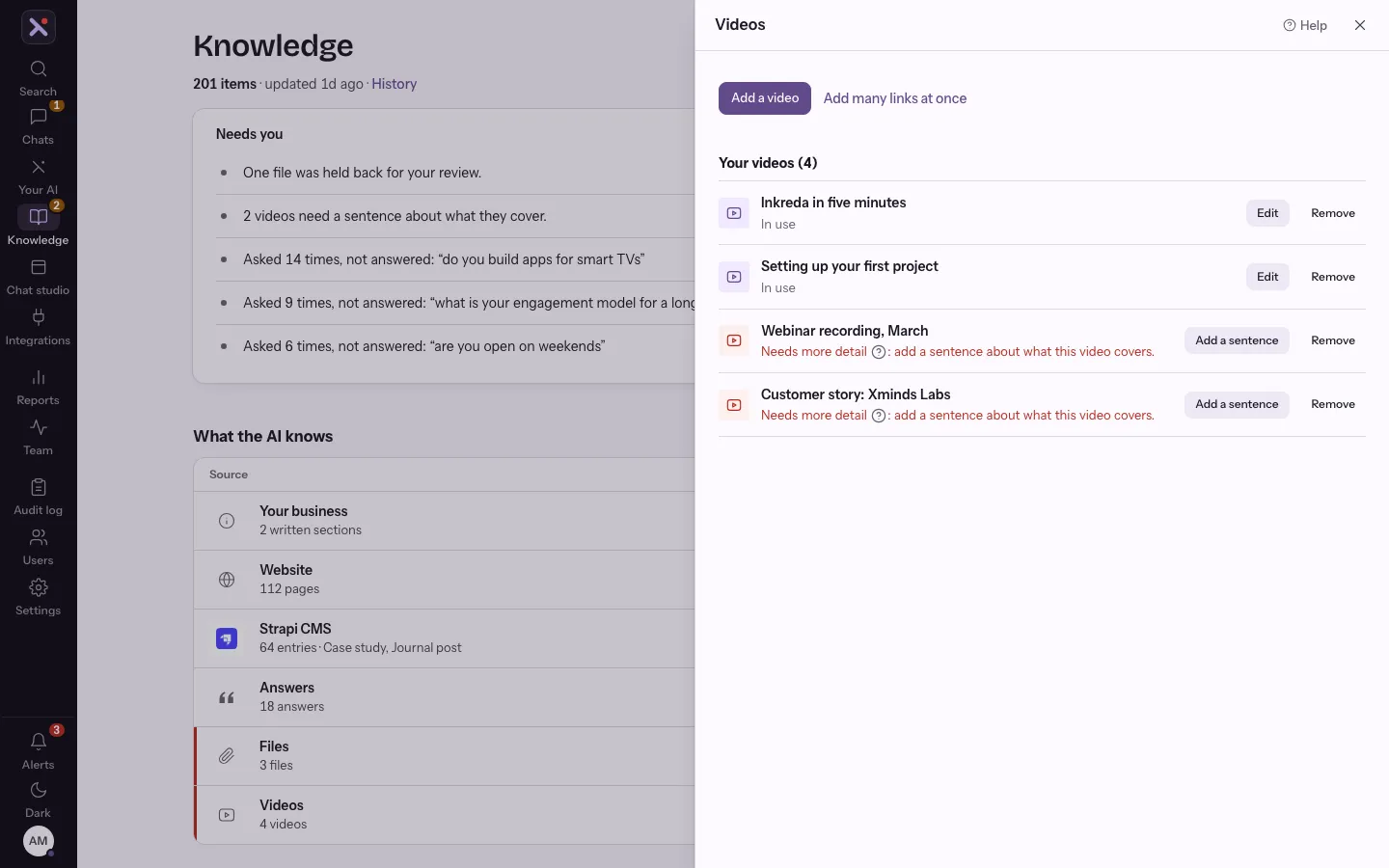
Add a video
Section titled “Add a video”-
Press Add a video.
-
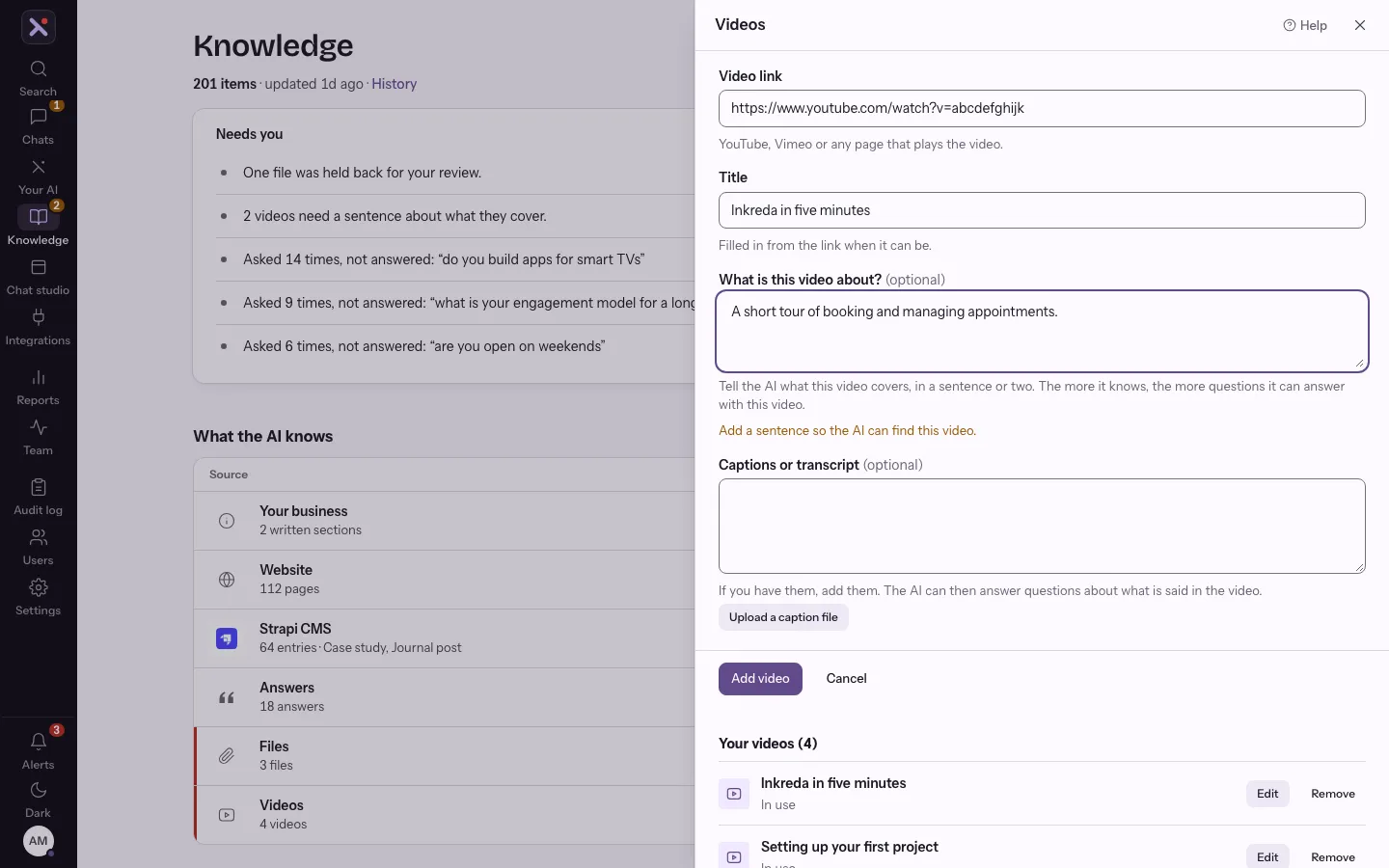
Fill in the form:
Field What to enter Limit Video link The web address of the video on YouTube, Vimeo or any page that plays it. Needed 500 characters Title Filled in from a YouTube or Vimeo link when it can be, once you leave the link box; otherwise type it. Needed 200 characters What is this video about? A sentence or two on what it covers, for example “A short walkthrough of how to get started, for new customers.” 2,000 characters Captions or transcript What is said in the video, if you have it. Paste it, or press Upload a caption file and choose a .srt,.vttor.txtfile of up to 2 MB: its timings are taken out and the words are put in the box for you to check200,000 characters -
Watch the line under the description: “Add a sentence so the AI can find this video.” changes to “The AI can find this video.” once there is enough text.
-
Press Add video. “Video saved. The AI starts reading in a moment.” confirms it, and the video’s row goes from Ready to In use about a minute later.
Add many at once
Section titled “Add many at once”- Press Add many links at once.
- Paste up to 100 links under Video links, one per line.
- Press Add these videos.
Each video is titled from its link when it can be, else by the link itself. A link that is not a web address, or is already in your list, is left out and listed with the reason. Most of the new videos will read Needs more detail: press Add a sentence on the ones that matter.
Why a sentence matters
Section titled “Why a sentence matters”The AI finds a video by matching a visitor’s words with its title, description and captions together. A vague title such as “Webinar October” matches almost nothing, so a video needs about 80 characters of text in all before the AI can use it.
| State | Means | What to do |
|---|---|---|
| Needs more detail | Too little text. The AI does not use it yet | Press Add a sentence, say what the video covers, and press Save video |
| Ready | Enough text. The next update adds it | Nothing: it is read about a minute after you save |
| In use | The AI can use it | Nothing |
Change or remove a video
Section titled “Change or remove a video”- Edit on a row opens the video with everything you gave it. Change it and press Save video. Opening another video while this one has unsaved changes asks “Discard your changes?” first.
- Remove asks first (“Remove this video?”), then takes the video, with its description and captions, out of answers at once.
- Videos have no switch of their own: to stop the AI using one, remove it.
Good to know
Section titled “Good to know”- Nothing is read from the video site: the AI uses only the text you give it. That is why a video works from any site.
- Videos are read when you save them, never again on a schedule.
- To read every video of a YouTube channel by itself, use A YouTube channel instead. Adding a video here that a channel already gives the AI would show it twice.
- If Apply changes automatically is off, a save says “Press Update now to read it.” (Knowledge settings).
If something goes wrong
Section titled “If something goes wrong”A message about one box is shown under that box, and the cursor is put in it.
| What you see | What to do |
|---|---|
| “The link must be a web address starting with https:// or http://, up to 500 characters.” | Check the link |
| The title stays empty | The site could not be asked: type the title yourself |
| Add video is greyed | Fill in both the link and the title |
| “Paste up to 100 links at a time.” | Add them in smaller batches |
| “Upload a .srt, .vtt or .txt file.” | Export the captions in one of those types |
| “The file is over 2 MB.” | Paste the text into the box instead, or trim the file |
| “The file is not text. Save the captions as UTF-8 text (.srt, .vtt or .txt).” | Save the caption file again as plain text |
| “No words were found in the file.” | Check that it is the caption file, not the video |
| Needs you says videos have too little text | Press Add a sentence there, then on each video named |
Related
Section titled “Related”Reviewed
Source files for this page
services/api/app/rag/source_kinds.pyservices/api/app/settings/features.pyapps/dashboard/src/views/knowledge/VideosPanel.tsxapps/dashboard/src/views/knowledge/SourceDrawer.tsxapps/dashboard/src/views/knowledge/words.tsservices/api/app/knowledge/rag_videos.pyservices/api/app/routers/videos.pyservices/api/app/knowledge/video_lookup.pyservices/api/app/knowledge/caption_text.pyservices/ingest/ingest/videos_ingest.pydocs/RAG.md

