Teach your AI
Knowledge, Update history
Who can open itViewer: noOperator: noSupervisor: noAdmin: yes
Where to find it
Section titled “Where to find it”Work, Knowledge, then History on the line at the top of Sources, or Update history in the More for Knowledge menu. It opens in a drawer. Only an Admin can open it.
What an update does
Section titled “What an update does”| For | An update |
|---|---|
| A new or changed page, answer, file, video or entry | Reads it, so the AI can answer from it |
| Something unchanged | Leaves it alone, so it takes no time |
| Something that left its source, such as a page you deleted from your site | Takes it out of what the AI knows |
| Something it could not read this time | Keeps the copy it read before, and says so |
| A source that is turned off | Removes what it gave the AI, when you include it |
Read the history
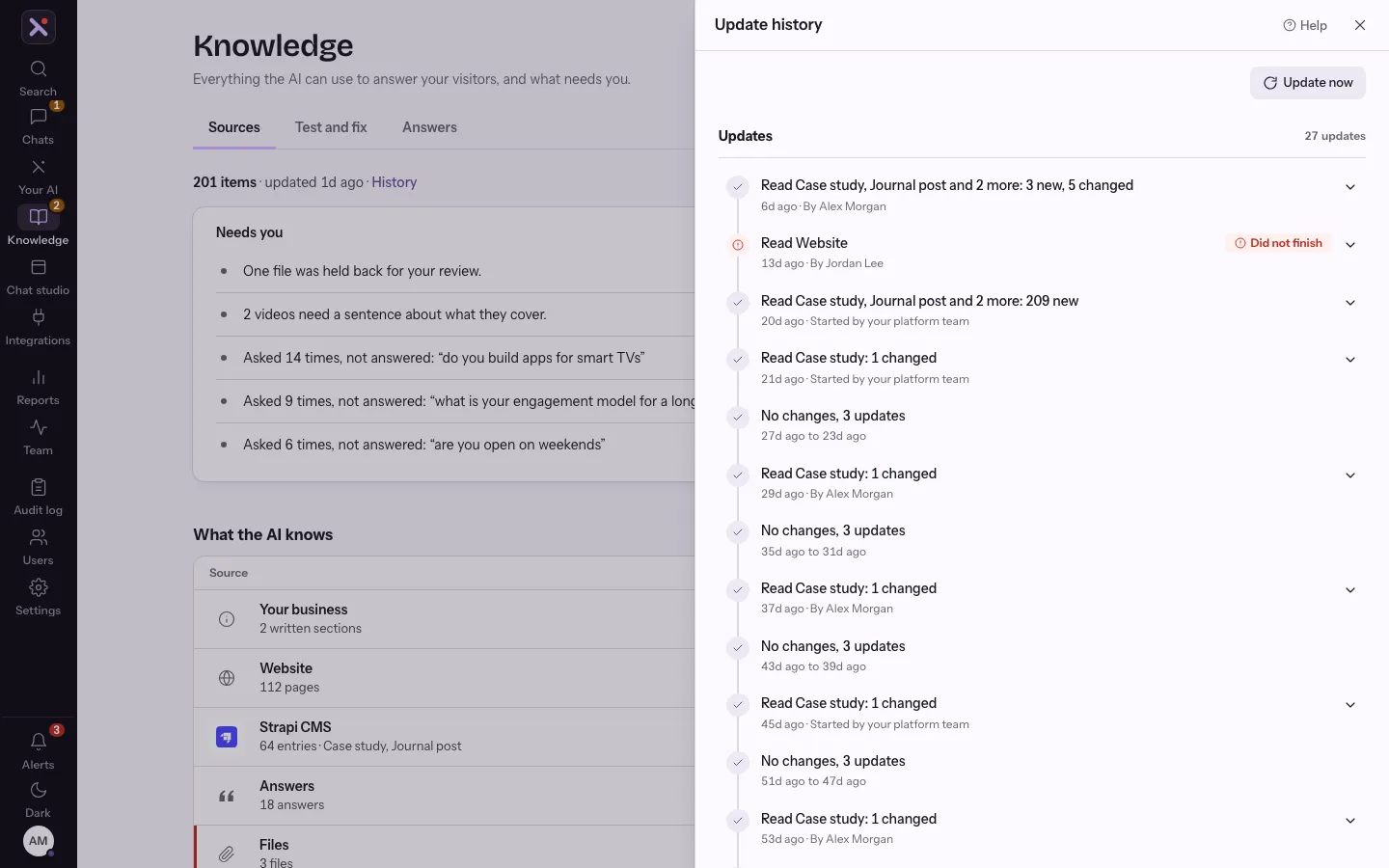
Section titled “Read the history”Updates lists the updates, newest first, 25 to a page. Each line says what it read and what changed (“Read Website and Answers: 3 new, 5 changed”), how long ago, and who or what started it:
| It says | Started by |
|---|---|
| “By” and a name | That person, with Update now or Update this website |
| “After a saved change” | A change someone saved, about a minute before |
| “On its schedule” | A website’s, channel’s or collection’s Keep up to date choice |
| “Started by your platform team” | The people who run EveryKnock for you |
A run of updates that changed nothing is one line, “No changes, N updates”. A line that starts “Checked the pages of” is a website’s Check pages, which reads nothing into the AI (A website).
A line without a word at the right finished with nothing left out. Otherwise it says:
| Status | Means | What to do |
|---|---|---|
| Done, with problems | It read what it could and left something out, such as a page that would not load. What it read is in use | Open the line to see what was left out |
| Did not finish | Nothing could be read, or it was stopped | Open the line for the reason, then Try again |
| Reading… / Waiting to start | It is going now, or about to | Wait |
| Stopped moving | It has made no progress for five minutes | Stop it, then update again |
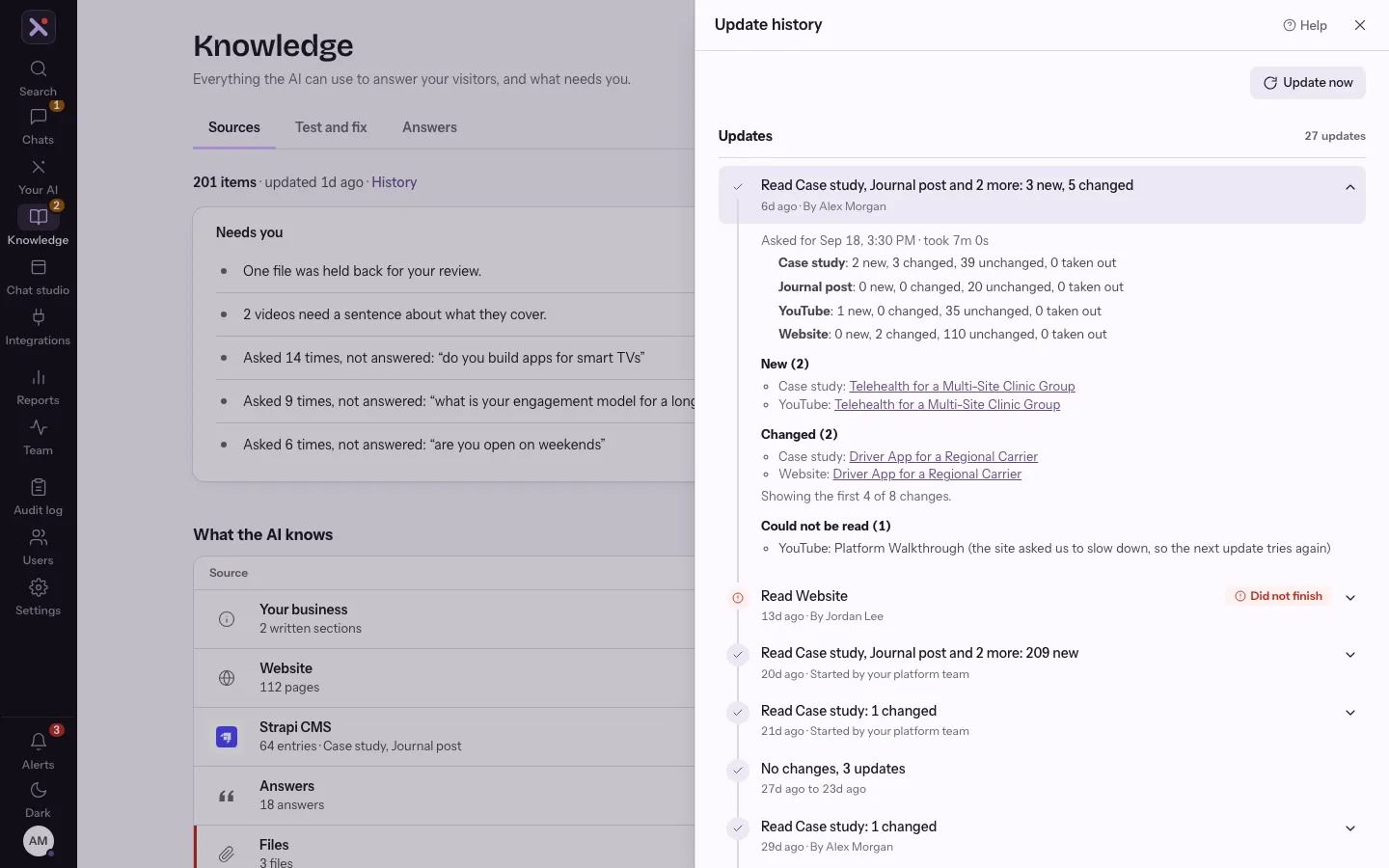
Press a line to open it. It shows when it was asked for and how long it took, then for each source how many items were new, changed, unchanged and taken out. Below that it lists what was New, Changed and Taken out, each a link to the page when it has one, and what Could not be read or was Skipped, with the reason in plain words. A very large update lists only its first changes and says how many there were. When an update read the text in pictures (Text in pictures), each source’s line also says what it did with them, for example “pictures: 20 with text, 700 without, 15 passed over”.
Fix a failed source
Section titled “Fix a failed source”When a source in an update failed, its detail ends with two buttons:
- Try again reads that source now.
- Open with the source’s name opens where it is set up, so you can check its address or its key.
A page that will not load does not stop the rest: the AI keeps the copy it read before.
Choose what to update
Section titled “Choose what to update”- Press Update now at the top of the drawer. “Update now?” opens, with every source that is on ticked under Sources to update.
- Untick what you do not want read.
- Press Update now. “Updating now” confirms it.
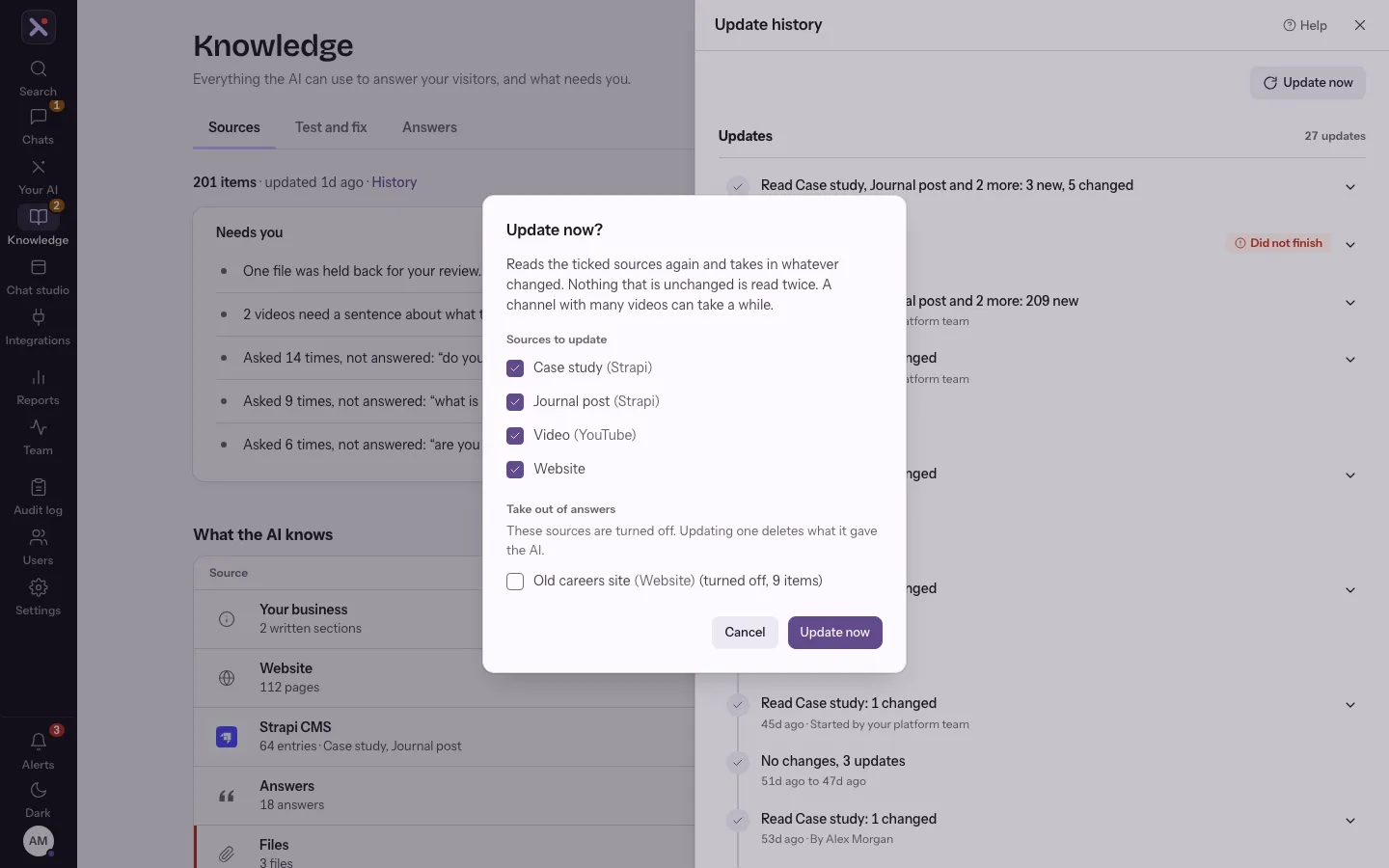
Take out of answers lists sources that are turned off but still have items stored, unticked. Ticking one deletes what it gave the AI, and the window says how many items go. Do this before removing a source that is turned off.
Update now in the More for Knowledge menu skips this window and reads everything, unless a turned-off source still has items stored.
Stop an update
Section titled “Stop an update”While an update waits or runs, a card at the top shows it (“Updating now” or “An update is waiting to start”), with how long it has been going and how far each source has got. A source shows how much it will read as soon as it has listed it, before the first page or entry is read.
- Stop this update ends one that is running. It finishes the item it is on, and what it already read stays.
- Cancel this update ends one that is still waiting.
Either lets a new update start. If the card says the update has stopped moving, or that nothing has started it for some minutes, cancel it and update again. If that happens again, ask your platform team to check it.
Good to know
Section titled “Good to know”- Only one update can wait or run at a time. Asking for another says “The AI is already updating.” A change saved meanwhile is read once this one ends.
- An update removes nothing from a source when it would take out most of what the source gave the AI: that usually means its address or access changed. Needs you on Knowledge says so.
- At your company’s limit on knowledge, new items are not added and are listed under Skipped. Remove something you no longer need, or ask your platform administrator for more room.
- When a scheduled update fails, your team is told once, if A scheduled knowledge update fails is on (When to alert). An update after a saved change that fails shows only on the Knowledge page.
- Your team is told about a page the scheduled update could not read when it first fails, and again only if it fails for a different reason. A page that is gone and fails the same way every time brings no new message, but it stays under Not read in the last update and in Needs you until it reads again or you press Keep out (Knowledge).
- If “Some of what the AI knows needs a fresh read” shows, press its Update now once.
If something goes wrong
Section titled “If something goes wrong”| What you see | What to do |
|---|---|
| “Too many update requests. Try again shortly.” | Wait a few minutes: the number of updates you can ask for in an hour is limited |
| Stopped moving | Stop or cancel the update, then update again |
| Update now or Try again is greyed | An update is already going, or nothing can be read yet (for example, Strapi has no address) |
| “This update has already finished.” | The update ended just before you stopped it. Nothing to do |
| A website “ran out of time” | A very slow site can use up the time one update may take. Lower its page limit, or read only some parts of it (A website) |
| “Nothing has been read in yet.” | No update has run. One starts by itself a moment after you save something |
Related
Section titled “Related”Reviewed
Source files for this page
apps/dashboard/src/views/knowledge/ActivityTab.tsxapps/dashboard/src/views/KnowledgeView.tsxapps/dashboard/src/views/knowledge/SourcesTab.tsxservices/api/app/routers/ingest.pyservices/api/app/knowledge/ingest_runs.pyservices/api/app/knowledge/knowledge_messages.pyservices/api/app/knowledge/ingest_sync.pyservices/ingest/ingest/pipeline.pydocs/RAG.mddocs/SETTINGS.mdshared/web/src/views/settings/registry.tsx

