See how it's going
Chat reviews
Who can open itViewer: noOperator: yesSupervisor: yesAdmin: yes
When it is included
Section titled “When it is included”Chat reviews are part of your plan unless your EveryKnock contact has taken them out, and they come with the team workspace. Without them no chat is reviewed, as when an Admin switches AI coaching on closed chats off, and points and the leaderboard go with them (Leaderboard and points). Each review is an AI call your plan pays for.
Where to find it
Section titled “Where to find it”| What | Where | Who |
|---|---|---|
| One chat’s review | On the closed chat in Chats | The team member who replied in it, Supervisors, Admins |
| Every reviewed chat | Insight, Team, tab Chat reviews | Supervisors, Admins |
An Operator sees their own ratings and the points about their own messages; a Supervisor or Admin sees every team member’s.
What a review says
Section titled “What a review says”| Part | Holds |
|---|---|
| Summary | A short account of how the chat went |
| One block per team member | Their quality (Good, Mixed or Poor), their five ratings, an Own words badge where it applies, a line of measured times (“taken over 12s after the request · first reply 8s later”), and their points while points are on |
| What went well | One to three things |
| What to do better | Up to four points, each naming the kind of problem, quoting the message it is about, saying what was wrong, and offering A better wording with Copy. A better wording never carries a promise, such as a discount or a guarantee, that your business details do not state, even one written in the chat, so a point may come without one |
| Next time | One line to carry into the next chat |
The five ratings and how they make the quality are on Team performance. Own words means the chat was rated good and every message the team member sent was typed or a saved reply, with no help from the AI.
Under each point, Useful and Not useful record whether the advice helped; press again to take the answer back. A team member can answer only the points about their own messages.
Where a review shows on a chat
Section titled “Where a review shows on a chat”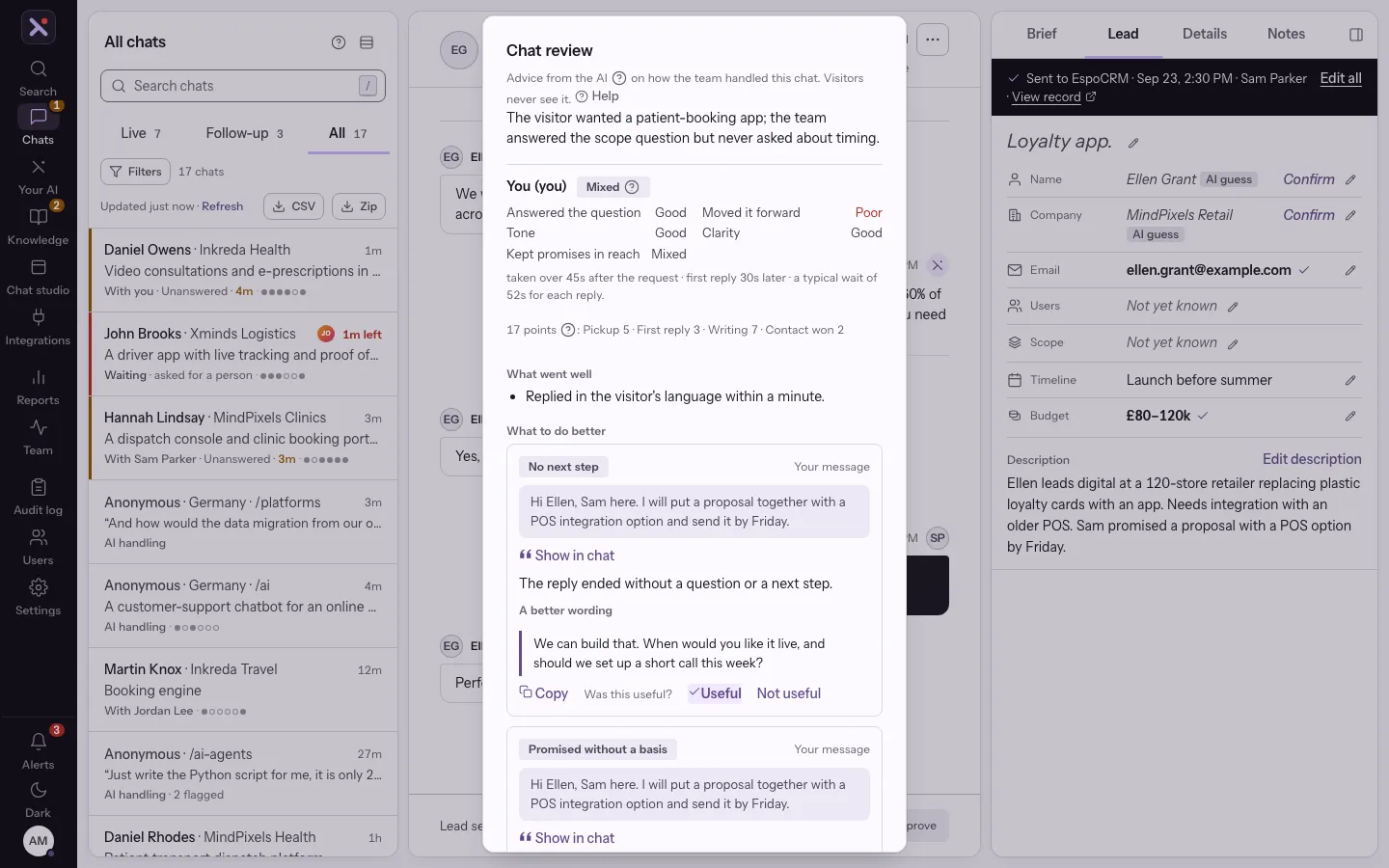
On a closed chat you may read, the review opens from any of:
- The button on the closed chat’s bar, such as Chat review with “Good” and “3 to improve”, or Review this chat when there is none yet.
- A chip in the chat’s header, “Review · Good”.
- Chat review in the chat’s ⋯ menu.
- A “Chat review ready” line in the chat’s brief.
All open one sheet titled Chat review. Help at the end of its first line opens What a review says in a new tab. Show in chat beside a point scrolls to the message it is about. When there is no review, the sheet says why, for example “A chat is reviewed once it is closed.”
When a review is written
Section titled “When a review is written”A chat is reviewed automatically when AI coaching on closed chats is on, the chat is closed, your team sent at least Only review chats with at least messages in it, and it closed within the last 7 days, the window the Not reviewed yet section names (Coaching). Older chats are reviewed only by hand.
Reviews have a daily limit your plan sets. Once it is reached, reviews wait until earlier use is 24 hours old.
To review a chat at once, press Review this chat on it, or Review now under Not reviewed yet. Review again replaces the review and works its points out again.
What you see on the Chat reviews tab
Section titled “What you see on the Chat reviews tab”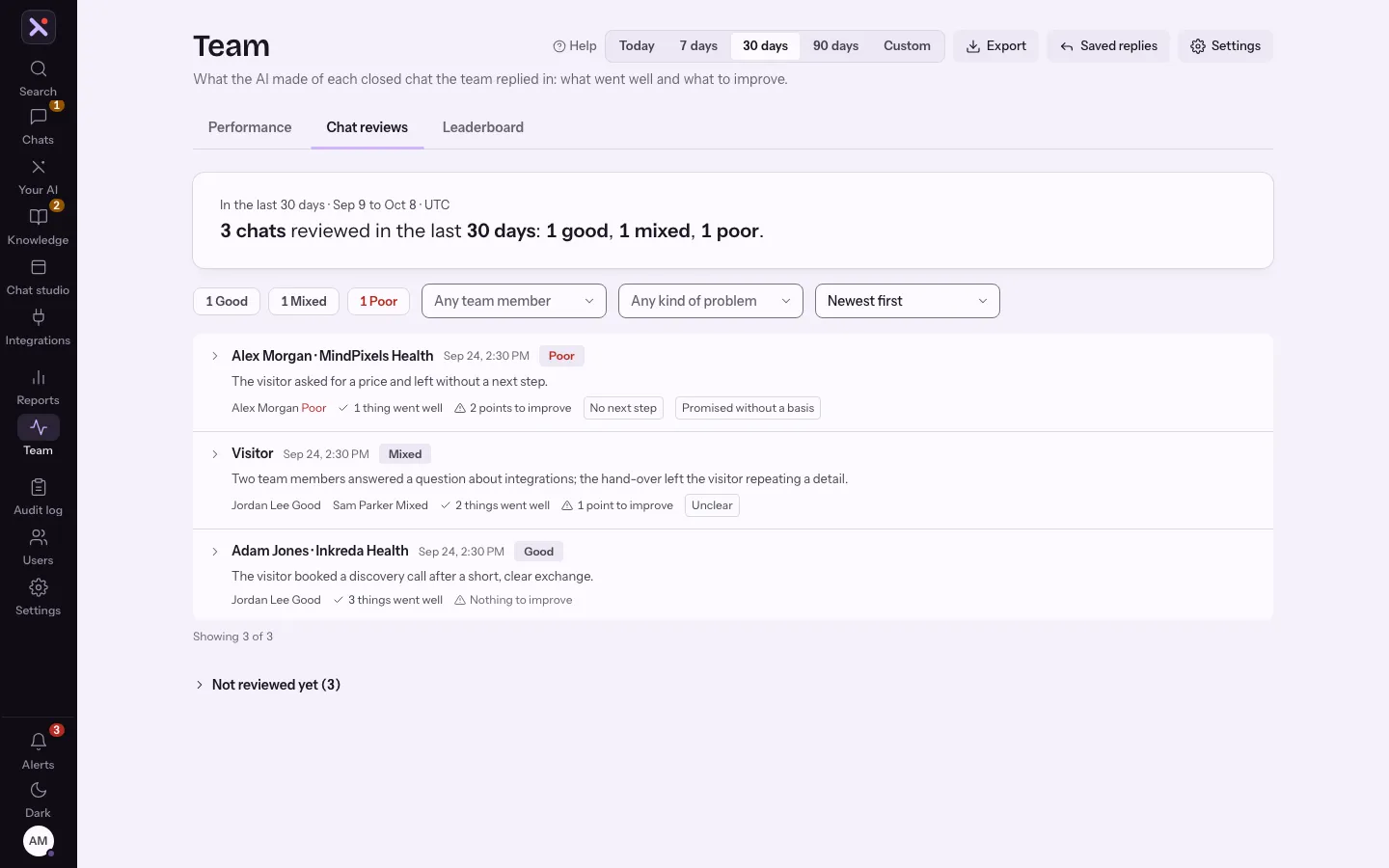
The headline counts the period’s reviewed chats: “12 chats reviewed in the last 30 days: 7 good, 3 mixed, 2 poor.” Then:
- Press Good, Mixed or Poor to show only those chats; press again to show all.
- Narrow with the filters beside them: one team member (Any team member), one kind of problem (Any kind of problem), and the order, Newest first or Needs attention first, which puts poor chats on top. With a team member or a kind of problem chosen, the headline counts only the matching chats.
- Each row shows the visitor, when the chat closed, its quality, the summary, each team member with their own quality, how many things went well and how many points there are to improve, and the kinds of problem.
- Press a row to open it in place: What went well, What to improve with A better wording, Next time, and how many people marked the advice useful.
- Open the full review opens the chat with its review sheet; Open the chat opens it plainly.
- Show more adds 25 more rows. “Showing 25 of 60” says how many are on screen.
A row’s quality is the lowest of its team members’ qualities.
Coach from the reviews
Section titled “Coach from the reviews”A way to use the tab once a week, for a Supervisor or Admin:
- Set the days to the week or month you are reviewing.
- Press Poor, then read each chat’s summary and open the ones you do not already know.
- For a chat worth talking through, press Open the full review and use Show in chat to see each point against the message it is about.
- Pick one or two points per person. A better wording gives you the example to show; Copy copies it.
- Mark each point Useful or Not useful as you go. It records whether the advice helped, and the row then shows the count.
- Finish under Not reviewed yet, so no closed chat is left without a review.
Not reviewed yet
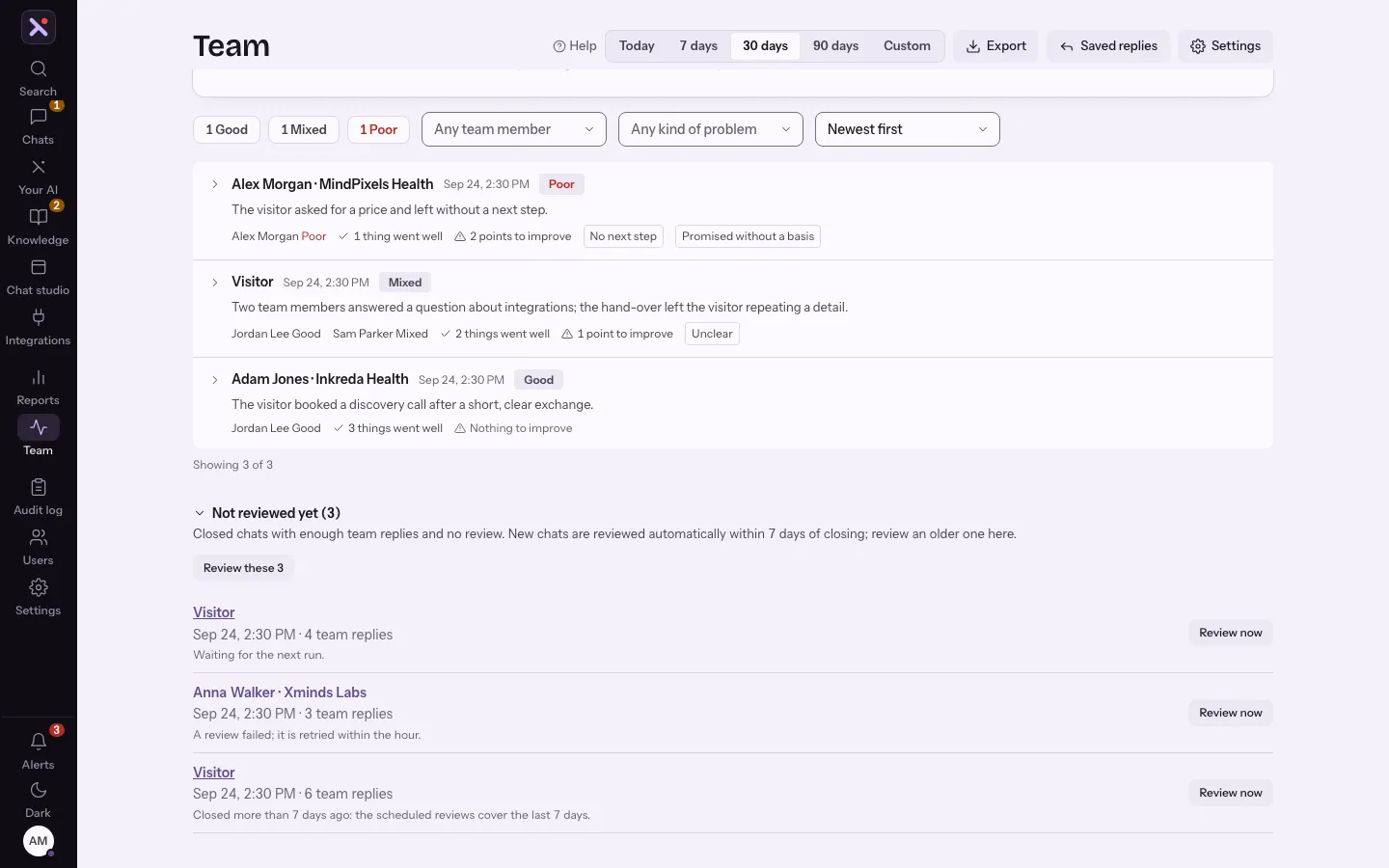
Section titled “Not reviewed yet”A folded section under the list: closed chats of the period with enough team replies and no review, each with why it has none:
| Reason | What to do |
|---|---|
| “Closed more than 7 days ago: the scheduled reviews cover the last 7 days.” | Press Review now if it is worth coaching from |
| “A review failed; it is retried within the hour.” | Wait, or press Review now |
| “The daily review limit in your plan was reached.” | Wait for the limit to free up |
| “Waiting for the next run.” | Nothing: it will be reviewed shortly |
To review one chat, press Review now on its row; it reads “Reviewing…” until the review is written, and the chat then moves up into the list of reviewed chats.
To review them all, press the button over the list, which names how many chats are shown (“Review these 8”), and confirm with Start reviewing. The chats are reviewed one after another (“Reviewing 3 of 8…”). Stop ends it early. At the end a line says how it went: “Reviewed 8 of 8.”, “Stopped after 3 of 8.” or “Reviewed 5 of 8 before the daily limit.” Each review uses the AI and counts toward the daily limit for reviews.
If something goes wrong
Section titled “If something goes wrong”| What you see | What to do |
|---|---|
| “Chat reviews are switched off.” | An Admin presses Open the setting and turns on AI coaching on closed chats |
| “The team sent too few replies in this chat to review.” | Nothing: short chats are not reviewed. The minimum is in Coaching |
| “The daily limit for chat reviews in your plan is reached. It resets as earlier use is 24 hours old.” | Try again later |
| “The review could not be made. Try again.” | Press the button again in a moment |
| “No reviewed chats match these filters.” | Change or clear the quality, team member or kind of problem |
| “No chats were reviewed in this period.” | A chat is reviewed after it closes, once the team has replied enough in it. Choose a longer range, or look under Not reviewed yet |
| An Operator cannot open a review | An Operator reads only the review of a chat they replied in. A Supervisor or Admin can read any |
Related
Section titled “Related”Reviewed
Source files for this page
services/api/app/settings/features.pyapps/dashboard/src/views/ChatReviewsView.tsxapps/dashboard/src/views/ChatReviewsParts.tsxapps/dashboard/src/views/ChatReviewsPending.tsxapps/dashboard/src/views/workspace/ReviewSheet.tsxapps/dashboard/src/views/workspace/ReviewEntry.tsxapps/dashboard/src/views/operatorReviewCopy.tsservices/api/app/reports/operator_reviews.pyservices/api/app/turn_pipeline/operator_review.pyservices/api/app/reports/operator_review_list.pyservices/api/app/routers/operator_reviews.pyconfig/deployment.tomldocs/CONVERSATION.md

