Answer chats
Take over and reply
Who can open itViewer: noOperator: yesSupervisor: yesAdmin: yes
Before you start
Section titled “Before you start”- You are an Operator, a Supervisor or an Admin. A Viewer reads chats and has no Take over (Roles).
- Your plan includes a team in the chat, with Talk to a person on (Talk to a person). Without it there is no Take over anywhere.
Take over a chat
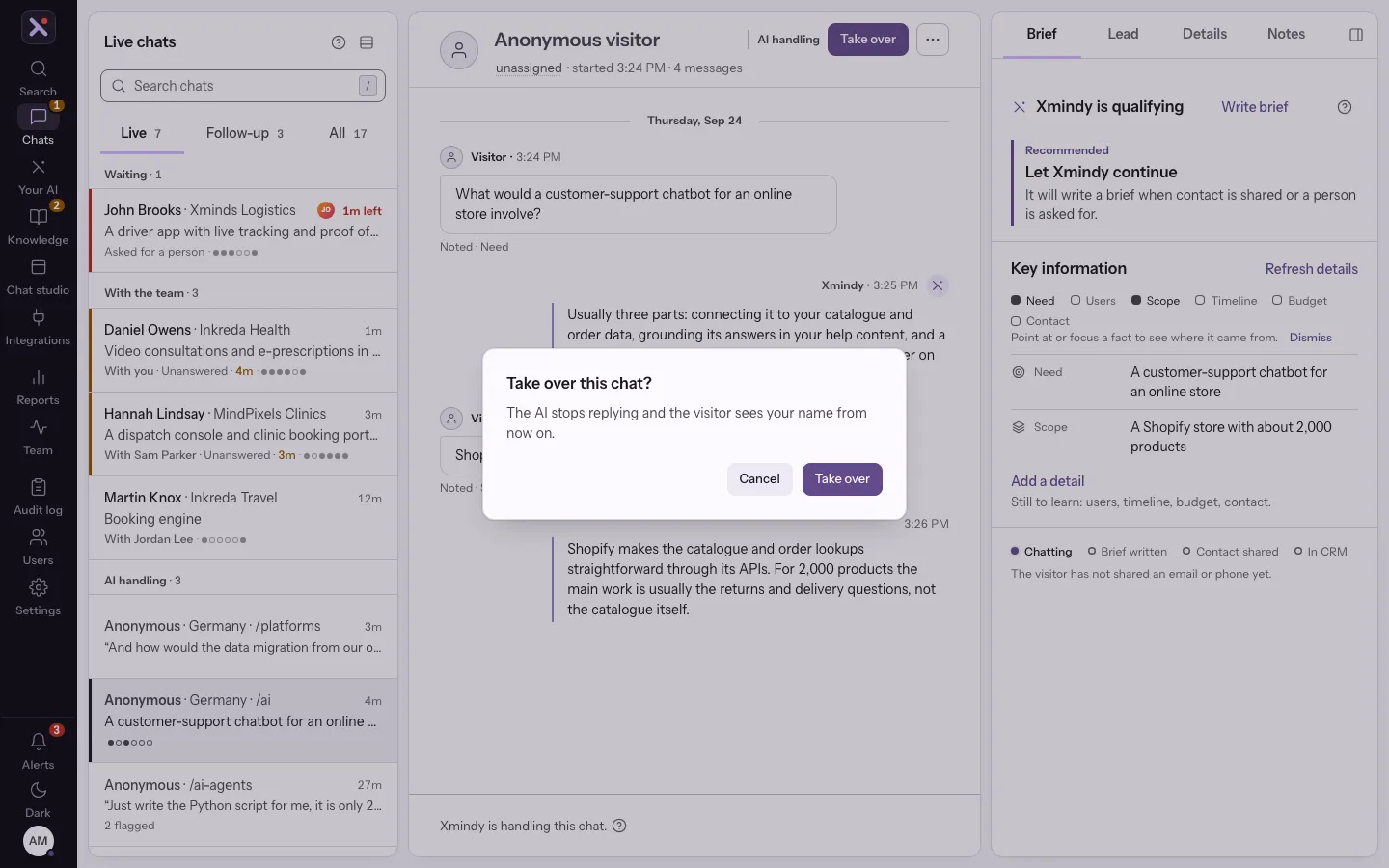
Section titled “Take over a chat”- Open a chat that is Waiting for a person or AI handling, and press Take over in the header (on a phone, at the bottom).
- A visitor who is waiting is taken over at once. For a chat the AI is handling, confirm with Take over in the window that asks “Take over this chat?”. The key
talways asks first. - “You’re in. The visitor now sees your name.” appears. The header reads With you, the reply box is ready, and a note says “The AI is paused while you’re in this chat.” (Dismiss hides it).
The visitor sees “{your name} has joined the chat.” Taking over a chat that has no owner makes you its owner. You can also take a chat over from the chat list.
Reply to the visitor
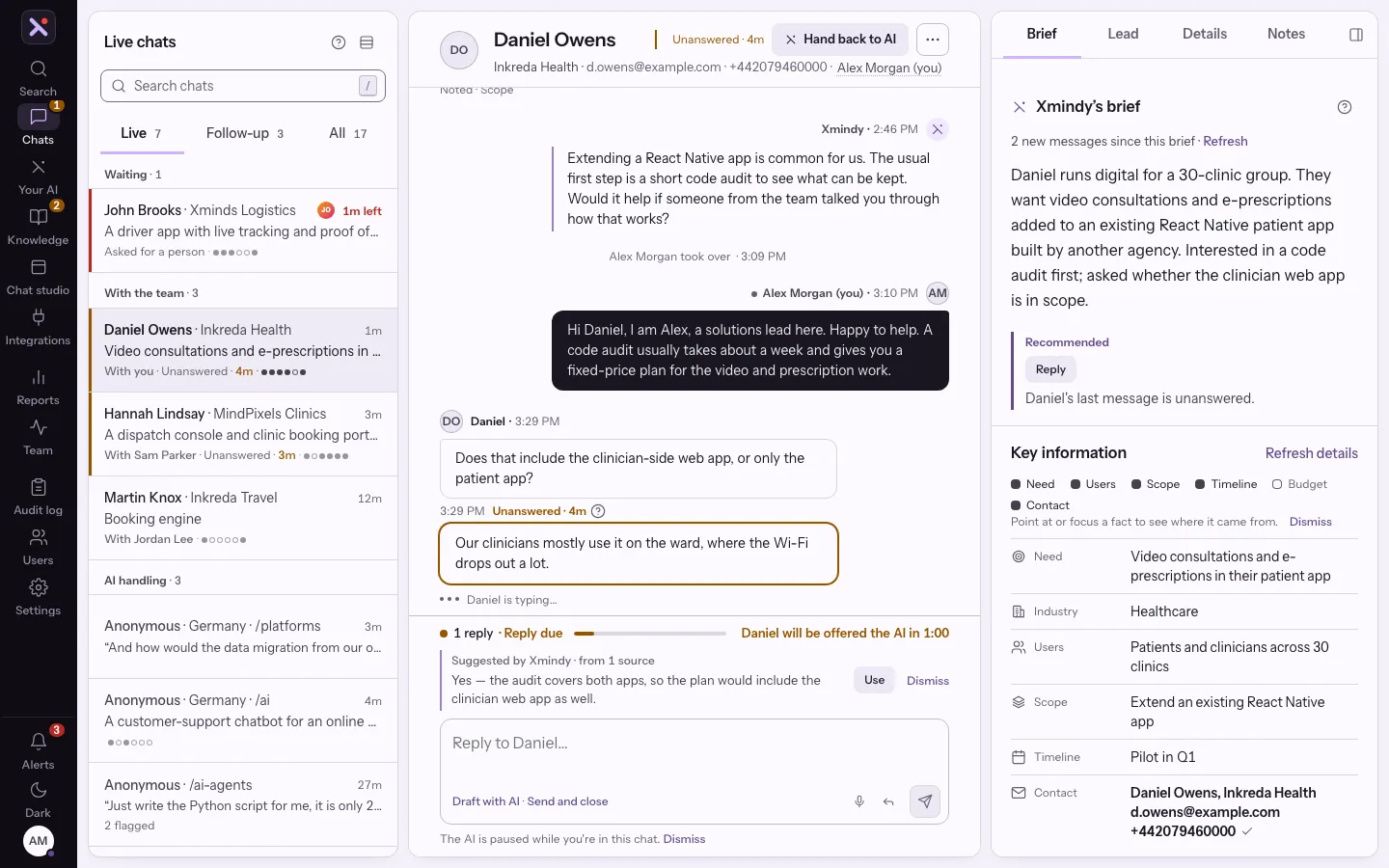
Section titled “Reply to the visitor”- Read the visitor’s last message, marked Unanswered, and the brief beside it.
- Type in the box (“Reply to John…”). The visitor sees that you are typing.
- Press
Enteror Send.Shift Enterstarts a new line. On a phone or tablet keyboard, the return key starts a new line and Send sends. - Your message shows in the transcript at once, marked “Sending…” until it is delivered.
- A message can be up to 4,000 characters. Close to the limit the box counts them (“3,850 / 4,000 characters”).
- Unsent words are kept for each chat while this browser tab is open, until you sign out.
- If a send fails, your words stay in the box and the transcript shows Not sent · Retry. Sending again never delivers the message twice.
Use a saved reply
Section titled “Use a saved reply”- Type
/in an empty box, or press Saved replies at the right of the box. - Type part of a shortcut or title to narrow the list, move with the arrow keys, and press
Enteror click a reply. - The reply goes in where your cursor is, never over what you already wrote. Read it, edit it, and send.
Fields such as {first_name} fill in as the reply goes into the box. One with nothing to fill it stays in braces, a line under the box says which (“{company} has no value here: replace it before sending”), and Send stays off until you replace it. See Saved replies.
Let the AI help
Section titled “Let the AI help”Included when your plan includes the AI’s help with replies, as it does unless your EveryKnock contact has taken it out. Without it there is no suggested reply, Draft with AI or Polish with AI, and you write each reply yourself, with your saved replies.
| Tool | What it does |
|---|---|
| Suggested reply | When the visitor’s last message has no answer and your box is empty, the AI offers a reply above the box (“Suggested by” and your AI’s name, with how many sources it used). Use (or ⌘ J, Ctrl J on Windows and Linux) puts it in the box; Dismiss drops it. On a phone it is one line; tap it to read it all. |
| Draft with AI | With the box empty: writes a reply from the chat and your knowledge. If you start typing before it arrives, it is offered above the box instead of replacing your words. |
| Polish with AI | With your words in the box: offers a clearer version above it. Replace swaps it in, Insert adds it at the cursor, Dismiss keeps yours. If you typed more since asking, only Insert is offered. |
A draft in the box reads “AI draft — review and edit before sending.”, with the pages it was based on after “Grounded in:”. It is sent only when you press Send. It keeps a link only to a page the AI used, never one the visitor typed or another page of the same website. These tools share a daily limit set by your plan.
Dictate a reply
Section titled “Dictate a reply”Where your plan includes voice typing and an Admin has set Voice typing to Team only or Team and visitors in Chat studio, the box has a microphone (Dictate a reply).
- Press the microphone and allow it in your browser the first time. A clock and a level meter show it is listening.
- Speak, then press the button again (Stop recording).
- Your words are added to the box for you to edit and send. Nothing is sent by dictating.
Esc stops and throws the recording away. A long recording stops by itself at its time limit (“Recording stopped at the time limit.”) and is turned into text.
Keep the visitor answered
Section titled “Keep the visitor answered”While the visitor’s last message is unanswered:
- the header and their message show Unanswered with how long they have waited;
- in the last minute of the wait, a line above the box counts down (“John will be offered the AI in 0:45”), amber, and the reply count beside it reads “Reply due”;
- when the wait is over it turns red: “John has been offered the AI.” and “Reply overdue”;
- after that, the visitor can go back to the AI, and your team can take the chat over again.
The wait is Wait for a team member’s reply under Talk to a person. Reminder when a visitor is left waiting alerts the team again (When to alert). The reply count above the box is the wrap-up reminder (Wrap up a long chat).
Hand the chat back to the AI
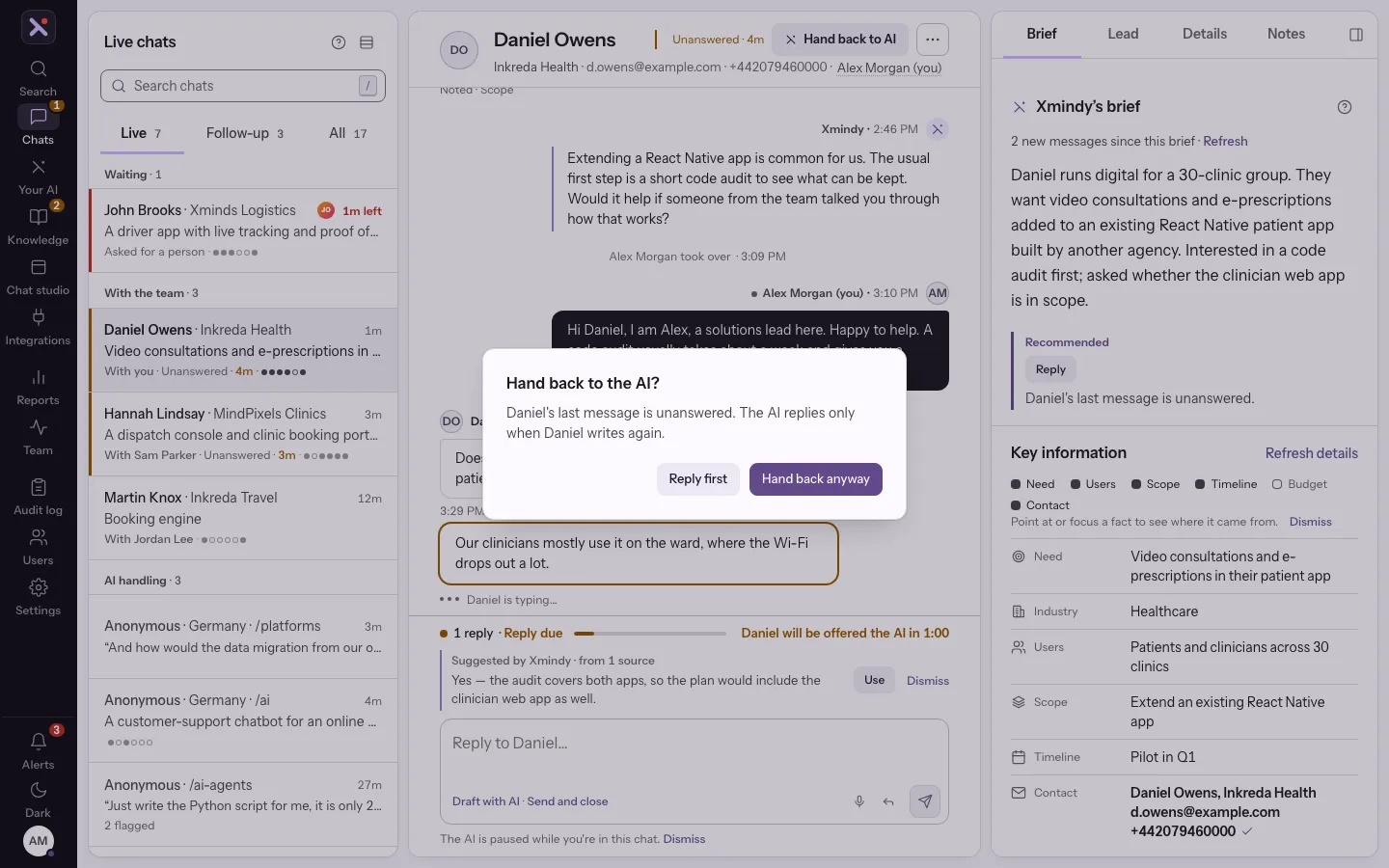
Section titled “Hand the chat back to the AI”- Press Hand back to AI in the header (on a phone, in the ⋯ menu).
- If the visitor’s last message is unanswered, or you have unsent words in the box, a window asks “Hand back to the AI?”. Reply first takes you to the box; Hand back anyway goes ahead.
- “Released back to the AI” appears and the chat reads AI handling. The AI answers the visitor’s next message, not the one left unanswered.
Words you had typed and not sent stay on screen with Copy. The visitor is told the AI is back and can ask for a person again.
A chat that has used all of its AI answers cannot go back to the AI: there is no Hand back to AI, and a note under the box says to close the chat when you are done.
Take a chat from a colleague
Section titled “Take a chat from a colleague”Supervisors and Admins only:
- Open a chat that reads With {name}.
- Open the ⋯ menu and choose Take over from {name}…. Once the colleague has not replied in time and the visitor has been offered the AI, Take over from {name} also shows in the header.
- Confirm with Take over. The visitor sees “{your name} has taken over to help you from here.”
Your colleague is notified and keeps their unsent words with Copy, and the change is recorded in the audit log. What to check first is in the guide Take a chat from a colleague.
Good to know
Section titled “Good to know”- When two people press Take over together, the first wins. The other sees “{name} took over this chat”, with no error.
rmoves to the reply box. The command palette (⌘ K) offers Take over this chat, Hand back to the AI and Send record from this chat (in your company’s word), with the same questions. Every shortcut is on Keyboard shortcuts.- What the visitor sees when you join, reply and hand back is on Talking to a person.
If something goes wrong
Section titled “If something goes wrong”| You see | What to do |
|---|---|
| “This chat can’t be taken over: a team member already has it, or it is closed.” | Someone else took it, or it closed. Open another chat. |
| “Name has this chat now, so it was not taken. Take it over from them if you still mean to.” | Another colleague took the chat first, so nothing changed. Take it over from the person now named, if you still need to. |
| “No other team member has this chat. It may have been handed back or closed, or you already have it.” | The colleague no longer holds it. Check the chat’s state and take it over the usual way if it is free. |
| “You no longer have this chat. Refresh and take it over again.” | You lost the chat (handed back, or taken by a colleague). Your words are still on screen: copy them, then take the chat over again. |
| “Too long to send: shorten it by 120 characters.” | Cut the message, or send it in two parts. |
| “Fill in {x} before sending” | Something in braces is left in the box. Replace it with the real words. |
| “The daily limit on AI assists is reached, so they are paused until earlier use is 24 hours old.” | Write the reply yourself. The AI tools come back on their own. |
| “There is no visitor message to reply to yet.” | The visitor has not written, so there is nothing to draft from. Write the reply yourself. |
| “The browser blocked the microphone. Allow it in this site’s settings.” | Allow the microphone for the dashboard in your browser, then try again. |
| “No microphone was found.” or “This browser cannot record.” | Plug in or switch on a microphone, or use another browser. Until then, type. |
| “That was too short to hear.” or “Nothing was heard. Try again a little closer to the microphone.” | Record again, longer and closer. |
| “We couldn’t turn that into text right now. Please type your reply.” | Type the reply. Dictation usually works again shortly. |
| No Saved replies button | Your company has no saved replies yet. Ask a Supervisor or an Admin to add some (Saved replies). |
Related
Section titled “Related”Reviewed
Source files for this page
services/api/app/settings/features.pyapps/dashboard/src/views/workspace/Workspace.tsxapps/dashboard/src/views/workspace/ActionBar.tsxapps/dashboard/src/views/workspace/Confirmations.tsxapps/dashboard/src/views/workspace/Composer.tsxapps/dashboard/src/views/workspace/SavedReplyPicker.tsxapps/dashboard/src/views/workspace/savedReplyTokens.tsapps/dashboard/src/views/workspace/useVoiceReply.tsapps/dashboard/src/views/workspace/ReplyClock.tsxapps/dashboard/src/views/workspace/Transcript.tsxapps/dashboard/src/views/workspace/WrapUpNudge.tsxapps/dashboard/src/views/shell/ShortcutsDialog.tsxapps/dashboard/src/views/inbox/QueueRow.tsxapps/dashboard/src/useConversationDetail.tsapps/dashboard/src/permissions.tsservices/api/app/routers/conversations.pyservices/api/app/routers/assist.pydocs/CONVERSATION.mddocs/SETTINGS.md

