Your team and account
Audit log
Who can open itViewer: noOperator: noSupervisor: yesAdmin: yes
Use the Audit log to answer “who changed this, and when?”: a setting that is not what you expected, a person who lost access, a visitor who was blocked, a chat that was closed.
Find who changed something
Section titled “Find who changed something”| You want to know | Do this |
|---|---|
| Who changed a setting, and what it was before | On the Settings page, press History under the setting. Or here: Changes, Category Settings, then Show change on the row |
| Who gave someone a role, or removed them | Press the Access changes figure, or choose Category Users |
| Everything one person did | Choose them under Person on the All tab |
| Who replaced a key or password | Press the Keys and passwords changed figure |
| Who blocked a visitor | Press the Visitors blocked figure. The row links to the chat |
| Who took over or closed a chat | Chat activity, then the person under Person; each row links to its chat |
| What happened without anyone doing it | Choose System under Person: chats closed for being idle, hand-offs that timed out, the daily clean-up |
| Who signed in, and who was refused | Changes, Category Users |
Where to find it
Section titled “Where to find it”- An Admin: Admin > Audit log.
- A Supervisor: Insight > Audit log.
Viewers and Operators cannot open it. Under a setting on the Settings page, the History link opens the log already showing that setting’s changes.
Read the log
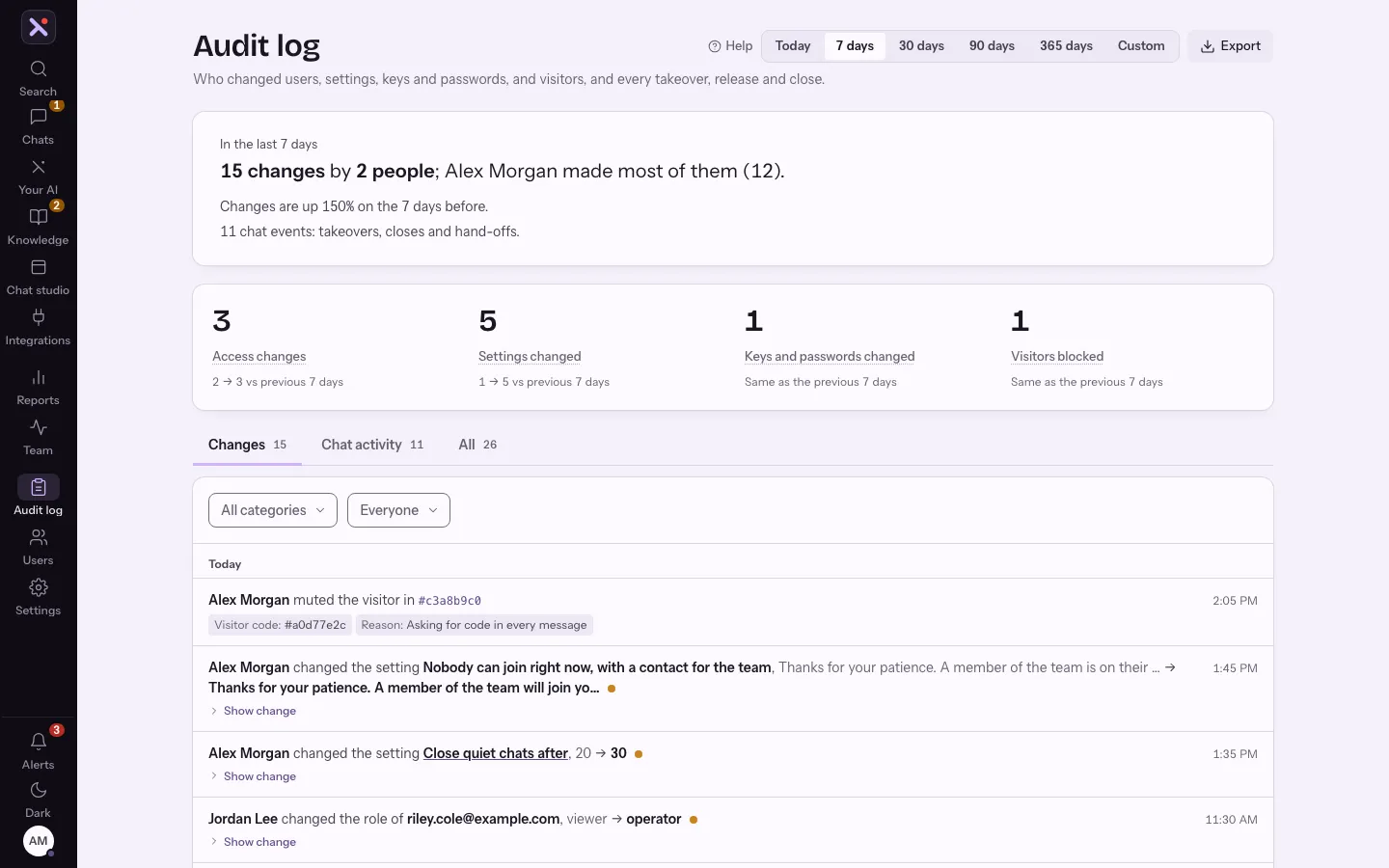
Section titled “Read the log”The page starts at the last 7 days. Use the date buttons at the top right to choose another range, up to Custom. You cannot go back further than your company keeps the log.
At the top, the headline says how many changes were made and by whom (“14 changes by 3 people; John made most of them (9).”), how that compares with the period before, and how many chat events there were. Under it, four key figures. Press one to list exactly those events; a chip over the list names the figure, and its × removes it.
| Figure | Counts |
|---|---|
| Access changes | People added, removed, given another role or a new end date, or signed out everywhere |
| Settings changed | Times someone changed the value of a setting |
| Keys and passwords changed | Times a key, password or webhook address was replaced. The values are never recorded |
| Visitors blocked | Times a visitor was blocked from chatting |
The list has three tabs:
| Tab | Shows |
|---|---|
| Changes | Everything except chat events |
| Chat activity | Takeovers, releases, closes, hand-offs and other chat events |
| All | Both |
Each tab shows how many events it holds. Narrow the list with Category (All categories, or for example Users, Settings, Keys and passwords, Saved replies, Visitors, Knowledge) and Person (Everyone, one person, or System for what EveryKnock did by itself). Someone who no longer has access is still listed, as their address with “(removed)”. A chip shows any extra filter; press its × to remove it.
Events are grouped under the day they happened: “Today”, “Yesterday”, then the date. The list shows 50 rows; Load more adds 50 older ones, and “Showing 50 of 312” says how many there are.
Each row is a sentence: who, what they did, to what, and the change, for example “John changed the setting Close quiet chats after, 20 → 30”. The time is on the right.
- Small chips carry the details. A visitor is named by the short code the Safety report also uses.
- A small dot marks a sensitive change, such as a role change, a person removed or a key replaced.
- A chat event links to its chat.
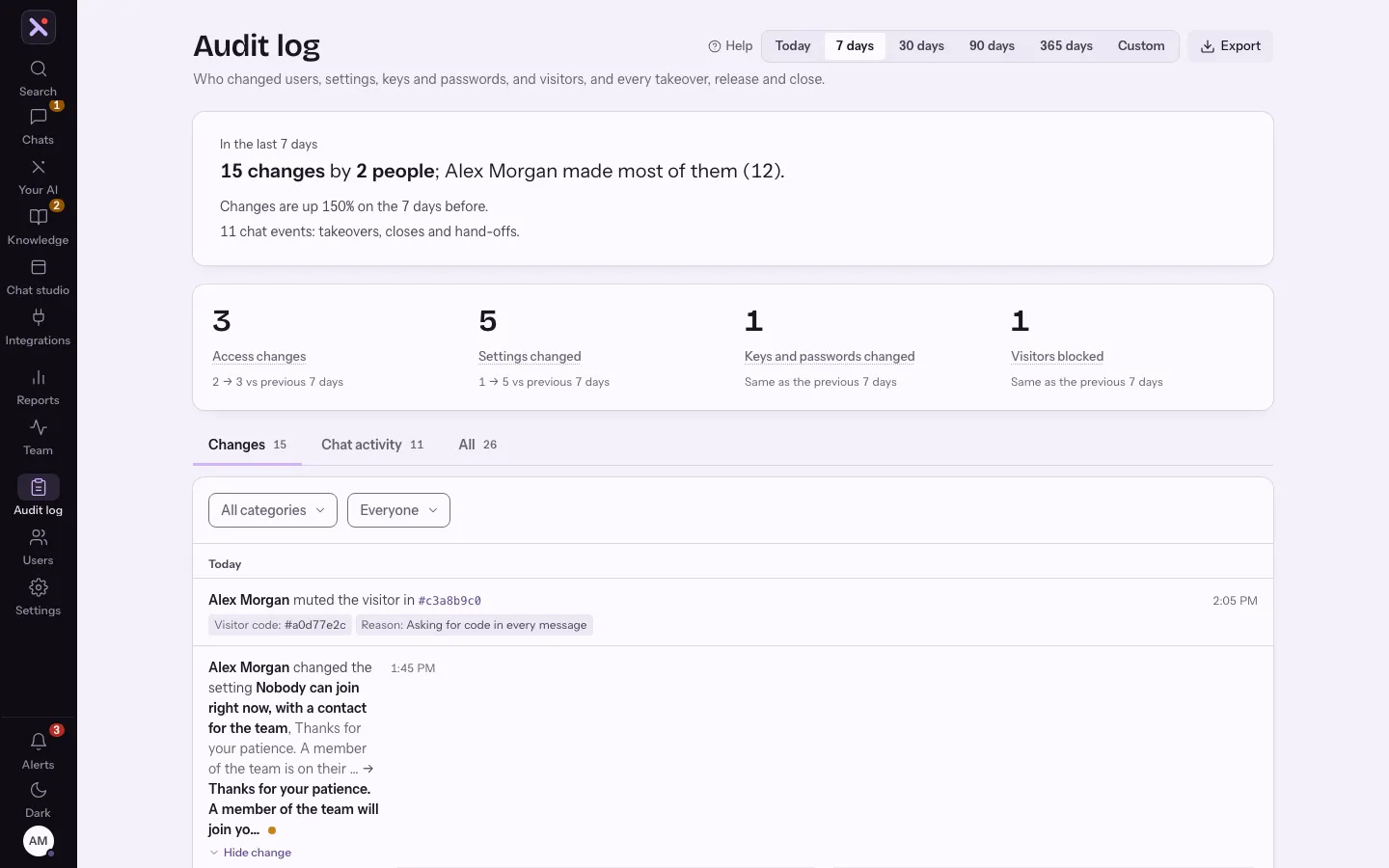
- Show change opens the whole before and after, side by side, when something is cut short or there is an earlier value. Hide change closes it.
See every change to one setting
Section titled “See every change to one setting”Press History under the setting on the Settings page, or Show every change to this setting in an opened row. The log shows only that setting’s changes over the last 90 days. Remove the chip to see everything again. A key or password works the same way.
Export the log
Section titled “Export the log”- Choose the dates, the tab and any filters: the file holds what the list shows, not the whole log.
- Press Export, then “Audit log (CSV)”. The file downloads as “audit-log.csv”.
- Open it in your spreadsheet program. Its columns are the time, the person, the action, the category, what was changed and the detail.
The rows are newest first, with times in universal time (UTC). A file holds at most 5,000 rows; when more match, a line over the list says so, and a shorter date range gets the rest. Print or save as PDF is in the same menu. Supervisors and Admins can both export.
What is recorded
Section titled “What is recorded”| Category | For example |
|---|---|
| Users | A person added, removed, given another role or end date, or signed out everywhere; sign-ins, sign-outs and refused sign-ins, including a password held off after too many wrong tries; passkeys added or removed; sign-in passwords made, changed or removed; an AI app connected or disconnected; an EveryKnock MCP client ID made or revoked |
| Settings | A setting changed, with its old and new value; the chat’s look published; your AI’s audiences, details and restricted topics saved; a CRM or webhook connection saved, tested or removed |
| Keys and passwords | A key or password replaced or tested. Never its value |
| Saved replies | Added, edited, deleted |
| Visitors | Blocked, muted, lifted |
| Knowledge | An update started or cancelled; a source, answer, file or video added, changed or deleted |
| Retention | The daily clean-up of expired chats; an Admin downloading a list of chats, or deleting one chat for good |
| Chats | Taken over, released, closed, handed to the team or back to the AI; a record sent to your CRM; a summary, detail or contact edited; a flagged reply marked reviewed; a visitor opening your booking page (recorded by System) |
Your platform administrator’s own work never appears here, except when they create your workspace, or make someone an Admin because none was left.
How long entries are kept
Section titled “How long entries are kept”| Entries | Kept for |
|---|---|
| Chat events | As long as the chat itself, then removed with it |
| Everything else | Keep the admin activity log for, under Settings > Data retention (Data retention). It cannot go below a minimum, so nobody can quickly erase the record of their own changes |
The note at the foot of the page says how long your company keeps them, and which time zone the days and times are in.
If something goes wrong
Section titled “If something goes wrong”| What you see | What to do |
|---|---|
| “Nothing matches.” | Try another category, remove a chip, or choose a wider date range |
| “The file holds the newest 5,000 of … lines.” | Export again with a shorter date range to get the older rows |
| “Failed to load the audit log” | Press Try again, or reload the page |
| A change you expected is missing | Check the Person and Category filters and the date range, and that the change is not older than what your company keeps |
Related
Section titled “Related”Reviewed
Source files for this page
apps/dashboard/src/views/AuditView.tsxapps/dashboard/src/views/audit/AuditRow.tsxapps/dashboard/src/views/audit/auditWords.tsapps/dashboard/src/views/audit/auditDetail.tsapps/dashboard/src/auditHeadline.tsshared/web/src/views/settings/panel.tsxapps/dashboard/src/views/ReportRangeControl.tsxservices/api/app/reports/audit_store.pyservices/api/app/routers/audit.pyservices/api/app/conversations/export_formats.py

