Teach your AI
Knowledge, Files
Who can open itViewer: noOperator: noSupervisor: noAdmin: yes
When it is included
Section titled “When it is included”Uploaded files are part of your plan unless the platform has taken them away for your company: ask your EveryKnock contact. Without them, Add knowledge offers no A file, your files show Not in your plan on Sources, no file can be uploaded or changed, no update reads them, and the AI stops using them until they are back. You can still see and remove them, and nothing is deleted, so they answer again when they are back.
Where to find it
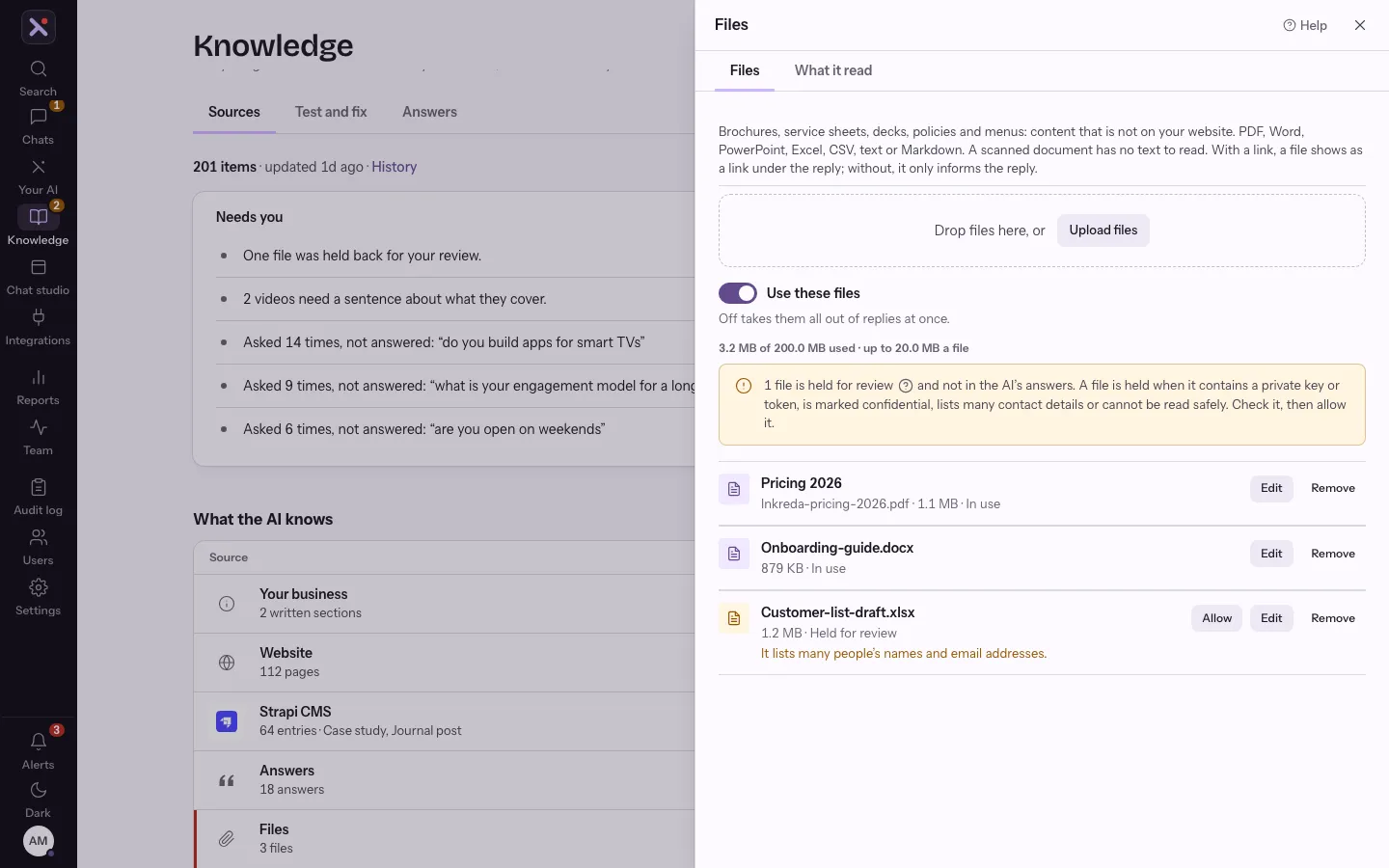
Section titled “Where to find it”Work, Knowledge, then Add knowledge and A file, or the Files row once you have one. It opens in a drawer. Once a file has been uploaded, the drawer has two tabs: Files, what you uploaded, and What it read, the text the AI took from them. Only an Admin can open it.
What you can upload
Section titled “What you can upload”| Kind of file | Good to know |
|---|---|
| The first 500 pages are read. A scanned PDF has no text to read, unless your plan includes Text in pictures | |
| Word (.docx) | Headings, text and tables are read |
| PowerPoint (.pptx) | The first 300 slides are read |
| Excel (.xlsx) | The first 20 sheets are read, each up to 2,000 rows and 40 columns |
| CSV | Up to 2,000 rows and 40 columns are read |
| Plain text and Markdown (.txt, .md) | Read as they are |
| A picture (PNG, JPEG or WebP) | Only while your plan includes Text in pictures: the words in the picture are read |
Of any file, about the first million characters of text are read; the rest is left out. Older Word, PowerPoint and Excel files (.doc, .ppt, .xls) are not taken: save them in the newer type first.
The drawer shows how much room you have used and the most one file can be (“… of … used · up to … a file”). Your platform administrator sets both.
Upload files
Section titled “Upload files”- Drop files on the drawer, or press Upload files. You can choose several at once.
- The first time, “Anyone who chats can read these files” asks you to confirm: press Upload. Your name and the time are kept with this decision.
- Each file shows how far it has got: “Waiting”, then “Uploading…” with a bar and how much has gone (“Uploading… 42%”), then “Checking the file…” while the server checks it, then “Uploaded” or “Could not upload” with the reason. Files go up one at a time, and a file the server refuses does not stop the others. Keep the page open until the last one says “Uploaded”.
- The file’s row says Waiting for an update, and about a minute later In use. Check what the AI took from it on the What it read tab, then ask a question on Test and fix.
A large file on a slow connection can take several minutes. One that gets no answer in time may still have arrived, so the list is read again: check it before adding the file again. If your sign-in ends part way, the files not sent yet say so: sign in again, then add them again.
The list shows your first 50 files, then how many it is showing with Show more for the next 50.
Give a file a title and a link
Section titled “Give a file a title and a link”A file is shown under its file name until you give it a title. With a link, a reply that uses the file shows that link under it; without one, the file only informs the reply. Visitors are never given the file itself.
- Press Edit on the file’s row.
- Type a Title of up to 200 characters, such as “Service guide 2026”.
- In Link (optional), paste a public page about the file, starting with
https://, up to 300 characters. - Press Save.
Remove files, or stop using them
Section titled “Remove files, or stop using them”- Remove on a row asks first (“Remove this file?”), then takes the file out of answers at once. It cannot be brought back: to use it again, upload it again.
- To replace a file with a newer version, remove the old one and upload the new one.
- The switch Use these files takes them all out of replies at once when off, with Undo. Switch it on to use them again.
Review a held file
Section titled “Review a held file”Before the AI uses a new file, it is checked for the plain signs of something private. A file is Held for review when it:
- contains a private key, or what looks like an access token or secret key,
- is marked confidential or for internal use, on a line of its own,
- lists ten or more different email addresses or phone numbers, or
- could not be read safely, for example because it is very large once unpacked or takes too long to read.
The reason is written under the file, a warning at the top of the drawer counts the held files, and Needs you on Knowledge shows Check it.
- Open the file on your own computer and read the part the reason points at.
- If it may be shown to anyone who chats, press Allow on its row, then Allow it. The row reads Allowed: waiting for an update, and the next update adds it. Your name is kept with the decision.
- If not, press Remove, take the private part out of your copy, and upload it again.
A file held for not being safe to read gets one more try when allowed; if it is still too heavy, it is held again. The check looks for plain signs only, which is why you confirm once that everything uploaded may be public.
What a row’s state means
Section titled “What a row’s state means”| State | Means |
|---|---|
| Waiting for an update | Uploaded, and not read yet |
| In use | The AI can use it |
| Held for review | Held back until you allow it (above) |
| Allowed: waiting for an update | You allowed it, and the next update adds it |
| Could not be read | The reason is written under it (below) |
When a file Could not be read:
| The reason says | What to do |
|---|---|
| “It has no text the AI can read, such as a scan…” | Upload a version with real text, or ask about Text in pictures |
| “It is protected with a password…” | Remove the password and upload it again |
| “It is damaged, or not really that kind of file…” | Save a new copy from the program that made it and upload that |
| “The file is empty.” | Upload the right file |
| “It was left out because your knowledge limit is full…” | Remove something you no longer need, or ask your platform administrator for more room |
| “The last update could not open it. The next update tries again.” | Nothing: it is tried again by itself |
Good to know
Section titled “Good to know”- Files are read when you upload them, never again on a schedule.
- Every upload, removal and allow is recorded in the audit log.
If something goes wrong
Section titled “If something goes wrong”A message about one box is shown under that box, and the cursor is put in it.
| What you see | What to do |
|---|---|
| “…is not a type that can be read…” | Save it in one of the types above |
| “…is larger than … MB.” | Split the file, or save a smaller copy. The drawer shows the most one file can be |
| “…is already in this source as…” | The same file is there already under the name it gives. Nothing to do |
| “…is not a valid … file: its contents do not match its type.” | The file is damaged or not what its name says. Save it again from the program that made it |
| “…is too large once unpacked to be read safely…” | Save a smaller copy, for example without large embedded parts |
| “…would take the company over its … of file storage. Remove a file first.” | Remove files you no longer need, or ask your platform administrator for more room |
| “The file could not be stored. Try again in a moment.” | Upload it again shortly. If it keeps happening, tell your platform administrator |
| “No answer came in time. Check the list below: it may have arrived. If not, add it again.” | Look for the file in the list before uploading it again |
| “File storage is not set up for this installation…” | Ask your platform administrator to set it up. Until then A file is not available |
Related
Section titled “Related”Reviewed
Source files for this page
services/api/app/rag/source_kinds.pyservices/api/app/settings/features.pyapps/dashboard/src/views/knowledge/FilesPanel.tsxapps/dashboard/src/views/knowledge/SourceDrawer.tsxapps/dashboard/src/views/knowledge/SourceDocuments.tsxapps/dashboard/src/views/knowledge/words.tsapps/dashboard/src/views/KnowledgeView.tsxservices/api/app/knowledge/knowledge_files.pyservices/api/app/routers/knowledge_files.pyservices/ingest/ingest/corpus_scan.pyservices/ingest/ingest/image_text.pyservices/ingest/ingest/file_parsers.pyservices/ingest/ingest/file_sandbox.pyservices/ingest/ingest/files_ingest.pydocs/RAG.md

