Connect your tools
Connect Teams and Slack
Who can open itViewer: noOperator: noSupervisor: noAdmin: yes
Where to find it
Section titled “Where to find it”Work > Integrations, the Microsoft Teams or Slack card under Alerts. Only an Admin can open the page. The Slack card reads Not in your plan when your company’s plan does not include Slack.
You can connect one Teams channel and one Slack channel. How the card states, Send a test and Recent activity work is on The Integrations page.
Before you start
Section titled “Before you start”- Pick the channel: everyone in it sees every alert, so use one your whole team watches.
- You need the right to add a workflow to the Teams channel, or an incoming webhook to the Slack workspace. If you do not have it, open the card and press Email these steps to my IT person: it writes the request for whoever manages Teams or Slack.
Microsoft Teams
Section titled “Microsoft Teams”- In Teams, open the channel, choose Workflows and add one that posts to the channel when a webhook request is received. Copy the web address it gives you.
- In EveryKnock, open the Microsoft Teams card, press Set beside Teams channel address, paste the address and press Save in its box.
- A test card is posted in the channel. An address Teams rejects is not saved, and the reason is shown under the box.
- Press Send a test at the top of the panel. You see “A test message was posted in the channel.” and the card reads Connected.
- In Slack, choose Apps, find Incoming Webhooks, add one and pick the channel. Copy its address: it starts with
https://hooks.slack.com/. - In EveryKnock, open the Slack card, press Set beside Slack channel address, paste the address and press Save in its box.
- A test message is posted in the channel: “The Slack webhook address was just saved from the dashboard. Alerts will be posted in this channel.” An address Slack rejects is not saved.
- Press Send a test at the top of the panel. Once it works, the card reads Connected.
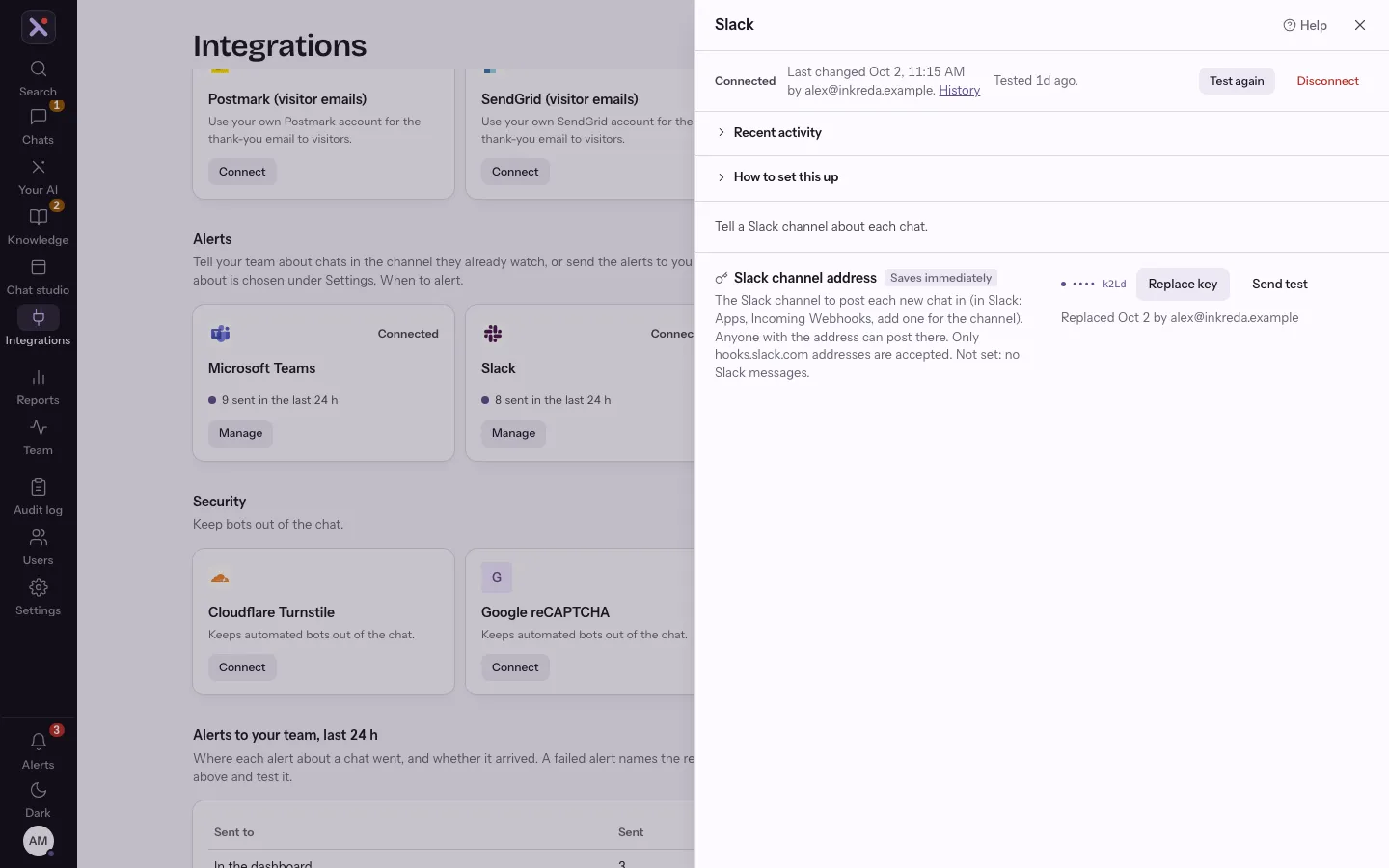
Anyone who has a channel address can post in that channel. Treat it like a password: the page shows only its last four characters.
Change the channel, pause or disconnect
Section titled “Change the channel, pause or disconnect”| You want to | Do this |
|---|---|
| Post in another channel | Make a new address for that channel, press Replace key and paste it |
| Check a channel still works | Send a test at the top of the panel, or Send test beside the address |
| Stop every alert for a while | Switch Send alerts to the team off on When to alert. The card reads Off, with Open the alert settings in its panel |
| Stop posting in this channel | Disconnect. The channel address is removed |
What is posted
Section titled “What is posted”Teams and Slack get the same alerts. Each one goes out only while its switch on When to alert is on:
| Alert | When | Its switch |
|---|---|---|
| A visitor needs a person | A visitor is waiting. The post says how long they have | A visitor asks for a person |
| A visitor went back to the AI | The visitor stopped waiting, or nobody replied in time | A waiting visitor goes back to the AI |
| A new visitor | A new chat has had the number of answers set under Alert only after the AI has answered, or asked for a person straight away | A new chat starts |
| A visitor is waiting for a reply | A team member took a chat and then went quiet | Reminder when a visitor is left waiting (0 is off) |
| A visitor left contact details | What the visitor wanted, never their email address or phone number | A visitor leaves their contact details |
Each post has a title, a few lines, the facts that matter (the visitor’s country when known) and an “Open in dashboard” link. A Teams card can also name the team members who are Available. A visitor’s words are shown as plain text: they cannot make a link or mention someone.
- A chat taken over by a colleague is not posted: only the team member whose chat it was is told.
- The system alerts (a plan limit reached, the AI not answering, a failed knowledge update) go to Teams and email, not Slack.
- An alert email says what the post says, with its facts listed under it and a button that opens the chat or the dashboard. Where a post shows only a visitor’s words (a new visitor, contact details left), the email first says what happened and lists the words as a fact. Its subject starts with your assistant’s name (or your company’s), so someone on more than one team can tell whose it is. An alert email that goes from EveryKnock’s shared sender, because your company has no mail account of its own (Send emails from your own address), names your company in its subject by the name EveryKnock holds for it instead, so nothing typed in your settings goes out under EveryKnock’s address.
- A post is never updated: one for a chat someone has since taken still reads as waiting.
Alerts to your team, last 24 h
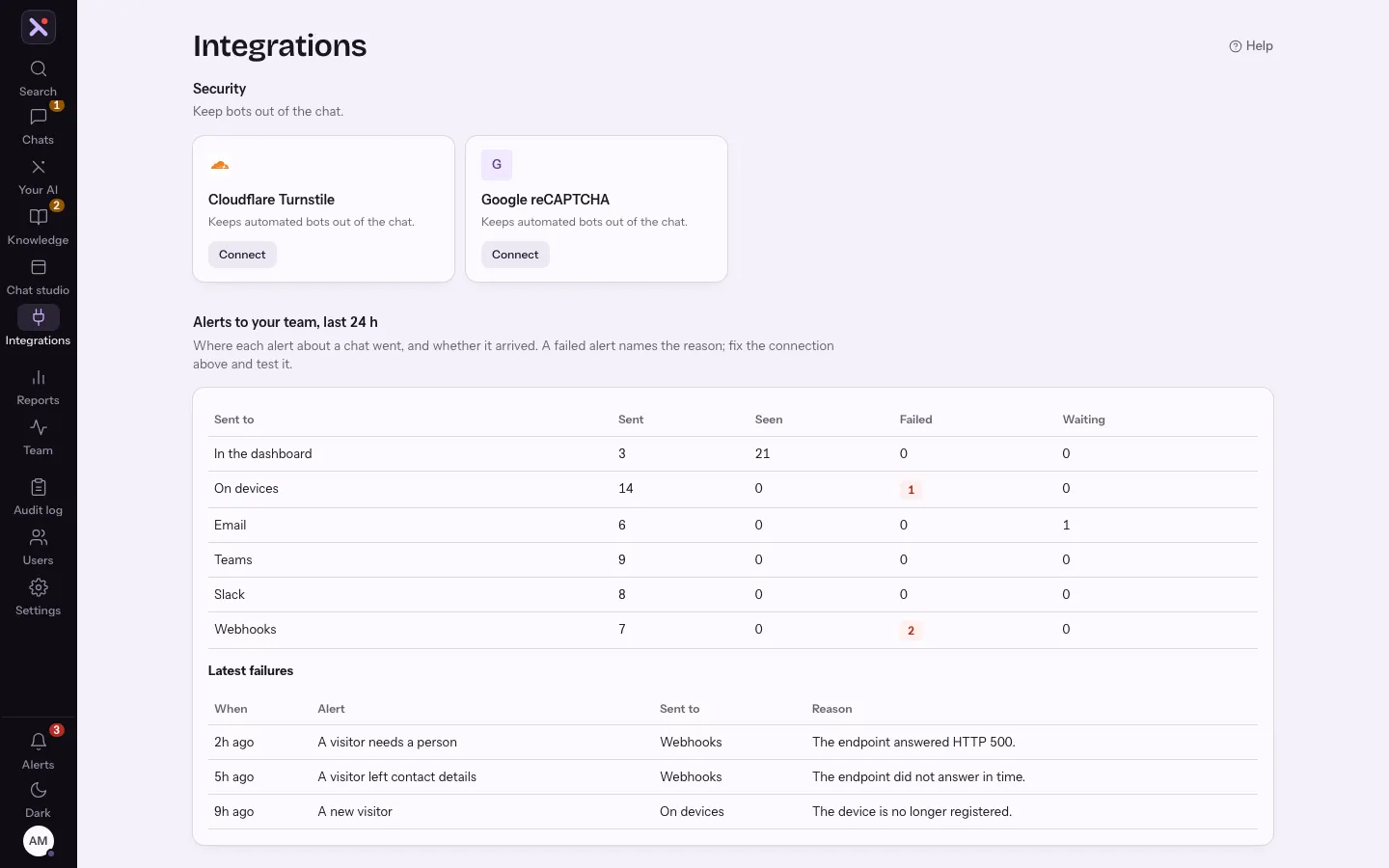
Section titled “Alerts to your team, last 24 h”Under the cards, Integrations shows how the last day’s alerts about chats reached your team. It is shown with All or Alerts chosen and nothing searched.
| Column | What it counts |
|---|---|
| Sent to | Each way alerts went: In the dashboard, On devices, Email, Teams, Slack, Webhooks |
| Sent | Accepted by the next system (the mail server, Teams, Slack, your webhook). Accepted, not read |
| Seen | Opened by a person (the bell and device alerts) |
| Failed | Given up on |
| Waiting | Still to send, or waiting to try again |
| Latest failures | When, which alert, where and why |
A connected card also sums up its own last day: “12 sent in the last 24 h”, or in red “2 failed in the last 24 h”, which also puts the card under Needs you.
A failed alert is tried again for about 45 minutes first (for a visitor waiting for a person, only while they wait), so a short outage does not count as failed. When a channel gives up on an alert, Admins get “An alert to your team did not go out” in the bell, at most once an hour.
If something goes wrong
Section titled “If something goes wrong”| What you see | What to do |
|---|---|
| “The webhook URL is refused” or “The webhook address is refused” | Paste the address exactly as Teams or Slack gives it. It must be a public https:// address |
| “Slack refused the test message (404): the webhook was removed or its channel archived.” | Make a new incoming webhook in Slack and paste its address |
| “Teams refused the test card” or “Teams answered the test card with a redirect” | The workflow was removed or changed. Make a new one and paste its address exactly as the workflow gives it |
| “Saved, but the test card could not be posted”, or “Saved, but Teams answered the test card with” a number | The address was saved, but the test did not arrive. Press Send a test in a minute; if it fails again, make a new address |
| The card reads Off | Turn on Send alerts to the team on When to alert |
| The card reads Connected but nothing is posted | The alert’s own switch is off, or nothing has happened yet. Check the switches in the table above |
| Failures in the table | Read the reason under Latest failures, fix the channel, then open its card and press Send a test |
Related
Section titled “Related”- Webhook alerts: the same alerts sent to your own system
- When to alert: the master switch and what to alert about
- Set up team hours, waits and alerts: the whole job, step by step
- Your preferences: each person’s own alerts in the bell, on devices and by email
Reviewed
Source files for this page
apps/dashboard/src/views/IntegrationsView.tsxapps/dashboard/src/views/integrations/ConnectionDrawer.tsxapps/dashboard/src/views/integrations/AlertDeliveries.tsxapps/dashboard/src/views/integrations/catalog.tsapps/dashboard/src/views/integrations/readiness.tsapps/dashboard/src/views/alertWords.tsshared/web/src/views/settings/registry.tsxshared/web/src/views/SecretField.tsxservices/api/app/notifications/events.pyservices/api/app/notifications/service.pyservices/api/app/notifications/pipeline.pyservices/api/app/notifications/deliveries.pyservices/api/app/notifications/notices.pyservices/api/app/notifications/teams.pyservices/api/app/notifications/slack.pyservices/api/app/notifications/adapters/slack.pyservices/api/app/connections/secret_probes.pyservices/api/app/routers/connections.pyservices/api/app/settings/features.py

