See how it's going
Reports: Where chats come from
Who can open itViewer: yesOperator: yesSupervisor: yesAdmin: yes
Where to find it
Section titled “Where to find it”Insight, Reports, tab Chats, section Where chats come from: press its link under the headline card, or scroll to the end. Every role can open it. Operators, Supervisors and Admins can save Sources, Campaigns, Landing pages and Countries as spreadsheet files (Export).
A chat counts in the period it started in (Reports: Chats).
The cards
Section titled “The cards”| Card | Shows |
|---|---|
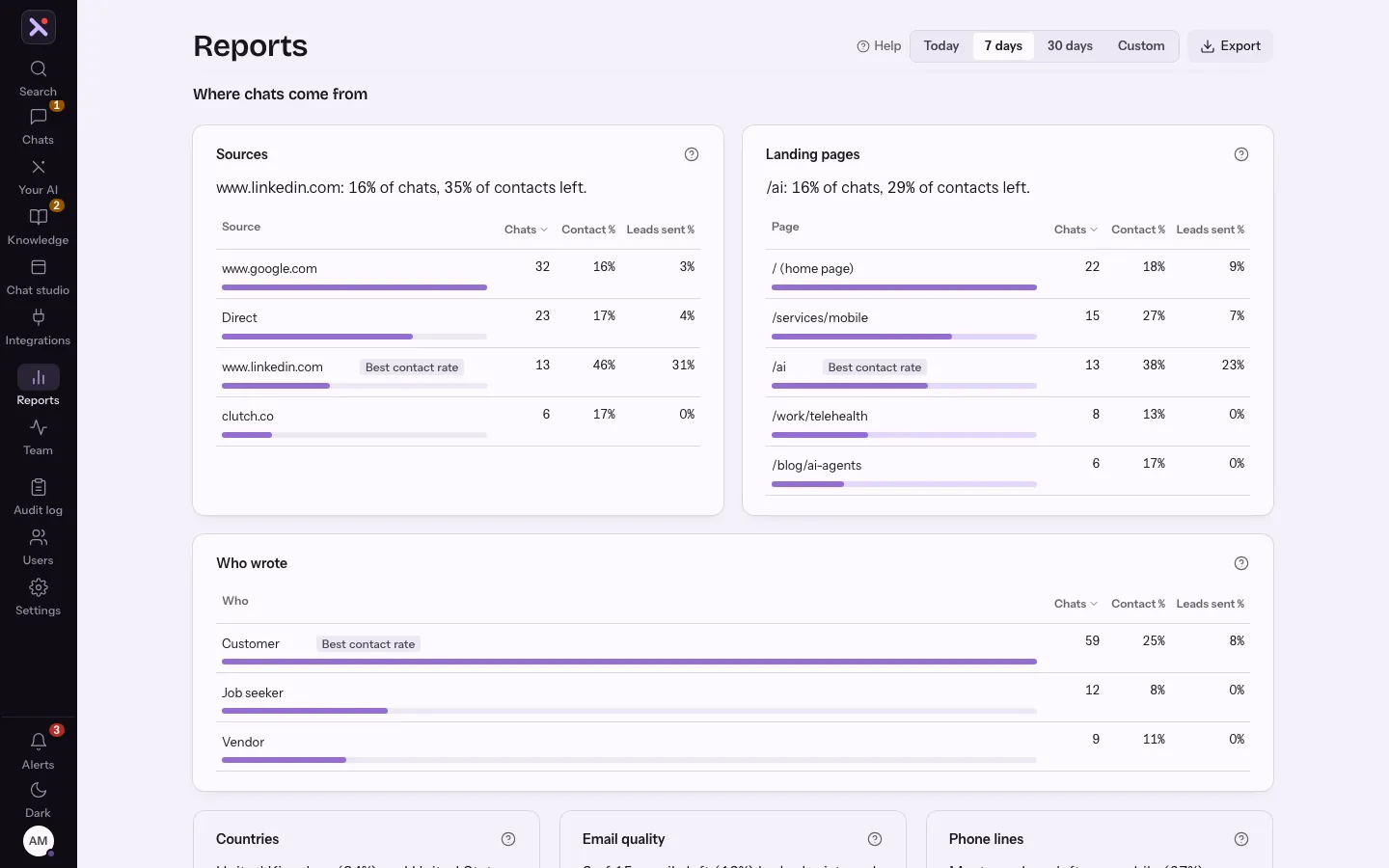
| Sources | The source named in the visitor’s link (its utm_source), else the website that sent them, else “direct” |
| Campaigns | The campaign named in the visitor’s link (its utm_campaign), so two campaigns from one source are told apart; “(none)” for a link that named none. Shown once a link has named a campaign |
| Landing pages | The page the visitor was on when they first wrote. The same page on any of your addresses counts once |
| Who wrote | Who the AI read each chat as being from, when you have several audiences (Who writes) |
| Countries | Where the visitor connected from: the five largest, and the rest as Other |
| Email quality | What the checks found about the email addresses visitors left (below) |
| Phone lines | The kind of line each number left is, such as Mobile, Landline or Internet (VoIP) |
Sources, Campaigns, Landing pages and Who wrote show Chats and Contact %, the share of that row’s chats that left contact details. Where a record can be sent, a third column gives the share whose record was sent. Press a column heading to sort by it: sort by Contact % to see which campaigns and pages bring visitors who leave their details. “Best contact rate” marks the strongest row, and a muted row has too few chats to judge by. A table holds the ten largest rows and the rest as one row, “Other (outside the top 10)”.
The sentence under a card’s title points out what stands out, for example “LinkedIn: 12% of chats, 40% of contacts left.” or a source that “brings 25% of chats and no contacts”.
Email quality
Section titled “Email quality”Of the email addresses left in the period, how many fall in each group. The checks show that an address can receive mail, never that the mailbox is the visitor’s.
| Row | Means |
|---|---|
| Domain takes mail | The address looks right and its mail service exists |
| Domain not looked up | The address looks right; its mail service was not checked |
| Likely typo | Close to a well-known address, such as a misspelt mail provider. Worth correcting before you write |
| Disposable address | A throwaway mailbox. A reply may never be read |
| Test or placeholder address | Made up, such as an example address |
| Shared inbox | An address like “info@” or “sales@” that several people read |
| Left before the checks | An older address that was never checked |
Show the report for one source, page, country or audience
Section titled “Show the report for one source, page, country or audience”Press a name in Sources, Landing pages, Who wrote or Countries to show the whole tab for that one alone. The small arrow beside a name opens its chats instead.
- “Showing only” chips under the heading, such as “Source: LinkedIn”, say what is in force. Press one to lift it; Clear all lifts several. Pressing the same name again lifts it too.
- Visitor rating and the Needs you lines about ratings, flags and questions are left out: they cannot be narrowed.
- What you narrowed to is in the page’s address, so a shared link opens the same view, and the spreadsheet files hold the narrowed tables.
Find what brings contacts
Section titled “Find what brings contacts”- Choose a range long enough to hold a fair number of chats, such as 30 days (Date range).
- In Sources, press the Contact % heading. The campaigns and websites whose visitors most often leave their details come first.
- Skip the muted rows: they have too few chats to judge by. “Best contact rate” marks the strongest row with enough chats.
- Do the same in Landing pages to see which pages start chats that lead somewhere.
- Press a source’s name to see everything else about its chats: what they came to, how they ended, which pages they started on.
- Press the small arrow beside a name to read the chats themselves.
A source with many chats and a low Contact % brings visitors who ask and leave; one with few chats and a high Contact % may be worth more of your effort.
If something goes wrong
Section titled “If something goes wrong”| What you see | What to do |
|---|---|
| “Nothing in this period.” | No chat started in these days. Choose a longer range |
| Most chats are “direct” | The visitor’s link named no campaign and no website sent them. Give the links in your adverts and emails a campaign source (a utm_source tag), so they are told apart |
| No Who wrote card | Your company has one audience only (Who writes) |
| “No emails left in this period.” or “No numbers left in this period.” | No visitor left that kind of contact detail in these days |
| A row “Other (outside the top 10)” | The table holds the ten largest rows; this row adds up the rest so the table matches the total |
Related
Section titled “Related”Reviewed
Source files for this page
apps/dashboard/src/views/AnalyticsView.tsxshared/web/src/views/reports.tsxshared/web/src/reportFindings.tsapps/dashboard/src/reportFigures.tsshared/web/src/reportRange.tsapps/dashboard/src/useReportRange.tsservices/api/app/reports/analytics_store.pyservices/api/app/contact/contact_checks.py

