Teach your AI
Who writes, restricted topics and what the AI learns
Who can open itViewer: noOperator: noSupervisor: noAdmin: yes
Where to find it
Section titled “Where to find it”Your AI in the menu, then the section of that name. Only an Admin can open the page. Saving, testing and earlier versions: Your AI. Each length and limit: the settings page linked under each list.
How every list works
Section titled “How every list works”- Press a row to open its form at the side, or the Add button under the list for a new row.
- Fill the form and press Done. If something is missing, the form says what, for example “Give this audience a name.”
- To change the order, drag a row by its handle, focus the handle and press the up and down arrow keys, or use the row’s up and down arrows (shown when you point at the row, and always on a touch screen).
- Remove, in the form, takes the row out. Until you save it stays under the list as “Removed when you save”, with Undo.
- Press Save changes at the top of the page and confirm the review.
A row you added is marked New and one you changed Unsaved. A row that still lacks something says so on its line, and the page will not save until it is filled or removed.
Who writes
Section titled “Who writes”The kinds of people who write to your chat. The AI reads each message against your descriptions and treats the writer the way you chose. Up to 8 (Who writes).
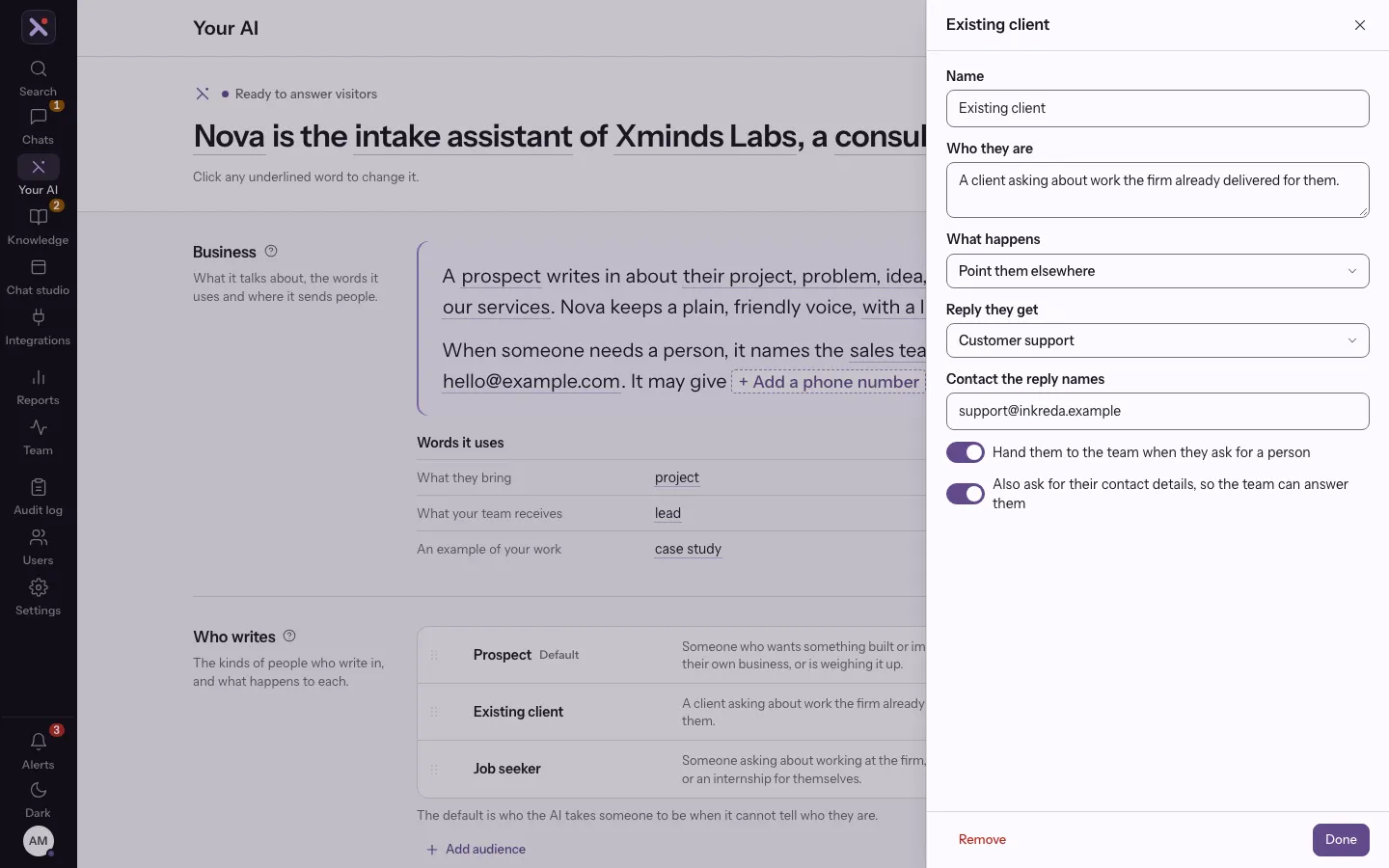
| Field | What to enter | Example |
|---|---|---|
| Name | A short name your team will recognise | Job seekers |
| Who they are | Who the person is, in a sentence. This is what the AI matches a message against | Someone asking about working here, a job opening or an internship for themselves. |
| What happens | The AI answers them, or Point them elsewhere: they get a fixed reply naming a contact, and the AI does not answer or ask them anything | Point them elsewhere |
Choosing Point them elsewhere adds four fields:
| Field | What to enter | Example |
|---|---|---|
| Reply they get | One of four ready-made replies: Careers, Customer support, Offers and partnerships or General. Their wording is on Fixed replies | Careers |
| Contact the reply names | One email address, web address or phone number. Empty: your Contact for the team | https://inkreda.example/careers |
| Hand them to the team when they ask for a person | On: asking for a person works for them as for anyone. Off: they get the reply anyway. Shown only when your company has a team in the chat | On for customers with a problem, off for people selling to you |
| Also ask for their contact details | On: the contact form opens with the reply and your team is told at once. For people your team must answer | On for customers with a problem |
The default. One audience is marked Default: a message the AI cannot place counts as theirs, so the AI always answers them and they cannot be removed. To move it, open another audience the AI answers and press Make default.
If a detail under What the AI learns is learned only from an audience you remove or point elsewhere, the page warns you before you save: the AI then learns it from everyone it answers.
Restricted topics
Section titled “Restricted topics”Subjects your chat should not simply answer, such as advice your business may not give. A new company has none: the AI answers anything within Topics the AI helps with. Up to 8 (Restricted topics).
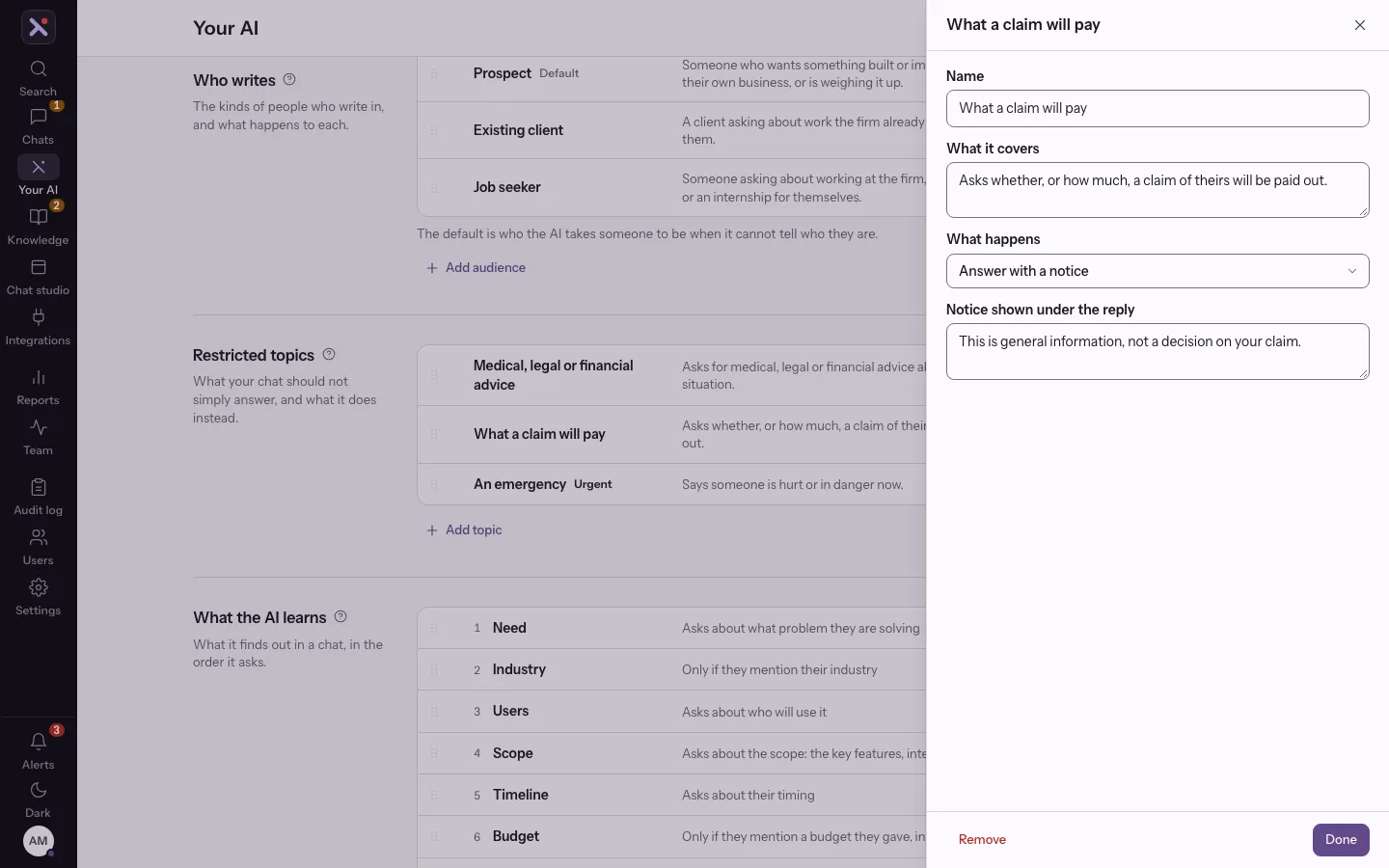
| Field | What to enter | Example |
|---|---|---|
| Name | A short name for the topic, as the list and the test chat show it | Legal advice |
| What it covers | The subject, in a sentence | Asks what the law says about their own situation, or what they should do in a dispute. |
| What happens | One of the four choices below | Answer with a notice |
| Notice shown under the reply | Only with Answer with a notice: plain text, with at most one link | This is general information, not advice on your situation. |
| Urgent | Only with Hand to a person and Give the contact: switch it on when the visitor must reach someone at once | On for an emergency |
| What happens | What the visitor gets |
|---|---|
| Decline it | A fixed reply steering them back to what you do, firmer if they ask again. No AI answer is used |
| Answer with a notice | The AI’s answer, with your notice under it |
| Hand to a person | The same as asking for a person: your team if someone can answer, otherwise your contact (Asking for a person). Not offered when your company has no team in the chat |
| Give the contact | A fixed reply naming your Contact for the team, with the contact form. No AI answer is used. A visitor who also asks for a person is handed to your team instead, when someone can answer |
An urgent topic is never held back: the visitor is handed on, or given your contact, on the first message, with no AI answer first and no booking card in a person’s place.
When a message fits two topics, an urgent one wins, then Hand to a person or Give the contact, then Decline it, then Answer with a notice, then the order of your list.
What the AI learns
Section titled “What the AI learns”The details your team wants from a chat, in the order the AI asks. In each answer the AI may ask for the first one it does not know yet, and it notes the others when the visitor mentions them. A new company has none: the AI answers, and offers contact or a person. Up to 12 (What the AI learns).
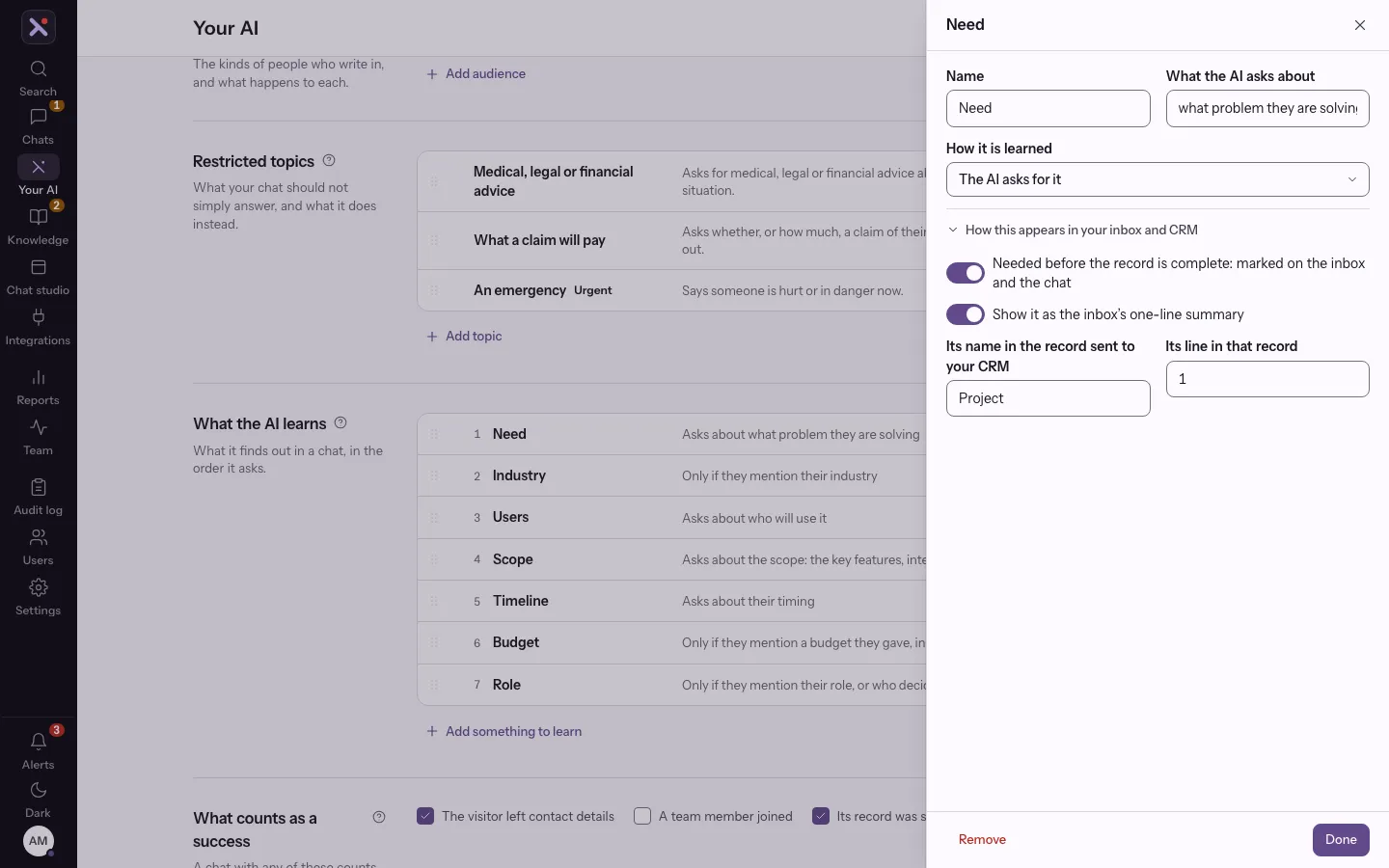
| Field | What to enter | Example |
|---|---|---|
| Name | What your team sees beside the value in a chat and in the chat list | Timeline |
| What the AI asks about | A few words that finish “asks about …”. Not a full question, and no braces | when they need it by |
| How it is learned | The AI asks for it, or Only when the visitor offers it for something you would not ask outright | Only when the visitor offers it for a budget |
| Learned from | Tick the audiences it applies to. None ticked: everyone the AI answers. Shown only when the AI answers two or more audiences | Customers only |
Open How this appears in your inbox and CRM for the rest:
| Field | What it does |
|---|---|
| Needed before the record is complete | The chat list and the open chat mark the detail as still to learn until it is known (An open chat) |
| “Show it as the inbox’s one-line summary” | Its value becomes the second line of each row in the chat list, and the line in the Contact details left alert. One detail at a time: switching it on here takes it off the other |
| Its name in the record sent to your CRM | The label the detail gets in the note your CRM receives, for example “Timeline”. Empty: left out of the note |
| Its line in that record | Its place in that note, 1 for the first line. Shown once the name is filled |
Removing a detail keeps what past chats already learned for it until those chats are deleted.
What counts as a success
Section titled “What counts as a success”Under the list, tick what Reports counts as a successful chat. A chat with any ticked outcome counts.
| Outcome | A chat has it when |
|---|---|
| The visitor left contact details | The visitor gave an email or phone number |
| A team member joined | Someone on your team took the chat over |
| Its record was sent | Its record reached your CRM or your own system |
| Resolved | It closed with an AI answer, no request for a person left unanswered, no stuck visitor and no flagged answer |
With none ticked, Reports shows the outcomes without a success rate.
Try it before you save
Section titled “Try it before you save”Press Test your AI (Test before you save) and write as each kind of person would. Why it replied this way names the audience (“It took them for: Job seekers.”), the topic (“Restricted topic: Legal advice.”) and what the chat did. A row without a name is left out of the test.
If something goes wrong
Section titled “If something goes wrong”| What you see | What to do |
|---|---|
| “Say who they are, so the AI can recognise them.” or “Say what it covers, so the AI can recognise it.” | Fill the description, then press Done |
| “Write the notice shown under the reply.” | A topic set to Answer with a notice needs its notice |
| “A company can have 8 audiences. Remove one to add another.” | Remove a row, or widen a description so one audience covers both kinds of people |
| A description is refused when you save | It reads as an instruction to the AI. Describe the person or the subject instead |
| The AI takes ordinary visitors for another audience | Make that audience’s description narrower, and test again |
| “Your company has no team in the chat, so the chat gives your contact instead.” | A topic set to Hand to a person gives your contact while nobody can be handed a chat |
Related
Section titled “Related”Reviewed
Source files for this page
apps/dashboard/src/views/settings/Audiences.tsxapps/dashboard/src/views/settings/RestrictedTopics.tsxapps/dashboard/src/views/settings/WhatTheAiLearns.tsxapps/dashboard/src/views/settings/listRows.tsxapps/dashboard/src/views/settings/listDrafts.tsxshared/web/src/views/settings/registry.tsxapps/dashboard/src/views/yourai/YourAiPage.tsxapps/dashboard/src/views/yourai/TestChat.tsxservices/api/app/company/audiences_store.pyservices/api/app/company/restricted_topics.pyservices/api/app/company/attributes_store.pydocs/CONVERSATION.mddocs/SETTINGS.md

