Answer chats
The AI's brief
Who can open itViewer: yesOperator: yesSupervisor: yesAdmin: yes
The brief saves you reading the whole transcript before you reply, and its details become the record your CRM receives.
Where to find it
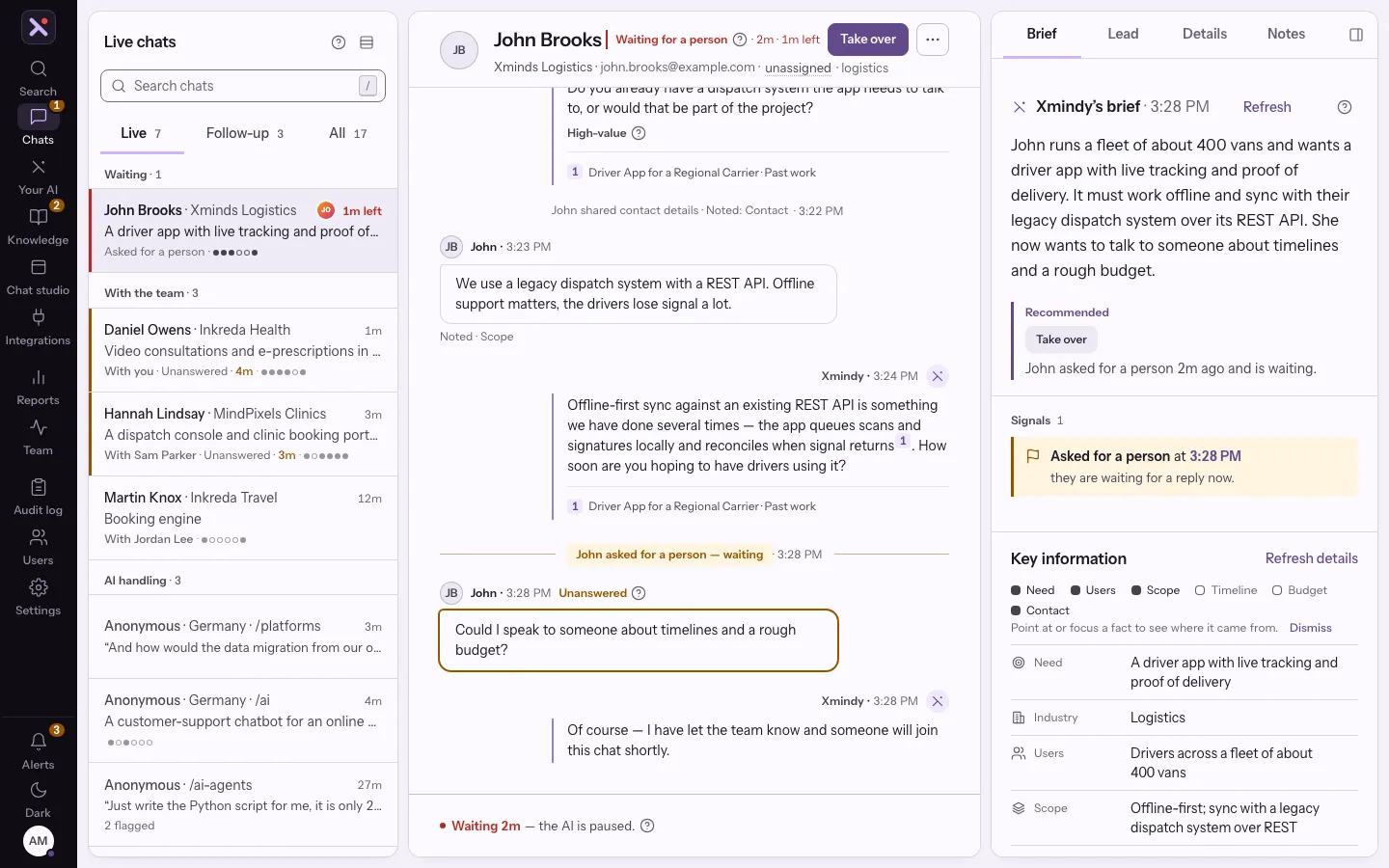
Section titled “Where to find it”Open a chat on Chats. The brief is the Brief tab beside the transcript, the band above it on a narrower screen, or the strip you tap on a phone (An open chat). What this panel means (the question mark at the top) explains its terms, and More about the brief at its foot opens this page.
What the brief shows
Section titled “What the brief shows”| Part | Shows |
|---|---|
| The summary | Who the visitor is and what they want, in two to four sentences. |
| Recommended | One next step and why. Where you can do it from here, the step is a button. |
| Signals | What changes the next step, each with the time it happened. Press the time to see the moment in the transcript. The first two show; Show all {n} signals opens the rest. |
| Key information | The details the visitor gave, in the order your company set in What the AI learns, then the contact. The squares above them show what a record needs, filled once known. “Still to learn” names what is missing, and a line says what the AI has already asked about. |
| Chat progress | Chatting, Brief written, Contact shared, In CRM, and a line saying what is left to do, such as “Send the record once the chat closes.” |
| Sources | Every page or document the AI’s replies used. Press one to read the passage the reply was based on. |
What the recommended step means
Section titled “What the recommended step means”| You see | When | What to do |
|---|---|---|
| Take over | A visitor is waiting for a person | Press it and reply (Take over and reply). A Viewer sees “Waiting for a person”. |
| Reply | You hold the chat and the visitor’s last message is unanswered | Write your reply. |
| “Wait for their reply” | You hold the chat and nothing is owed | Hand back to the AI or close when you are done. |
| “Name is handling this” | A colleague holds the chat | Nothing, unless the visitor is left unanswered (Take a chat from a colleague). |
| “Let your AI continue” | The AI is answering | Nothing. |
| “Review the abusive message” | The AI refused an abusive message | Read it; mute or block the visitor if it goes on. |
| “Review the attempt to change how the AI behaves” | The AI refused such a message | Look at what the visitor asked for before you reply. |
| Send the record | The chat closed with contact details and your CRM can take the record | Check the record and send it (Send the record to your CRM). |
| Review the record | The chat closed with contact details | Open the record tab and check it. |
| Write brief | The chat closed with contact details and no brief, and the record is not ready to send | Press it, so the record has a description. |
| “Add a name, company, email or phone” | The record has none of the four | Add one on the record card, then send. |
| “Follow up directly” | No CRM is connected | Contact the visitor yourself, or ask an Admin to connect your CRM. |
| “Follow up from the CRM” | The record was sent | Carry on in your CRM. |
| Nothing to do | The chat closed without contact details, or was marked No follow-up needed | Nothing. |
What the signals mean
Section titled “What the signals mean”| Signal | Means |
|---|---|
| Asked for a person | The visitor asked for your team. While the chat is waiting, they are waiting for a reply now. |
| “AI reply limit reached” | The AI gave its last answer, so only a person can carry on. |
| “Nobody picked up in time” | Nobody joined while the visitor waited, and the AI carried on. Follow them up. |
| “Stopped waiting for a person” | The visitor went back to the AI. You can still take over. |
| “Went back to the AI: the team member did not reply” | The team member holding the chat did not answer in time. Follow the visitor up. |
| Abusive message | The AI refused it. Consider muting or blocking the visitor. |
| “Tried to change how the AI behaves” | The AI refused. Worth a look before you reply. |
| “Asked for something off-topic”, “Asked about a restricted topic” | The AI declined. A person may be able to say what your team can do instead. |
| “Pointed elsewhere” | The AI sent the visitor to the right contact for who they are. |
| “2 off-topic messages”, “2 low-quality messages” | A count of such messages. Enough low-quality ones close the chat by itself. |
| “Shared 2 files” | The visitor attached files. They go to your team, not the AI. |
| “Corrected their contact details” | The visitor changed the email or phone they left. Use the new ones. |
| “The AI was at capacity” | The visitor was offered the contact card instead of an answer. |
When a brief is written
Section titled “When a brief is written”The AI writes a brief by itself:
- when the visitor asks for a person;
- when they first leave an email or phone number;
- when a chat with contact details closes.
| You see | Means |
|---|---|
| “Brief being written…” | One is on its way. It shows when it lands. |
| “The automatic brief didn’t arrive.” | It did not come within half a minute. Operators and above press Write it now. |
| “New messages since this brief” | The chat has moved on. Operators and above press Refresh for a new one; the old one stays readable meanwhile. |
| “No brief yet.” | Nothing has called for one. An Operator can press Write brief once the visitor has written twice. |
| “Too short for a brief.” | The chat closed with fewer than two visitor messages. |
| “No brief was written for this chat.” | The chat closed without one. Press Write brief if you need it. |
A brief an Operator edited is never written over at the close. If you press Refresh or Write brief over a description your team wrote, a window asks “Replace your edited description with a new AI summary?”: Keep my text leaves it, Replace it swaps it for the AI’s.
No brief is written by itself for a muted or blocked visitor’s chat.
Check and correct what the AI learned
Section titled “Check and correct what the AI learned”Each detail shows how sure it is:
| A detail looks | It is |
|---|---|
| Bold, with a check | Verified: the visitor submitted it, or a team member set it. |
| Regular | What the AI understood from the visitor’s words. |
| Crossed out, tagged Not right | Marked wrong by your team. It stays on show and is not sent to your CRM. |
See where a detail came from. Point at it (on a phone, tap its mark). A card shows the visitor’s own words and the time, with Show in chat to jump to the message. In one column, ← Back to brief returns you. It works the other way too: press a detail on a message’s Noted line to see it in the brief.
Change it. Operators and above can:
| To | Do |
|---|---|
| Correct a detail | Press the pencil beside it, type the right value and press Save (or Enter). Esc cancels. Your value is kept, and the AI never writes over it. |
| Correct the contact | Press the pencil on Contact, then change Name, Company or Email and press Save. The phone number is the visitor’s own and cannot be edited. |
| Say a detail is wrong | Press Not right, add a reason if you like, and press Mark not right. Restore takes it back. |
| Add a missing detail | Press Add a detail, choose which one, type its value and press Save. |
| Choose between your value and a new AI reading | When the AI has since read the visitor differently, press Use this to take its value, or Dismiss to keep yours. |
| Read the chat again for details | Press Refresh details. Details your team set stay as they are. |
Each change shows as a line in the transcript (“Sam Parker set the budget”) and is recorded in the audit log.
Good to know
Section titled “Good to know”- Writing a brief, refreshing details, AI drafts and suggestions share a daily limit set by your plan.
- A closed chat’s details and description are what your CRM receives (Send the record to your CRM).
- The squares on a row of the chat list are the same marks as in the brief.
If something goes wrong
Section titled “If something goes wrong”| You see | What to do |
|---|---|
| “There is nothing to summarise yet.” | The visitor has not written enough. Try again after their next message. |
| “That doesn’t look like a valid email address.” | Check the email you typed for the contact. |
| “The daily limit on AI assists is reached, so they are paused until earlier use is 24 hours old.” | Read the transcript instead. The AI tools come back by themselves. |
| An error in the brief with Try again | The brief or the details could not be read. Press Try again. |
Related
Section titled “Related”Reviewed
Source files for this page
apps/dashboard/src/views/workspace/Understanding.tsxapps/dashboard/src/views/workspace/understandingModel.tsapps/dashboard/src/views/workspace/Workspace.tsxapps/dashboard/src/views/workspace/receipt.tsxapps/dashboard/src/views/workspace/useDetails.tsapps/dashboard/src/views/workspace/EvidenceItem.tsxapps/dashboard/src/views/workspace/Marks.tsxapps/dashboard/src/views/workspace/brief/useBrief.tsapps/dashboard/src/views/workspace/brief/recordState.tsapps/dashboard/src/views/workspace/brief/ReplaceEditedConfirm.tsxapps/dashboard/src/inbox/primaryAction.tsshared/web/src/glossary.tsapps/dashboard/src/permissions.tsservices/api/app/routers/assist.pydocs/CONVERSATION.md

