Answer chats
The chat list
Who can open itViewer: yesOperator: yesSupervisor: yesAdmin: yes
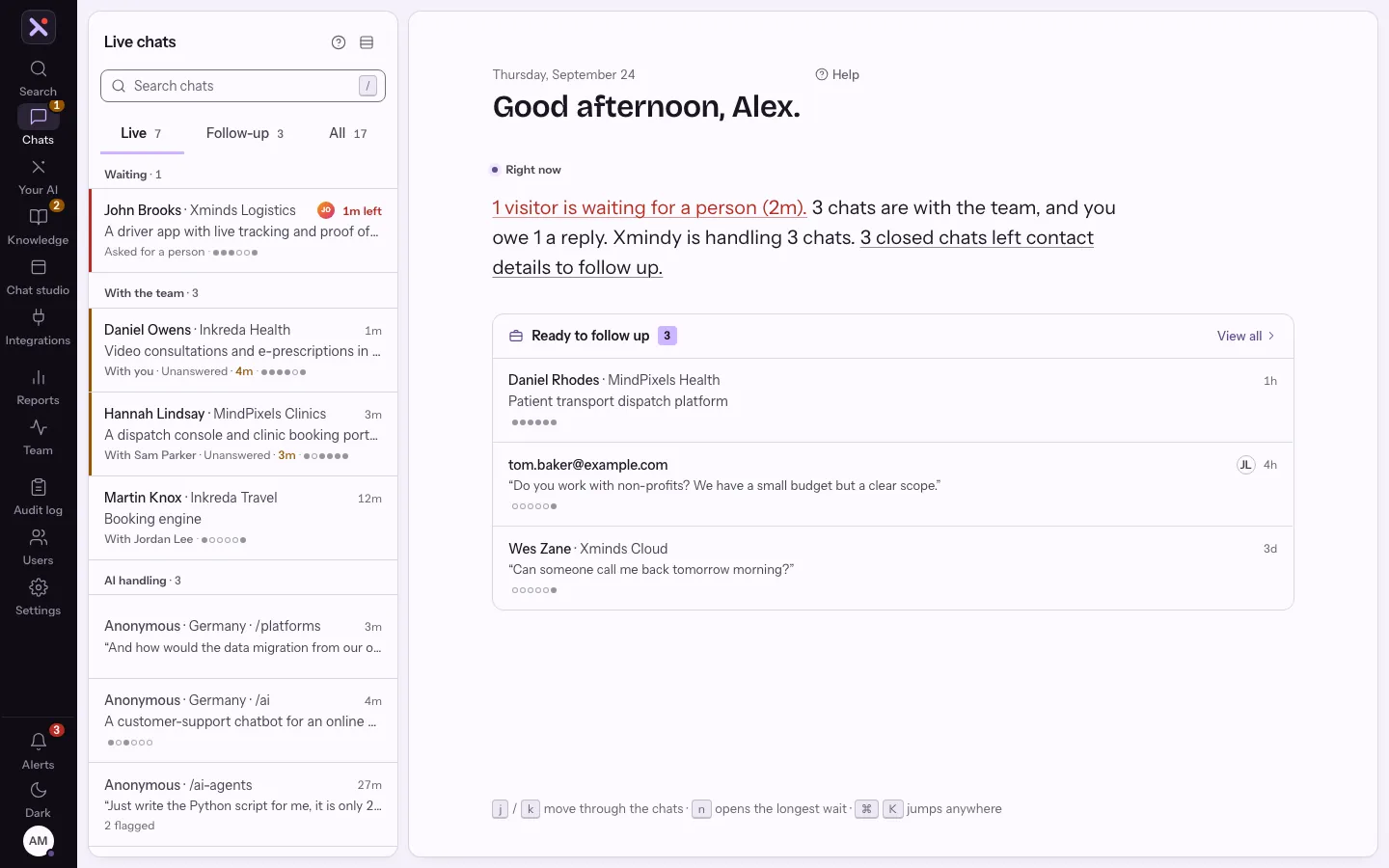
The chat list is the left side of Chats: pick a row to open the chat beside it.
Where to find it
Section titled “Where to find it”Chats in the menu. Everyone on the team can open it. The question mark beside the list’s title (What this list shows) explains the view and the squares on a row.
Choose a view
Section titled “Choose a view”| View | Shows | Order |
|---|---|---|
| Live | Every open chat, in three groups: Waiting (a visitor wants a person and nobody has taken the chat), With the team and AI handling. | Longest wait first. In With the team, the replies you owe come first. |
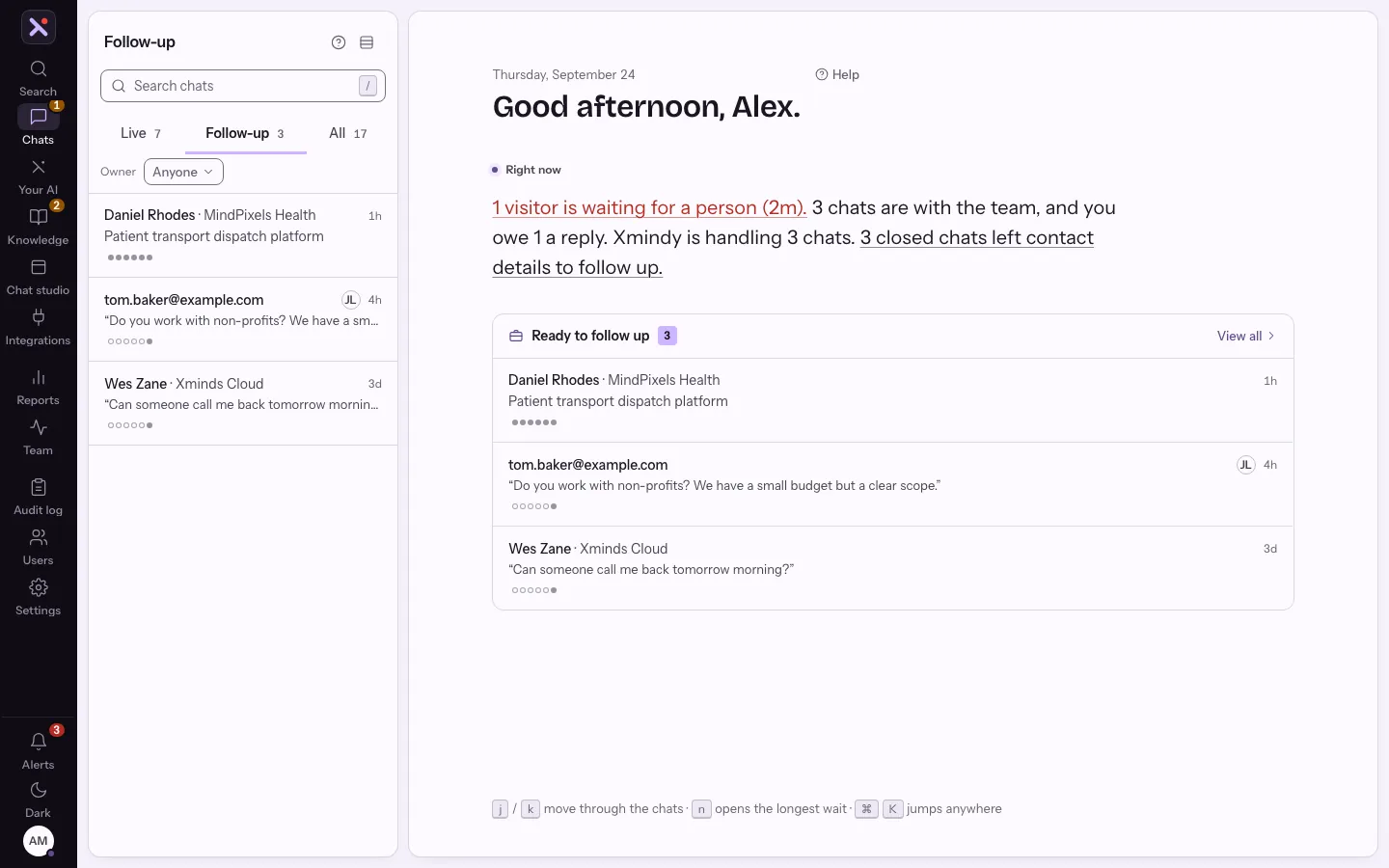
| Follow-up | Closed chats where the visitor left an email or phone number, with the record not sent and not marked No follow-up needed. | Latest first. |
| All | Every chat, open and closed. | Latest first. |
Each view shows its count beside its name; 1, 2 and 3 switch between them.
- Live. With nobody waiting, a line at the top says so (“Nothing needs attention · 3 with the AI.”, or “Nobody is waiting, but 1 chat is owed a reply.”). A long group shows its first five rows and a Show all button; Waiting and the replies you owe always show in full. Live holds up to 100 open chats, waiting and held ones first; All has the rest.
- Follow-up. Owner narrows the list to Anyone, Mine or Unassigned: the owner is whoever follows a chat up, not always who answered it. With no CRM or system to send records to, a chat a team member took over counts as followed up.
- All. The bar shows how many chats match (“17 chats”) and when the list was read (“Updated 2m ago”). Rows stay current, but a chat that starts after you opened the view appears only after Refresh. Load more at the foot brings older chats.
With no chat open
Section titled “With no chat open”The right side shows your shift:
- a greeting and Right now: who is waiting and for how long, how many chats are with the team (and how many replies you owe), how many the AI is handling and how many closed chats left contact details. A sentence that names chats links to them and is underlined; only a visitor waiting for a person is in colour, amber or red;
- Ready to follow up, the five newest chats to follow up, with View all;
- Help at the top right, which opens this page.
Before your company’s first chat it reads “Your inbox is ready”. An Admin also sees the pages to set up first, each a link: teach the AI, check what it says, put the chat on your website, set your team’s hours and alerts, and invite your team (Set up your company).
Read a row
Section titled “Read a row”| Line | Shows |
|---|---|
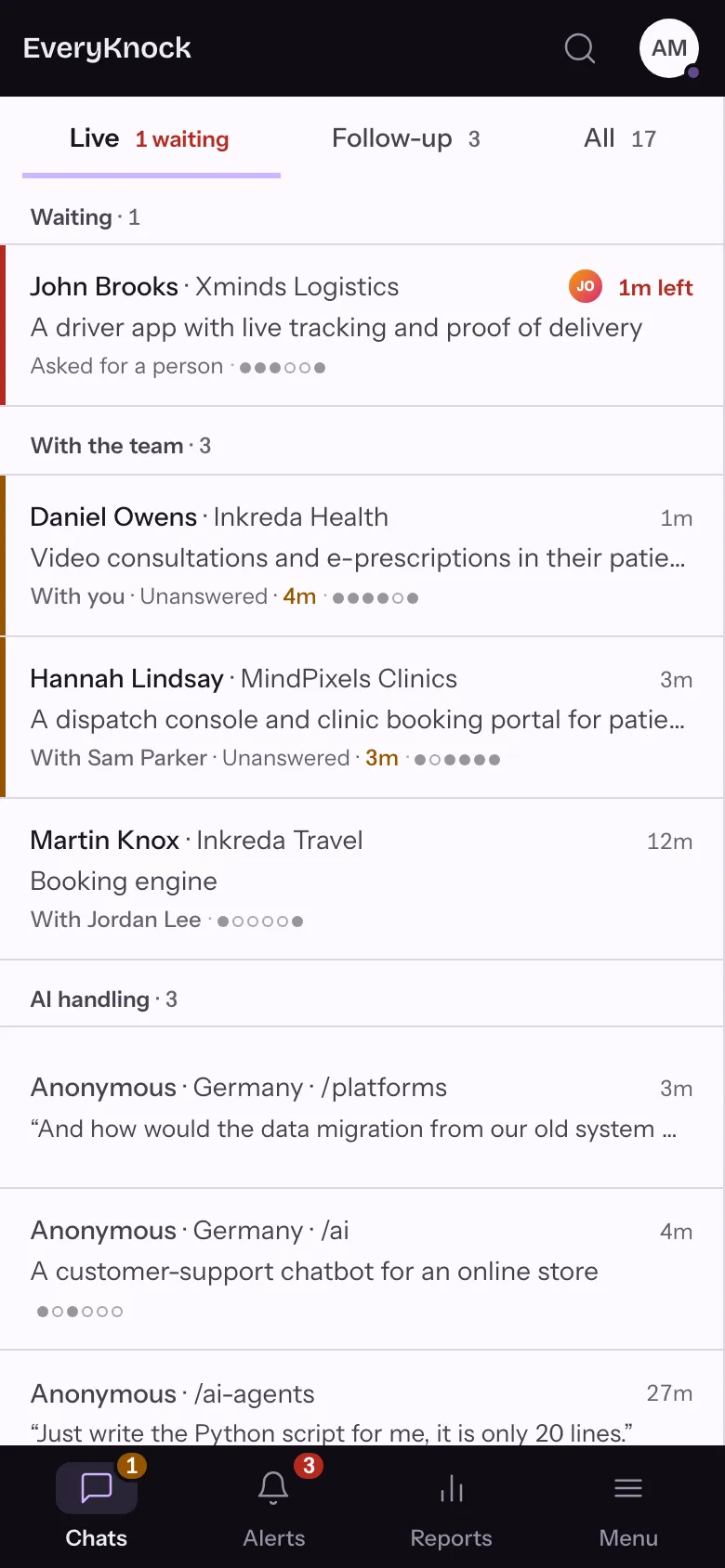
| First | The contact’s name and company, else their email or phone, else “Anonymous” with their country and the page they started on. On the right, how long the visitor has waited, or how long since the chat last changed (“3m”, “2h”, “4d”). |
| Second | What the visitor wants, as the AI understood it, else their latest message in quotation marks. In a search, the words that matched, highlighted. |
| Third | Why the chat needs you, who holds it, or how it ended (examples below). Then a square for each detail a record needs, filled once known, and one for Contact, half filled when the AI found it and nobody confirmed it. |
What the third line says:
| You see | It means |
|---|---|
| “Asked for a person” | The visitor asked for a person and is waiting. |
| “AI limit · closes in 2m” | The AI gave its last answer; the chat closes if no person joins in that time. |
| “With you · Unanswered · 4m” | You hold the chat, and the visitor’s last message has waited four minutes. |
| “With Sam Parker” | A colleague holds the chat. |
| “2 flagged” | The AI marked two of the visitor’s messages as off-topic or junk. |
| “contact shared · check email” | The email (or “check phone”) the visitor left deserves a second look: a likely typo, a throwaway address, a premium-rate number. |
| “Follow-up · contact shared · nothing sent” | Closed, with contact details, still to follow up. |
| “Lead sent ✓” (in your company’s word) | The record went to your CRM. |
| “No follow-up needed” | A team member marked it so. |
| “Closed · idle” | How a closed chat ended (The four states). |
Colours and marks:
| You see | It means |
|---|---|
| Amber edge and time | A visitor is waiting for a person, or the team member holding the chat owes a reply. |
| Red | The same, for too long: a person has been waited for over a minute, or the reply wait is over. |
| “1m left” in place of the wait | The last minute before a waiting visitor is offered the AI again. |
| A dot after the name | Something new needs a person: the visitor is waiting, or you hold the chat and they spoke last. Opening the chat clears it, in this browser. |
| Small initials after the name | The owner, or on a held chat the person holding it. |
| Small faces | Teammates who have the chat open now. |
| Grey times and no colour | The live connection is down, so the times are not current. |
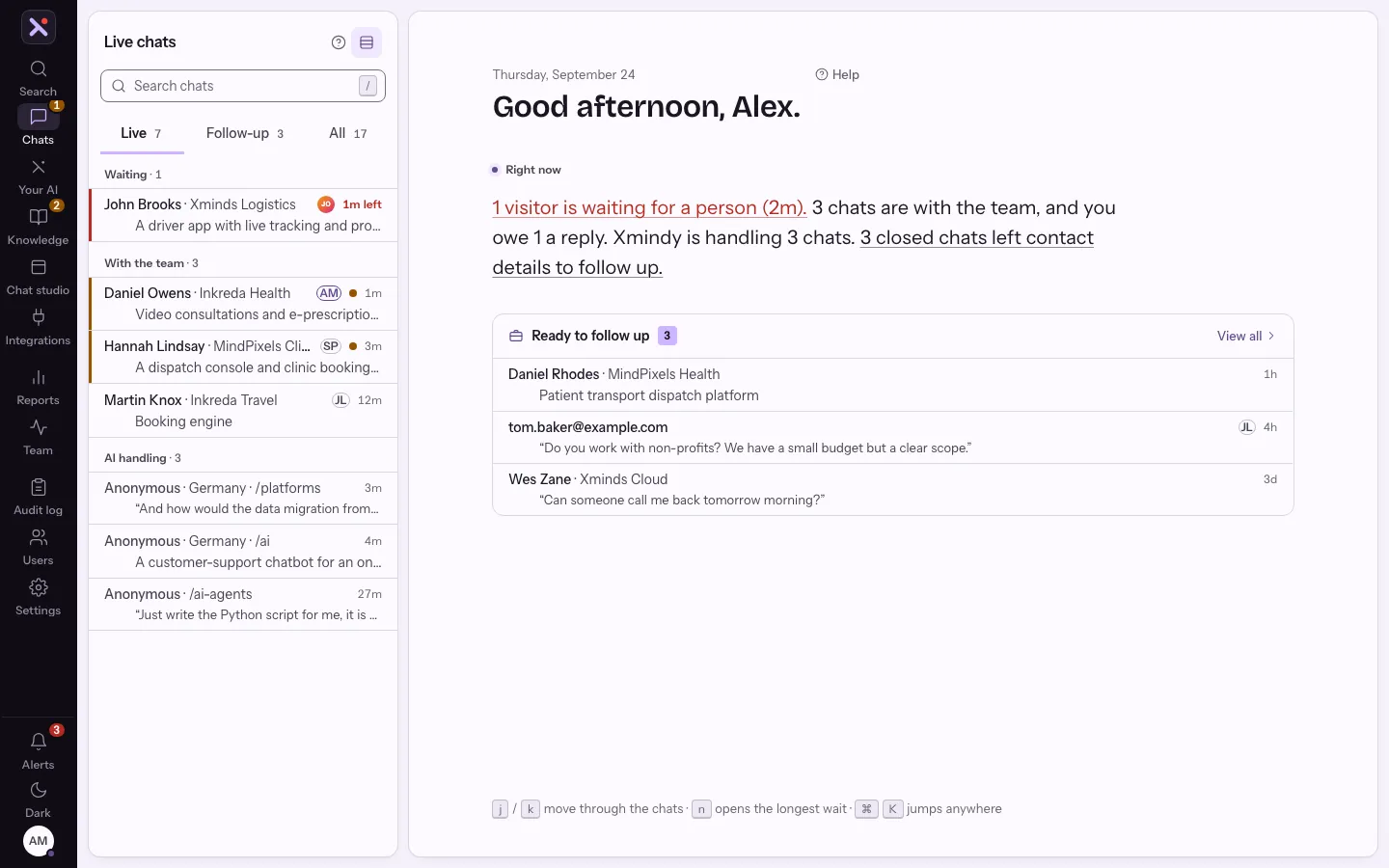
Compact rows at the top of the list shows one line per chat, about twice as many on screen (on a phone, Compact inbox in your preferences). Your browser remembers it.
Search
Section titled “Search”- Type in Search chats (or press
/). On a phone, press the magnifier at the top. - Two letters find a visitor by name, company, email, phone or chat ID. From three letters it also searches what was said, and the row shows the matching words.
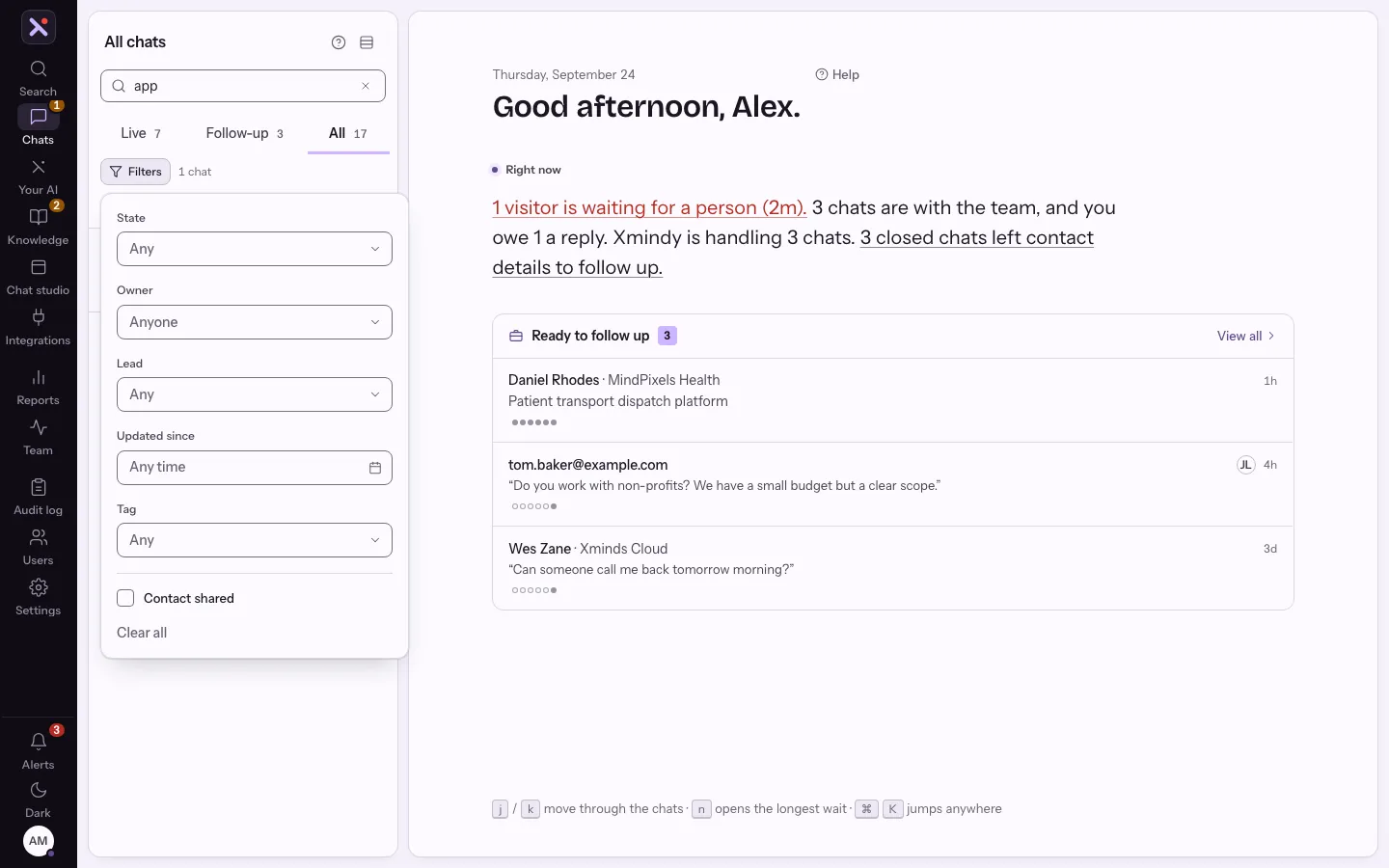
- Searching from Live or Follow-up moves you to All (“Searching all chats”). Clear the box, or press
Esc, to go back where you were.
Filter the All view
Section titled “Filter the All view”Press Filters on All. On a computer each change applies at once; on a phone, choose and press the button that shows how many chats match.
| Filter | Choices |
|---|---|
| State | Any, Waiting for a person, With the team, AI handling, Closed |
| Owner | Anyone, Mine, Unassigned, or one team member |
| The record (named in your company’s word) | Any, Sent, Not sent |
| Updated since | A date: chats that changed on or after it |
| Tag | One of your team’s tags. Shown once any chat has a tag |
| Contact shared | Tick it for chats where the visitor left an email or phone |
Each filter in force shows as a chip, counted on Filters; press a chip to remove it, or Clear all in the panel.
A figure on Reports opens All with its own filter set (a chip such as “Source: Direct” or “Who wrote: Job seeker”), a summary of those chats on the right, and a link back to the report. The weekly “Chats will be deleted soon” alert opens All with the chats about to be deleted (Data retention).
Act on a chat from the list
Section titled “Act on a chat from the list”Operators and above can right-click a row (on a touch screen, press and hold it) to take the chat over, make themselves its owner, close it, or mark it No follow-up needed, without opening it. In Follow-up and All, pick several rows (hold ⌘ or Ctrl and click, or press x) to act on all of them at once. The steps are on Act on chats from the list.
Stay up to date
Section titled “Stay up to date”You never need to reload the list.
- A new or newly waiting chat slides in. Scrolled down, a pill such as “2 new” (“1 new · needs a person”) takes you back to the top.
- The number waiting shows in the browser tab’s title (“(2 waiting)”) and on Chats in the menu.
- Operators and above choose sounds, pop-ups, push and email for new and waiting chats in Your preferences.
On a phone
Section titled “On a phone”The views are a bar at the bottom (Live shows how many are waiting), and a chat opens full screen.
Good to know
Section titled “Good to know”- The page’s address keeps the view, the open chat, the search and the filters, so a copied link opens the same list.
- CSV and Zip on All download the list as it is filtered: see Download chats.
jandkmove through the list andnopens the visitor who has waited longest. Every shortcut is on Keyboard shortcuts.
If something goes wrong
Section titled “If something goes wrong”| You see | What to do |
|---|---|
| “Reconnecting… messages may be out of date.” | The live connection dropped. It reconnects by itself, or press Retry now. |
| An error with Retry in place of the list | The list could not be read. Press Retry. |
| “No chats match these filters.” | Press Clear filters, or remove chips one by one. |
| “No chats match” with your search words | Press Clear search, or try part of a name, an email or a visitor’s word. |
| “Your chat is not on your website yet.” (an Admin, on a phone) | No visitor has written yet. Follow the links under it to finish setting up. |
Related
Section titled “Related”Reviewed
Source files for this page
apps/dashboard/src/views/inbox/Queue.tsxapps/dashboard/src/views/inbox/QueueRow.tsxapps/dashboard/src/views/inbox/useInboxList.tsapps/dashboard/src/views/inbox/ShiftHome.tsxapps/dashboard/src/views/inbox/FirstRun.tsxapps/dashboard/src/views/inbox/ReportSummary.tsxapps/dashboard/src/views/inbox/InboxSearch.tsxapps/dashboard/src/views/inbox/FiltersPanel.tsxapps/dashboard/src/views/inbox/FiltersSheet.tsxapps/dashboard/src/views/inbox/FiltersPopover.tsxapps/dashboard/src/views/inbox/DensityButton.tsxapps/dashboard/src/views/inbox/FirstSteps.tsxapps/dashboard/src/views/inbox/StaleBand.tsxapps/dashboard/src/views/inbox/NewRowsPill.tsxapps/dashboard/src/inbox/queueRow.tsapps/dashboard/src/inbox/display.tsapps/dashboard/src/inbox/inboxQuery.tsapps/dashboard/src/inbox/shiftBrief.tsapps/dashboard/src/styles/queue.cssapps/dashboard/src/views/workspace/contactNotes.tsshared/web/src/glossary.tsapps/dashboard/src/useUnread.tsapps/dashboard/src/useLiveConversations.tsshared/web/src/documentTitle.tsapps/dashboard/src/density.tsapps/dashboard/src/permissions.tsservices/api/app/conversations/conversations_store.py

